


How To Resolve QuickBooks Error 1321? Top 6 Methods

- By Jonathan Browns
- Feb 16, 2026
- Accounting
- 7 min read
Are you facing QuickBooks Error 1321 while trying to update or install the QuickBooks Desktop? Well, this issue may occur due to insufficient permissions to edit a file or interference from third-party software. When this error appears, the following message flashes on the screen:
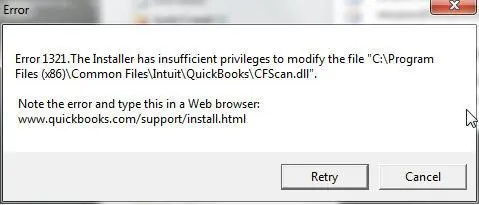
“The installer has insufficient privileges to modify the file.”
If you are also stuck with the Error Code 1321 in QuickBooks, then you are at the right place. This blog describes this error, the root causes, and the troubleshooting methods to fix the installation issue.
What Do You Understand By QuickBooks Error Code 1321?
The users often experience QuickBooks Error Code 1321 due to insufficient permissions to edit the file. Therefore, to resolve the issue, update the permissions or privileges on the parent file/folder of the file/folder or source listed in the error message.
Common Error Messages Associated with QuickBooks Installation Error 1321
The users may receive any one of the following error messages during the installation or updating of the QuickBooks Desktop.
- The installer has insufficient privileges to modify the file C:\Program Files\Intuit\QuickBooks\sdkeventl.DLL
- The installer has insufficient privileges to modify the file C:\Program Files\Intuit\QuickBooks\CfScan.DLL
- The installer has insufficient privileges to modify the file at C:\Program Files\Intuit\QuickBooks YEAR\QBONLI32.DLL
- The installer has insufficient privileges to modify the file [2]
Why do users get stuck with the QuickBooks Error Code 1321?
The users often experience QuickBooks Error Code 1321 while installing or updating the QuickBooks Desktop application. Besides this, there are multiple other factors that may cause this issue, which are as follows:
- You have set the Windows permissions for the QuickBooks company file folder to restrict access.
- The company file you are using is either damaged or in use.
- Antivirus or third-party security software, like WebRoot or McAfee, is blocking QuickBooks.
- If the file update process is faster than the file copy process.
How do I fix Error Code 1321 in QuickBooks?
The Error Code 1321 in QuickBooks mainly appears when QuickBooks fails to edit certain files at the time of installation or update. Perform the troubleshooting methods described below and fix the issue smoothly.
Method 1: Try the Update Process Again
At times, if the user fails to update QuickBooks, then retrying the update may help fix the QuickBooks Installation Error 1321.
- Hit the Retry option and let the update process finish.
- If it doesn’t work out, tap on Cancel on the error message and move to the next solution.
Method 2: Disable Antivirus Software Temporarily & Then Reinstall or Update
- Firstly, tap on the System Tray icon from the top-right, bottom of the screen.
- Right-click on the antivirus program icon and pick the suitable option to disable the program temporarily.
- If you can’t get the option to disable the program, go to your software vendor’s website. You can also look for other support options to get help with this process.
- Now, start installing QuickBooks or your update.
- Finally, re-enable your antivirus software or security software.
Important Tip: Make sure that while disabling the antivirus software, you remain connected to a good internet connection. Also, you must disconnect your PC from the internet before disabling the antivirus software. Once you are all set, re-enable the antivirus software before you try to connect to the internet again.
Method 3: Modify the Windows Permissions on the Folder
Perform the following steps to identify whether you are working on a 32-bit or 64-bit Windows version.
- Launch the Run Window by using the Windows + R keys.
- Now, insert the path for the folder containing the QuickBooks program files in the Open field. Then, hit the Enter key after entering the file path.
32-bit version of Windows (10,8,7)
Desktop Enterprise
- C:\Program Files\Intuit\Enterprise Solutions 20.0
- C:\Program Files\Intuit\Enterprise Solutions 19.0
- C:\Program Files\Intuit\Enterprise Solutions 18.0
- C:\Program Files\Intuit\Enterprise Solutions 20.0
- C:\Program Files\Intuit\Enterprise Solutions 19.0
- C:\Program Files\Intuit\Enterprise Solutions 18.0
- Pro & Premier
- C:\Program Files\Intuit\QuickBooks 2020
- C:\Program Files\Intuit\QuickBooks 2019
- C:\Program Files\Intuit\QuickBooks 2018
64-bit version of Windows (10,8,7)
Desktop Enterprise
- C:\Program Files (x86)\Intuit\Enterprise Solutions 20.0
- C:\Program Files (x86)\Intuit\Enterprise Solutions 19.0
- C:\Program Files (x86)\Intuit\Enterprise Solutions 18.0
- C:\Program Files (x86)\Intuit\Enterprise Solutions 20.0
- C:\Program Files (x86)\Intuit\Enterprise Solutions 19.0
- C:\Program Files (x86)\Intuit\Enterprise Solutions 18.0
Pro & Premier
- C:\Program Files (x86)\Intuit\QuickBooks 2020
- C:\Program Files (x86)\Intuit\QuickBooks 2019
- C:\Program Files (x86)\Intuit\QuickBooks 2018
- Open the new window and move to the View > Customize this folder option.
- From the Properties window, opt for the Security tab.
- Choose the Administrators option and mark the Allow checkbox beside the Full Control option.
- When on the Security tab, choose the Administrators option.
- Now, mark the checkbox of Allow beside the Full Control option.
- Move to the Security tab and click the SYSTEM user.
- Again, mark the Allow checkbox beside the Full Control option.
- Next, hit the OK tab to exit from the Properties window.
- Finally, start installing the QuickBooks Desktop application.
Method 4: Use the QuickBooks Install Diagnostic Tool
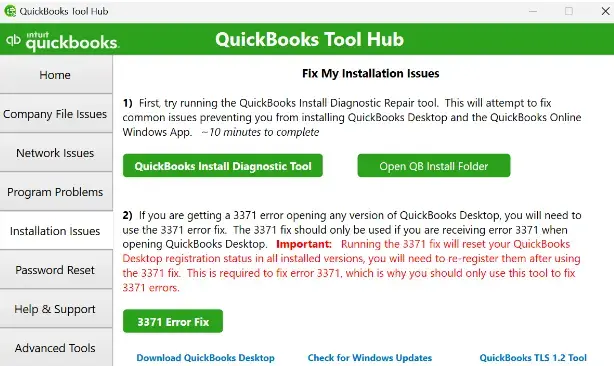
The QuickBooks Install Diagnostic is a great tool that helps users configure installation errors, such as QuickBooks Desktop Error 1321. Therefore, by running the QuickBooks Install Diagnostic Tool, you can fix this installation issue. This tool scans the possible issues with the installation of QuickBooks Desktop and then runs a repair to fix them.
Method 5: Operate the Windows System File Checker Tool
By running the Windows System File Checker Tool, you can scan and repair any file system errors. For that, you must perform these steps:
- Launch the Run window and insert CMD in the search box.
- Now, right-click on the Command Prompt option and click Run as Administrator.
- Next, input “sfc/scannow” and then hit the Enter key. With this, it will begin the scanning process. (Important Tip: You have to wait for a few minutes until the scanning process is over.
- When you are done, verify if the error still exists.
Method 6: Reinstall QuickBooks Desktop To Fix The Issue
If you are still not able to rectify QuickBooks Installer Error 1321, then try to reinstall QuickBooks Desktop. This will remove corrupted or incomplete program files and then restore file permissions. As a result, it allows QuickBooks to update and access necessary files without any issues.
Ending Words
Confronting the QuickBooks Error 1321 isn’t easy, especially when you’re stuck while updating or installing QuickBooks Desktop. But by implementing the above troubleshooting methods, you can easily fix this error. However, to prevent this issue, make sure to have proper internet access and sufficient Windows permissions to get the latest updates.
Furthermore, if you still want any expert’s supervision, you can connect with our BizBooksAdvice professionals for help.
Frequently Asked Questions (FAQ’s):-
Question 1: What is Error 1321 the installer has insufficient privileges to modify?
Ans. The QuickBooks Error 1321 may appear if the file copy service is faster than the file copy process. Other causes are interference from the antivirus or security software.
Question 2: How do I fix a QuickBooks update error?
Ans. To rectify the QuickBooks update error, make sure that you are well-connected with a stable internet connection. Shut down the QuickBooks Desktop and then try to initiate the update process once again.
Question 3: How to identify error code 1321 in QuickBooks?
Ans. You can determine the occurrence of Error Code 1321 in QuickBooks using the following indications:
- The users may discover this error during the QuickBooks installation or update process.
- You may experience a lack of permissions to edit the necessary files required for installation or update.
Question 4: What prerequisites are required to resolve QuickBooks Enterprise Error 1321?
Ans. The following are the key points to remember before fixing QuickBooks Enterprise Error 1321.
- Exit from all QuickBooks applications and related tools.
- Make sure that the user account is set to Full Control.
- Ensure that you are connected to a stable internet connection.
Question 5: Does Error 1321 occur in multi-user environments?
Ans. Yes, the users may encounter Error 1321 in single-user and multi-user modes, especially if network permissions or shared folders restrict file access.”QuickBooks Error 1321: How to Resolve Installation Issues Effectively”
About The Author

Jonathan Browns
Jonathan Brown is a trained QuickBooks professional with 10 years of experience in the accounting sector. Moreover, he is passionate about helping businesses reduce the stress of managing accounts. Also, he is proficient in assisting entrepreneurs and small business owners to use QuickBooks and enhance their accounting experience.
Recent Posts
-
9 DIY Troubleshooting Methods to Fix QuickBooks Error 15270
-
QuickBooks Data Conversion Services: Everything to Know
-
QuickBooks Point of Sale: Features, Setup, Pricing & Best Alternatives
-
QuickBooks Scheduled Backup Not Working: Common Causes & Easy Fixes
-
QuickBooks Credit Card Processing: How It Works, Fees & Benefits