


Edit Deposit QuickBooks Online: Complete Step-by-Step Guide

- By Jonathan Browns
- Oct 27, 2026
- QuickBooks Online
- 7 min read
If you have entered a bank deposit incorrectly, you may need to correct it to keep your financial records accurate. Edit Deposit QuickBooks Online is a common search for users who want to change a deposit amount, correct a date, remove an incorrect payment, or fix a bank deposit error. QuickBooks Online allows you to edit your recorded deposits, depending on the transaction type.
In this detailed blog, you will explore how to find and edit a deposit, fix common mistakes, and delete or recreate a deposit when necessary. Follow these simple steps to manage your deposits and keep your accounting records organized.
What Does Editing a Deposit in QuickBooks Online Mean?
Editing a deposit in QuickBooks Online means making changes to a deposit you have already recorded. Sometimes, you may enter the wrong amount, select the wrong bank account, or add a payment by mistake. These errors can cause your QuickBooks records to differ from your bank statement.
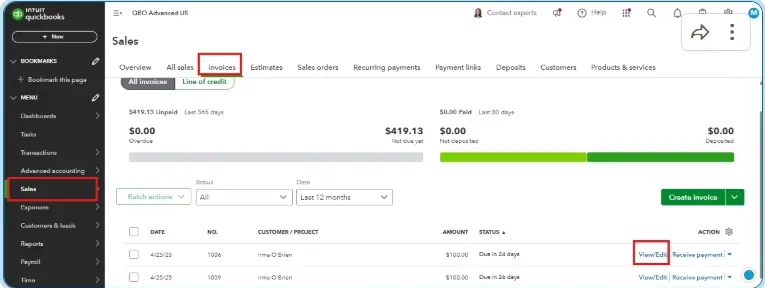
You may need to edit or deposit for multiple reasons:
- Incorrect deposit amount: The amount recorded in QuickBooks does not match the amount in your bank account.
- Wrong deposit date: You entered the wrong date and need to correct it.
- Incorrect bank account: If you have accidentally recorded the deposit in a different bank account.
- Wrong payment added: You included a customer payment that belongs to another deposit.
- Duplicate deposit: You recorded the same deposit twice.
- Missing payment: You forgot to include a payment when recording the deposit.
Before you edit a deposit, check your bank statement and review the original transaction. Make sure you understand what went wrong so you can choose the right solution.
How to Edit Deposit in QuickBooks Online?
If you have entered a deposit incorrectly, you can often correct it by opening the original transaction in QuickBooks Online. You can find the deposit through the Chart of Accounts or open it directly if you already have the transaction details.
Follow these steps to edit a deposit in QuickBooks Online.
Step 1: Open the Chart of Accounts
- Sign in to QuickBooks Online and select Accounting from the left-hand menu. Then click Chart of Accounts.
- Find the bank account where you recorded the deposit. In the Action column, select View Register to see the transactions recorded in the account.
Step 2: Find and Open the Deposit
- Look through the register to find the deposit you want to correct. Check the date and amount to make sure you have selected the right transaction.
- Click the deposit to expand its details, then select Edit if the option is available. You may also be able to open the full Bank Deposit screen by selecting the deposit link.
Step 3: Make the Necessary Changes
Review the deposit details and correct the information that is wrong. Depending on the transaction, you may be able to:
- Add or remove payments included in the deposit.
- Correct the deposit date or other editable details.
- Update available line items, descriptions, or account categories.
- Review the total to make sure it matches your bank statement.
If you need to change an individual customer payment that is already included in a deposit, you may need to remove it from the deposit first or open the original payment to make the correction.
Make sure you have corrected the right details and that the changes match the actual transaction. When edit deposit QuickBooks Online, check the information against your bank statement before saving.
Step 4: Save the New Changes
- After reviewing the details, you can select the Save and close or the available save option. If QuickBooks displays a warning about linked transactions, read it carefully before continuing further process.
- After saving, try to open the deposit again if needed and check that your changes have been saved correctly.
Step 5: Check the Updated Deposit
Now, compare the updated deposit with your bank statement. Check the date and amount to make sure they match. Also, check your bank register to confirm that you have not accidentally recorded the same deposit twice.
If the deposit was already reconciled, review the effect of your changes on the reconciliation.
Note: QuickBooks Online menus and editing options may vary depending on your interface and the type of deposit.
How to Modify a Bank Deposit in QuickBooks Online?
If you entered the wrong amount or included an incorrect payment, you may need to modify bank deposit QuickBooks Online.
- Open the Chart of Accounts and find the relevant bank account.
- Select View register option and find the deposit.
- Open the transaction and select Edit, if available.
- Make the necessary changes and save them.
- Compare the updated deposit with your bank statement.
If you cannot edit the deposit, review the linked payments and available correction options. Be careful when changing a reconciled deposit, as it may affect your accounting records.
How to Edit a Recorded Deposit in QuickBooks Online?
If you notice a mistake in a recorded deposit, open the original transaction before creating a new one. Find it in your bank account register and check whether editing is available.
If you can’t edit the deposit, you can check what went wrong. You might need to remove a payment, correct a bank feed match, or delete the deposit and enter it again. Also check the related payments before making any changes.
How to Fix an Incorrect Deposit in QuickBooks Online?
To fix an incorrect deposit in QuickBooks, you need to identify the error and correct the original transaction. The problem may involve a wrong deposit amount, an incorrect customer payment, or a transaction that has already been reconciled. The steps below explain how to handle each situation in QuickBooks Online.
Option 1: Edit an Unreconciled Deposit
If the deposit has not been reconciled, follow the steps below:
- Sign in to QuickBooks Online and open the settings.
- Select Chart of Accounts.
- Find the bank account where you recorded the deposit and select View Register.
- Locate the incorrect deposit and select it to expand the details.
- Select Edit to open the full transaction form, if available.
- Correct the information that needs to be changed. Depending on the transaction, you may be able to update payment selections or other editable details.
- Check that the deposit matches your bank statement.
- Select Save or Save and close, depending on the option displayed.
Once done, check the saved transaction to make sure the correction was successful.
Option 2: Correct a Deposit with the Wrong Customer Payment
If you included the wrong customer payment in a deposit, you may be able to remove that payment without deleting the entire deposit.
- Go to Sales & get paid, then Sales transactions, if these options appear in your QuickBooks interface.
- Find the payment you need to remove and open it.
- Select the link to the associated deposit.
- Clear the checkbox beside the incorrect payment.
- Save your changes and confirm the action if prompted.
The payment returns to Undeposited Funds, where you can include it in the appropriate deposit.
If the payment itself was applied to the wrong invoice or customer, review the original payment before making further changes. You may need a different correction depending on the error.
Option 3: Handle an Already Reconciled Deposit Carefully
If the deposit has already been reconciled, changing or deleting it can affect your accounting records and future reconciliation.
Before making changes follow these steps:
- Check the original deposit and supporting bank statement.
- Identify the exact error and determine whether the correction affects the deposit total.
- Avoid adding temporary or offsetting entries just to force the totals to match.
- Contact your accountant if you are unsure how to correct the transaction without affecting your reconciliation.
For QuickBooks Payments deposits, you can follow the official instructions for correcting payment groupings and matching deposits to your bank statement.
How to Change Deposit Date in QuickBooks Online?
You can change a deposit date in QuickBooks Online through your account register or the Chart of Accounts.
Here are the steps to change the deposit date in QuickBooks Online:
- Open Chart of Accounts: Sign in to QuickBooks Online, select Accounting, and click Chart of Accounts.
- Find your bank account: Locate the bank account where you recorded the deposit.
- Open the account register: Click View register in the Action column.
- Find the deposit: Locate the transaction you want to correct.
- Open the transaction: Choose the deposit to expand its details, and then click Edit.
- Update the date: Now, you need to enter the correct date based on your bank statement or deposit confirmation.
- Save the changes: Click Save or Save and close, depending on the option displayed.
What If the Deposit Came From Your Bank Feed?
A downloaded bank transaction may require a different process from a manually recorded deposit. If the transaction has already been matched or added to QuickBooks, review its status before making changes. You may need to undo an incorrect match or correct the existing accounting entry.
Note: If the deposit has already been reconciled, check the possible effect on your reconciliation before changing the date.
Undo Deposit in QuickBooks Online: Steps to Correct Errors
If you recorded a deposit incorrectly or matched a bank transaction to the wrong entry, you may need to undo the action. The correct process depends on whether the problem is with the deposit itself or a transaction downloaded from your bank.
Option 1: Remove an Incorrect Payment From a Deposit
If only one payment is incorrect, you may be able to remove it without deleting the entire deposit.
- Open Chart of Accounts and select the bank account where the deposit was recorded.
- Click View register and find the deposit.
- Open the deposit and select Edit, if available.
- Find the incorrect payment in the deposit details.
- Clear the checkbox beside that payment.
- Select Save or Save and close.
The removed payment returns to Undeposited Funds, where you can include it in the correct deposit.
Option 2: Undo an Incorrect Bank Transaction Match
If a downloaded bank transaction was matched to the wrong entry, you may need to undo the match.
- Open Bank transactions in QuickBooks Online.
- Select the Posted tab.
- Find the transaction that was matched incorrectly.
- Select Undo, if available.
- Review the transaction again and match it to the correct entry.
Undoing a bank transaction match returns it to the review stage. It does not automatically delete the original deposit.
Tips for Avoiding Deposit Errors
Before you undo a transaction, check whether it has already been reconciled. Changing a reconciled transaction may affect your accounting records.
If the entire deposit is incorrect, editing or deleting and recreating it may be more appropriate. Always compare the corrected transaction with your bank statement before saving your changes.
How to Delete a Deposit in QuickBooks Online?
If you have recorded a deposit incorrectly or created a duplicate entry, then you need to delete it from QuickBooks Online. Before deleting the transaction, check its details and make sure you have selected the correct deposit.
Steps to delete a deposit:
- Open your Chart of Accounts, sign in to QuickBooks Online, select Accounting, and open Chart of Accounts.
- Find the bank account where you recorded the deposit.
- Click View register next to the relevant bank account.
- Locate the deposit you want to delete and select it to view its details.
- Select Delete if the option is available.
- Review the confirmation message and confirm the deletion.
- Check the bank register and Undeposited Funds to make sure the related payments are recorded correctly.
What Happens After Deleting a Deposit?
When you delete a deposit in QuickBooks Online, the payments included in it return to Undeposited Funds. You can then create a new deposit using the correct payments.
To record the deposit again, select + New, then Bank Deposit. Choose the correct bank account, select the appropriate payments, verify the deposit total, and save the transaction.
Things to Check Before Deleting a Deposit
- Make sure the deposit is genuinely incorrect or duplicated.
- Check whether the deposit has already been reconciled.
- Review the payments included in the deposit.
- Avoid creating a duplicate entry when editing the original transaction would solve the problem.
If the deposit has already been reconciled, consider consulting your accountant before deleting it, as the change may affect your accounting records.
How to Fix QuickBooks Deposit Entry Error?
To fix a QuickBooks deposit entry error, first find the incorrect transaction and identify what went wrong. You may need to correct the deposit amount, change the date, remove an incorrect payment, or delete a duplicate entry. The right solution depends on the type of error and whether the deposit has already been reconciled.
Option 1: Edit or Correct the Deposit Directly
If the deposit contains incorrect information, you may be able to edit the original transaction in QuickBooks Online.
- Open QuickBooks Online and go to Accounting and select Chart of Accounts.
- Find the bank account where the deposit was recorded.
- Select View register to open the account register.
- Find the incorrect deposit and select it to view its details.
- Open the full deposit form by selecting Edit, if available.
- Once done, correct the relevant details, such as the date or payment selections, depending on the available fields.
- Review the deposit total and compare it with your bank statement.
- Select Save or Save and close, depending on the option displayed.
After saving, review the transaction to make sure the changes are correct.
Option 2: Delete and Recreate an Incorrect Deposit
If the entire deposit was recorded incorrectly, you may need to delete it and create a new one. However, if only one payment is wrong, removing that payment may be sufficient.
To delete a deposit:
- Open Accounting and choose the Chart of accounts.
- Find the bank account containing the deposit and select View register.
- Locate the deposit and open its details.
- Select Delete, if available.
- Check the confirmation message before proceeding.
- To record the deposit again, select + Create or + New, then choose Bank Deposit.
- Select the correct bank account and date.
- Choose the appropriate payments from the list and verify the total.
- Save the new deposit.
When you delete a deposit, its included payments return to Undeposited Funds. Review those payments before creating the replacement deposit to avoid mistakes.
Option 3: Correct Bank Fees or Deposit Differences
- If the amount in QuickBooks does not match your bank statement, first find the reason for the difference.
- Check whether a bank fee was charged, a payment was omitted, an incorrect payment was included, or the deposit was recorded twice.
- If your bank charged a genuine fee, record the fee separately using the appropriate expense account and transaction type. Do not change the original sales or customer payment simply to make the deposit total match.
- If a payment is missing or incorrectly included, correct the deposit or its linked payment as appropriate. Make sure the final accounting records reflect the actual transactions shown on your bank statement.
- Do not add random negative amounts just to make the deposit total match your bank statement.
What If the Deposit Is Already Reconciled?
Be careful when editing or deleting a reconciled deposit, as it may affect your financial records. Check the transaction and bank statement before making changes. If you are unsure, ask your accountant for help.
Note: QuickBooks Desktop has Verify Data and Rebuild Data tools for fixing company file issues. These tools are not available in QuickBooks Online.
Common Mistakes to Avoid When Editing Deposits in QuickBooks Online
When you edit a deposit in QuickBooks Online, a small mistake can affect your accounting records. Keep these common mistakes in mind:
- Deleting the wrong deposit: Always check the date and amount before deleting a transaction.
- Creating duplicate deposits: Check your bank register before recording the deposit again.
- Ignoring bank fees: Record genuine bank fees correctly instead of changing the deposit amount unnecessarily.
- Changing reconciled deposits carelessly: Review the reconciliation status before editing or deleting a deposit.
- Selecting the wrong payments: Check the included customer payments to ensure they belong to the correct deposit.
- Forgetting to review changes: After saving, compare the updated deposit with your bank statement.
By following these simple tips, you can avoid the errors and keep your QuickBooks Online records accurate.
Final Thoughts
Knowing how to edit deposit QuickBooks Online transactions can help you fix common errors and keep your financial records accurate. Whether you need to correct a deposit amount, change a date, remove an incorrect payment, or delete a duplicate deposit, always review the original transaction before making changes. Check your bank statement to ensure the updated details are correct.
By following these steps, you can manage deposits more confidently and avoid common accounting mistakes.
Frequently Asked Questions
How do I edit a deposit in QuickBooks Online?
Open the Chart of Accounts and select View Register for the relevant bank account. Find the deposit and open its details. If editing is available, make the necessary changes and save them. Check the updated transaction against your bank statement.
Can I change the deposit date in QuickBooks Online?
Yes, you may be able to change the deposit date if the transaction allows editing. Open the original deposit from your bank account register, select Edit if available, and enter the correct date. Save your changes and check whether the update affects your reconciliation.
How do I delete a deposit in QuickBooks Online?
Open Chart of Accounts and select View Register for the bank account containing the deposit. Find the transaction, open its details, and select Delete if available. Before confirming, check the included payments and reconciliation status to avoid affecting your accounting records.
How do I remove an incorrect payment from a deposit?
If you added the wrong customer payment, open the associated deposit and look for the payment in its details. If the option is available, clear the checkbox beside the incorrect payment and save your changes. Check that the payment returns to Undeposited Funds and can be included in the correct deposit.
Can I undo a deposit in QuickBooks Online?
The correct steps depend on the type of error. If you matched a downloaded bank transaction incorrectly, open Bank transactions and find the transaction under Posted. Select Undo if available, then review and match it correctly. Remember that undoing a bank-feed match does not automatically delete the original deposit.
Why doesn’t my QuickBooks deposit match my bank statement?
Your deposit may not match because of a missing payment, wrong amount, duplicate entry, or bank fee. Compare your QuickBooks deposit with your bank statement to find the error. Correct the mistake and check the amount again.
Can I edit a reconciled deposit in QuickBooks Online?
Yes, but be careful. Editing a reconciled deposit can affect your accounting records and reconciliation. Check the transaction and your bank statement before making changes. If you’re unsure, ask your accountant for help.
About The Author

Jonathan Browns
Jonathan Brown is a trained QuickBooks professional with 10 years of experience in the accounting sector. Moreover, he is passionate about helping businesses reduce the stress of managing accounts. Also, he is proficient in assisting entrepreneurs and small business owners to use QuickBooks and enhance their accounting experience.
Recent Posts
-
Edit Deposit QuickBooks Online: Complete Step-by-Step Guide
-
How to Fix QuickBooks Error 6189 816 & Restore Company File Access
-
What Causes & How to Fix QuickBooks Error 15223 Efficiently?
-
QuickBooks Library Files Failed: How to Fix Error 80029c4a
-
How to Fix QuickBooks Error OL-301 (Bank Connection Issue)?