


How to Fix QuickBooks Error 12157? (Update Failure Issue)

- By Jonathan Browns
- Dec 03, 2025
- Accounting
- 7 min read
The QuickBooks Error 12157 belongs to the 12XXX series of errors, which is a connection-related issue that often appears while updating the QuickBooks Desktop application. Other factors that might be responsible for this issue include a misconfigured system’s date and time, improper internet settings, or flaws with the Firewall settings. Therefore, it’s essential to overcome this issue to download the QuickBooks Desktop or payroll updates smoothly. So, let’s get a deep dive in this post and find the best solutions to troubleshoot QuickBooks Error Code 12157.
Reasons Why Error 12157 QuickBooks Emerges
Herein, we have elaborated on all the possible causes that might trigger Error 12157 in QuickBooks.
- QuickBooks fails to connect with the server because of a restrictive firewall or internet security settings.
- Your Windows operating system is showing the incorrect date and time.
- Sometimes, insufficient administrative rights might prevent users from downloading the latest QuickBooks updates.
- There might be the possibility that your system is not well-connected with a stable internet connection.
Top Methods to Rectify QuickBooks Update Error 12157 Easily
If you get stuck with the QuickBooks Update Error 12157 during the payroll or Desktop update, then you are not alone in this situation. Carry on with the troubleshooting methods given below.
Solution 1: Review the System’s Date & Time
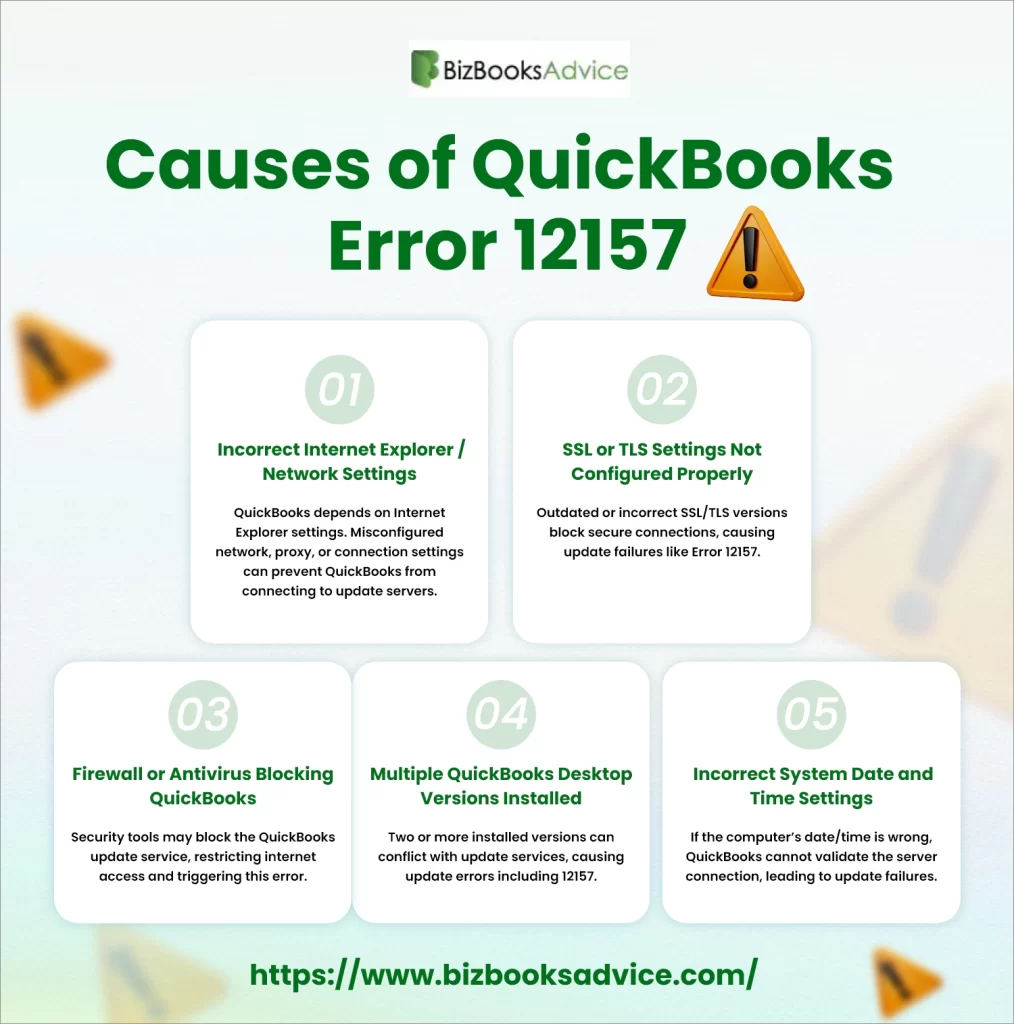
At times, the problem with the settings of the system’s date and time causes an interruption during the update process. So, to resolve the issue, it’s crucial to configure the date and time by performing these steps:
- Initially, right-click the system clock on your desktop. Then, hit the Adjust Date/Time option.
- Now, go to the Change date and time option and input the accurate date and time on your system.
- After this, hit the OK tab twice.
- Next, shut down and then try to open QuickBooks Desktop.
- Lastly, run the update of QuickBooks Desktop once again.
Solution 2: Test Your Internet Connection Settings
An incorrect internet connection may be one of the reasons that causes QuickBooks Error 12157. So, to check your internet connection, try to launch a web browser and access the Chase Banking website.
If you fail to open the Chase Banking website, you will not be able to receive the updates via QuickBooks. In such a case, you need to connect with your Internet Service Provider for guidance.
If you are able to access the Chase Banking website, open the QuickBooks Desktop and perform the following instructions.
- Open the QuickBooks Help menu and select the Internet Connection Setup option.
- Choose Use my computer’s Internet connection settings to build a connection when this application accesses the Internet.
- When all the changes are done, hit the Next tab.
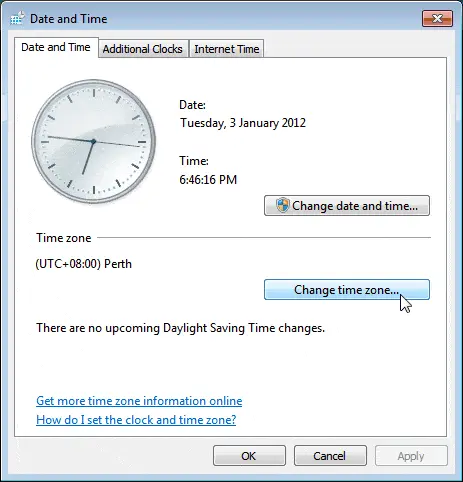
- Now, head to the Advanced Connection Settings option.
- When you are on the Advanced tab, pick the Restore Advanced Settings option and click OK.
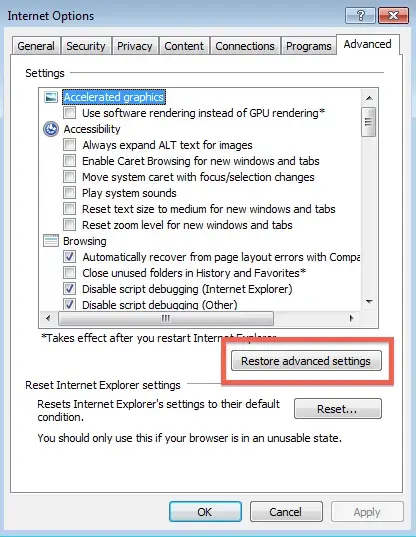
- Thereon, choose the Done option.
- Finally, you must try to update QuickBooks Desktop again and see if the QuickBooks Error Code 12157 exists.
Consider a few important points in your mind:
- There are times when downloading accelerators might hinder the update process. So, before you initiate downloading the updates, turn off your download accelerator. Then, connect with your ISP for help.
- In case you are working on a dial-up connection, check that the minimum speed is 28.8 kilobits per second (Kb/s).
- For the users accessing AOL, sign in to AOL as a primary login name. Also, verify that the Parental Controls settings are not enabled.
Solution 3: Configure Your Internet Security & Firewall Application Settings
At times, users may encounter QuickBooks Desktop Error 12157 due to incorrect internet security or firewall settings. So, to address the issue, you must check the configuration of Internet Security and personal firewall settings.
Herein, make sure that Ports 80 and 443 are enabled and access must be granted to the following files:
- AutoBackupExe.exe
- Dbmlsync.exe
- DBManagerExe.exe
- FileManagement.exe
- FileMovementExe.exe
- IntuitSyncManager.exe
- QBCFMonitorService.exe
- QBDBMgr.exe
- QBDBMgrN.exe
- QBGDSPlugin.exe
- QBLaunch.exe
- QBServerUtilityMgr.exe
- QBW32.exe
- QuickBooksMessaging.exe
If you notice that all the ports are accessed by some other processes, then QuickBooks Database Server uses a fallback port, i.e, 56719.
Solution 4: Disable the User Account Control
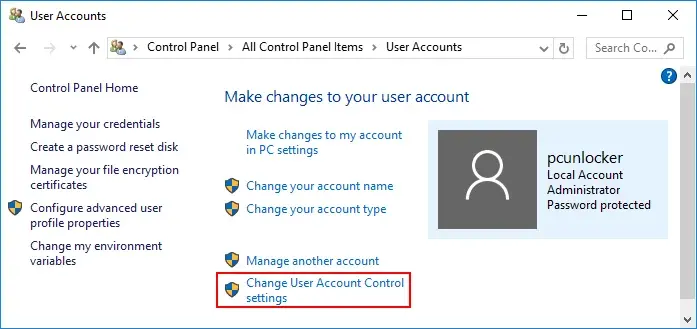
Users often end up with the QuickBooks Update Error 12157 due to restrictive user account control settings. For that, you must carry on with the instructions outlined below.
- Press the Windows and R keys on the keyboard and allow the Run window to open.
- After this, insert Control Panel and press Enter to bring up the new window.
- Choose the System and Security settings and click the Security Maintenance option.
- Thereon, you need to click User accounts and head to the Change User Accounts.
- Finally, opt for the Never Notify option and then hit the OK tab from the User Account Control settings.
Solution 5: Download the Latest Windows Update
Many times, the update process gets interrupted while trying to install the latest QuickBooks updates on an older Windows operating system. So, it’s necessary to install the latest Windows update by implementing the instructions provided below.
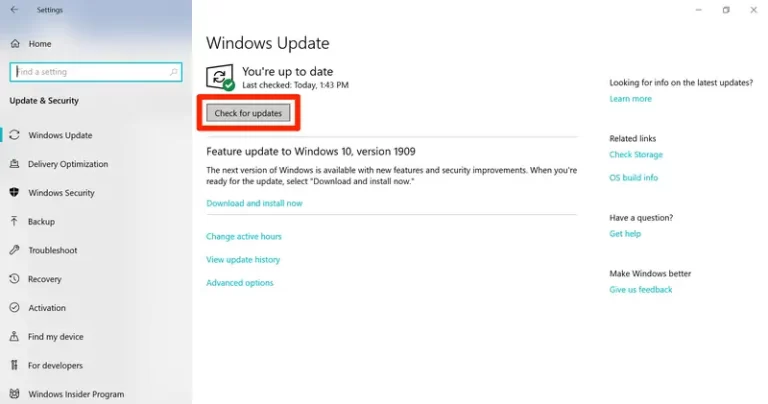
- Open the Windows Update window by pressing the Windows logo key and typing Windows Update in the search box.
- After this, head to the Check For Updates option, and it will take you to the Windows Update window.
- In the new screen, you will get the “You’re up to date” message if your Windows OS is already up-to-date. Otherwise, you need to choose the Check For Updates option, and it will begin installing the latest updates.
- At last, restart your PC and verify if you are able to download the QuickBooks Desktop or payroll updates.
What To Do When Multiple Instances Of QuickBooks Desktop Are on the Same Computer?
At times, the update error may also be experienced when you have multiple installations of the same version of QuickBooks Desktop installed on the same PC. In such a scenario, you need to update QuickBooks Desktop to the latest release for one or more versions of QuickBooks Desktop.
Conclusion
Through this blog’s help, you can easily fix the QuickBooks Error 12157 by applying the above solutions. Thus, it will also help you to get the update installed easily without any hindrance. Furthermore, if you still require any additional help, then communicate with our BizBooksAdvice professionals for help.
Frequently Asked Questions (FAQ’s):-
Question 1: What symptoms will you observe when QuickBooks Error 12157 occurs?
Ans. When users encounter QuickBooks Error 12157, they may witness the following symptoms.
- Users may have trouble installing the latest QuickBooks Desktop or payroll updates.
- You might see that your current QuickBooks application begins to freeze or closes down unexpectedly.
- The QB Error 12157 may appear along with a warning message during the update process.
Question 2: What points should you consider to avoid QuickBooks Error Code 12157?
Ans. To prevent the QuickBooks Error Code 12157 from occurring in the future, consider these points:
- Verify that the system’s date and time are correct.
- You have configured the Firewall or Internet settings correctly.
- Also, see that you are using the latest Windows operating system.
- Moreover, see that the antivirus software is not hindering the payroll update process.
Question 3: What is QuickBooks error 12157?
Ans. Users often get stuck with the QuickBooks Error Code 12157 due to the incorrect date and time of the system. Another reason that causes this issue includes an incorrect internet connection or an interruption of the Windows firewall.
Question 4: What are the other errors you experience while updating QuickBooks Desktop?
Ans. The other errors that you may get while updating QuickBooks Desktop may include QuickBooks Error 12045, QuickBooks Error 12157, QuickBooks Error 12038, and QuickBooks Error 12037.
Question 5: Can third-party interruptions cause QuickBooks Desktop update errors?
Ans. Yes, third-party antivirus software or the Windows Firewall might prevent users from performing the QuickBooks Desktop update.
About The Author

Jonathan Browns
Jonathan Brown is a trained QuickBooks professional with 10 years of experience in the accounting sector. Moreover, he is passionate about helping businesses reduce the stress of managing accounts. Also, he is proficient in assisting entrepreneurs and small business owners to use QuickBooks and enhance their accounting experience.
Recent Posts
-
9 DIY Troubleshooting Methods to Fix QuickBooks Error 15270
-
QuickBooks Data Conversion Services: Everything to Know
-
QuickBooks Point of Sale: Features, Setup, Pricing & Best Alternatives
-
QuickBooks Scheduled Backup Not Working: Common Causes & Easy Fixes
-
QuickBooks Credit Card Processing: How It Works, Fees & Benefits