


How to Resolve QuickBooks Error 176109 Instantly?

- By Jonathan Browns
- Mar 23, 2026
- Accounting
- 7 min read
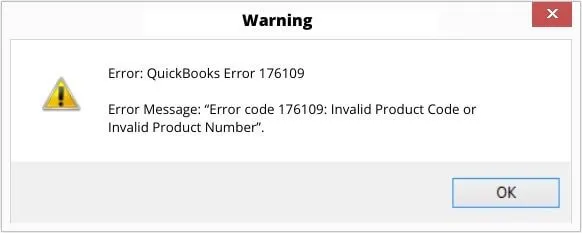
Did you get stuck with QuickBooks Error 176109 while trying to open or register Point of Sale?
This error may appear because of the corrupt registration files, mainly the Entitlementdatastore.ecml file or WSActivity file. Unfortunately, the error prevents QuickBooks from passing license validation. However, when it occurs, the warning message displays on the screen stating: “Invalid Product Code / Invalid Product Number.”
Continue reading this guide, and learn the root causes and top methods to fix QuickBooks Desktop Error 176109. Let’s start reading.
Unable to register the QuickBooks POS due to QuickBooks Error 176109? Call Us : +1-866-408-0444 and connect with our professionals to provide you with a quick resolution.
Why am I facing QuickBooks POS Error 176109?
The following are the major root causes that trigger QuickBooks POS Error 176109.
- You may get this error due to damaged files in the POS Entitlement folder.
- The user doesn’t log in to the system as an admin.
- The QuickBooks 176109 error message code may appear while accessing the wrong product code during the installation of Point of Sale.
Fixing Error 176109 in QuickBooks With Effective Solutions
After understanding the causes, let’s learn about the troubleshooting methods to fix Error 176109 in QuickBooks instantly.
Solution 1: Delete All Items Inside the Entitlement Folder
Most often, the damaged or corrupt files present in the Entitlement folder might cause QuickBooks POS Error Code 176109. Therefore, to recreate these files, you must recreate them on startup.
- Move to the “C: >> Program Data >> Intuit >> Entitlement Client >> v8 folder. Then, choose all the items in the folder. Alternatively, you can use the Ctrl + A keys to pick all the files inside the folder.
- Now, hit the Delete key and then tap on the Yes option.
- After this, open and re-register the QuickBooks POS once again.
- If you see that the error still exists, try the next solution given below.
Solution 2: Rename the WS Activity File
Another reason that triggers QuickBooks Desktop Error 176109 is the presence of a damaged WS Activity. Therefore, to change the name of the file, perform the following steps given below.
- Initially, launch the Windows Explorer and browse to the C: >> Program Data >> Intuit >> QuickBooks Point of Sale >> INI folder.
- Now, right-click on the WSActivity file and change the name to the OLDWSActivity.
- Close the window and then delete the Entitlement folder once again.
- Finally, launch the QuickBooks POS application and see if the issue is resolved.
Solution 3: Clean Install QuickBooks Point of Sale
If the above steps don’t work in your favor, try to reinstall QuickBooks Point of Sale. Before performing these steps, conduct a backup of the company files.
First Step: Uninstall QuickBooks Point Of Sale
- Launch the Control Panel and then move to the Programs and Features tab.
- Tap on the QuickBooks Point of Sale option from the list of all programs.
- Now, click the Uninstall option and use the on-screen steps to complete the uninstallation process.
Second Step: Rename the QB Point of Sale Folders
Herein, you must rename the QB Point of Sale folders by adding OLD at the end of the folder name. This will prevent the QuickBooks Desktop application from identifying the files and generating new ones.
Third Step: Reinstall QuickBooks Point of Sale
Visit the official Intuit website to install the QuickBooks Desktop Point of Sale application.
Fourth Step: Restore your company file
- Open the QuickBooks Desktop Point of Sale application and generate a new file.
- Now, restore the created backup and then launch the Point of Sale application.
- Thereon, re-register the QuickBooks Point of Sale application.
Important Tip: Windows 10 users have to delete the QBPOSDBSrvrUSER Windows User and fix QuickBooks POS’s Invalid product number.
- Now, head to the Control Panel and click the User Accounts option.
- Select the Manage Another Account > Continue option from the User account window.
- Browse through the list and pick the QBPOSDBSrvrUSER and select the ” Delete the account option.
- Finally, confirm that you have deleted the folder successfully and restarted your PC to save the changes.
Conclusion
Through this blog’s help, we hope you can now easily resolve QuickBooks Error 176109. Thus, it will also help you register the product code and let you register your QuickBooks POS product easily. If the issue still exists, ensure you are using the updated QuickBooks Desktop or using a stable internet connection.
Furthermore, if the error still exists, then have a direct consultation with our BizBooksAdvice professionals for help. Our experts will handle the situation properly without making any further delays.
Frequently Asked Questions (FAQ’s):-
Question 1: What is QuickBooks Error 176109?
Ans. The QuickBooks Error 176109 is also known as the product activation error that appears when QuickBooks POS can’t validate the product or license number. However, the error message mainly indicates that the product code is either invalid or missing.
Question 2: Is QuickBooks Desktop Error 176109 a license issue?
Ans. Yes, the QuickBooks Desktop Error 176109 is associated with the license validation problems. This error indicates that the system fails to verify the stored product or registration details.
Question 3: How can I prevent the QuickBooks Error Code 176109 in the future?
Ans. To avoid the QuickBooks Error Code 176109, consider the following things;
- Verify that QuickBooks is updated to the latest release.
- Make sure that you maintain proper Windows permissions.
- Your system must be linked with a stable internet connection throughout the activation.
Question 4: How to activate the QuickBooks license?
Ans. For activating the QuickBooks license, consider the following pointers:
- Initially, move to the QuickBooks activation site and provide your license number plus Product number.
- Now, click the Set Up account option and provide your email address.
- Also, list the phone number, and then generate a new password for your account.
- Finally, choose the Sign Up with email option.
Question 5: Does reinstalling QuickBooks fix Error Code 176109?
Ans. Yes, by running the clean install of QuickBooks Point of Sale, you can easily rectify Error Code 176109 in QuickBooks. This issue mainly takes place when the installation files are corrupted or damaged.
Question 6: How do I get my QuickBooks product number?
Ans. You can locate your QuickBooks product number with the following steps:
- Open the QuickBooks application and hit the F2 key to open the Product Information window.
- Now, search for the release at the end of the product name.
- You must search for the version used from the File section.
About The Author

Jonathan Browns
Jonathan Brown is a trained QuickBooks professional with 10 years of experience in the accounting sector. Moreover, he is passionate about helping businesses reduce the stress of managing accounts. Also, he is proficient in assisting entrepreneurs and small business owners to use QuickBooks and enhance their accounting experience.
Recent Posts
-
9 DIY Troubleshooting Methods to Fix QuickBooks Error 15270
-
QuickBooks Data Conversion Services: Everything to Know
-
QuickBooks Point of Sale: Features, Setup, Pricing & Best Alternatives
-
QuickBooks Scheduled Backup Not Working: Common Causes & Easy Fixes
-
QuickBooks Credit Card Processing: How It Works, Fees & Benefits