How to Resolve QuickBooks Error 213 (Duplicate Name Issue)

- By Jonathan Browns
- May 04, 2026
- Bookkeeping
- 7 min read
QuickBooks Error 213 is a duplicate name error that occurs when identical entries exist in the company file, such as customer, vendor, or item names. This issue is usually detected during the Verify and Rebuild process and is recorded in the QBWin.log file, which helps identify the conflict. When this error occurs, QuickBooks may display the following alert message:
“Error: Verify Name list. Duplicate name encountered. Name: Mighti USA Records 892 (553) and 891 (554). To fix, edit this element in the list and change its name.
Details: List: ‘Name’, record name: ‘Mighti USA’, List: ‘Name’, record name: ‘Mighti USA”
In this guide, we explain the causes of QuickBooks Error Code 213 and provide step-by-step solutions to fix it.
QuickBooks Error 213 is caused by duplicate name entries in the company file. You can fix it by identifying duplicates in the QBWin.log file and renaming them using the Verify and Rebuild Data tool.
What is QuickBooks Error 213?
The QuickBooks Error 213 is a duplicate name error that appears during data verification when the same name exists for multiple entries. This may be related to corruption, data inconsistencies, or importing lists from other sources.
What are the Prominent Reasons Behind Error 213 in QuickBooks Desktop?
Error 213 in QuickBooks Desktop often appears due to the presence of duplicate entries in the QBWin.log file. However, several other factors cause this issue, which are discussed below.
- Corrupt or damaged Windows Registry files.
- Issues occur while importing lists or transactions from other applications.
- The QuickBooks Rebuilt Error 213 may occur due to minor damage within the QBWin.log file.
- Incorrect hosting settings in multi-user environments.
- Inadequate Windows user account permissions.
Troubleshooting Methods to Eliminate Error 213 in QuickBooks
In this blog’s section, we have mentioned all the possible troubleshooting methods to fix Error 213 in QuickBooks.
Method 1: Find the Duplicate Names
- You must access the QBWin.log file to find the duplicates.
- Use the Primary Name List to find duplicate names.
- Use your regular lists to find accounts, items, templates, etc.
Method 2: Open the Log File in QuickBooks
Try opening the log file in QuickBooks to resolve the QuickBooks Error Code 213. Perform the following procedure to access the log file in QuickBooks.
- Open the QuickBooks application and press the F2 key to launch the Product Information window.
- Afterwards, hit the F3 key to launch the Tech Help window.
- Choose the Open File tab and click the QBWin.log file.
- You can also search for the QBWin.log file by browsing through the following path: “C:\Users\USER NAME\ Appdata\ Local\Intuit\QuickBooks\log\XXX.”
- After getting the QBWin.log file, double-tap on the file to open it.
Method 3: Edit one of the Duplicate names
- You can modify one of the following names.
- Open the list on which your name is (Customer List, Vendor List, etc).
- After that, look for the name in the list you wish to modify.
- Now, adjust at least one character of the name to make it different from its duplicate.
- After making changes, hit OK.
- Resume the first step for all duplicate names mentioned in the QBWin.log file.
- At last, to verify that there are no more duplicate names, run Verify and Rebuild.
Read More:- Bookkeeping Cost For Small Business
Method 4: Edit Appdata to fix the QuickBooks Error Message 213
Use the following steps to edit the Appdata and rectify the QuickBooks Error Message 213.
- Initially, click the Start icon and type “regedit.exe” in the search console.
- Now, follow the regedit.exe path by browsing the same.
- After this, double-click on the screen labeled as AppData.
- After this, carefully return the primary value and the local profile path.
- Click OK and then relaunch your computer.
Method 5: Use a Patch File
- Initially, sign in as an administrator on your computer.
- Now, download a patch file through a trusted website.
- After that, you can save the file to a secure location where you can find it easily.
- Next, extract the downloaded patch file and verify the details in the patch file.
- You must double-tap on the extracted file.
- If you see that the file closes without throwing any error message, you will get a pop-up command on the screen.
- At last, open the QuickBooks program and click the OK tab.
Method 6: Verify & Rebuild Data Utility
You can resolve the Error Message 213 in QuickBooks Desktop by running the Verify & Rebuild data tool. It will automatically fix the minor company file data issues.
Method 7: Delete or Change Duplicate Items from the Item Lists
Perform the steps written below to delete or change duplicate items from the item lists.
- Initially, launch the QuickBooks Desktop application.
- Head to the Lists menu and click the Item List menu.
- Now, hit the drop-down arrow for the Item tab.
- Circle the checkbox of Show Inactive Items.
- Search for a duplicate name in the list.
- At last, you can change or delete the name of the duplicate item.
Method 8: Use Quick Fix My Program
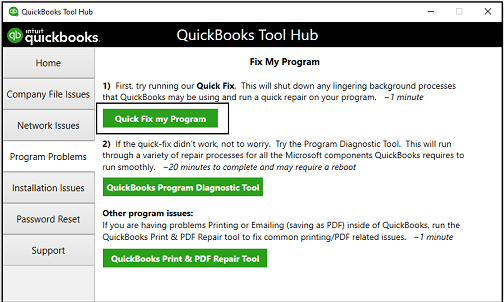
The Quick Fix My Program will exit all the background running processes. It also runs a quick repair on your QuickBooks program to fix the Intuit QB Error code 213.
Important Tip: Before running the Quick Fix My Program, make sure you have downloaded and installed the latest version of QuickBooks Tool Hub.
- Launch the QuickBooks Tool Hub by double-clicking on its icon.
- After this, hit the Program Problems tab.
- Choose the Quick Fix My Program.
- At last, start QuickBooks Desktop and then your company file to see if the issue is resolved.
Conclusion
QuickBooks Error 213 can be effectively resolved by identifying and correcting duplicate name entries in your company file. Regular maintenance and data verification help prevent this issue in the future.
If the error continues, then connect with our BizBooksAdvice professionals for better guidance.
Frequently Asked Questions (FAQ’s):-
Question 1: When does QuickBooks Error 213 usually appear?
Ans. The QuickBooks Error 213 mainly appears.
- While launching a QuickBooks company file
- Syncing the financial data
- When running reports in QuickBooks Desktop
- during software updates
Question 2: Why is my QuickBooks company file showing duplicate entries?
Ans. Duplicate entries in a QuickBooks company file usually occur due to incorrect or repeated data entry.
Question 3: How can I prevent QuickBooks Error Code 213?
Ans. You must consider the following points to prevent QuickBooks Error Code 213.
- Get ready with a healthy QuickBooks company file.
- Keep the QuickBooks Desktop application up-to-date.
- Prevent improper shutdown of the computer.
Question 4: How can you identify the occurrence of QuickBooks Error 213?
Ans. The following are the signs and symptoms that help you identify the QuickBooks Error 213.
- Unable to open company file.
- Errors during data rebuild.
- You may face issues while switching to multi-user mode.
- QuickBooks crashes while verifying data.
- Duplicate name error in QBWin.log file.
About The Author

Jonathan Browns
Jonathan Brown is a trained QuickBooks professional with 10 years of experience in the accounting sector. Moreover, he is passionate about helping businesses reduce the stress of managing accounts. Also, he is proficient in assisting entrepreneurs and small business owners to use QuickBooks and enhance their accounting experience.
Recent Posts
-
QuickBooks FCS Service Is Damaged: Why It Happens & How to Fix It
-
How to Recover Your Intuit Account: A Complete, Step-by-Step Guide
-
QuickBooks Online Essentials: The Complete Guide
-
QuickBooks Sales Tax Rounding Error: Causes & How to Fix It Fast
-
What is QuickBooks Error 108 & Top Methods to Fix It?
Need Assistance Right Away?
You can connect with a live representative to get help with your query or issue.