


How to Fix QuickBooks Error PS101: Payroll Update Failed Issue?

- By Jonathan Browns
- Apr 20, 2026
- QuickBooks Payroll
- 7 min read
Users often struggle with QuickBooks Error PS101 while downloading payroll updates in QuickBooks Desktop. When the error pops up, it displays the following error message.
“Error Code PS101: Payroll update didn’t complete successfully, try again.”
This error mainly occurs due to an unstable internet connection, damaged files in the CPS folder, firewall restrictions, and incorrect system date/time settings. Unfortunately, this error interrupts your ongoing work and may disrupt your productivity. This is why it’s essential to fix QuickBooks Error Code PS101 asap using the troubleshooting methods discussed below.
QuickBooks Error PS101 is the payroll update issue that can be fixed easily by reviewing the payroll service subscription. This helps you download the latest updates without any hindrance.
What is Error PS101 in QuickBooks Payroll?
The QuickBooks Error PS101 is a payroll update error that indicates the software is unable to download tax table updates or connect to Intuit servers. This issue mainly arises due to network connectivity issues, firewall restrictions, or outdated payroll subscription or billing details.
What Triggers QuickBooks Error Code PS101?
QuickBooks Error Code PS101 typically occurs while downloading payroll updates. However, it can also be caused by several other factors. Understanding these causes is important for resolving the issue effectively.
- Windows Firewall may restrict QuickBooks from downloading payroll updates in QuickBooks Desktop.
- Incorrect or unsuitable internet connection settings can trigger QuickBooks Payroll Error PS101.
- Invalid or outdated QuickBooks Payroll subscription.
- Another reason is corrupted payroll files.
- A damaged file is present in the CPS folder.
- Installing multiple versions of QuickBooks on the same device.
How to Fix QuickBooks Error PS101 in QuickBooks Desktop Easily?
After knowing the causes, let’s understand the troubleshooting methods to resolve QuickBooks Payroll Error PS101.
Solution 1: Check Your Payroll Service Subscription
It is essential to to verify whether you are using an active payroll service subscription.
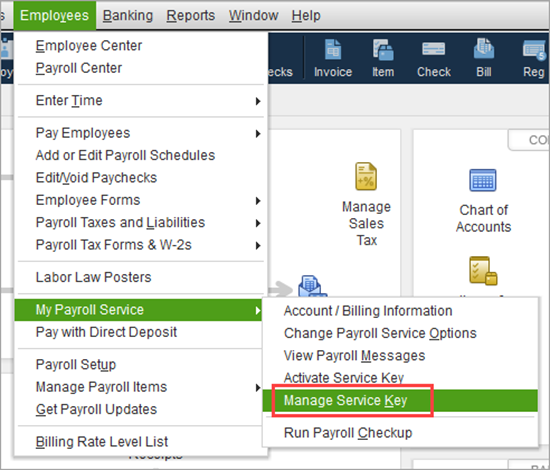
- Exit from all your company files and then relaunch your PC.
- Launch QuickBooks, move to the Employees menu, and click the My Payroll Service option.
- Choose the Manage Service Key. Also, ensure that the Service Name and Status are correct. Also, show that the status is reflected as Active.
- Now, click the Edit menu and check the service key number. If you notice that it’s incorrect, mention the right service key.
- Tap on the Next option and make sure that you have unmarked the Open Payroll Setup box.
- Thereon, hit the Finish tab, and it will begin downloading the entire payroll update. If the issue continues, then try the next troubleshooting method.
Solution 2: Register & Update QuickBooks Desktop
You must install the latest updates and security patches to run QuickBooks Desktop smoothly. Below, we have described the stepwise instructions to verify if your software is registered.
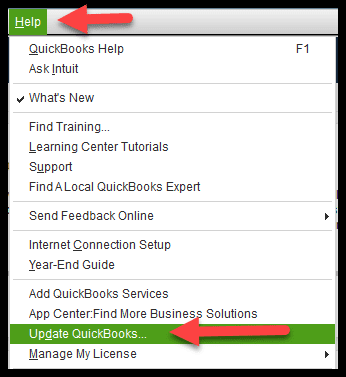
- Open the Product Information window by using the shortcut key F2.
- Now, beside the license number, see if it says Activated.
- Once the registration of the QuickBooks Desktop is completed, update it to the latest release.
- At last, try to download the latest payroll tax table update.
Solution 3: Add Defender Exclusion & Run Quick Fix My Program
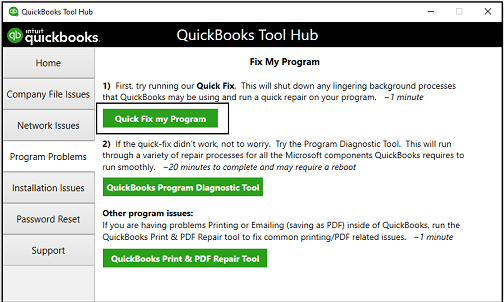
- Shut down your company file and then your QuickBooks Desktop.
- After this, ensure that you have downloaded and installed the latest version of the QuickBooks Tool Hub.
- Open the QuickBooks Tool Hub and choose the Program Problems tab.
- Following this, head to the Quick Fix My Program tab.
- Relaunch QuickBooks and then update it to the latest version.
- Finally, try to download the latest tax table to see if you are still facing the QuickBooks Payroll Update Error PS101.
Solution 4: Run the Bat Command to Fix QuickBooks Payroll Error PS101
- Exit from the QuickBooks Desktop application.
- After this, right-click on the QuickBooks icon and click Open File Location.
- Scroll down to the bottom of the screen to choose the .bat extension.
- Run the QuickBooks application as an administrator by selecting the Run as Administrator option.
- With this, the Utility will now repair and re-register the mentioned components.
Solution 5: Install QuickBooks in Selective Startup Mode
Installing QuickBooks in Selective Startup mode will prevent other applications from working properly, and it minimizes the chance of getting errors.
- Open the Run window by hitting the Windows + R keys.
- Now, insert “msconfig” in the search box, click OK to open the Configuration screen.
- Head to the Selective Startup and then opt for the Load System Services from the General tab.
- Click the Hide all Microsoft Services option from the Services tab.
- Now, hit the Disable All option and unmark the checkbox of Hide all Microsoft Services.
- Browse through the list of all services and ensure that the Windows Installer option is marked. If the checkbox isn’t selected, mark the checkbox.
- Hit the OK tab > Restart from the System Configuration box.
- Once your system gets restarted, clean install QuickBooks Desktop.
- Return to the default startup mode and then reset your system to its default settings after completing the process.
- Again, launch the Run window, insert “msconfig” and click OK.
- Move to the Normal Startup option from the General tab.
- Finally, restart from the System Configuration box.
Solution 6: Add QuickBooks to Firewall’s Exception List
Windows Firewall is used to block certain websites and applications that are causing QuickBooks Payroll Error Code PS101. Therefore, to fix this, add QuickBooks to the firewall exception list and ensure required ports (like 80 and 443) are open.
Conclusion
QuickBooks Error PS101 is a common issue that occurs while downloading the latest payroll update in QuickBooks Desktop. You can fix the issue by verifying your payroll subscription, updating QuickBooks, or configuring firewall settings properly.
If you need immediate help with payroll problems, you have the option of contacting a QuickBooks expert through Call Us : +1-866-408-0444.
Frequently Asked Questions (FAQ’s):-
Question 1: How do I prevent QuickBooks Error PS101 in the future?
Ans. To avoid the QuickBooks Error PS101 from occurring;
- Make sure to keep QuickBooks updated.
- Check that you are running an active or valid QuickBooks Payroll subscription.
- Test that your system is linked to a stable internet connection.
- Set up the firewall permissions accurately.
Question 2: Why is my payroll update failing with PS101 repeatedly?
Ans. Repeated failures may indicate issues such as corrupted program files, incorrect service key, or network connectivity problems.
Question 3: How do I update payroll in QuickBooks?
Ans. Perform these steps to update payroll in QuickBooks.
- Go to the QuickBooks Employees menu and click Get Payroll Updates.
- After this, hit the Update option to verify if you have the latest tax table updates.
Question 4: Why is my QuickBooks not updating?
Ans. If your QuickBooks isn’t updating, then check your system date/time, restart the application, and make sure to run QB as an administrator.
About The Author

Jonathan Browns
Jonathan Brown is a trained QuickBooks professional with 10 years of experience in the accounting sector. Moreover, he is passionate about helping businesses reduce the stress of managing accounts. Also, he is proficient in assisting entrepreneurs and small business owners to use QuickBooks and enhance their accounting experience.
Recent Posts
-
9 DIY Troubleshooting Methods to Fix QuickBooks Error 15270
-
QuickBooks Data Conversion Services: Everything to Know
-
QuickBooks Point of Sale: Features, Setup, Pricing & Best Alternatives
-
QuickBooks Scheduled Backup Not Working: Common Causes & Easy Fixes
-
QuickBooks Credit Card Processing: How It Works, Fees & Benefits