


QuickBooks Export to Excel Not Working? Common Causes and How to Fix Them

- By Jonathan Browns
- Aug 31, 2026
- Business
- 7 min read
Exporting reports, lists, and other data from QuickBooks to Microsoft Excel can make it easier to review, organize, and analyze your business information. However, sometimes the export option may not work as expected. QuickBooks may fail to open Excel, display an error, create a blank file, or stop responding during the export process.
The cause can vary. In many cases, the issue is related to Microsoft Excel, file permissions, QuickBooks settings, or the way the company file is set up.
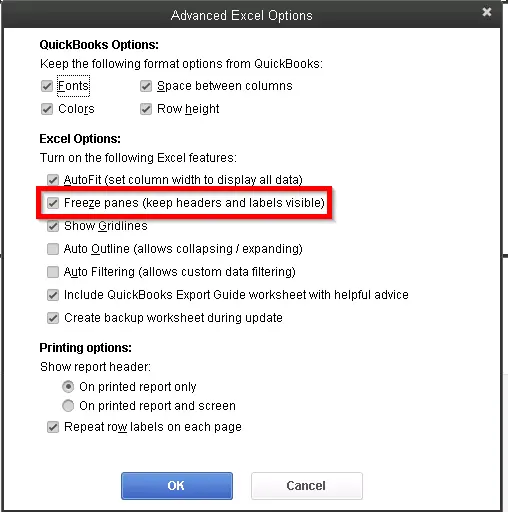
Below, we will go through the common reasons why QuickBooks export to Excel is not working and the steps you can take to resolve the problem.
Why Is QuickBooks Export to Excel Not Working?
The steps to fix the issue depend on whether you use QuickBooks Desktop or QuickBooks Online.
According to Intuit, common QuickBooks Desktop export problems can be caused by:
- An outdated version of QuickBooks Desktop
- An incompatible version of Microsoft Office
- A damaged Microsoft Office or QuickBooks installation
- Windows User Account Control settings
- Problems with the report or company data file
QuickBooks Online users may also experience issues when opening the exported file. For example, if the report appears incomplete in Excel, the file may be opening in Protected View, and you may need to select Enable Editing.
First, Check How You Are Exporting the Report
Before troubleshooting, make sure you are following the correct export process.
In QuickBooks Online
- Go to Reports.
- Select Standard reports.
- Search for and open the report you want to export.
- Select Export/Print.
- Select Export to Excel.
- Save the file to a location on your computer.
Depending on your QuickBooks Online experience, the export option may appear differently. In the classic view, you may see an Export icon, while the enhanced experience uses the Export/Print menu.
In QuickBooks Desktop
- Go to Reports and open the report you want to export.
- Select the Excel dropdown.
- Choose Create New Worksheet or Update Existing Worksheet.
QuickBooks Desktop can export reports as Excel workbooks, and Intuit also provides options for working with CSV files and updating exported reports.
Instant Ways of Troubleshooting QuickBooks Export to Excel Not Working
If QuickBooks is not exporting your reports to Excel, start with the basic troubleshooting steps below. The issue may be related to your QuickBooks Desktop version, Microsoft Excel installation, Windows settings, or the company file.
Try each solution and check whether you can export the report before moving to the next one:
1. Update QuickBooks Desktop
An outdated version of QuickBooks Desktop can sometimes cause issues when exporting reports to Excel. First, make sure QuickBooks is updated to the latest available release.
2. Check Microsoft Excel compatibility
QuickBooks Desktop requires a compatible version of Microsoft Excel to export reports successfully. Also, make sure you are using the desktop version of Excel installed on your computer.
- Check the system requirements for your version of QuickBooks Desktop.
- Verify the version of Microsoft Office and Excel installed on your computer.
- Make sure your version of Excel is compatible with QuickBooks Desktop.
- If necessary, install a supported version of Microsoft Office.
- Restart QuickBooks Desktop.
- Try exporting the report to Excel again.
If you are using a compatible version of Excel but the export still doesn’t work, the Microsoft Office installation may need to be repaired.
3. Repair Microsoft Office
A damaged Microsoft Office installation can prevent QuickBooks Desktop from communicating properly with Excel. Repair Microsoft Office and then try exporting the report again.
- Close QuickBooks Desktop and all Microsoft Office applications.
- Open the Windows Control Panel.
- Select Programs and Features.
- Find and select Microsoft Office.
- Select Change.
- Choose the available repair option.
- Complete the repair process.
- Restart your computer.
- Open QuickBooks Desktop and try exporting the report again.
If repairing Microsoft Office does not resolve the issue, check your Windows User Account Control settings.
4. Check the Excel File Format
In some cases, the Excel file format settings can affect the export process. Check the default format used by Microsoft Excel before exporting the report again.
- Open Microsoft Excel.
- Select File.
- Select Options.
- Select Save.
- Check the default file format.
- Make the required changes based on the QuickBooks and Excel version you use.
- Save the changes.
- Close and reopen QuickBooks Desktop.
- Try exporting the report again.
If the export completes but the Excel file does not show all the information, the issue may be related to Excel’s security settings.
5. Enable Editing in Excel
If you successfully export a report from QuickBooks Online but the Excel file appears incomplete, it may have opened in Protected View.
- Open the exported Excel file.
- Look for the Protected View message at the top of the workbook.
- Select Enable Editing.
- Review the report again.
If the report still does not display correctly, make sure macros are enabled when working with exported QuickBooks Desktop reports.
6. Enable Macros in Excel
Some QuickBooks Desktop Excel reports use macros. If Excel blocks the macros, you may need to update the macro settings.
- Open Microsoft Excel.
- Select File.
- Select Options.
- Select Trust Center.
- Select Trust Center Settings.
- Select Macro Settings.
- Choose Disable all macros with notification.
- Select OK to save the changes.
- Close Excel and reopen the report exported from QuickBooks.
- When prompted, select Enable Content.
If QuickBooks freezes or crashes while exporting a report, the problem may be related to the QuickBooks installation or your company file.
7. Verify and Rebuild the company file data
If the export issue occurs with a specific report or QuickBooks freezes while exporting, check your company data for possible issues.
a. Verify the company file data
Let’s verify the company file data damages for possible errors and issues:
- Select Window, then choose Close All.
- Open the File menu and select Utilities.
- Choose Verify Data to check your company file for errors or damaged data.
b. Rebuild the data damages
Results:
- “QuickBooks detected no problems with your data”: Your company file has no detected issues, so no further action is required.
- An error message appears: Look up the specific error message on the official QuickBooks Desktop support site for the recommended troubleshooting steps.
- “Your data has lost integrity”: QuickBooks found damaged data in your company file. Continue with Rebuild your company file to repair the data.
8. Reduce the Amount of Data in the Report
Large reports can sometimes cause problems during the export process, especially if your version of Excel has limitations on the amount of data it can handle.
- Open the report in QuickBooks Desktop.
- Select Customize Report or the available customization option.
- Reduce the date range or remove unnecessary details.
- Run the report again.
- Try exporting the smaller report to Excel.
If the smaller report exports successfully, review your Excel version and consider whether its data limits are affecting the export process.
9. Reinstall QuickBooks Desktop
QuickBooks Desktop works with Microsoft Office components to export reports to Excel. If Microsoft Office was installed after QuickBooks Desktop, reinstalling QuickBooks may help restore the connection between the two programs.
Before you start
- Download the appropriate QuickBooks installer for your product version.
- Keep your license number available. You can find it on the original product packaging or in the confirmation email if you purchased QuickBooks online.
Note: You can also find your license details through your Intuit account management portal.
a. Remove QuickBooks
- Open the Windows Start menu, type Control Panel in the search bar, and launch it.
- Choose Programs and Features or Uninstall a Program.
- Find and select the QuickBooks Desktop version you want to uninstall.
- Click Uninstall/Change, select Remove, and then choose Next.
If the option isn’t available, sign out of Windows and log back in using an administrator account or a user profile with admin permissions.
b. Install QuickBooks Desktop again
Use the following steps when setting up QuickBooks Desktop for the first time on a computer or reinstalling it on the same device.
Note: If you’re moving QuickBooks Desktop to a different computer, use the Migrator Tool to transfer the program and company files.
- Make sure your computer is connected to the internet.
- Locate and open the QuickBooks.exe installation file.
- Choose Express Install.
- Select Next to continue.
- Click Install to begin the installation.
- Once the installation is complete, select Open QuickBooks.
How to Prevent QuickBooks Export to Excel Problems
Once you have fixed the export issue, a few simple practices can help prevent it from happening again. Keep QuickBooks Desktop and Microsoft Excel updated, use compatible versions, and avoid making unnecessary changes to your company file.
- Keep QuickBooks Desktop updated to the latest available release.
- Use a version of Microsoft Excel that is compatible with your QuickBooks Desktop version.
- Keep Microsoft Office updated and repair it if Excel starts behaving unexpectedly.
- Make sure Excel is properly installed on your computer before installing QuickBooks Desktop.
- Avoid exporting extremely large reports when you only need a smaller set of information.
- Keep your QuickBooks company file in good condition by regularly checking for data issues.
- When Excel displays a security warning for a QuickBooks report, review the warning and enable the required content when appropriate.
- Before making major changes to QuickBooks or Microsoft Office, create a backup of your company data.
Summing Up
Finally, we are wrapping up this guide on QuickBooks Export to Excel Not Working. We have discussed the common reasons why QuickBooks may not export reports to Excel and walked through solutions such as updating QuickBooks, checking Excel compatibility, repairing Microsoft Office, reviewing Windows settings, and checking your company file.
Keeping QuickBooks and Excel updated and using compatible software can help prevent many export problems. If you continue to face issues while exporting QuickBooks reports to Excel or need help troubleshooting QuickBooks, you can consult QuickBooks ProAdvisors at Call Us : +1-866-408-0444.
Frequently Asked Questions
Why is QuickBooks not exporting to Excel?
QuickBooks may not export to Excel because of an outdated QuickBooks version, Excel compatibility issues, a damaged Microsoft Office installation, Windows settings, or problems with the QuickBooks company file.
How do I fix QuickBooks Export to Excel not working?
Start by updating QuickBooks Desktop and checking that you have a compatible version of Microsoft Excel. If the issue continues, repair Microsoft Office and follow the other troubleshooting steps based on the error you are experiencing.
Why does QuickBooks freeze when I export to Excel?
QuickBooks may freeze because of compatibility problems, issues with the Microsoft Office installation, company file problems, or a large report. Updating QuickBooks, repairing Office, and checking the company file can help identify the cause.
Why is my QuickBooks Excel file blank?
If the exported file opens but does not display the expected information, check whether Excel opened the workbook in Protected View. Select Enable Editing and review the report again.
Can I export QuickBooks reports to Excel?
Yes, QuickBooks Online and QuickBooks Desktop provide options for exporting reports to Excel. The exact steps depend on which version of QuickBooks you use.
Does QuickBooks need Microsoft Excel to export reports?
For QuickBooks Desktop, Microsoft Excel needs to be installed and compatible with your QuickBooks version for Excel workbook exports.
How do I export a QuickBooks report to Excel?
In QuickBooks Desktop, open the report, select the Excel dropdown, and choose Create New Worksheet or Update Existing Worksheet. In QuickBooks Online, open the report, select Export/Print, and choose Export to Excel.
Why does QuickBooks say Excel is not installed?
This can happen when QuickBooks cannot properly detect Microsoft Excel. Check that Excel is installed on your computer and that your version is compatible with QuickBooks Desktop. If necessary, repair Microsoft Office or reinstall QuickBooks after Office is installed.
About The Author

Jonathan Browns
Jonathan Brown is a trained QuickBooks professional with 10 years of experience in the accounting sector. Moreover, he is passionate about helping businesses reduce the stress of managing accounts. Also, he is proficient in assisting entrepreneurs and small business owners to use QuickBooks and enhance their accounting experience.
Recent Posts
-
QuickBooks Email Invoices Not Working: How to Fix It
-
How to Resolve QuickBooks Error 15214 (Step-by-Step)
-
OL and OLSU Bank Feeds Errors in QuickBooks Desktop: Causes and Fixes
-
QuickBooks Error 15212: Causes & How Can You Fix It
-
How to Recover Deleted Invoice in QuickBooks - Online & Desktop