


QuickBooks Unexpected Errors: Proven Solutions To Fix It

- By Jonathan Browns
- Mar 18, 2026
- Accounting
- 7 min read
Users often encounter QuickBooks Unexpected error while performing different tasks, like refreshing their bank feed account or manually importing data into QuickBooks. However, the error comes up with a warning message stating “An unexpected error has occurred in QuickBooks. Please try again later.” This error mainly occurs due to a damaged company file, damaged Windows components, browsing issues, or incorrect system configuration. In this guide, we have explained all the major causes and troubleshooting methods to fix the Unexpected errors in QuickBooks.
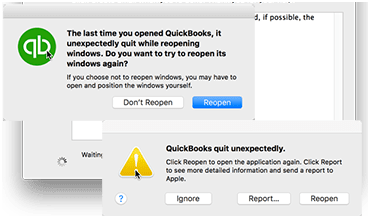
Stuck with the QuickBooks Unexpected error? Troubleshoot the error by fixing the browser-related issues in QuickBooks Online.
Common Types of Unexpected Error in QuickBooks
The users may get different error messages when unexpected errors in QuickBooks occur. Let’s study all of those error messages to fix the issue instantly.
- “Unexpected error: QuickBooks has encountered an error. Try opening it again. When this error appears continuously, note the C value against it.”
- “Unexpected error: QuickBooks is facing an error. It needs to close to solve the problem C= 342.”
- “QBW32: The program has conducted an illegal operation. It needs to be shut down. Contact the program vendor if the issue persists. DETAILS: QBW32 caused an invalid page fault in module APPCORE.DLL.”
- “An unexpected error occurred: The error is that the value cannot be null. Parameter: s.
- 1766120 Error – Status: Invalid License Key, Key got Denied.”
- “Error Message: Exception was thrown off the target due to invocation.”
- “Error 100 database server not found “08w01.”
- “The Initializing configuration system has failed.”
- “POS symbol is making it challenging to access the application.”
- “Unexpected error occurred: Please start POS again. Exception from HRESULT: 0x88980406.”
What Causes Unexpected Errors in QuickBooks?
Users often encounter Unexpected errors in QuickBooks due to the following reasons. Let’s understand all the causes in detail to fix the issue smoothly.
- Damaged Microsoft components such as MSXML, C++, and .NET Framework.
- Accessing an invalid URL to open the QuickBooks account.
- Damaged or corrupt QuickBooks company file.
- QuickBooks fails to run properly due to incompatible system requirements.
- You may see an unexpected error in QuickBooks Desktop when the server is down for maintenance.
- Another reason is that the POS Database Manager is preventing the server from making a connection.
How to Rectify Unexpected Error in QuickBooks Online & Desktop?
After knowing the causes, let’s study the Unexpected error in QuickBooks Online & Desktop.
Section A: Troubleshooting Tips for QuickBooks Online
Solution 1: Open QuickBooks Online Using Incognito Window
Sometimes, running QuickBooks Online in an Incognito window may help resolve the Unexpected errors. Use the following shortcut keys to switch to the Incognito or Private window in your preferred web browser.
- Google Chrome: Ctrl + Shift + N
- Safari: Command + Shift + N
- MS Edge and Firefox: Ctrl + Shift + P
If the issue still continues, then move to the next troubleshooting method below.’
Solution 2: Clear Your Browser’s Cache Files & Cookies
Perform the steps below to clear the browsing cache files and cookies according to the web browser you are using.
Google Chrome
- Firstly, launch your Chrome browser and tap on the three-dot menu.
- Choose the Delete Browsing data and then select a time range like Last Hour/All Time.
- Now, circle the checkboxes to pick the data that you want to delete.
- Finally, choose the Delete Data option to remove the cache files and cookies.
Mozilla Firefox
- Launch Mozilla Firefox on your computer and select the Menu.
- After this, tap on Settings and choose the Privacy & Security option.
- Next, you must scroll down to the Cookies and Site Data option.
- Hit the Clear Data, and if you see a when drop-down, click the Everything option. Also, verify that the Cookies and site data, and Temporary cached files & pages options are chosen.
- Make sure that the other data, like Saved Form Info or Site Settings checkboxes, are unmarked.
Solution 3: Review the Web Browser Settings
Perform the following steps to configure the Windows web browser settings.
- Initially, hit the Settings icon.
- Move to the App section and click the Default Apps.
- Now, scroll down and click the Web Browser panel.
- You must pick your preferred browser to set as the default.
- Finally, choose the option to set as a default.
Section B: Troubleshooting Tips for QuickBooks Desktop & POS
Herein, we have provided you with the troubleshooting methods to resolve QuickBooks Unexpected Errors in QuickBooks Desktop and POS.
Solution 1: Update the QuickBooks Point of Sale software
Running the older version of the QuickBooks Desktop Point of Sale may also cause unexpected errors. So, to fix the issue, you must update the POS software in QuickBooks with the following steps.
- Launch the latest version of the File Explorer. To open it, use the following path: “C:\Program Files\Common Files\Intuit\EntitlementClient\V8 (V6 for QBPOS 10.0).”
- Go to the EntitlementClient and choose the EntitlementDataStore.ecml file.
- Choose the Rename option and insert.OLD at the end of the file name.
- Visit the QuickBooks website and browse to the Products & Updates page.
- From there, pick the latest version of the QuickBooks POS application.
- Later on, perform the on-screen instructions and install the QuickBooks Point of Sale.
- Once the installation is over, relaunch your computer and try to run QuickBooks to see if the issue exists.
Solution 2: Check the System Configuration
Users often see the QuickBooks Unexpected Error 5 due to insufficient RAM storage to run the QuickBooks application. So, to fix the issue, you must verify the system specifications to prevent it.
- Move to the Desktop, right-click on “This PC” or “My Computer,” whichever option is visible.
- Choose the Properties option.
- The QuickBooks application needs a minimum of 8 GB RAM, and a minimum of 4 GB is considered. Now, match these requirements along with your system specifications to see if you are still seeing the error.
Solution 3: Generate a New Windows User
Damaged Windows user is also one of the major reasons why unexpected errors in QuickBooks arise. So, to rectify the issue, create a new Windows user and ensure you have proper admin rights.
- Click on Start menu > Control Panel> Accounts> Other Users.
- Choose the Add Account and select “I don’t have this person’s sign-in information.”
- Now, browse to the Add a user without a Microsoft Account. Then, provide a new username and password for the Account.
- Once the Account is created, single-click on the name and click Administrator as the account type.
- Afterwards, log out of Windows and log in again with the new Admin account you recently created.
- At last, launch QuickBooks and check if you are getting Unexpected errors.
Solution 4: Reinstall/Repair the.NETFramework
To configure the damages with the .NET Framework, try to reinstall or repair it.
- Launch the Control Panel and click Programs and Features.
- Next, head to the Uninstall a Program option.
- Tap on the Turn Windows Features On or Off option and select the .NET Framework from the list. After this;
- Circle the .NET Framework 4.5 checkbox if it isn’t already marked and save the settings.
- Make sure that the .NET Framework 4.5 box is unmarked and save the settings.
- If toggling the .NET Framework settings won’t change anything in QuickBooks, head to the Uninstall a Program option. Then, single-click the .NET Framework option.
- Choose the Uninstall option and perform the on-screen instructions to confirm the uninstallation.
- Go to the Microsoft website and then download the latest .NET Framework on your device.
Solution 5: End the QBCFMonitorService
QBCFMonitorService lets the QuickBooks software run smoothly by sharing and monitoring the company file on your network. Sometimes, the interruption of the other app may create trouble while running QBCFMonitorService to run smoothly in the background. So, to fix the issue, you need to terminate the QBCFMonitorService using the following steps.
- Firstly, launch the Task Manager by pressing Ctrl + Shift + Esc keys.
- Move to the Details tab and click the QBCFMonitorService.
- Choose the End Task option and then select End Process.
- Now, shut down the Task Manager panel by clicking the close icon.
- At last, launch the QuickBooks application on your workstation.
Solution 6: Address the Network Issues On Your System
The error message “Sorry, an unexpected error has occurred. We could not fetch your accounts from your bank message if QuickBooks cannot establish a connection with the Intuit servers. This issue mainly happens because of low internet speed or misconfigured TLS settings on your system. So, to address the issue, you must turn off all security software and configure the Windows firewall settings to verify that QuickBooks won’t get blocked.
- Initially, launch the Internet properties from the search panel and hit the Advanced option.
- Now, scroll down to the list and click the Use TLS 1.2 checkbox to mark it.
- After this, save the settings after confirming that all the other TLS settings are chosen.
- Exit the Control panel tab and test your internet speed (3 Mbps required to run QuickBooks) and reconnect your router cables.
Conclusion
Through this blog’s help, we hope that you can efficiently resolve QuickBooks unexpected errors smoothly. Thus, it will help you continue with your ongoing business task. If the error continues, connect with our BizBooksAdvice professionals for immediate assistance.
Frequently Asked Questions (FAQ’s):-
Question 1: How to avoid QuickBooks Unexpected error from occurring in the future?
Ans. The following are the key pointers you must consider before fixing the QuickBooks Unexpected error.
- Consider generating a regular backup of the company file.
- Use the supported web browsers to run QuickBooks Online.
- Test that your system is connected to a good internet connection.
- Periodically review and clean up your data within QuickBooks.
Question 2: Can antivirus or firewall software cause QuickBooks unexpected errors?
Ans. Yes, the antivirus or firewall may block QuickBooks processes, which may cause QuickBooks Unexpected errors.
Question 3: Why does QuickBooks keep showing unexpected errors repeatedly?
Ans. QuickBooks keeps showing unexpected errors due to corrupted company files or a damaged installation. So, to fix the issue, you must run the diagnostic tool and make sure QuickBooks is updated to the latest version.
About The Author

Jonathan Browns
Jonathan Brown is a trained QuickBooks professional with 10 years of experience in the accounting sector. Moreover, he is passionate about helping businesses reduce the stress of managing accounts. Also, he is proficient in assisting entrepreneurs and small business owners to use QuickBooks and enhance their accounting experience.
Recent Posts
-
9 DIY Troubleshooting Methods to Fix QuickBooks Error 15270
-
QuickBooks Data Conversion Services: Everything to Know
-
QuickBooks Point of Sale: Features, Setup, Pricing & Best Alternatives
-
QuickBooks Scheduled Backup Not Working: Common Causes & Easy Fixes
-
QuickBooks Credit Card Processing: How It Works, Fees & Benefits