


QuickBooks Freezing, Crashes, or Closes Unexpectedly: DIY Troubleshooting

- By Jonathan Browns
- Sep 21, 2026
- Bookkeeping
- 7 min read
If QuickBooks Freezing, stops responding, or closes unexpectedly, the cause is almost always one of five things: a damaged program installation, a damaged company file, a network or hosting misconfiguration, a conflicting Windows component such as the printer driver or email client, or a system that no longer meets the requirements of the version you are running. Each of these has a defined repair path, and you can work through them yourself in a logical order.
This guide takes you through that order. You will start with the quickest, lowest-risk checks, then move to the QuickBooks Tool Hub utilities, then to targeted fixes for the specific moment the freeze happens: at login, when opening a company file, while printing, while emailing an invoice, while exporting to Excel, or during reconciliation. Finally, you will find guidance on data damage, multi-user environments, older versions running on Windows 10 and Windows 11, and when it makes sense to stop and involve a professional.
Before you start, back up your company file, since some of the steps below involve rewriting program files or rebuilding data, and a recent backup ensures you never have to risk your records.
A Quick Overview of QuickBooks Performance Issues
Use this table to jump straight to the section that matches what you are seeing. The right-hand column gives you the first thing to try, not the only thing. If the instability follows the application rather than one particular file or action, go to the dedicated section on QuickBooks Desktop application freezes and crashes instead.
| What you are seeing | Most likely cause | Start here |
| QuickBooks freezes when opening, or hangs on the splash screen | Damaged QBWUSER.ini or program installation | Rename QBWUSER.ini, then run Quick Fix my Program |
| QuickBooks freezes after login or closes as soon as you open it | Corrupt user preferences, damaged license data, or conflicting startup software | Rename the entitlement file and open in Selective Startup |
| QuickBooks freezes when opening company file | Data damage, network interruption, or stale .ND/.TLG files | Run QuickBooks File Doctor, then Verify and Rebuild Data |
| QuickBooks freezes when printing | Damaged qbprint.qbp, print spooler, or PDF component | Rename qbprint.qbp and wpr.ini, run the PDF & Print Repair Tool |
| QuickBooks freezes when trying to email invoice, or crashes when emailing invoices | Broken Outlook/MAPI link, wrong admin rights, or damaged email preferences | Reset webmail preferences and check the Outlook profile |
| QuickBooks freezes when exporting to Excel | Version mismatch between QuickBooks and Excel, or a damaged report template | Verify Excel compatibility and export from a fresh report |
| QuickBooks freezes when reconciling | Oversized account register or transaction-level data damage | Rebuild Data, then review the QBWin.log for reconciliation errors |
| QuickBooks crashing after update or after payroll update | Incomplete update installation | Repair the installation, then reapply the update as administrator |
| QuickBooks crashing randomly with no pattern | Resource limits, antivirus interference, or a failing disk | Check system resources, add antivirus exclusions, test the drive |
| Older releases closing unexpectedly on Windows 10 or Windows 11 | Compatibility and display scaling problems | Adjust compatibility and DPI settings, or upgrade the version |
Why QuickBooks Freezes, Crashes or Closes Unexpectedly: Common Reasons
It helps to understand what is actually happening, because the symptom tells you where to look.
- QuickBooks Desktop freezing means the program is still running but is waiting on something it cannot get: a file lock, a printer response, a network reply, or a database query that will not return. The window greys out, and Windows marks it as “Not Responding”. Freezes usually point to something external to QuickBooks: a mapped drive that dropped, a printer driver that is not answering, or a company file the program cannot read cleanly.
- A crash means the program hit an error it couldn’t handle, and Windows shut it down. You might or might not see an error message first. Crashes usually point to something inside the installation: a missing or damaged component, a failed update, or a conflict with a shared Windows framework such as .NET or MSXML.
The underlying causes cluster into a handful of categories:
Damaged or incomplete installation
Interrupted updates, partial uninstalls, or antivirus-quarantined files can leave the program unable to load a needed component.
Company file data damage
Lists that have grown very large, transactions with broken links, or files that were open during a power loss or network drop.
Company file size and complexity
Very large files, long transaction histories, and heavily customized reports all increase memory pressure.
Network and hosting problems in multi-user mode
Incorrect hosting settings, blocked ports, a sleeping server, or unstable Wi-Fi.
Third-party conflicts
Printer drivers, PDF software, Outlook add-ins, antivirus real-time scanning, and Windows display scaling.
System limitations
Low RAM, a nearly full or failing disk, an outdated version of Windows, or an old version of QuickBooks on a newer operating system.
Go through the sections below in order, and you’ll eliminate each category one by one.
Before You Begin: Five Checks that Solve a Surprising Number of Cases
Before you start troubleshooting QuickBooks performance issues, make sure you do these five things. Each takes a few minutes and helps avoid unnecessary work.
Back up Your Company File
You must back up your company file to avoid data loss. This keeps your company data secure if something goes wrong.
- Open QuickBooks if you can and go to File > Back Up Company > Create Local Backup
- Back up the data to a local drive or an external disk, not to a network location.
- If QuickBooks won’t open at all, use File Explorer to copy the .qbw file itself (together with any matching .qbw.nd and .qbw.tlg files) to a safe folder.
However, the latter shouldn’t replace the proper backup.
Restart the Computer Properly
Carry out a full restart rather than sleep or a fast shutdown. This eliminates locked files, orphaned QuickBooks processes, and stuck print jobs. Also restart the server or host machine.
Check for Stuck QuickBooks Processes
- To open the Task Manager, press Ctrl + Shift + Esc.
- Then go to the Details tab and end any running instances of QBW32.exe, QBW.exe, QBDBMgrN.exe, or QBCFMonitorService.exe after you close the program.
A hidden process that has a lock on your file will cause the next launch to freeze.
Sign in to Windows as an Administrator
Many solutions require administrator rights, as do ordinary tasks like printing and sending emails.
Check Free Disk Space
Make sure the drive that contains both the program and the company file has at least 15 to 20 percent free space, since a rebuild or backup will not succeed without it.
12 Solutions to Fix QuickBooks Freezing, Crashing, or Closing Unexpectedly
Now that you know what causes QuickBooks to freeze, crash, or close suddenly when you open or work on an accounting task, or when you send an invoice, here’s how to fix it.
Follow the steps in order and, after each one, test QuickBooks; stop immediately when the problem is resolved.
Solution 1: Restart the computer and end stuck QuickBooks processes
If a QuickBooks process left running in the background holds a lock on your company file, the next attempt to launch will freeze while it waits for the lock to be released. This is the most common cause of a sudden freeze.
- Make sure QuickBooks is closed on every computer using the file, including the host computer.
- To open Task Manager, press the Ctrl, Shift, and Esc keys simultaneously, then go to the Details tab.
- Terminate all remaining occurrences of QBW32.exe, QBW.exe, QBDBMgrN.exe, QBCFMonitorService.exe, and QBUpdate.exe.
- Restart the computer completely (a proper restart, not sleep or a quick shutdown). If you are working in multi-user mode, you should also restart the host machine.
Open QuickBooks and verify that the application works properly.
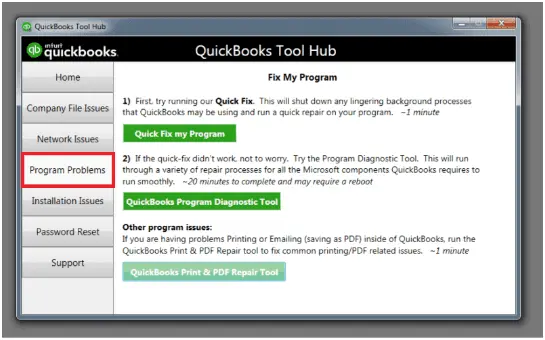
Solution 2: Run Quick Fix my Program from the QuickBooks Tool Hub
The Tool Hub is the main utility for repairing QuickBooks, and several later solutions use it too. Install it now, even if you think an earlier fix will work.
- Close QuickBooks completely.
- Get the current QuickBooks Tool Hub installer from Intuit’s official page and save it to a place that is easy to find.
- Run the installer, accept the license terms, then open Tool Hub using the icon the installer creates.
- Go to the Program Problems tab and click on Quick Fix my Program.
- Once it finishes, open QuickBooks and run the test.
Quick Fix my Program stops any background processes still running and performs a targeted repair of the program files. Use it first for any freeze or crash not caused by a specific company file.
Solution 3: Update QuickBooks to the Latest Release
Many QuickBooks freezes and crashes are known problems that later releases have already fixed. If you reset the update, it will download completely instead of resuming a partial download.
- Close QuickBooks, right-click the desktop icon, and select ‘Run as administrator‘.
- Go to Help, select Update QuickBooks Desktop, and then click on the Update Now tab.
- Update your Tick Reset setting and click on Get Updates.
- Once the download is finished, close QuickBooks.
- Open it and accept the prompt to install the update. Let it complete without interfering.
- If you are also using payroll, click on Employees > Get Payroll Updates and then select Download Entire Update when the program update has been installed.
Solution 4: Open a Sample Company File to Isolate the Fault
This is a diagnostic step that determines which of the remaining solutions apply to you. You must not skip it.
- Open QuickBooks and wait for the No Company Open window to appear.
- Click on ‘Open a sample file‘ and then select any sample company.
- Carry out some work. Open a report, prepare a test invoice, and switch between windows.
When the sample file is stable but your own file is not, the program is okay, and the problem lies in your company file, its location, or your network; see Solutions 7, 8, and 9. If the sample file also freezes or crashes, then the issue is with the application or Windows; refer to Solutions 5, 6, 10, 11, and 12. If QuickBooks is unable to display the No Company Open window at all, start with Solution 5.
Solution 5: Rename the QBWUSER.ini File and Stop Saving to the Desktop
The QBWUSER.ini file keeps track of your list of recently used files and the window layout. If the file becomes damaged, QuickBooks will hang when it tries to read it, which is why the program frequently stalls on the splash screen.
- In File Explorer, go to View. Then choose Show. Select Hidden items.
- Go to C:\Users\[your user name]\AppData\Local\Intuit\QuickBooks [year].
- To rename QBWUSER.ini, right-click on it and select Rename, then add .old to the end of it so that the name becomes QBWUSER.ini.old.
- Open QuickBooks. Your recent file list will be empty, which is expected; use File > Open or Restore Company to browse to your file.
- When you’ve got in, choose Edit > Preferences > Desktop View and then tick the option that says ‘Don’t save the desktop’ before clicking OK.
- If QuickBooks freezes before you change the preference, press and hold Ctrl while double-clicking the desktop icon, and keep holding it until the No Company Open window appears; this starts the program without restoring any windows.
Solution 6: Rename the Entitlement File to Reset License Data
Damaged license and registration details are a major reason QuickBooks closes unexpectedly. This can happen either at the login screen or immediately after, without displaying any error message.
- Close QuickBooks.
- With hidden items visible, navigate to C:\ProgramData\Intuit\Entitlement Client\v8. On some versions, the folder is v6 or v8; open whichever is present.
- To make the change, right-click on the file EntitlementDataStore.ecml, select Rename, and then add .old to the end of it.
- Open QuickBooks and then open your company file.
- To register the product again, follow the prompts and enter the license and product numbers you noted earlier.
- Don’t try this unless you have your license details with you, since you won’t be able to get back into the program without them.
Solution 7: Rename the .ND and .TLG Files
Next to your company file are these two helper files. The .ND file shows QuickBooks how to access the file on the network, and the .TLG file records the transactions from the last backup. QuickBooks automatically recreates both files if they are missing. Therefore, it is safe to rename them.
- Turn off QuickBooks and then open the folder that holds your company file.
- Locate [CompanyName].qbw.nd and [CompanyName].qbw.tlg.
- Rename each one by adding .old to the end.
- Open QuickBooks and then open your company file.
- After working in multi-user mode, you should then run the QuickBooks Database Server Manager on the host and rescan the folder to ensure that the .ND file is regenerated correctly.
Solution 8: Run QuickBooks File Doctor
File Doctor examines your company file for any damage and fixes the network and hosting settings associated with it, so it is the appropriate tool to use when a freeze occurs as a result of selecting your file.
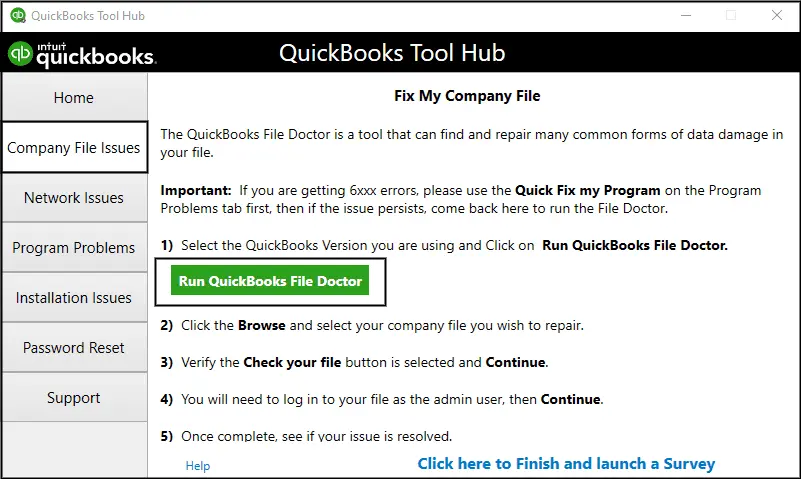
- Go to the QuickBooks Tool Hub and choose Company File Issues.
- Run the QuickBooks File Doctor and wait for it to open, which might take up to a minute.
- Choose the Check your file option.
- You can select your company file from the dropdown list or use the Browse and search feature to find it.
- Then, click Continue.
- Enter your QuickBooks admin password, then click Next.
The scanning process can take anywhere from a few minutes to more than half an hour, depending on the file size; let it run until it finishes, then open the file to check it.
Solution 9: Run Verify and Rebuild Data
The Verify function checks your file for any damage, and the Rebuild function repairs anything that it finds. This is the standard solution for freezes during reconciliation, report generation, and when saving transactions.
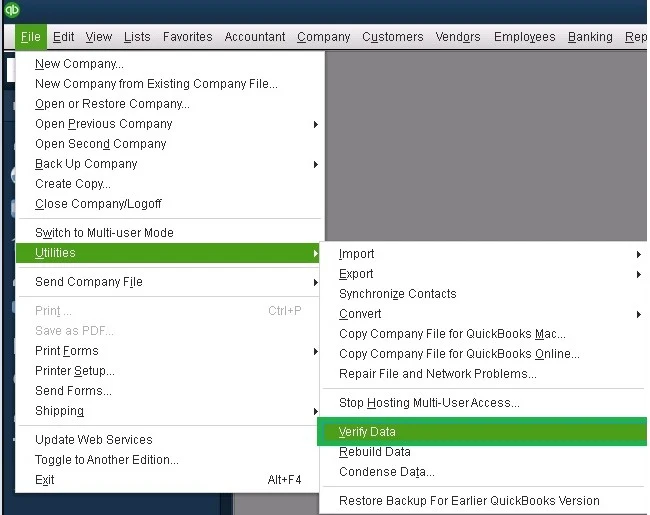
- Go to File, then choose Utilities,and click on Verify Data until the scan is complete.
- When there are problems, select File > Utilities > Rebuild Data.
- Create a backup by accepting the prompt; don’t omit it.
- Let the rebuilding process go all the way through; at times it might seem to have stopped. In that case, check the hard drive activity light, then do nothing else.
- Carry out the Verify Data procedure once more to make sure that the damage has disappeared.
If, after three rebuild cycles, Verify Data still shows problems, you should stop, as additional cycles can make professional recovery more difficult.
Either read the QBWin.log as described in the diagnostics section below or have data recovery performed by an expert.
Solution 10: Repair the Installation and its Windows Components
Repairing the installation replaces any damaged or missing program files without affecting your license, preferences, or data, as long as the sample file points to the application.
- Turn off QuickBooks and go to Settings > Apps > Installed apps.
- Find the QuickBooks record you want, click Modify, select Repair, then follow the instructions.
- Once the computer finishes and completes the test, restart it.
- If the problem persists, open the QuickBooks Tool Hub, choose Installation Issues, and run the QuickBooks Install Diagnostic Tool. The tool checks the shared Microsoft components that QuickBooks relies on and might take twenty minutes or longer. You must then restart the computer.
If the tool reports components it could not fix, repair them directly:
- Make sure that the .NET Framework 3.5 and 4.8 are enabled by going to Control Panel > Programs > Turn Windows features on or off.
- Repair each Microsoft Visual C++ Redistributable entry in Installed apps.
- Register MSXML by running regsvr32 MSXML6.dll in an administrator Command Prompt.
Solution 11: Rule Out Antivirus, Cloud Sync, and Startup Conflicts
One of the most common reasons QuickBooks processes are unexpectedly terminated is security software stopping them mid-operation, and it is easy to overlook since QuickBooks doesn’t keep such logs.
Add Exclusions
In your antivirus or endpoint protection settings, exclude the folder that holds the QuickBooks program, the folder containing your company file, and the executable files QBW32.exe, QBW.exe, QBDBMgrN.exe, QBCFMonitorService.exe, and QBUpdate.exe from real-time scanning. After any major security update, check again that these are excluded, as they might be reset.
Move the File Out of a Synced Folder
When using OneDrive, Dropbox, or Google Drive, files are locked during syncing; if a company file is in a synced folder, it might freeze and become corrupted. Therefore, move it to a local folder that is not synced.
Test in Selective Startup
- To start, press the Windows key + R, type msconfig, and then press Enter.
- On the General tab, select ‘Selective startup with Load system services’.
- Then, on the Services tab, check the box for ‘Hide all Microsoft services‘
- Click ‘Disable all‘, uncheck the box again, make sure ‘Windows Installer‘ is checked, then restart the computer.
Now check whether QuickBooks works without any problems.
To switch back to Normal mode, go back to msconfig, change the startup type back to ‘Normal startup‘, and re-enable the services one at a time until the conflict shows up again.
Disable Integrated Applications
Payment processors, time-tracking tools, and inventory add-ins can cause QuickBooks to crash because they load into it; temporarily disable them under Edit > Preferences > Integrated Applications > Company Preferences.
Solution 12: Fix Display Scaling, Compatibility, and System Resources
An application that has grown beyond the capabilities of its machine will freeze under load, regardless of how many repairs you do, and scaling faults can cause crashes that appear completely random.
Adjust Compatibility and DPI Settings
- To open the Properties window of the QuickBooks shortcut, right-click on it and then select Properties > Compatibility.
- Make sure that the option to Disable fullscreen optimizations is ticked. Click on Change high DPI settings, tick the box for Override high DPI scaling behavior, and set the scaling to System.
- For older versions, you also need to tick Run this program in compatibility mode and choose an earlier version of Windows.
Test at 100 Percent Scaling
Temporarily set scaling to 100 percent in Settings > System > Display. If the crashes stop, scaling was the cause, and the per-application override above will be your permanent solution.
Check Memory and Disk
Open Task Manager, then check the Performance tab while QuickBooks is running. If memory is near capacity, close other programs or add more RAM. Run Check Disk from an administrator’s command prompt and then restart so that it can finish. Unpredictable crashes are a classic sign of a failing drive.
Update Windows and Your Graphics Driver
Make sure all pending Windows updates are installed, and get the graphics driver from the manufacturer’s website rather than relying on Windows Update. Display driver issues can cause freezes when windows open or resize.
As a final step, perform a clean installation at the application level. Before you do, make sure you have your license and product numbers, a recent backup, and a record of any custom templates, memorized reports, and printer settings you will need to reestablish.
Deeper Diagnostics for QuickBooks Desktop Application Performance Issues
If the sample-file test in Solution 4 pointed to the application rather than your data, and the repairs in Solutions 10 to 12 didn’t remove it, stop guessing and read what Windows recorded.
Configuration Files That Affect QuickBooks
Three files contain the user-level configuration, and each causes a different symptom when damaged. You can safely rename any of them because QuickBooks automatically recreates a clean copy.
| File | Location | What it controls | Symptom when damaged |
| QBWUSER.ini | C:\Users\[user]\AppData\Local\Intuit\QuickBooks [year] | Recent file list, desktop layout | Hangs on the splash screen |
| EntitlementDataStore.ecml | C:\ProgramData\Intuit\Entitlement Client\v8 | License and registration data | Closes silently at or after login |
| qbprint.qbp | C:\ProgramData\Intuit\QuickBooks [year] | Printer and form setup | Freezes on any print or preview |
Read the Logs
Windows Event Viewer and the QBWin.log File can help you identify the issue and address it.
Windows Event Viewer
- Right-click the Start button, select Event Viewer, then expand Windows Logs > Application.
- Look up the error that was recorded at the precise moment of the crash and check the ‘Faulting module name‘ field.
- The name refers to the component that actually failed.
- The application wasn’t the cause if it points to a printer driver, a graphics DLL, or a third-party add-in rather than to a QuickBooks file.
The QBWin.log File
- In QuickBooks, press F2 and then F3 to open the Tech Help window.
- In the Open File tab, choose QBWin.log and then click Open File.
- Go to the end and search for lines labeled LVL_ERROR.
- They specify the exact lists, transactions, or links Rebuild couldn’t repair, usually including a transaction type and date that will let you locate and manually recreate the entry.
When the log indicates structural damage (errors related to internal indexes or targets that cannot be resolved), it’s best to have a professional data recovery service handle it rather than run more rebuild cycles.
Test in a New Windows User Profile
The same symptoms can occur when a Windows profile is damaged, just as with a damaged QuickBooks installation.
- To fix this, create a new local administrator account by going to Settings > Accounts > Other users, log in with it, and then run QuickBooks;
If QuickBooks is stable in this situation, transfer your settings to the new profile instead of continuing the QuickBooks repair.
Fixes for Specific Actions: Troubleshooting QuickBooks Problems Casewise
If QuickBooks is stable except for one specific task, the problem is almost always due to the Windows component the task relies on. So, it is best to troubleshoot the components involved in the case directly.
A. QuickBooks Freezes When Printing
Printing freezes are caused by the Windows print subsystem, the printer driver, or the PDF component that QuickBooks uses for forms.
- Use the PDF and Print Repair Tool
To do this, open the Tool Hub, choose Program Problems, and then click on the QuickBooks PDF & Print Repair Tool.
- Rename qbprint.qbp and wpr.ini
Specifically, in the C:\ProgramData\Intuit\QuickBooks [year] folder, rename qbprint.qbp to qbprint.qbp.old, and in the C:\Users\[user]\AppData\Roaming\Intuit\[year] folder, rename wpr.ini to wpr.ini.old.
Then open QuickBooks, choose File > Printer Setup, select any form, and click OK to regenerate the settings. You will have to reapply the custom form alignment afterward.
- To reset the print spooler
Open services.msc, stop the Print Spooler, delete all the files inside C:\Windows\System32\spool\PRINTERS, and then restart the service.
- Try using a different printer
Temporarily set Microsoft Print to PDF as your default printer. If this solution works, then remove your printer and reinstall it using the driver currently available on the manufacturer’s website.
B. QuickBooks Freezes When Trying to Email an Invoice or Send an Email
If QuickBooks freezes when trying to email an invoice or send an email, here is what you should do:
- Make sure you have administrative rights first
To open the Properties window of the QuickBooks shortcut, click on it with the right mouse button. Then select Properties > Compatibility, and make sure that the option to run the program as administrator is unchecked. When QuickBooks runs with elevated privileges, it can’t pass a message to Outlook, which runs under normal conditions, and this discrepancy causes many email freezes.
- Confirm Outlook is the default mail client
Go to Settings, then Apps, then Default apps. Make sure that Outlook is the default email client and open Outlook completely before sending a message from QuickBooks.
- Try out the new Outlook profile
To create a new profile in Control Panel > Mail > Show Profiles, make sure that Outlook uses it.
- Disable Outlook add-ins
In Outlook, go to File > Options > Add-ins, click Go next to COM Add-ins, and untick all the entries, then restart both programs.
- Reset webmail preferences
In QuickBooks, choose Edit, then Preferences, then Send Forms, select the account you want on the My Preferences tab, click Edit, deselect the option for Use enhanced security, and then log back in when asked. With Gmail and Yahoo, you might need to use an app-specific password.
- Check the invoice itself
If the invoice you’re looking at causes QuickBooks to crash, then change it to a standard template by using the Formatting tab. If that works, you should rebuild your custom template.
C. QuickBooks Freezes When Exporting to Excel
If you find that QuickBooks freezes when exporting to Excel, do the following:
- Confirm Excel compatibility
To check your QuickBooks release and compare it with the system requirements, press F2. A mismatch between the 32-bit and 64-bit versions of QuickBooks and Excel is a common cause.
- Repair Office
Go to Settings, select Apps, then choose the Installed apps option, click on Modify for the entry corresponding to Office, and carry out Quick Repair; if necessary, also perform Online Repair.
- Test a different report
Export a small standard report, such as a Profit and Loss summary; if that works but one report causes the program to freeze, rebuild the report’s customization from a standard template.
- Reduce the date range
Large exports use up available memory; export in smaller batches to see whether volume is the issue.
D. QuickBooks Freezes When Reconciling
When you run reconciliation, QuickBooks loads the entire account register at once, which can reveal both data damage and a large volume of information. If QuickBooks freezes during the reconciliation process, you might try the following steps:
- First, run data verification and rebuilding (Solution 9); reconciliation freezes are a common sign of transaction-level damage.
- Review old transactions that have not yet cleared. Accounts with many uncleared items can take a long time to process. Instead of deleting them, make the necessary corrections.
- It is better to deal with one statement at a time rather than trying to catch up on several months’ worth at once.
- Before you begin, make sure that all the other QuickBooks windows are closed and carry out the reconciliation directly on the host computer, not over the network.
- If the file covers several years, compress it. Before doing this, make a permanent backup, since compressing removes transaction details and the operation cannot be reversed.
E. QuickBooks Crashing After an Update or Payroll Update
An update that does not install fully leaves mismatched components behind, and the crash occurs when QuickBooks calls one of them that is missing. Reapply the update as administrator with Reset Update ticked (Solution 3), then repair the installation and run the Install Diagnostic Tool (Solution 10). For payroll specifically, confirm your subscription is active under Employees > My Payroll Service > Manage Service Key, then download the entire tax table update again.
F. QuickBooks Crashes or Freezes in Multi-User and Network Environments
The problem must lie in the connection or in the hosting setup if QuickBooks crashes or freezes only when using the network.
- Make sure that the host computer is turned on, awake, and not in sleep or hibernate mode.
- On the host, go to File and then select Utilities. The option should be listed as Stop Hosting Multi-User Access; on each workstation, it should be Host Multi-User Access. If hosting is enabled on more than one machine, this freeze can occur.
- On the host, start QuickBooks Database Server Manager, then rescan the folder that contains your company file.
- Make sure that the QuickBooks ports are open in the firewall on the host and the workstations and that the QuickBooksDBXX service is running.
- Wherever possible, use a wired connection to the host, since frequent Wi-Fi drops often cause the session to freeze.
- For diagnosis, copy the company file to your local desktop, then open it from there. If the file works when opened locally, your data is okay, and the problem likely lies in the network connection, the host, or folder permissions.
G. QuickBooks Crashing on Older Versions On Windows 10 And Windows 11
Using an older version of a program on a current operating system might result in unexpected crashes; for example, QuickBooks 2014 crashing unexpectedly on Windows 10 and later versions of Windows 11. First, apply the compatibility and DPI settings in Solution 12.
After that, you should understand the support position. Intuit retires the various versions of QuickBooks Desktop on a rolling basis. Once a version passes its service discontinuation date, connected services such as payroll, bank feeds, and payment processing stop working, and Intuit no longer provides security updates.
Nevertheless, the software will still allow you to open your files. Support has already been discontinued for several earlier releases, and the schedule has changed more than once in recent years, so check Intuit’s current service discontinuation page to confirm the status for your version and edition.
If a release that has long since been discontinued is still running and keeps crashing, it’s usually more cost-effective to upgrade than to keep trying to fix it, since no further remedies will be available for the basic faults.
Expert Tips to Prevent Freezes and Crashes in the Future
Adopt these healthy practices to avoid QuickBooks freezing, crashing, or experiencing performance problems in the future.
- Make daily backups and set up automatic backups to store in a location separate from the working files.
- Verify Data every month; if damage is detected early, Rebuild can usually handle it.
- To keep QuickBooks up to date, select Automatic Updates under Help > Update QuickBooks Desktop > Options.
- Monitor file size; press F2 to check it, and performance starts to degrade noticeably when a file exceeds a few hundred megabytes.
- Each day, close QuickBooks properly by choosing File > Exit, not by leaving it running overnight, since files left open during a network interruption are a leading cause of damage.
- Stabilize the host by turning off sleep and hibernation and using a wired connection.
- Keep your antivirus exclusions, and check them again after any security software updates.
- Restarting the system weekly can clear accumulated locks and reduce memory pressure.
When to Get Professional Assistance
You should reach out to a QuickBooks professional instead of self-troubleshooting the issue if any of the following apply:
- Data verification shows that damage persists after three rebuild cycles.
- The QBWin.log contains structural or index-level errors.
- The company file won’t open on any computer, including those with a local copy.
- You don’t have a recent backup, and the file is damaged.
- The file is business-critical, and you don’t feel confident carrying out a clean installation or a condense.
A QuickBooks ProAdvisor or specialist data recovery service can work on a copy of your file without risking the original. Dial Call Us : +1-866-408-0444 and speak to an expert now.
Wrapping Up
If QuickBooks freezes, crashes, or closes unexpectedly, there are some predictable fixes. Back up your file, then work through the twelve remedies in order: restart the program and clear stuck processes, use Quick Fix my Program, update to the latest version, and open a sample company file to see whether the issue is with the application or your data. After that, the remaining solutions fall into three groups: application faults (configuration and installation repairs); file damage (File Doctor and Rebuild Data); and anything left (conflict and system checks).
If the freeze is tied to a specific action, the problem is usually with the Windows component that action depends on, not QuickBooks itself. Once repairs stop making progress, both Event Viewer and QBWin.log will show whether the issue is repairable damage or a file that needs professional recovery. It’s important to tell the difference as early as possible to protect your data.
Frequently Asked Questions
How do I know whether the problem is the QuickBooks application or my company file?
Open the sample company file in the No Company Open window and use it for a few minutes. If the sample file freezes or crashes, the issue is with the application, the installation, or Windows, and you should refer to Solutions 5, 6, and 10 through 12. But if the sample file stays stable while your own file does not, the application is fine and the problem is with your company file, its location, or your network. This one test can save hours of troubleshooting in the wrong area.
Why does QuickBooks freeze when opening my company file but not the sample file?
This pattern means the installation is fine, and the problem is with your file or where it’s stored. First, rename the .ND and .TLG files beside it, then run the QuickBooks File Doctor from the Tool Hub. If the file opens correctly after being copied to your local desktop, the issue is with the network path, the host computer, or the folder permissions, not your data. However, if it still freezes when you open it on your local machine, run Verify and Rebuild Data to repair the file itself.
Why does QuickBooks keep closing as soon as I open it?
When a prompt for immediate and silent closure occurs, it usually means QuickBooks can’t read a configuration or license file it needs at startup. Rename both EntitlementDataStore.ecml and QBWUSER.ini to force the program to create new copies, and make sure your license number and product number are available because you’ll be asked to register them again. If that still doesn’t work, check the Selective Startup setting to rule out antivirus interference, then use the Quick Fix my Program option in the QuickBooks Tool Hub.
How do I stop QuickBooks from freezing when I email invoices?
Check the administrator setting first. Right-click the QuickBooks shortcut, open Properties > Compatibility, and clear Run this program as administrator. QuickBooks running with elevated rights can’t send a message to Outlook running with normal rights, and this mismatch causes many email freezes. If you use webmail, go to Edit > Preferences > Send Forms, edit your account, clear enhanced security, and sign in again when prompted.
Is it safe to run Rebuild Data on my company file?
Yes, as long as you let it create the backup it offers first. Rebuild repairs damaged links and list entries inside your file, and QuickBooks will not proceed without backing up. Never cancel a rebuild partway through, even if it appears to have stalled. Check the hard drive activity light and let it finish. If Verify still reports damage after three rebuild cycles, stop and seek professional data recovery rather than continuing.
Why did QuickBooks start crashing right after an update?
An update that doesn’t install completely can leave mismatched program components behind, and the crash occurs when QuickBooks calls one that is missing. Close the program, right-click the icon, and choose Run as administrator. Then go to Help > Update QuickBooks Desktop, check Reset Update, and download again. If crashes continue, repair the installation in Settings > Apps > Installed apps, then run the Install Diagnostic Tool from the Tool Hub.
What causes QuickBooks to freeze during reconciliation?
Reconciliation loads an entire account register at once, so it reveals both data damage and volume. Verify and Rebuild Data first, since reconciliation freezes are a classic sign of transaction-level damage. Then review the account for old uncleared transactions, which build up over years and slow the register considerably. Reconcile one statement period at a time, close all other QuickBooks windows beforehand, and work directly on the host computer rather than over the network.
Can antivirus software really make QuickBooks close unexpectedly?
Yes, and more often than most users expect. Real-time scanning can lock or quarantine a QuickBooks file mid-operation, and endpoint protection can sometimes terminate the process outright. Add exclusions for the QuickBooks program folder, your company file folder, and the executables, including QBW32.exe, QBDBMgrN.exe, and QBCFMonitorService.exe. Re-check these exclusions after any major security software update, because they are sometimes reset without notice.
My QuickBooks version is no longer supported. Should I upgrade or keep troubleshooting?
If your version is several years past its service discontinuation date, upgrading is usually the better investment. Unsupported versions get no fixes for the underlying faults that cause crashes, and connected services such as payroll and bank feeds might already have stopped working. Compatibility issues with current Windows builds also grow over time. Check Intuit’s current service discontinuation page for your version and edition, back up your file, and plan the upgrade instead of repeating repairs.
About The Author

Jonathan Browns
Jonathan Brown is a trained QuickBooks professional with 10 years of experience in the accounting sector. Moreover, he is passionate about helping businesses reduce the stress of managing accounts. Also, he is proficient in assisting entrepreneurs and small business owners to use QuickBooks and enhance their accounting experience.
Recent Posts
-
Fix QuickBooks Error 15240 With 8 Troubleshooting Methods
-
QuickBooks Desktop Enterprise 2026: Features, Pricing, Download & Setup Guide
-
QuickBooks Freezing, Crashes, or Closes Unexpectedly: DIY Troubleshooting
-
QuickBooks Tool Hub Setup- Download, Install, and Run with Ease
-
QuickBooks Payroll Update Not Working: Causes & Fixes