


How to Fix QuickBooks Error 6000 83: Step-by-Step Guide

- By Jonathan Browns
- Oct 27, 2026
- Accounting
- 7 min read
QuickBooks Error 6000 83 is a company file error that can occur when you try to open, restore, or create a backup of your company file in QuickBooks Desktop. It may occur due to file damage, incorrect folder permissions, network connection issues, or improper hosting settings. When this error occurs, you may be unable to access important business records, which can interrupt your daily accounting tasks. Fortunately, you can often fix the issue by following the right troubleshooting steps.
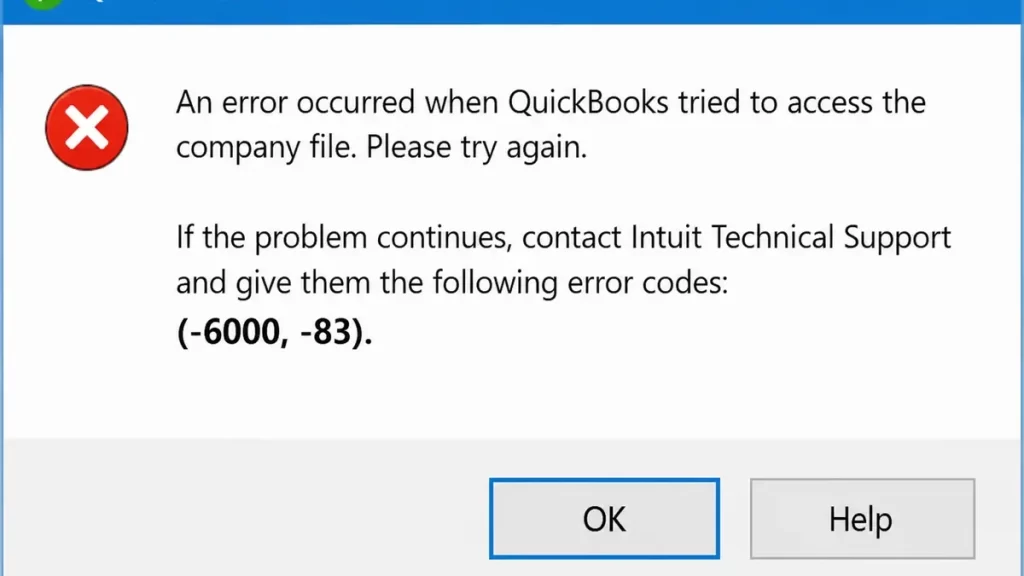
In this guide, we will explain the common causes of QuickBooks Desktop error code 6000 83 and walk you through practical solutions for backup, restore, Windows server, and Linux server situations.
What is QuickBooks Desktop Error Code 6000, 83?
You may encounter QuickBooks Company File Error 6000, 83 when QuickBooks Desktop can not properly access a company file. It can come while opening, or creating a backup of company file.
When this error occurs, you may see a message stating that QuickBooks encountered a problem while trying to access the company file, along with error code -6000 -83.
Some common situations in which this error may occur include:
- While opening a company file: QuickBooks cannot access the File or its folder.
- While creating a backup: QuickBooks encounters a problem saving the backup file.
- While restoring a backup: The backup file may have naming, location, or access issues.
- While using a network file: Incorrect hosting settings or network permissions may prevent access.
- While accessing a damaged file: Company file damage may prevent QuickBooks from opening it properly.
Common Causes of QuickBooks Error 6000 83
QuickBooks Desktop Error Code 6000, 83 can occur for several reasons related to company files, folder permissions, or network settings. Understanding the causes can help you choose the right solution and avoid unnecessary troubleshooting.
Here are some common reasons behind the error:
- Damaged company file: Your QuickBooks company file (.QBW) may be damaged or corrupted, preventing QuickBooks from accessing it.
- Incorrect folder permissions: You may not have the necessary permissions to read, write, modify, or create files in the company file folder.
- Incorrect file name or extension: Special characters in a backup filename or an incorrect file extension may cause problems when restoring a backup.
- Firewall or security restrictions: Windows Firewall or other security settings may block QuickBooks from accessing files over a network.
- Incorrect hosting settings: Hosting multi-user access on multiple workstations instead of only the designated server can cause company File access issues.
- Outdated QuickBooks Desktop: Running an outdated version may contribute to compatibility or application-related issues.
- Missing or incorrect ND file: A missing or outdated Network Data (.ND) file may interfere with network access to the company file.
- Incomplete QuickBooks installation: Installation problems may affect how QuickBooks accesses or manages company files.
How to Fix QuickBooks Error 6000 83?
You can resolve the QuickBooks Error 6000 83 by following the troubleshooting steps that match your situation. Before you begin, update your QuickBooks Desktop to the latest version and make sure you have a recent backup of your company file.
Here are the main solutions to try:
- If the error occurs while creating a backup: Save the backup to a new folder on your local C: drive.
- If the error occurs while restoring a backup: Check the backup filename, create a portable company file if needed, or restore the backup from your local drive.
- If your company file is stored on a Windows server: Turn off hosting on workstations and check your network settings.
- Run QuickBooks File Doctor: Use the tool to identify and repair supported company file and network issues.
- Check company file sharing and hosting: Verify folder permissions, scan the company file folder using QuickBooks Database Server Manager, and check the Network Data (.ND) file.
- If your company file is stored on a Linux server: Verify the server configuration and host file settings with help from an experienced IT professional.
Let’s go through each solution step by step, starting with the steps for users who encounter the error while creating a company file backup.
Method 1: Fix QuickBooks Error 6000 83 While Creating a Backup
If QuickBooks File Backup Error 6000 83 appears while creating a backup, try saving the backup to a new folder on your local C: drive.
- Close QuickBooks Desktop on the server computer.
- Open File Explorer and navigate to your C: drive.
- Create a new folder named QB Test Folder.
- Open QuickBooks Desktop and create a backup of your company file.
- Save the backup in the new folder.
- Restore your company file using the newly created backup.
If the error disappears, verify that the restored company file works correctly before using it as your primary File. If the error persists, proceed to the next method.
Method 2: Check the Backup File Name
An incorrect backup filename may cause problems when restoring your company file.
- Open File Explorer and locate your .QBB backup file.
- Right-click the File and select Rename.
- Remove spaces, symbols, and special characters from the filename.
- Rename the containing folder similarly if needed.
- Try restoring the backup again. If QuickBooks Error 6000 83 continues, move to the next troubleshooting method.
Method 3: Create a Portable Company File
If you cannot restore your backup file, try creating a portable company file (QBM) from the original company file.
- Open QuickBooks Desktop and sign in to your original company file.
- Go to File and select Create Copy.
- Select Portable company file and click Next.
- Enter a simple, unique name for the File.
- Choose an easy-to-find location, such as your desktop.
- Click Save and then OK.
- Use the portable company file to restore your company data. If QuickBooks Error 6000 83 still appears, proceed to the next method.
Method 4: Restore the Backup From Your Local Hard Drive
If your backup is stored on a server or network drive, moving it to your local computer may help.
- Copy the .QBB backup file to your local C: drive.
- Open QuickBooks Desktop and select File> Open or Restore Company.
- Choose Restore a backup copy and click Next.
- Browse to the backup file on your C: drive.
- Select a suitable location for the restored company file and complete the restoration.
Once the File is restored, check whether the error is resolved. If your company file normally resides on a server, move it back only after confirming that it works correctly.
Method 5: Turn Off Hosting on Workstations
If your company file is stored on a Windows server, incorrect multi-user hosting settings may cause QuickBooks Desktop Error Code 6000, 83.
Follow these steps:
- Open QuickBooks Desktop on a workstation without opening the company file.
- Go to File, then select Utilities.
- If you see Stop Hosting Multi-User Access, select it.
- If you see Host Multi-User Access, leave it unselected.
- Repeat these steps on every workstation connected to the network.
Only the designated server should host the company file. Once done, reopen your company file and check whether the error is resolved.
Method 6: Run QuickBooks File Doctor
QuickBooks File Doctor can help identify and repair certain company file and network issues.
- Open QuickBooks Tool Hub on your computer. Install it from Intuit’s official website if needed.
- Select Company File Issues.
- Click Run QuickBooks File Doctor.
- Select your company file from the list or browse to locate it.
- Choose the option to check your File and click Continue.
- Enter your QuickBooks admin password if prompted, then follow the on-screen instructions.
After the scan finishes, reopen your company file and check whether QuickBooks Error 6000 83 has been fixed.
Method 7: Restore Your Company File From a Backup
If your QuickBooks company file is damaged, restoring a recent backup may help resolve Error 6000 83.
- Open QuickBooks Desktop and go to File> Open or Restore Company.
- Select Restore a backup copy and click Next.
- Choose Local Backup and click Next.
- Browse to your backup file with the .QBB extension.
- Select a separate folder for the restored company file to avoid overwriting your existing File.
- Click Save and follow the on-screen instructions.
Once the restoration is complete, you can open the company file and verify your data. Always keep your original File and backup until you confirm everything is working correctly.
Method 8: Check Company File Sharing and Permissions
Incorrect folder permissions can prevent QuickBooks from accessing a company file over a network.
- Update QuickBooks Desktop to the latest release.
- Check the firewall settings on your server and workstations.
- Ensure the folder containing your company file has the required sharing permissions.
- Confirm that users have permission to read, write, and modify files in the folder.
- Reopen QuickBooks and check whether the error persists.
If the problem continues, scan the company file folder using QuickBooks Database Server Manager.
Method 9: Scan the Company File Folder Using Database Server Manager
If QuickBooks Error 6000 83 persists, scan the folder containing your company file using QuickBooks Database Server Manager. This can help resolve certain network-related access issues.
- Open the Windows Start menu on your server computer.
- Search for and open QuickBooks Database Server Manager.
- Select the Scan Folders tab.
- Click Browse and select the folder containing your QuickBooks company file (.QBW).
- Click Start Scan and wait for the process to finish.
- Open the scanned folder in File Explorer and check whether the corresponding .ND file is present.
Once the scan is complete, reopen QuickBooks Desktop and try accessing your company file. If the error continues, check your hosting settings and network configuration.
How to Prevent QuickBooks Desktop Error Code 6000, 83?
You can reduce the chances of encountering QuickBooks Error 6000 83 by following a few simple steps. These steps will help you maintain your company File access and prevent common backup and network-related issues.
- Install the latest available QuickBooks Desktop updates to maintain compatibility and stability.
- Back up your Company File regularly so you can restore your business data if a problem occurs.
- Make sure authorized users have the required permissions to access and modify the company file.
- In a multi-user environment, ensure hosting is configured properly on the computer acting as the server.
- Check your firewall and network configuration to ensure QuickBooks can communicate with the server.
- Avoid unnecessary symbols and special characters in backup filenames and folder names.
- Scan your company File folder when network access problems occur, and address any reported issue promptly.
Conclusion
Hopefully, you have understood what QuickBooks Error 6000 83 is, why it occurs, and how to fix it using troubleshooting methods discussed in this guide. Whether the error occurs while opening, backing up, or restoring the company file, identifying the cause can help you choose the right solution. Make sure to check your file permissions, backup settings, and network configuration before trying advanced fixes. Also, keep a recent backup of your company file to protect your business data.
If the error continues, contact a Bizbooksadvice live technician at Call Us : +1-866-408-0444 for further assistance.
Frequently Asked Questions
What is QuickBooks Error 6000 83?
QuickBooks Error 6000 83 is a company file error that occurs when QuickBooks Desktop cannot access a company file properly. It may appear while opening, backing up, or restoring a company file.
What are the main causes of QuickBooks Error 6000 83?
This error can occur due to a damaged company file, incorrect folder permissions, firewall restrictions, network connectivity problems, or incorrect multi-user hosting settings.
How do I fix QuickBooks Error 6000 83 when creating a backup?
Try saving the backup to a new folder on your local C: drive. If the error continues, check your company File access and network settings.
Can QuickBooks File Doctor fix Error 6000 83?
Yes, QuickBooks File Doctor can help detect and repair certain company file and network issues. However, it may not resolve every cause of the error.
Can a damaged company file cause QuickBooks Error 6000 83?
Yes, a damaged or corrupted company file can prevent QuickBooks from accessing your business data. You can try running QuickBooks File Doctor or restoring a recent, verified backup.
How do I fix QuickBooks Error 6000 83 on a Windows server?
Start by turning off hosting on your workstations, checking folder permissions, and scanning the company file folder with QuickBooks Database Server Manager. Also, verify that your firewall allows QuickBooks network access.
How can I prevent QuickBooks Error 6000 83 from happening again?
Keep QuickBooks Desktop updated, create regular company file backups, maintain correct folder permissions, and ensure your network and hosting settings are configured properly. These practices can reduce the risk of future errors.
About The Author

Jonathan Browns
Jonathan Brown is a trained QuickBooks professional with 10 years of experience in the accounting sector. Moreover, he is passionate about helping businesses reduce the stress of managing accounts. Also, he is proficient in assisting entrepreneurs and small business owners to use QuickBooks and enhance their accounting experience.
Recent Posts
-
How to Fix QuickBooks Error 6000 83: Step-by-Step Guide
-
Edit Deposit QuickBooks Online: Complete Step-by-Step Guide
-
How to Fix QuickBooks Error 6189 816 & Restore Company File Access
-
What Causes & How to Fix QuickBooks Error 15223 Efficiently?
-
QuickBooks Library Files Failed: How to Fix Error 80029c4a