


Fix QuickBooks Error 15240 With 8 Troubleshooting Methods

- By Jonathan Browns
- Sep 22, 2026
- Accounting
- 7 min read
Updating QuickBooks Desktop and payroll is important to maintain tax compliance, access the latest security patches, and prevent service disruptions. But sometimes users might come across QuickBooks Error 15240 while installing QuickBooks Desktop or while downloading the payroll updates. Common causes that may trigger this issue include insufficient Windows permissions, verifying the digital signature certificate, or incorrect system date and time. In this guide, we have explained causes, symptoms, and troubleshooting methods to fix QuickBooks Error 15240.
What is QuickBooks Error 15240?
QuickBooks Error 15240 is an update error that appear while downloading the latest QuickBooks Desktop or payroll update. However, when it appears, you may get any one of the following error messages stating;
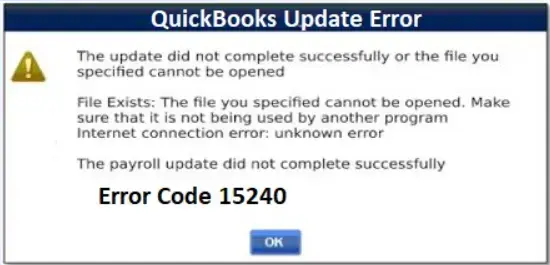
- Error 15240: The payroll update did not complete successfully.
- File Exists: The file you specified cannot be opened.
- Internet Connection error: unknown error
This error belongs to QuickBooks Error 15XXX that occurs during the QuickBooks Desktop and payroll update. It may trigger due to incorrect permissions, misconfigured date and time on system, or firewall restrictions.
How Can You Identify the Occurrence of QuickBooks Update Error 15240?
Error 15240 in QuickBooks usually occurs while trying to update the QuickBooks Desktop or even while downloading payroll updates. Other signs and symptoms that shows the presence of this error is as follows;
- QuickBooks fails to install software updates or maintenance releases.
- The QuickBooks software becomes unresponsive or shut down simultaneously while updating.
- You may encounter issues while running, processing, or adjusting employee paychecks.
- Payroll or tax table update stop before completing or show a failure notification.
- You may observe that the computer or QuickBooks application suddenly slows down during update attempts.
Why Does QuickBooks Desktop Error Code 15240 Occurs?
Following are the major root causes that contributes to the occurrence of QuickBooks Desktop Error Code 15240.
- Time and date on your system is incorrect.
- QuickBooks does not have enough Windows permissions to install the latest QuickBooks Desktop or payroll updates.
- This may happen when QuickBooks can’t verify a downloaded file due to outdated digital signature certificate.
- Firewall or third-party security settings is blocking the update process.
- Incorrect internet settings could also prevent QuickBooks from communicating with Intuit’s update service.
Troubleshooting Methods to Resolve QuickBooks Error Code 15240
Once you understand the causes, and symptoms causing the QuickBooks Error Code 15240, let’s explore the troubleshooting methods to fix the issue.
Method 1: Run QuickBooks as an administrator
Lack of administrator permissions can also prevent QuickBooks from accessing the files it needs to install an update. Here’s the steps to run QuickBooks as an administrator.
- The first step is to exit from your company files and QuickBooks Desktop.
- Next, right-click on the QuickBooks Desktop icon.
- Choose Run as Administrator.
- When you see the message “Do you want to allow this program to make changes to your computer?”, click Yes.
- Download the latest QuickBooks Desktop product updates or the latest payroll tax table update again.
Method 2: Install a Digital Signature Certificate
Digital Signature is mainly helps Windows and QuickBooks to ensure that the downloaded program files are authentic. But, if the QuickBooks fails to verify the digital signature certificate, an update fail and can cause QuickBooks Update error 15240. Therefore, to fix the issue, ensure that you have installed
For installing the latest version of the digital signature certificate in QuickBooks, perform these steps.
- Browse to the following location “C:\Program Files\Intuit\QuickBooks”.
- After this, right-click on QBW32.exe, then select Properties.
- Select Digital Signature and verify Intuit is selected in the signature list.
- Click on Details.
- In the Digital Signature Details window, select View Certificate.
- In the Certificate window, select Install Certificate.
- Select Next until Finish is displayed. Then, select Finish.
- Restart your computer.
- Open QuickBooks, then re-download the update.
Method 3: Run Quick Fix My Program
The Quick Fix will shut down any lingering background processes QuickBooks may be using. It’ll run a quick repair on your program.
- First, click on the QuickBooks Tool Hub icon on the desktop.
- From the QuickBooks Tool Hub, choose Program Problems.
- Select the Quick Fix my Program.
- Once it’s done, reopen QuickBooks and your company file.
- Download the latest QuickBooks Desktop product updates or the latest payroll tax table update again.
If you still get an error, try these steps:
- Close QuickBooks Desktop.
- Go to C:\ProgramData\Intuit\QuickBooks XX\Components.
- Note: XX is your QuickBooks Desktop version. For example, QuickBooks Desktop 2021 is DownloadQB21
- Right-click Components, then Delete.
- Open QuickBooks Desktop. Go to the Help, then select Update QuickBooks Desktop.
- Select Update Now.
- Click the Reset Update checkbox.
- Choose Get Updates. When the download is complete, close and reopen QuickBooks Desktop.
- Go to the Help, then select Update QuickBooks Desktop.
- Select Overview, then Update Now.
Method 4: Repair QuickBooks
Incorrect installation of QuickBooks Desktop is most likely the chance of getting the QuickBooks 15000 series of error such as QuickBooks Update Error 15240. Therefore, to repair the damages with the QuickBooks install, run the QuickBooks Install Diagnostic tool.
Method 5: Check your System’s Date & Time
Misconfigured system’s date and time is one of the possible reason that may trigger QuickBooks Error 15240 payroll update. So, to fix the issue, correct system’s date and time by performing the following steps.
- Initially, select Date and Time from the bottom right corner of the desktop.
- Verify that the date and time on your system is correct.
- If you find that it’s incorrect, choose Change date and time option.
- Once again, browse to the Change Date and Time option.
- Afterwards, set the correct time and date on your system.
- At last, click on Apply to save the changes made.
Method 6: Check the Settings of Internet Explorer
Incorrect internet settings is also one of the possible reason that may trigger Error 15240 in QuickBooks. Therefore, to fix the issue, you need to reset the Internet Explorer settings.
- First, click on the Gear icon and tap on Internet Options.
- After this, choose the Advanced tab.
- When you are in the Securities tab, mark the checkbox of Use SSL 3.0 and Use SSL 2.0.
- Once the changes are made, hit the Apply and then OK option.
Method 7: Give Windows Permissions in the QB Installation Folders
Users may encounter this error due to lack of Windows permissions to install QuickBooks Desktop or payroll updates. Perform these steps for granting Windows permissions.
- Exit from the QuickBooks Desktop application.
- After this, navigate to the following location “C:\Program Files\”.
- For the 64 bit users, move to the C:\ Program Files (x86).
- Once you get the Intuit folder, right-click on it and select Properties option.
- Move to the Advanced > Security tab.
- Ensure that the User Group is the owner of the folder. If it isn’t the case, you should take the ownership of the Intuit folder.
- To take the ownership;
- Select the Advanced Security Settings and hit the Change against the Owner name.
- Now, to choose the field, type Users in the Object name and hit the Check Names option.
- Tap on OK option and mark Replace Owner. Then, choose the Apply option.
- Next, hit the OK Option and then hit the Users > Full Control option.
- When done, hit the Apply > OK option.
- Afterwards, try to download the QuickBooks Desktop or payroll updates again.
- If the QuickBooks Desktop error code 15240 isn’t resolved, so follow these steps;
- C: \ Program Files \ Common Files \ Intuit.
- After this, move to C: \ Users \ Your User Name \ AppData \ Local \ Intuit.
- (64-bit users) C: \ Program Files (X86) \ AppData \ Common Files \ Intuit.
- C: \ ProgramData \ Intuit.
Method 8: Reinstall QuickBooks Desktop
Even after performing the above steps you couldn’t be able to download the latest QuickBooks Desktop or payroll updates,
then try reinstalling QuickBooks program. A fresh installation will replace the damaged or missing program components and re-register required files.
Summarizing the Above
So, here we have reached at the end of this blog and hope that the troubleshooting methods stated will definitely help you fix QuickBooks Error 15240. This will let you download the latest QuickBooks Desktop or payroll updates without any discrepancy. If still you find any issues while installing updates, we suggest you to connect with our BizBooksAdvice professionals to get immediate resolution.
Frequently Asked Questions
What is QuickBooks Error 15240?
QuickBooks Error 15240 is an update error that may occur when QuickBooks Desktop fails to download a product update or payroll tax table update. This issue may appear due to insufficient permissions, incorrect firewall settings, or misconfigured system’s date and time.
Can QuickBooks Error Code 15240 occur during a payroll update?
Yes, the QuickBooks Error Code 15240 belongs to 15XXX series of error which is associated with QuickBooks Desktop payroll updates.
Why am I getting Error 15240 when updating QuickBooks?
This error may occur due to various causes like insufficient Windows permissions, incorrect system’s date and time, or Windows related issue.
Can firewall settings cause QuickBooks Update Error 15240?
Yes, Windows Firewall might block QuickBooks payroll or Desktop updates and may lead to QuickBooks Update Error 15240.
About The Author

Jonathan Browns
Jonathan Brown is a trained QuickBooks professional with 10 years of experience in the accounting sector. Moreover, he is passionate about helping businesses reduce the stress of managing accounts. Also, he is proficient in assisting entrepreneurs and small business owners to use QuickBooks and enhance their accounting experience.
Recent Posts
-
How to Restore QuickBooks Backup File: Step-By-Step Guide
-
Fix QuickBooks Error 15240 With 8 Troubleshooting Methods
-
QuickBooks Desktop Enterprise 2026: Features, Pricing, Download & Setup Guide
-
QuickBooks Freezing, Crashes, or Closes Unexpectedly: DIY Troubleshooting
-
QuickBooks Tool Hub Setup- Download, Install, and Run with Ease