


Why QuickBooks Crashes when opening company file & How to Fix It?

- By Jonathan Browns
- Apr 27, 2026
- Bookkeeping
- 7 min read
Does your QuickBooks crashes when opening the company file? If yes, then it may put your entire business on hold and cause delays in meeting the deadlines. This issue mainly occurs due to numerous factors, including data corruption, outdated software or network-related issues.
So, to continue with your ongoing business financial tasks, it’s crucial to fix this issue as soon as possible. In this guide, we have described all the major causes and troubleshooting methods to fix the QuickBooks Desktop crashes when opening the company file issue.
QuickBooks crashes when opening company file? If yes, then ensure you are using the latest QuickBooks version and verify the file type to fix the issue.
Why QuickBooks crashes when opening the company file?
Users often face the QuickBooks Desktop keeps crashing issue due to the following reasons.
- Using the unsupported version of QuickBooks Desktop.
- Missing or incorrect installation of the QuickBooks software.
- Issues with the hosting settings.
- Another reason may be corrupted company file issues.
- Damaged or corrupt QuickBooks program files.
- Issues with the company file location.
- Incorrect file type.
Solutions to Fix QuickBooks not responding when opening a company file problem
After understanding the QuickBooks not responding when opening a company file problem, let’s look at the troubleshooting methods to fix the error.
Solution 1: Update QuickBooks and Check Your File Types
It’s essential that you are using the supported version of QuickBooks Desktop and the correct file type.
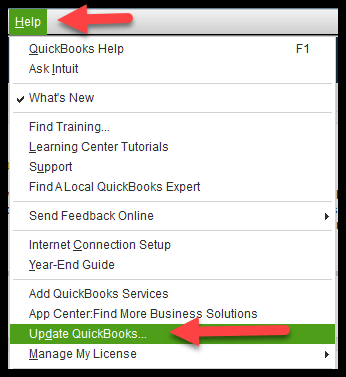
- Initially, make sure to update QuickBooks Desktop to the latest version.
- After this, ensure that the file you wish to open is a company file with the QBW file extension. You don’t have the option to open other file types, such as backups (QBB) and portable files (QBM).
- Verify that your file isn’t compressed or encrypted.
- Right-click on the company file and click on Properties.
- Choose the Advanced option and unmark the Compress and Encrypt check boxes.
- Hit the OK tab after making the changes.
- If you are still facing any issues while opening the company file, move to the next solution.
Solution 2: Avoid Saving the Desktop When you Close QuickBooks
QuickBooks will automatically reopen any Windows left open when you shut down your company file. If you are having a large report or several windows set to open automatically, then the QuickBooks application may freeze on startup.
- Initially, launch the QuickBooks Desktop.
- Choose your company file from the No Company Open window.
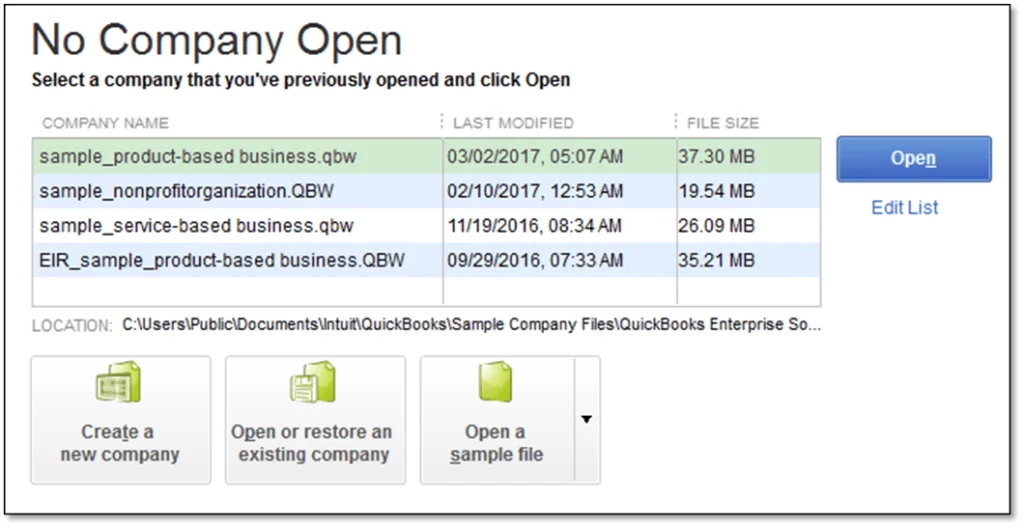
- After this, hold on to the Alt key and hit the Open tab. Make sure not to release the Alt key unless the file opens. If QuickBooks prompts you to log in, leave the Alt key and provide your password accurately. Once again, hold on to the Alt key and hit the OK option.
If you are able to launch the company file successfully, disable the Save the desktop when closing preference.
- Move to the Edit menu and hit the Preferences option.
- Choose the Desktop View option > Don’t save the desktop > OK option.
- Exit and then launch QuickBooks again. Then, access your QuickBooks company file.
If you are able to open the QuickBooks company file, you’re all set to go.
If you are having trouble accessing your company file, then try another solution.
Solution 3: Disable hosting on your workstations
If you are hosting your company file on a network, then disable Host Multi-User Access on your workstations. Make sure that only the server computer hosts the file.
To turn off hosting on your workstations:
- Launch QuickBooks on any of your workstations.
- Make sure not to open the company file. Instead, switch to the File menu> Utilities. If you see the Host Multi-User Access option, click on it. Then, move to the next workstation, as it is the one creating the problem.
- If you get the Stop Hosting Multi-User Access option, click on it.
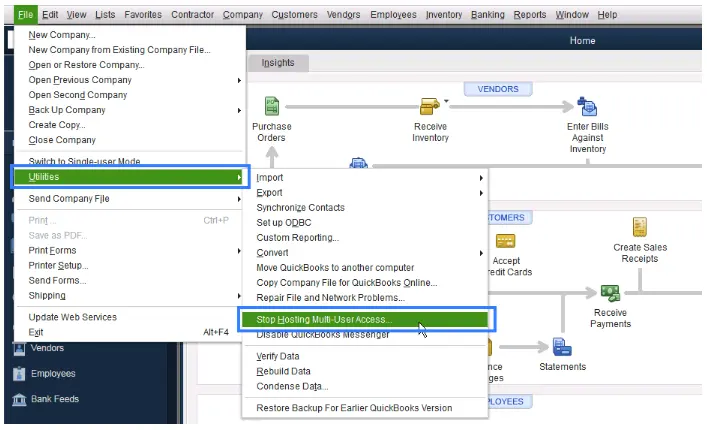
- You must repeat the same steps on each workstation.
After verifying each workstation, skip to the next server computer. This is mainly the computer hosting your company’s file.
- Initially, launch QuickBooks Desktop on your server PC.
- Now, head to the File menu and from there click Utilities.
- Choose the Host Multi-User Access option.
- Turn off the Multi-User Access option.
- Go to File > Utilities and choose Stop Hosting Multi-User Access.
- Go to File > Utilities, and then click Host Multi-User Access.
- At last, try to launch the company file once again.
Solution 4: Launch a Sample Company file
Perform the following steps to launch a sample company file and find out whether the issue lies with the file or the QuickBooks Software itself. ‘
- Launch the Windows Start menu.
- Press Ctrl on your keyboard and choose QuickBooks. Do not release the Ctrl key until QuickBooks Desktop opens.
- Choose Open a Sample file.
- If QuickBooks or the sample file doesn’t open or you see an error, the program is the issue. Here’s how to fix QuickBooks if it doesn’t open.
If the sample file opens normally, continue to the next solution.
Solution 5: Move your company file
There might be the possibility that your company file location is causing the QuickBooks Desktop Keeps Crashing issue.
If you share your company file on a network, verify that everyone is logged out. Later on, proceed further with the following steps.
- Open the Start menu and select File Explorer to access the File Explorer.
- Look for the folder holding the QuickBooks company file. You will mainly get this file in your QuickBooks folder. The file name will appear as [Your company name].qbw.
- After this, right-click the company file and click Copy.
- Right-click anywhere on your desktop and hit the Paste option.
- Now, launch QuickBooks and go to the File menu > Open or Restore company.
- Pick the company file that you copied to your desktop and tap on the Open option.
- If you are able to open the company file from your desktop, it means the issue lies with your file location. Then, you will be asked to transfer your company file to a new folder. If you share your company file on a network, then you have to share the new folder.
Solution 6: Run the QuickBooks File Doctor Tool
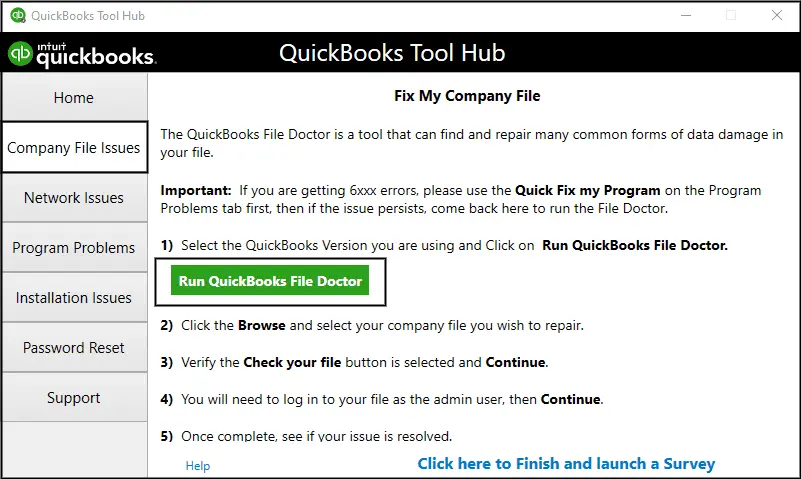
QuickBooks File Doctor Tool fixes the QuickBooks Desktop crashes when opening company files issue by scanning, diagnosing and repairing the data corruption. However, it automatically fixes the common errors that prevent the file from opening.
Solution 7: Verify & Rebuild Data Utility
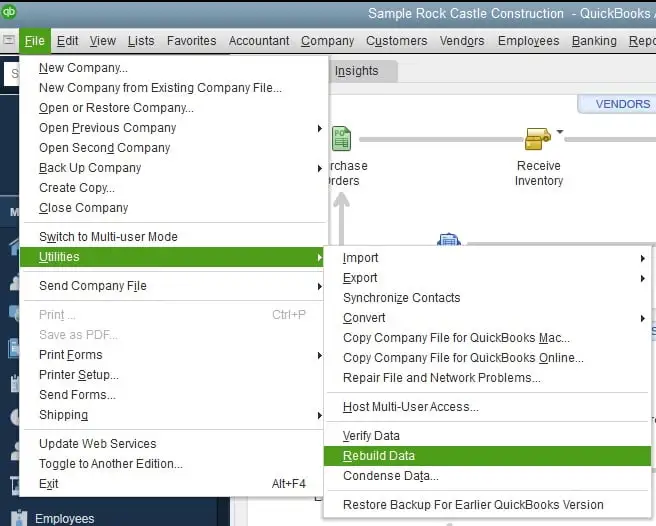
The Verify & Rebuild Data Utility scans the company files for potential damage and then runs a rebuild to fix the issues. As a result, it will help fix the QuickBooks crashes when opening company files issue.
Solution 8: Reinstall QuickBooks Desktop
If you are still confronting the QuickBooks crashes when opening the company file issue, then try reinstalling QuickBooks Desktop. Reinstallation will remove the older version of QuickBooks and install a fresh version, which helps you fix the issue.
Taking Everything Into Account
Struggling with the QuickBooks crashes when opening company file might be bit frustrating especially when you get stuck while performing the important financial task. Whether this issue is caused by a damaged file or a system-related issue, you can fix the issue by performing the troubleshooting methods listed above.
If the problem persists, it’s best to consult with our BizBooksAdvice professionals to prevent data loss and resume with your ongoing business task.
Frequently Asked Questions (FAQ’s):-
Question 1: Why is my QuickBooks not opening company files?
Ans. QuickBooks not opening company file issue may appear because of file corruption, network issues, incorrect file permissions or outdated QuickBooks software.
Question 2: Why does QuickBooks keeps crashing when opening company files?
Ans. Users often face the problem that QuickBooks keeps crashing when opening the company file due to file corruption, a damaged installation, or outdated QuickBooks software.
Question 3: Where does QuickBooks save company files?
Ans. The users mainly save the QuickBooks company files in the default location C:\Users\Public\Public Documents\Intuit\QuickBooks\Company Files.’
Question 4: What happens if QuickBooks crashes when it starts up?
Ans. If QuickBooks crashes while starting up, then some important QuickBooks files get damaged. So, it’s important to fix the issue to prevent data loss.
About The Author

Jonathan Browns
Jonathan Brown is a trained QuickBooks professional with 10 years of experience in the accounting sector. Moreover, he is passionate about helping businesses reduce the stress of managing accounts. Also, he is proficient in assisting entrepreneurs and small business owners to use QuickBooks and enhance their accounting experience.
Recent Posts
-
9 DIY Troubleshooting Methods to Fix QuickBooks Error 15270
-
QuickBooks Data Conversion Services: Everything to Know
-
QuickBooks Point of Sale: Features, Setup, Pricing & Best Alternatives
-
QuickBooks Scheduled Backup Not Working: Common Causes & Easy Fixes
-
QuickBooks Credit Card Processing: How It Works, Fees & Benefits