How to Fix QuickBooks Error 12002 While Downloading Updates?

- By Jonathan Browns
- Mar 30, 2026
- Accounting
- 7 min read
Does your update process get interrupted while installing the latest QuickBooks Desktop or payroll updates? It may happen due to the occurrence of QuickBooks Error 12002. When it appears, the users may notice the following warning message on the screen, stating
“A network timeout that is preventing QuickBooks from accessing the server.”
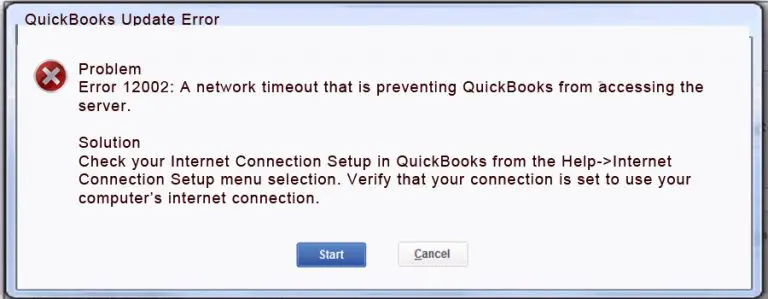
This error may occur due to issues with the internet connectivity or the firewall program blocking the update process. So, it’s crucial to fix this issue asap and continue updating the payroll or QuickBooks software for a smooth workflow.
Let’s read this blog and know about the common causes and troubleshooting methods to fix QuickBooks Desktop Error 12002.
QuickBooks Error 12002 is a common update issue that can be fixed by checking your internet connection and settings. Make sure that you have set Internet Explorer as the default web browser to get the updates.
What is Error Code 12002 in QuickBooks?
QuickBooks Error 12002 mainly occurs when QuickBooks Desktop fails to generate a connection with the server while downloading the latest updates. Majorly, this issue is noticed while downloading payroll or software updates.
Why am I getting QuickBooks Error Code 12002?
Users may confront QuickBooks Error Code 12002 due to numerous causes. Let’s study them in detail to troubleshoot the error smoothly.
- Network timeout issues
- Outdated or Misconfigured settings of Internet Explorer.
- Using the incorrect SSL or browser settings.
- Running the older version of the QuickBooks Desktop application.
- The QuickBooks update error 12002 may also arise due to an inadequate internet connection.
How to Fix QuickBooks Error 12002 With Effective & Simple Solutions?
Let’s learn about the effective solutions to eliminate QuickBooks Desktop Error 12002 easily.
Method 1: Download & Then Run the TLS 1.2 Utility
By running the TLS 1.2 Readiness tool, you can update your operating system to be TLS 1.2 compliant.
- Make sure you have downloaded and installed the latest QuickBooks Tool Hub.

- Now, open the QuickBooks Tool Hub and click on the Installation Issues option.
- Choose the QuickBooks TLS 1.2 Tool in the middle right corner.
- Tap on OK to launch the TLS Tool and hit the Yes option from the EULA Agreement.
- Now, hit the Run option, and when the tool runs accurately, hit the Exit option.
Method 2: Review the Internet Connection Settings
Improper internet settings may also prevent users from downloading the latest QuickBooks Desktop or payroll updates, causing QuickBooks Payroll Error 12002. So, to fix the issue, check the internet settings using the following steps.
- Open the latest version of Internet Explorer and move to the Tools menu.
- Choose the Internet Options > Security > Globe icon. Verify that the security option isn’t set to more than Medium-High.
- Next, head to the Never Dial a Connection from the Connections tab when you’re not using the Dial-up mode. Otherwise, go with the ISP and click the OK option.
- Click on LAN Settings and choose the Automatically detect settings option. Also, see that you have kept the checkbox “Use a Proxy Server” unmarked.
- When you see that the Use a Proxy Server is chosen, document the full address along with the Port number.
- Check that you haven’t unmarked the “Use a Proxy Server” option if the port is set to 80.
- Next, tap on OK and select the Restore Advanced Settings from the Advanced menu. Search right below the Settings option for TLS 1.2 and make sure it’s marked.
- Again, hit the OK option and shut down Internet Explorer.
- Relaunch your computer and see if the error continues.
Method 3: Try Reinstalling QuickBooks in Selective Startup Mode
Uninstalling and then reinstalling a fresh copy of the QuickBooks Desktop in selective startup mode will prevent other apps from interrupting during the update process. Follow these steps to run QuickBooks Desktop in Selective startup mode to fix the issue.
First Step: Switch to Selective Startup
If you aren’t sure whether you can perform these steps, ask your computer’s manufacturer or a Windows expert to do it.
- Initially, access the Run window and insert msconfig in the search console.
- When you are in the General tab, switch to Selective Startup & Load System services.
- Choose the Hide all Microsoft Services checkbox from the Services tab.
- Hit the Disable All option and make sure to unmark the Hide all Microsoft Services option.
- Next, opt for the Windows Installer option from the list of services available and tap on OK.
- Hit the Restart option from the System Configuration screen.
Second Step: Uninstall or Install QuickBooks Desktop
- Reinstall the QuickBooks Desktop application.
- Now, launch the Run window and insert msconfig in the search console.
- Click OK and opt for the Normal Startup option from the General tab.
- Hit the OK tab and choose Restart from the System Configuration window.
Method 4: End the Background Running Processes
To exit from the background running processes, you must perform the following steps.
- Exit from the QuickBooks application if it’s already open.
- Launch the Task Manager and right-click on the Taskbar.
- From the taskbar, hit the Details tab and pick the following background processes and End Task.
- QBW32.exe or QBW.exe
- QBCFMonitorService.exe
- qbupdate.exe
- QBDBMgr.exe or QBDBMgrN.exe
- QBMapi32.exe
- After that, right-click on the shortcut icon of QuickBooks and tap Run as Administrator.
- Again, run the update.
Method 5: Set Up an Internet Connection
- Initially, launch QuickBooks and move to the Help menu > Internet Connection Set Up option.
- Choose the Internet Connection Set Up option and hit the Next tab.
- At last, update the QuickBooks application to the latest version and see if the error is resolved.
Method 6: Configure the Windows Firewall Settings
Users often fail to download the latest QuickBooks updates due to interruptions in the Windows Firewall. As a result, it causes QuickBooks Update Error 12002. Therefore, to fix the issue, you must configure the Windows Firewall settings correctly to install the latest updates smoothly.
Method 7: Make Internet Explorer the Default Web Browser
- Launch the Run window and insert “INTECPL.CPL” in the search bar.
- Click OK and browse to the Make Internet Explorer option and set it as the default browser.
- With this, a default pop-up window will appear. Herein, in the web browser section, click Internet Explorer as your default app for browsing on your computer.
- Alternatively, you can also perform the following steps.
- Initially, double-tap on the Internet Explorer icon and click the Gear icon.
- Choose the Internet options and tap on the Programs tab.
- Right beneath the Default Web Browser, opt for the Make Default option.
- Finally, hit the OK tab to save the necessary changes.
Conclusion
QuickBooks Error 12002 is a common connectivity and configuration issue that may occur during updates. So, it’s essential to fix the issue by performing the troubleshooting methods discussed above. Thus, it will help you download the QuickBooks Desktop or payroll software updates uninterrupted.
In case you are looking for instant help to address the issue, then directly contact our BizBooksAdvice professionals. The experts are available 24*7 to assist you with the best possible assistance.
Frequently Asked Questions (FAQ’s):-
Question 1: Why does QuickBooks Payroll Update Error 12002 occur?
Ans. Users often confront QuickBooks Payroll Update Error 12002, which may appear due to an invalid payroll subscription, incorrect system settings, or connectivity issues.
Question 2: What is Error Code 12000 in QuickBooks?
Ans. QuickBooks Error 12000 mainly appears when there is an issue with the Internet connection while updating the software or downloading payroll updates.
Question 3: How do I know if the firewall is causing QuickBooks Desktop Error 12002?
Ans. To check whether the firewall is causing QuickBooks Desktop Error 12002, try disabling the firewall or antivirus software temporarily. If the update works, it states that the firewall is causing this error.
Question 4: How often should I update QuickBooks to prevent Error Code 12002 in QuickBooks?
Ans. It is advised that you update QuickBooks regularly to prevent compatibility issues. Thus, it eliminates the chance of getting the Error Code 12002 in QuickBooks.
About The Author

Jonathan Browns
Jonathan Brown is a trained QuickBooks professional with 10 years of experience in the accounting sector. Moreover, he is passionate about helping businesses reduce the stress of managing accounts. Also, he is proficient in assisting entrepreneurs and small business owners to use QuickBooks and enhance their accounting experience.
Recent Posts
-
Record Opening Balance in QuickBooks: Step-by-Step Guide
-
QuickBooks FCS Service Is Damaged: Why It Happens & How to Fix It
-
How to Recover Your Intuit Account: A Complete, Step-by-Step Guide
-
QuickBooks Online Essentials: The Complete Guide
-
QuickBooks Sales Tax Rounding Error: Causes & How to Fix It Fast
Need Assistance Right Away?
You can connect with a live representative to get help with your query or issue.