


QuickBooks Error 1311: 9 Top-Rated Solutions to Fix it

- By Jonathan Browns
- May 18, 2026
- Accounting
- 7 min read
You must be dealing with the QuickBooks Error 1311, and you have reached the right page to get the solutions. We have received a number of queries on QuickBooks Error 1311: Source File Not Found. To provide you with the top-rated solutions to fix the error, we crafted this blog and shared the important and necessary data.
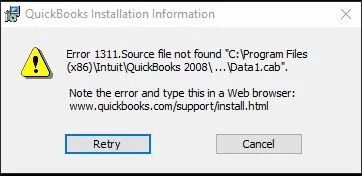
Many users contact BizBooksAdvice when they face errors like error 1311 QuickBooks because professional help saves time and prevents further system damage. Before reaching that step, you are required to understand what causes this error. Then, we will walk through this guide on how it can be fixed using proper methods.
Main Causes of Error 1311 When Updating QuickBooks
Once you understand the cause, you will know how to fix QuickBooks error 1311 in a timely manner. We have shared some common reasons why Error 1311 occurs.
Damaged Installation Files
If QuickBooks installation files are incomplete or corrupted, the QuickBooks application cannot find the required source file.
Faulty Installation Media
Sometimes using the damaged CD or scratched CD or the corrupt USB drive leads to QB error code 1311.
Outdated Windows Components
Old system files or missing updates can cause compatibility problems.
Issues with Microsoft Office
Error 1311 can also appear while exporting reports if Excel or related components are damaged.
Insufficient User Permissions
If QuickBooks does not have enough permission, the application cannot read the files properly, and Windows does not allow access to certain folders or files.
Antivirus or Firewall Restrictions
Security software, such as antivirus software on your PC or Windows firewall, could have blocked QuickBooks files during installation or updates of the program.
What Is QuickBooks Error 1311?
QuickBooks error code 1311 occurs when the software cannot find a file that is required to complete an operation. The error message usually says:
Error 1311: Source file not found. Verify that the file exists and that you can access it.
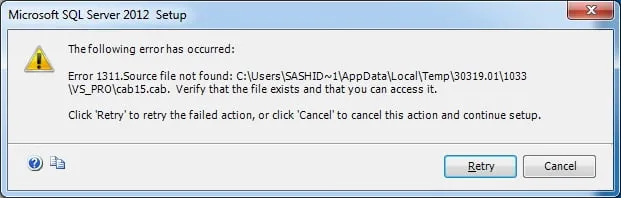
This problem happens in one of these situations:
- Installing QuickBooks Desktop.
- Updating QuickBooks.
- Repairing an existing installation.
- Exporting QuickBooks reports to Microsoft Excel.
The missing file may be an installation file, a cabinet file, or a Microsoft component needed for QuickBooks to work correctly.
Top 9 Solutions to Fix Error 1311 QuickBooks desktop
Learn how to fix QuickBooks error 1311. Follow the solutions in order. Move to the next one only if the issue is not resolved.
Solution 1: Run QuickBooks Installer as Administrator
- Close all the running programs in the background.
- Right-click on the QuickBooks setup file and choose the option Run as Administrator.
- Proceed with the installation.
Doing so would allow Windows to give QuickBooks files full permission to access. Now, you can confirm if the error 1311 QuickBooks.
Solution 2: Copy Installation Files to the Local Drive
In case you are installing QuickBooks from a CD or any external drive:
- Insert the CD or the installation media.
- Launch File Explorer and copy all the files from the CD or USB.
- Create a new folder on your desktop.
- Now, paste them in the new folder.
- Double-click on setup.exe.
If you install from the local drive, it will prevent file reading errors.
Solution 3: Check Windows Updates
- Press simultaneously Windows + I to open Settings.
- Click on Windows Update and then Check for updates.
- Proceed to install all available updates.
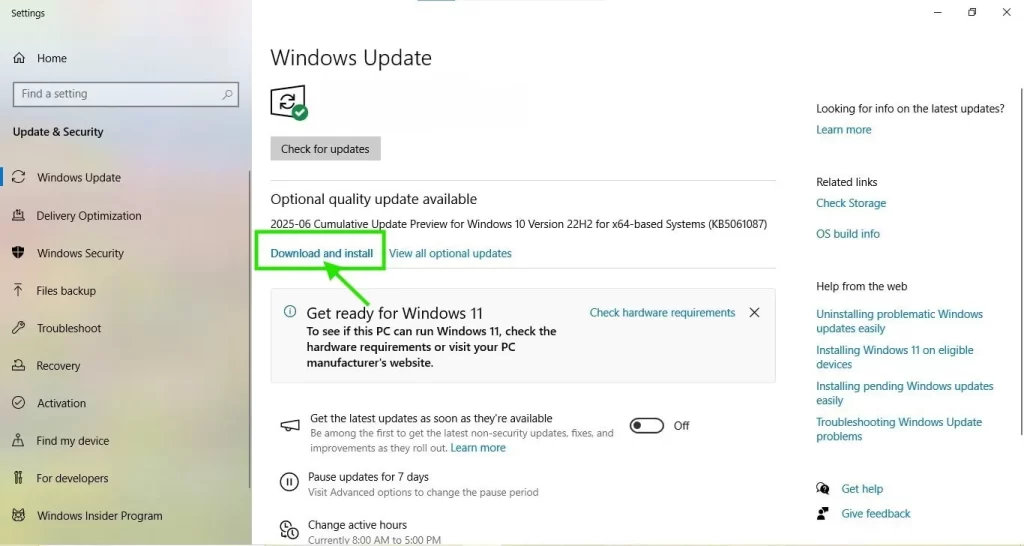
- Wait for the installation to complete and then restart your computer.
Updated system files help QuickBooks access required components.
Solution 4: Temporarily Disable Antivirus Software
- Launch the antivirus program that is installed on your computer.
- Now, turn off real-time protection feature.
- Install or update QuickBooks.
- Turn on the antivirus after completion.
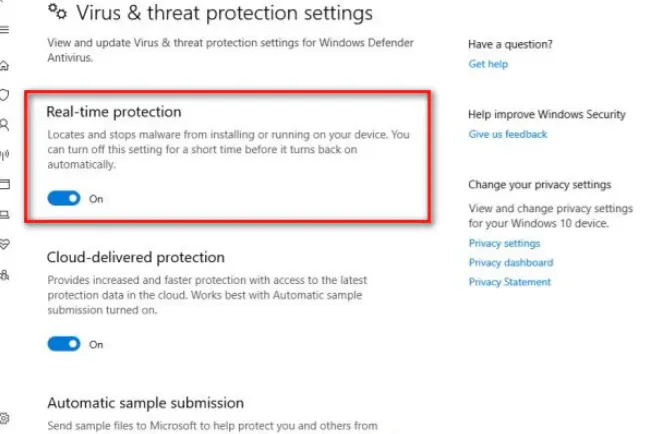
Some antivirus tools mistakenly block QuickBooks files.
Solution 5: Verify Folder Permissions
To verify the folder permission, you need to follow the steps shared below:
- Sign in using an administrator account.
- Now, right-click the QuickBooks installation folder.
- Select Properties and open the Security tab.
- Make sure your user has Full Control.
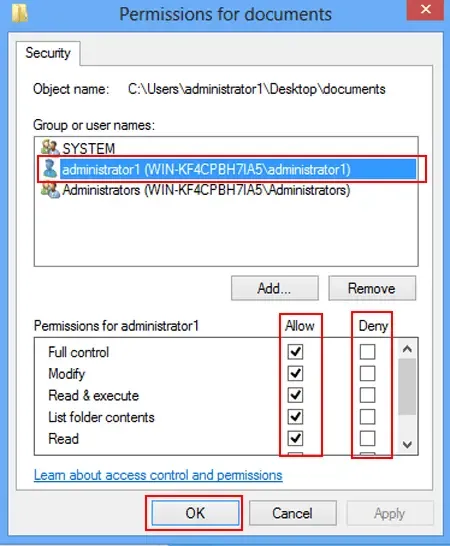
- Apply changes and retry installation.
Proper permissions are necessary to read source files.
Solution 6: Run System File Checker
- Press Windows + R and type cmd.
- Hit the Enter button.
- Now, right-click on Command Prompt.
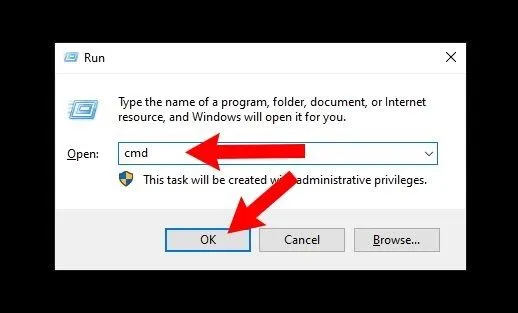
- Then, click on the option Run as Administrator.
- Type sfc /scannow and press Enter.
- Wait for the scan to finish.
- Finally, restart your PC.
This repairs damaged Windows system files.
Solution 7: Use QuickBooks Tool Hub
- Download QuickBooks Tool Hub from Intuit.
- Install and open the tool.
- Select Installation Issues.
- Click QuickBooks Install Diagnostic Tool.
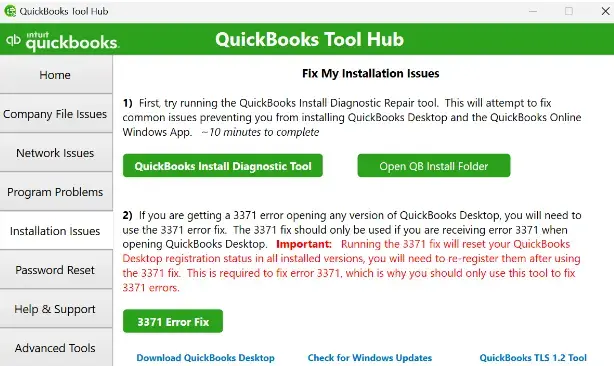
- Allow the tool to complete the scan.
- Restart the computer.
This tool fixes common installation errors “error 1311 source file not found QuickBooks desktop” automatically.
Solution 8: Install QuickBooks in Selective Startup Mode
- Press Windows + R and type msconfig.
- Now, hit the Enter button.
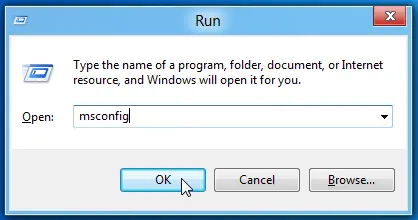
- Click on Selective Startup and uncheck Load startup items.
- Navigate to Services tab.
- Now, check Hide all Microsoft services.
- Now, click Disable all.
- Finally, restart the PC.
- Reinstall QuickBooks and return system settings to normal.
This prevents third-party programs from interfering.
Solution 9: Perform a Clean Install of QuickBooks
If nothing works, a clean install may be required.
- From the Control Panel, uninstall QuickBooks.
- Download QuickBooks Clean Install Tool.
- Run the tool and rename old folders.
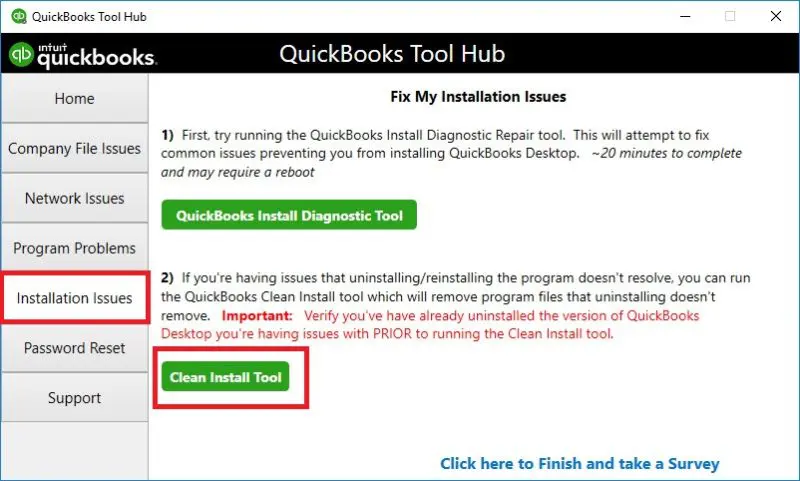
- Restart the system.
- Reinstall QuickBooks using a fresh installer.
This removes leftover files that cause repeated errors.
How to Prevent QuickBooks Update Error 1311 Source file not found?
You can reduce the chances of seeing this error again by following these tips:
- Always download QuickBooks from official sources
- Keep Windows and Microsoft Office updated
- Avoid using damaged installation media
- Use the administrator login for installation
- Keep antivirus exclusions for QuickBooks folders
- Back up QuickBooks data regularly
Conclusion
QuickBooks Error 1311 Source File Not Found can be fixed in a timely manner if you follow the roadmap shared in this blog. The error occur due to missing files, permission problems, or blocked system access. We received thankful emails from our clients and audience when they successfully fixed the issue with our solutions.
If the error 1311 when updating QuickBooks becomes time-consuming or confusing, getting help from professionals like BizBooksAdvice ensures faster resolution and uninterrupted business operations.
QuickBooks works best when installed correctly. Fix the error early and keep your accounting running smoothly.
Frequently Asked Questions (FAQ’s)
1. Can QuickBooks UpdateError 1311 occur while exporting reports to Excel?
Yes, many users experience Error 1311 when exporting reports to Microsoft Excel, and with issues in Microsoft Office components or damaged QuickBooks export files.
2. Does antivirus software cause QuickBooks Error Code 1311?
Yes, antivirus or firewall programs can block QuickBooks files during installation or updates because they recognize them as a virus. If you temporarily disable security software, it will help in completing the process successfully.
3. How do I fix Update Error 1311 in QuickBooks Desktop without reinstalling Windows?
You can fix this error by running the installer as administrator, copying installation files to your local drive, updating Windows, checking folder permissions, or using the QuickBooks Tool Hub. Reinstalling Windows is rarely required.
4. Will a clean install fix QuickBooks Error Message 1311?
In many cases, yes. A clean install removes leftover files and registry entries that may block new installations. This solution is helpful when other troubleshooting steps fail.
About The Author

Jonathan Browns
Jonathan Brown is a trained QuickBooks professional with 10 years of experience in the accounting sector. Moreover, he is passionate about helping businesses reduce the stress of managing accounts. Also, he is proficient in assisting entrepreneurs and small business owners to use QuickBooks and enhance their accounting experience.
Recent Posts
-
QuickBooks Email Invoices Not Working: How to Fix It
-
How to Resolve QuickBooks Error 15214 (Step-by-Step)
-
OL and OLSU Bank Feeds Errors in QuickBooks Desktop: Causes and Fixes
-
QuickBooks Error 15212: Causes & How Can You Fix It
-
How to Recover Deleted Invoice in QuickBooks - Online & Desktop