


Fix QuickBooks Error 15215 When Updating | Top 9 Methods

- By Jonathan Browns
- May 18, 2026
- Accounting
- 7 min read
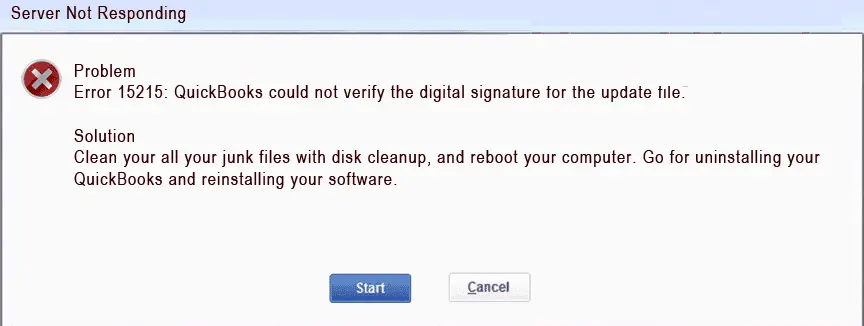
Failure to install a maintenance release in QuickBooks or update payroll services can occur in several scenarios, resulting in QuickBooks error 15215 appearing on your screen. You may also encounter different error messages, such as
“Server Not Responding” OR
“Unable to Verify Digital Signature”
This issue generally occurs when QuickBooks is unable to verify the digital signature certificate, as indicated by the error message, or when server-related problems occur. To help ensure smooth, uninterrupted updates, we have outlined possible causes and detailed troubleshooting steps to resolve QB error 15215.
What Causes Update Error 15215 in QuickBooks?
Let’s explore all the possible reasons why you experience QuickBooks error code 15215 when trying to update QuickBooks or the payroll services:
- Not having the proper admin rights
- Outdated or incompatible Windows OS
- The Shared Download drive might not be mapped
- The QuickBooks File Copy service might not be mapped
- Failure of QuickBooks to verify the digital signature certificate
- Incorrect installation or program files might be damaged
- Windows components might be causing the problem when updating
How to Fix QuickBooks Maintenance Release Error 15215 in No Time?
In this section, we will discuss detailed troubleshooting methods to fix ‘QuickBooks error 15215 server not responding’ when updating the software or payroll services:
1. Download the updates as an administrator
Proper administrative rights are required to make changes to the computer during updates. Make sure to get the updates as an administrator:
- Exit the company file and close QuickBooks Desktop.
- Right-click on the QuickBooks Desktop icon. Then, select Run as Administrator.

- Click OK when you see, “Do you want to allow this program to make changes to your computer?“
- Update QuickBooks Desktop to the latest release available.
- Now, try again to download the payroll tax table updates.
2. Update Windows OS
An outdated Windows OS often causes incompatibility with QuickBooks software, hindering basic processes, such as updates or even opening the program. Update the Windows OS to the latest release with the following steps:
- Press the Windows Start menu.
- In the search box, type Settings, then press Enter.
- Now, select Windows Update in the left pane.
- Click on Check for updates to see the available updates.
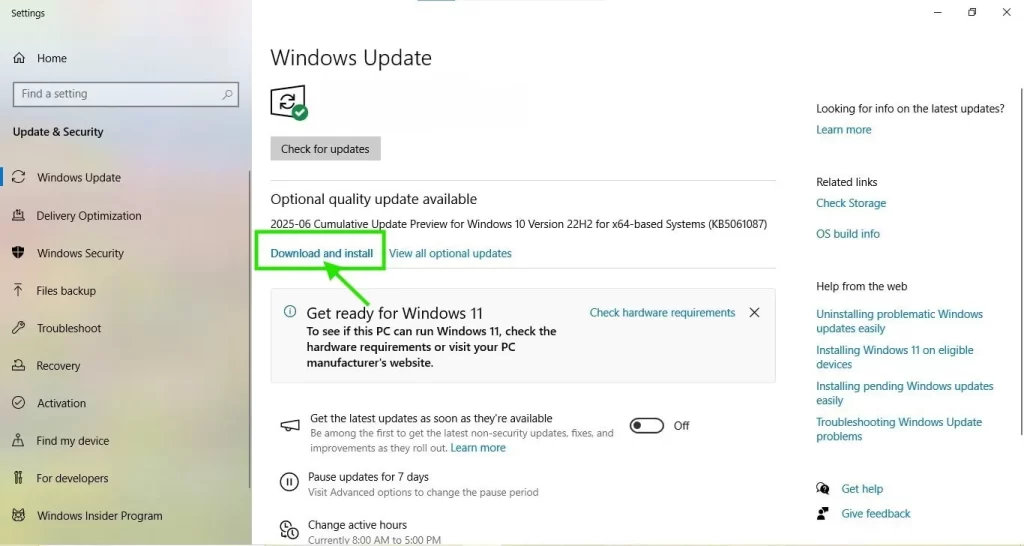
- If the updates are available, click Download & Install. The updates will download and install automatically.
- When done, restart your computer to apply the updates.
3. Map the Shared Download Drive
Map the Shared Download drive so QuickBooks can access the located files to get the software updates and resolve QuickBooks update error 15215:
- Press the Windows icon key.
- In the search bar, type This PC and select This PC from the search results.
- Select More (…), then click on Map network drive.
Note: If you do not find the Map network drive option, right-click This PC and choose Map network drive.
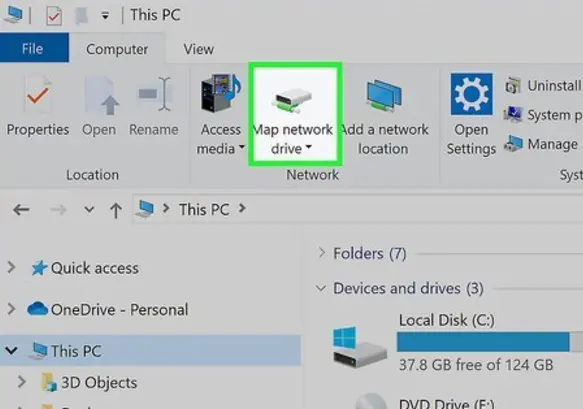
- Choose any drive letter in the Drive.
- Now, either:
- Enter the complete location of the directory you wish to map or
- Enter only the location of the computer where the file is stored, and choose Browse to locate the folder
- Choose Reconnect at sign-in to ensure the drive stays mapped each time you sign in to your computer.
- Click Finish.
4. Enable the QuickBooks File Copy Services
Enable the QuickBooks File Copy service to allow Intuit’s secure server to facilitate the sharing of an Accountant’s Copy when updating and resolving error code 15215:
- Open the Run prompt on your computer.
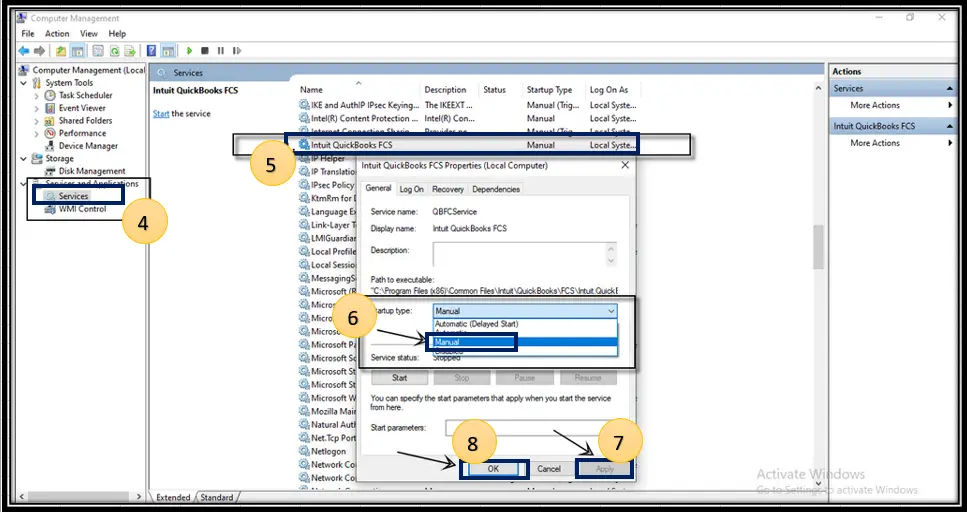
- In the Run field, type COMPMGMT.MSC and Enter. The Computer Management window will open.
- Go to Services and Applications and tick on Services.
- Now, scroll down the cursor until you see Intuit QuickBooks FCS and double-click on it.
- Select Startup type and choose Manual.
- Select Apply and click OK.
- When done, validate the payroll service key again to refresh the connection.
Here’s how:
- Go to Employees at the top.
- Choose My Payroll Service > Activate Service Key.
- Now, in the Service Keys window, highlight the current payroll and select Edit.
- Click Next until you see Finish on the screen.
5. Run the SFC scan
The SFC scan checks and repairs corrupted, modified, or missing protected Windows system files, replacing them with the correct versions to fix issues such as crashes and freezes and ensure an uninterrupted experience.
- Open the Quick Link menu by pressing Windows + X keys together.
- Choose Command Prompt (Admin) from the menu. NOTE: You can also run System File Checker (SFC) from Windows PowerShell (Admin).
- Hit on Yes on the User Account Control screen.
- In the command prompt on your screen, type SFC /scannow. Then, press Enter.
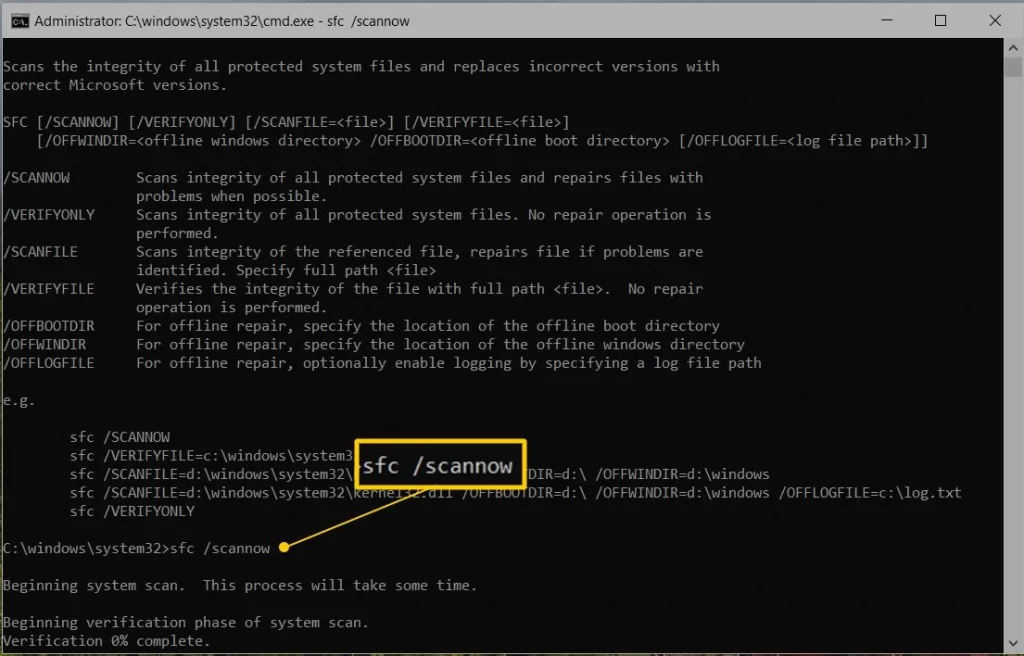
- The SFC tool verifies the integrity of Windows system files and folders, and then runs a quick repair if required.
- When done, reboot your computer.
6. Install a digital signature certificate
Here’s how to download the digital signature certificate for security and authenticity and resolve the QuickBooks error 15215 digital signature problem:
- Navigate to C:\Program Files\Intuit\QuickBooks.
- Find the QuickBooks program file QBW32.exe and right-click on it.
- Select Properties from the options.
- Choose Digital Signature and make sure Intuit is selected in the signature list.
- Click on Details.
- In the prompted Digital Signature Details window, click View Certificate.
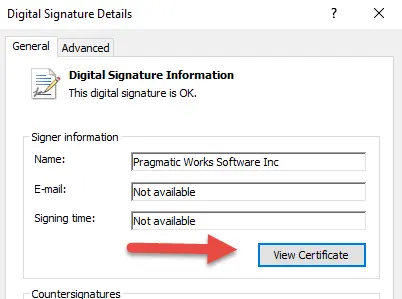
- Select Install Certificate in the Certificate window.
- Click Next until you see Finish on the screen, then click Finish.
- Restart your computer.
- Open QuickBooks, then try downloading the QB updates.
7. Configure Windows Firewall settings for QuickBooks
Windows Firewall is a system security software that controls the system ports for incoming and outgoing data and blocks them if anything is detected that is wrong or considered a threat to your computer. To resolve the QuickBooks update error 15215, make sure to configure Windows Firewall for QuickBooks Desktop.
8. Repair QuickBooks
Let’s repair the QuickBooks program files or the installation using different tools in QuickBooks Tool Hub:
Important Note: You must download and install QuickBooks Tool Hub (1.6.0.8) to the latest version available. For a good experience, use Windows 11, 64-bit.
a. Run Quick Fix my Program
The Quick Fix my Program will shut down all QuickBooks processes running in the background, then run a quick repair of the software.
- Launch QuickBooks Tool Hub.
- In the left pane, select Program Problems.
- Hit on Quick Fix my Program.
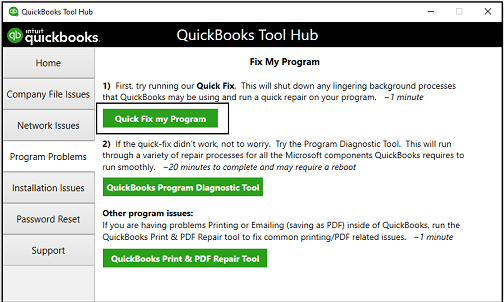
- Launch QuickBooks Desktop and then open your company file.
b. Run the QuickBooks Install Diagnostic tool
If there was a problem with the QuickBooks installation, it can cause interruption when trying to use it. Run the QuickBooks Install Diagnostic Tool to resolve the common software installation issues:
- Launch the QuickBooks Tool Hub.
- In the left pane, choose Installation Issues.
- Hit on QuickBooks Install Diagnostic Tool. Let the utility run, which might take up to 20 minutes.
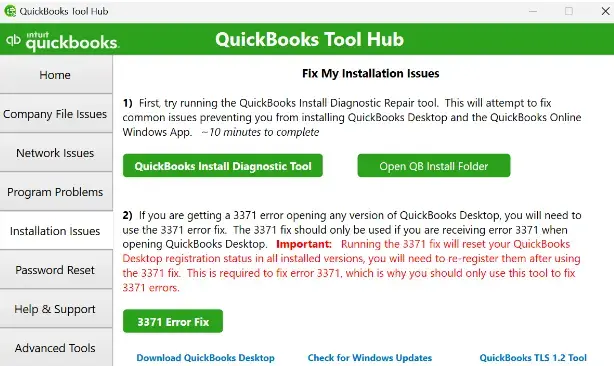
- When the scan finishes, restart your computer, then open QuickBooks Desktop and open your company file.
- Update QuickBooks Desktop to the latest release. Doing this will make sure you use the most recent fixes and the security patches.
9. Re-install QuickBooks Desktop
Reinstalling QuickBooks Desktop includes unsinatlling the software files and folders. This will refresh all the components are digital components correctly, resolving issues caused by corrupted files or outdated security.
Conclusion
Finally, we conclude this blog with a detailed overview of how to fix QuickBooks error 15215 during updates.
With the above methods, such as updating Windows OS, configuring the firewall, and even repairing QB, not helping you resolve the error,
Frequently Asked Questions (FAQ’s)
1. What is the ‘QuickBooks 2013 error 15215 server not responding’ error?
QuickBooks 2013 is discontinued, so the updates are no longer available to users. Make sure to update it to the latest versions available (2024) or move to QBO. However, the QuickBooks major upgrade error 15215 appears when trying to update the software or payroll services.
2. How to fix the QuickBooks 15215 error?
To fix the QuickBooks 15215 error, which often happens during updates, try running QuickBooks as an administrator, temporarily disabling your firewall/antivirus, adding Intuit as a trusted site, and installing the QB digital signature certificate.
3. What is QuickBooks error 15XXX when updating?
QuickBooks error 15XXX refers to a series of update errors that occur when QuickBooks fails to download payroll or software updates due to internet, firewall, or security certificate issues.
4. What are the common symptoms of error 15215?
Common symptoms of QuickBooks error 15215 update include failed payroll or software updates, error messages during the update process, slow or frozen QuickBooks performance, and inability to connect to Intuit update servers.
5. Does QB error 15215 affect payroll processing?
Yes, QB error 15215 directly affects payroll processing because it occurs during payroll updates, preventing QuickBooks from verifying the digital signature of payroll files.
About The Author

Jonathan Browns
Jonathan Brown is a trained QuickBooks professional with 10 years of experience in the accounting sector. Moreover, he is passionate about helping businesses reduce the stress of managing accounts. Also, he is proficient in assisting entrepreneurs and small business owners to use QuickBooks and enhance their accounting experience.
Recent Posts
-
How to Upgrade QuickBooks to a Multi-user License [Win/Mac]
-
QuickBooks Error QBW32.exe: Fixing Fatal Application Exit
-
How to Fix QuickBooks Error 1603 During Installation or Updates
-
How to Fix QuickBooks Error 248 With Expert Tips? [Complete Guide]
-
QuickBooks Banking Error 350: Effective Solutions for Online & Desktop