


Best Ways To Fix QuickBooks Error 6176 (Company File Access Issue)

- By Jonathan Browns
- May 18, 2026
- Accounting
- 7 min read
The company file plays a major role as it contains the crucial details regarding the organization. But, sometimes users might get stuck with the QuickBooks Error 6176 while opening the company file. This issue mainly appears when the Windows firewall blocks the connection between the two computers.
However, the inability to launch the company file due to QuickBooks Error Code 6176, 0 may disrupt the ongoing business tasks. So, it’s crucial to overcome this issue using the solutions discussed in this post. Thus, it will help you regain access to your data file to resume with your tasks.
What is QuickBooks Error 6176?
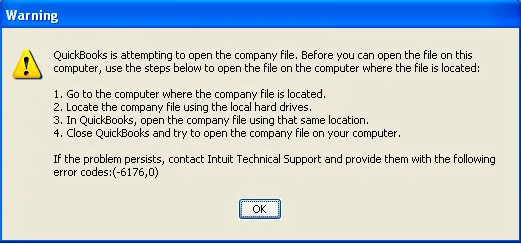
QuickBooks Error 6176 belongs to the 6000 series of errors, which indicates the issue accessing the company file. This issue mainly occurs due to incorrect hosting settings or corrupted files. However, when this error pops up, the following warning messages appear, indicating:
“QuickBooks is attempting to open the company file. Before you can open the file on this system, use the steps to open the file on the computer where the file is located. Error Codes (6176, 0).”
What are the Possible Reasons Behind Error 6176 in QuickBooks Desktop?
Error 6176 in QuickBooks Desktop may appear due to multiple reasons which we have discussed below. Let’s get a look at all of them and get a clear vision regarding the occurrence of the error.
- The user won’t have sufficient Windows user permissions to access the company file.
- The issue was caused by an incorrect network file path, or the file was moved to another location.
- The workstations set to host or server hosting the file aren’t configured correctly.
- Sometimes, the issue may be generated due to the blockage of Windows Firewall or third-party apps from opening the data file.
- Damage or corruption in the company file may trigger the QB Company File Error Code 6176.
How to Fix Error 6176 0 QuickBooks Desktop?
Herein, we have mentioned all the possible troubleshooting methods to deal with the Error 6176 0 in QuickBooks Desktop. Make sure that you implement the troubleshooting steps in the same manner without skipping to prevent the further discrepancies.
Solution 1: Update the QuickBooks Desktop
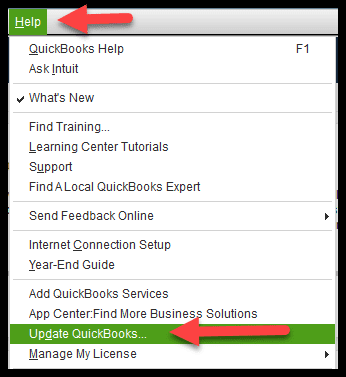
The first method to deal with the Error code 6176 when opening QB company files is by ensuring that you are using the updated version of the QuickBooks Desktop. This is so because the old version of QuickBooks won’t open the latest version of the company file. If it’s not already updated, then update QuickBooks Desktop to the latest release.
Solution 2: Repair the Company File By Running the File Doctor Tool
The QuickBooks File Doctor is used to diagnose and repair common data file corruption and data damage present in the company file. So, to run this tool, you must perform the steps instructed below.
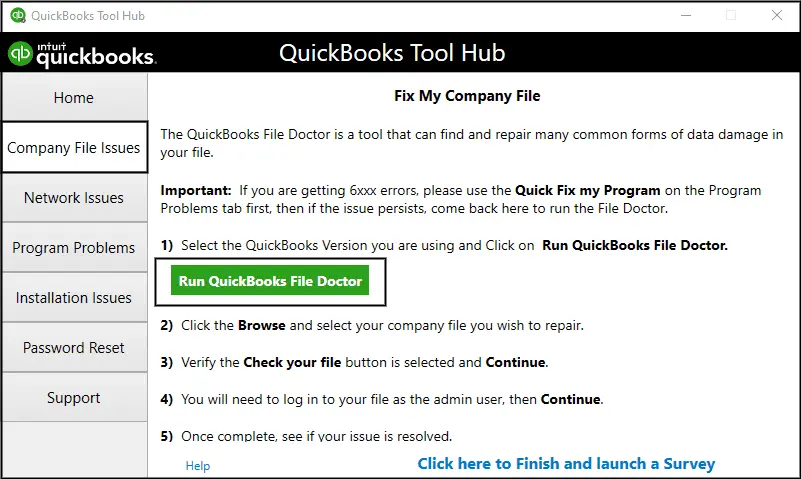
- Open the QuickBooks Tool Hub on your computer if it’s already installed. Otherwise, first you must set up QuickBooks Tool Hub 1.6.0.8 version.
- Go to the Company File Issues tab and then hit the Run QuickBooks File Doctor tab. You have to wait for some time until the File Doctor tool opens up on the screen.
- Now, when the File Doctor tool opens up, pick the data file that is causing QuickBooks error 6176 0. If you couldn’t get the file, choose the Browse and Search option.
- Head to the Check your file > Continue option.
- Give the associated QuickBooks admin password and tap on the Next option.
Solution 3: Change the Name of Both .ND and .TLG Files
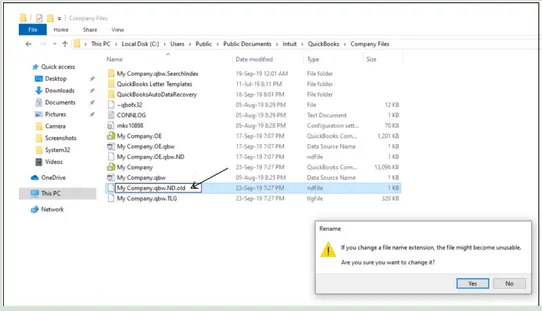
.Nd and the .TLG is both a configuration file and is used to open the company file in a network or multi-user mode. Any damage or corruption to these files while launching the company file may trigger the 6176 error message in QB Desktop. So, renaming these file names helps you regain access to the file, and you can easily fix the QuickBooks Error Code 6176.
- Initially, access the QuickBooks folder that is holding your company file.
- After this, look for the files having the same name as your company file but with different extensions .ND and .TLG.
- company_file.qbw.nd
- company_file.qbw.tlg
- Now, right-click on the .ND and then the .TLG files to choose the rename option.
- Rename the file names by including .OLD at the end of the file name.
- Finally, launch the QuickBooks software again and then try to log in to your company file. If you are still getting the QuickBooks Company File Error 6176, 0, try another solution.
Solution 5: Move the QuickBooks File to the desktop
Once you open the data file on the desktop, you first need to verify if there is any problem with the company file location.
- If you are able to open the file from the desktop, it indicates damage to the company file location.
- It may be possible that the data file is present in multiple folders and has crossed the system file limitation.
- In case you are still failing to launch the data file after changing the location, it means the file is damaged.
- Primarily, launch the folder containing the data file and look for the file with the QBW extension.
- Now, when you get the file, right-click on it and pick the Copy option.
- Once again, move to the desktop, right-click on the screen, and click on Paste.
- Thereon, keep holding the Ctrl key and then access the QuickBooks application. As a result, it will open a No Company Open window.
- Following this, hit the Open or restore an existing company. Return to the desktop and locate the company file that is creating issues.
Solution 6: Reconfigure Your Windows Firewall Settings
The Error 6176 QuickBooks usually appears due to the blockage of Windows Firewall from opening the company file, as it is considered a threat. So, to resolve the issue, you must try to configure the Windows Firewall settings manually.
Solution 7: Verify the Folder Permissions to Access Company Files
Most often, the users may end up with the QuickBooks Error 6176 due to insufficient folder permissions holding the data file. So, to prevent the QuickBooks Company File Error message 6176, it is essential that you have proper folder permissions to open the data file.
Solution 8: Restore the Backup of the QuickBooks Company file
Another solution you must try is to restore a backup of your QuickBooks company file to examine if the issue is related to your current company file .QBW.
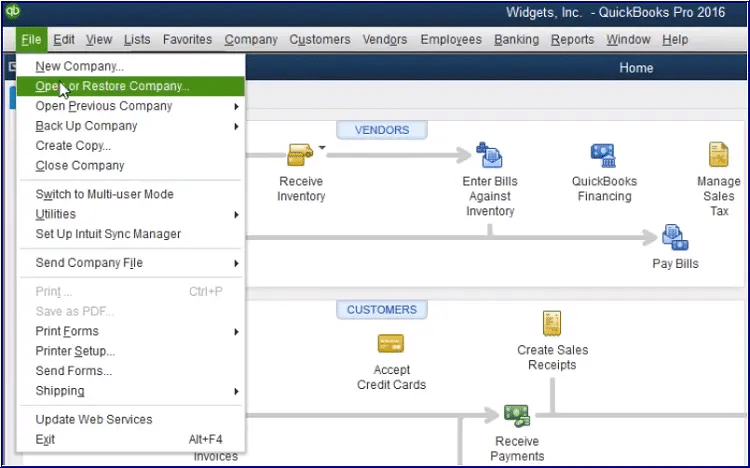
If you observe that an error appears while restoring the backup company file, perform these steps:
- Firstly, verify that your computer isn’t hosting the company file.
- For that, launch your company file.
- Choose the File menu and click the Utilities tab.
- If you see the Stop Hosting Multi-User Access option listed;
- You must opt for the Stop Hosting Multi-User Access option.
- Thereon, hit the Yes tab when in the Stop hosting multi-user access option.
- Press the Yes tab in the Company file window.
- Now, verify that the path to your data file must not exceed 210 characters.
- Browse to the location of your company file.
- After that, you must copy the path from your address bar.
- Herein, you need to paste the path to the notepad and then count the characters, including the spaces.
- Thereon, you must try to restore your QuickBooks company file.
- If you are still receiving the QuickBooks Error Code 6176, then try another method.
Solution 9: Get the Latest Windows Updates Installed
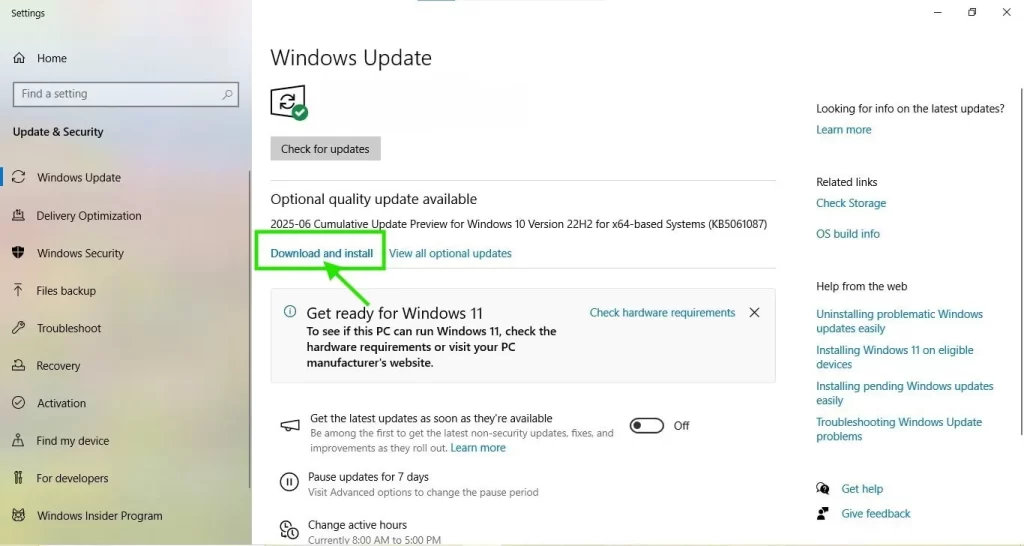
It’s important to run the latest Windows operating system so that you can easily open the company file. Thus, it will also help you in resolving the Error 6176 QuickBooks. The following are the step-by-step instructions to update the Windows operating system.
- Initially, click on the Start menu and then type Windows Update in the search console.
- After this, it will launch the Windows update window.
- Herein, you must choose the Check for Updates option.
- Soon after this, if any new Windows updates are available, then download and install the latest updates.
- Otherwise, if it’s already updated, then you will get a notification stating “You’re already up-to-date”.
- Once done, relaunch your computer and try opening your company file to see if the issue still exists.
Solution 10: Shut Down all the QuickBooks Processes
Sometimes, the background running processes may interrupt the users while opening the company file easily. So, it’s crucial to shut down all the background processes to resume with your tasks easily.
- Begin the process by exiting from all QuickBooks processes.
- After that, log in to your server computer as the Administrator.
- Now, hit Ctrl+Shift+Esc together to open the task manager.
- As a result, it will show processes for all users. Herein, opt for the Users option.
- Thereon, pick each QuickBooks process (QBW32.EXE, qbupdate.exe, and QBDBMgr.exe), and then tap on End Task.
- Finally, try opening the company file in multi-user mode and see if the issue exists.
Solution 11: Open a sample company file to fix the issue
At times, you need to open a sample company file to verify whether the issue lies with the company file or the QuickBooks application itself. If you fail to launch the company file and receive the error, it’s an indication that there is damage to the installation of QuickBooks. So, you are required to repair the installation.
- Launch the No Company Open window and click the Open a Sample file option.
- Thereon, pick any of the sample files from the list of available options.
- If you are able to launch the data file, try another solution. Otherwise, if the sample file gives the same error message, then repair your QuickBooks Installation files.
Conclusion
QuickBooks Error 6176 is the most common company file issue that appears due to the blockage of the Windows firewall or third-party applications. We hope that the troubleshooting methods discussed in this post will help you fix the error. Thus, it will let you access the company file easily without any interruptions.
Frequently Asked Questions (FAQ’s):-
Question 1: What is error code 6176 in QuickBooks?
Ans. Users often get QuickBooks Error Code 6176 while trying to open the company file. It may happen due to interference with the Windows Firewall or damage to the company file.
Question 2: How to prevent QuickBooks Error 6176 from occurring in the future?
Ans. To avoid the occurrence of QuickBooks Error 6176 in future, do as follows:
- Make sure that Windows and QuickBooks are updated to the new version.
- Also, verify the settings of the Windows Firewall and antivirus software installed.
- Also, ensure to take regular backups of your company file.
- Make sure the proper hosting configuration is done.
Question 3: Does updating QuickBooks help fix QB Company File Error Code 6176?
Ans. Yes, by getting the latest updates of the QuickBooks Desktop, you can prevent the technical bugs present in the software. Thus, it helps you prevent the QB Company File Error Code 6176.
Question 4: Does QuickBooks Error Code 6176 affect the multi-user mode?
Ans. Yes, the occurrence of QuickBooks Error Code 6176 may prevent users from switching or working in a multi-user environment. This is so because QuickBooks fails to establish communication with the host server and prevents users from opening the file.
Question 5: Will my company data be lost if the Error 6176 QuickBooks occurs?
Ans. You don’t have to worry about the data safety, as your company’s file data remains safe when Error 6176 QuickBooks occurs. But, for the safer side, it is always best to generate a backup of the data file.
About The Author

Jonathan Browns
Jonathan Brown is a trained QuickBooks professional with 10 years of experience in the accounting sector. Moreover, he is passionate about helping businesses reduce the stress of managing accounts. Also, he is proficient in assisting entrepreneurs and small business owners to use QuickBooks and enhance their accounting experience.
Recent Posts
-
QuickBooks Email Invoices Not Working: How to Fix It
-
How to Resolve QuickBooks Error 15214 (Step-by-Step)
-
OL and OLSU Bank Feeds Errors in QuickBooks Desktop: Causes and Fixes
-
QuickBooks Error 15212: Causes & How Can You Fix It
-
How to Recover Deleted Invoice in QuickBooks - Online & Desktop