


Fix QuickBooks Error 40003 When Updating Payroll Tax Table

- By Jonathan Browns
- May 18, 2026
- Accounting
- 7 min read
QuickBooks Error 40003 usually appears when updating payroll tax tables or sending payroll data in QuickBooks Desktop. When it appears, it displays the following error message;
“We strongly recommend that you go online again before… [DD/MM/YYYY],”
This error mainly occurs due to an inactive payroll subscription, firewall restrictions, outdated QuickBooks software, or damaged payroll data. In this guide, we have explained the possible causes and troubleshooting methods to fix QuickBooks Error Code 40003.
What Causes Payroll Update Error 40003 in QuickBooks?
QuickBooks payroll update error 40003 occurs when QuickBooks can’t properly process or send payroll data. Here are the common reasons why this happens:
- Using an outdated version of QB Desktop
- Your payroll subscription might be expired
- Incorrect settings of Windows Firewall
- Stuck paychecks or data damage
Top 6 Solutions to Resolve QuickBooks Error 40003 When Updating Payroll
In this section, we will explore troubleshooting methods to help you resolve error code 40003 when updating payroll services in QuickBooks Desktop. Be careful when performing these steps:
1. Update QuickBooks Desktop
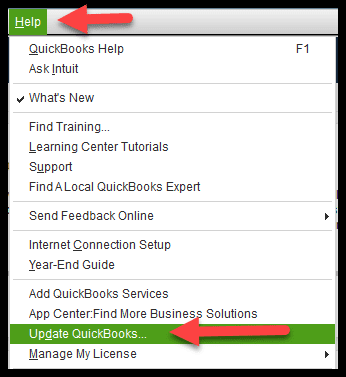
Using an outdated version of QuickBooks Desktop can cause compatibility and performance issues, especially during payroll updates. Missing security patches and feature updates may trigger QuickBooks Error 40003 and interrupt payroll processing. Updating QuickBooks Desktop to the latest release can help resolve the issue and restore smooth functionality.
2. Download Latest Payroll Tax Table Update
Make sure you are receiving the latest payroll updates in the correct way:
- Go to the Employees at the top.
- Choose Get Payroll Updates.
To find your tax table version:
Check the number next to You are using tax table version:.
– To ensure it’s correct, check the latest payroll news and updates.
– Select Payroll Update Info to get more details on the tax table version.
Download the latest version of the payroll tax table:
– Click on Download Entire Update.
– Choose Update. An informational window will appear on your screen when the download completes.
3. Verify Payroll Subscription
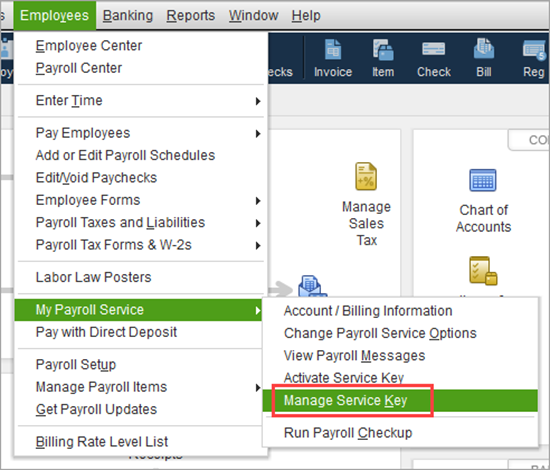
To fix QuickBooks Payroll error 40003, you will need an active QuickBooks payroll subscription service. Follow the steps below to learn how to reactivate your payroll subscription:
a. Reactivate your payroll
You have three ways to reactivate your QuickBooks Desktop subscription. Before getting started to make sure your QuickBooks Desktop is up-to-date.
Through your company file
The best way to get your payroll services back on is directly using the QuickBooks Desktop company file.
- Open the QuickBooks Desktop company file.
- Go to Employees, then select My Payroll Service.
- Click on Account/Billing Info.
- Sign in using the Intuit Account login credentials. The QuickBooks Account page will open.
- Select Resubscribe under Status.
- Follow the steps on your screen to reactivate the payroll service.
Through your Intuit account
You can also reactivate the payroll service from the web.
- Sign in to your account using the Intuit credentials like you normally would.
- Select Resubscribe under Status.
- Follow the steps on your screen to reactivate the payroll service.
- Note: Subscription reactivation can take up to 24 hours. Your status will show Active once the process is complete. You can also reach out to us to activate your payroll service.
b. Review your payroll data
Once you return to your payroll service, you should run the payroll setup again. You must review the payroll data, including employees and tax setup.
- Go to Employees and choose Employee Center.
- Go to the Employees tab and review each employee. Confirm their information, including deductions, W-4, sick/vacation, etc.
- Select Lists, then Payroll Item List, to review your tax payroll items.
4. Review Employee Payroll Information
Make sure your employee information is correct in QuickBooks Payroll:
- Go to the Employees menu.
- Choose Employees Center.
- Select an employee’s name, one at a time.
- Click Payroll Info on the left pane.
- Make sure the Pay Frequency is correct.
- Hit the Taxes button.
- Go to the Federal tab.
- Review the Filing Status and Allowances fields. Make all the required corrections.
- Click OK twice to save the changes.
5. Configure Windows Firewall for QuickBooks Desktop
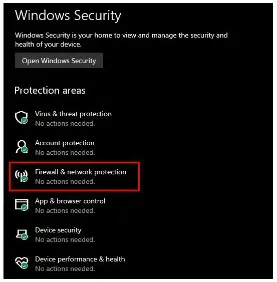
Windows Firewall is a system security application that controls incoming and outgoing network traffic on ports used by applications and programs. If anything is considered wrong or comes from a non-authoritative, unreliable source, it might be those programs and the source, such as payroll updates and QuickBooks. Configure Windows Firewall settings for QuickBooks Desktop to resolve error code 40003.
6. Identify & Fix Stuck paychecks
Here’s how to identify and toggle stuck paychecks that commonly cause QuickBooks error 40003. These steps safely “reset” the paychecks so payroll data can be sent correctly.
a. Update and back up your QuickBooks data
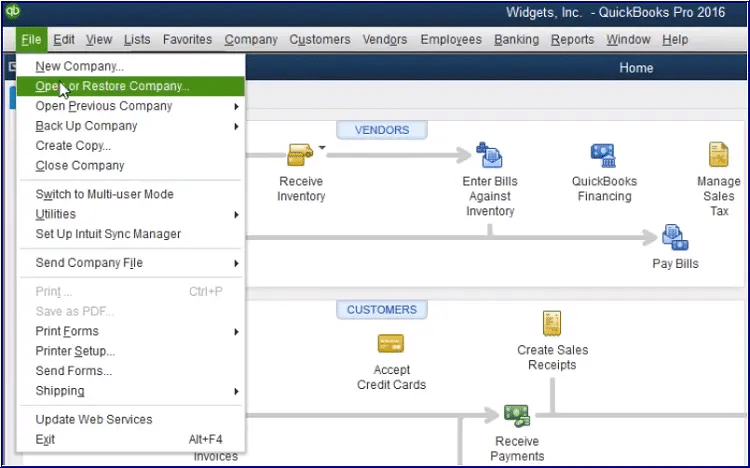
Before you toggle the stuck paycheck, make sure to update QuickBooks Desktop to the latest release and make sure to backup your company file data.
b. Send your payroll data or usage data
- Go to Employees at the top.
- Choose My Payroll Service > Send Usage Data. If you don’t see the option, proceed with the next step.
- Go to Employees > Send Payroll Data.
- In the prompted Send/Receive Payroll Data window, select Send All. Enter the payroll service PIN once prompted.
After a successful send, try updating the payroll services. An error appearing again means moving on to the next steps.
An unsuccessful send requires contacting us for assistance.
c. Identify stuck paychecks
- Go to Edit and select Find.
- Move to the Advanced tab.
- Select Detail Level from the Filter list under the Choose Filter section.
- Click on Summary Only.
- Go back to the Filter list. Scroll down to Online Status and select it then Online to Send.
- Select Find and you will see the paychecks that are stuck and weren’t sent to Intuit.
Note down the “Number of matches” on the Find window. Proceed to Step 4.
d. Verify and Rebuild your data
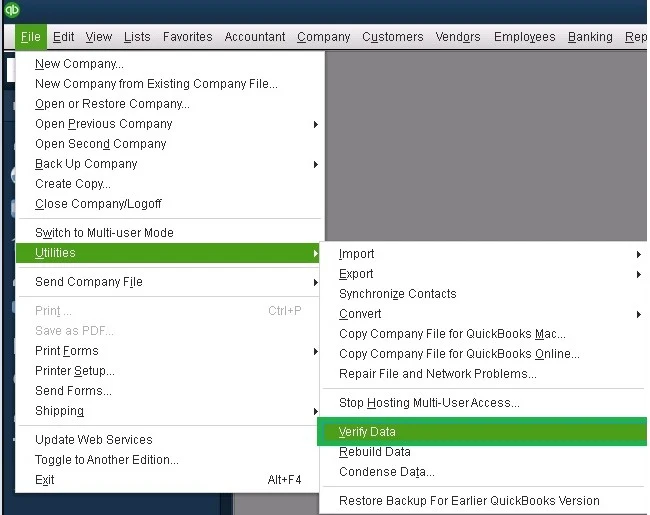
The Verify and Rebuild Data utility verifies the company file for possible damage or corruption. If anything goes wrong, it will repair the damage and let you run the related processes seamlessly.
e. Toggle the stuck paychecks
These are the same paychecks that are found in Step 3.
- Locate the oldest stuck paycheck and open it.
- Hit the Paycheck Detail button.
- Under Earnings, add the earnings items as the last earnings item in the list in the Review Paycheck window. For example, if the final item in the list is “Hourly Rate,” add an additional earnings item also named “Hourly Rate.”
- Select No on the Net Pay Locked message.
- Verify and ensure that there are no changes to the tax amounts and net pay, then click OK.
- When you receive a Past Transaction message, click Yes.
- Select Save & Close to close the paycheck.
- Click Yes to the Recording Transaction warning message.
- Open your paycheck again.
- Hit the Paycheck Details button.
- Remove the earnings items that you just added in the Earnings section.
- Make sure that there are no changes to your tax amounts and net pay. Then, click OK.
- Repeat the same steps for each of the each paycheck that is stuck in Step 2.
- When done, repeat Step 1 and try to download the payroll tax table updates again.
Conclusion
QuickBooks Error 40003 indicates a payroll update failure that occurs due to invalid payroll subscriptions, firewall restrictions, or damaged payroll data. By following the troubleshooting methods above, you can restore payroll services and update tax tables. To prevent this issue, make sure your software and payroll is updated to the latest version.
Frequently Asked Questions (FAQ’s):-
1. How to fix payroll update error 40003 in QuickBooks?
Ans. To fix QuickBooks Payroll Error 40003, first try updating QuickBooks to the latest release and resetting updates by checking the “Reset Update” box in the Help menu; if that fails, run QuickBooks as an Administrator, check your internet/firewall, and use the QuickBooks Tool Hub.
2. How to get latest payroll update QuickBooks Desktop?
Ans. To get the latest payroll update in QuickBooks Desktop, go to the Employees menu, select Get Payroll Updates, and click the update button. You can also update the entire product via the Help menu to install new features and fixes, and you should restart QBDT after each update to finalize it.
3. What is the latest QuickBooks tax table version?
Ans. The latest QuickBooks payroll tax table version for QuickBooks Desktop (US) is 22601, and for QuickBooks Desktop Canada is 12234003. Both were released on December 18, 2025, and are effective for January 1, 2026.
4. Does QuickBooks update payroll taxes automatically?
Ans. Yes, QuickBooks Desktop updates payroll services automatically only if you enabled the automatic feature. If you haven’t, you will need to get the payroll updates manually to ensure federal and most state tax rates are accurate in QB.
About The Author

Jonathan Browns
Jonathan Brown is a trained QuickBooks professional with 10 years of experience in the accounting sector. Moreover, he is passionate about helping businesses reduce the stress of managing accounts. Also, he is proficient in assisting entrepreneurs and small business owners to use QuickBooks and enhance their accounting experience.
Recent Posts
-
9 DIY Troubleshooting Methods to Fix QuickBooks Error 15270
-
QuickBooks Data Conversion Services: Everything to Know
-
QuickBooks Point of Sale: Features, Setup, Pricing & Best Alternatives
-
QuickBooks Scheduled Backup Not Working: Common Causes & Easy Fixes
-
QuickBooks Credit Card Processing: How It Works, Fees & Benefits