


How to Fix QuickBooks Error 3371 Status Code 11118 (Easy Guide)

- By Jonathan Browns
- Sep 24, 2026
- Accounting
- 7 min read
Seeing QuickBooks Error 3371 while activating or opening QuickBooks Desktop? This issue may occur when the software fails to load license data due to missing or damaged files. Other factors that contributes to this error includes outdated or missing Windows components, and installation issues. As a result, it prevents the QuickBooks program from starting causing delays in ongoing business tasks.
In this article, we have listed what exactly Error 3371 is, why it occurs, and step-by-step troubleshooting methods. It will help you restore your license data, repair corrupted components so that you can run the QuickBooks program seamlessly.
What Do You Mean By QuickBooks Error 3371?
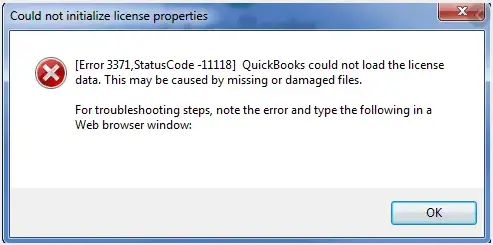
QuickBooks Error 3371 is an initialization failure that mainly appears while launching QuickBooks Desktop. Upon the arrival of this error, you will witness any one of the following error messages stating;
| Could not initialize license properties. Error 3371: QuickBooks could not load the license data. This may be caused by missing or damaged files. |
| Could not initialize license properties. [Error 3371, Status Code -11118] QuickBooks could not load the license data. This may be caused by missing or damaged files. |
| Could not initialize license properties. [Error: 3371, Status Code -1] QuickBooks could not load the license data. This may be caused by missing or damaged files. |
Common Causes Behind QuickBooks Error 3371 Status Code 11118
QuickBooks Error Code 3371 usually takes place when QuickBooks is unable to verify its license information. Following are the root causes that might be responsible for this error.
- The EntitlementDataStore.ecml that saves your licence and product details is either corrupt or missing.
- Important Microsoft components required by QuickBooks like MSXML components or .NET Framework is either damaged or corrupt.
- Faulty or missing installation of QuickBooks Desktop may also trigger this issue.
- Antivirus software is interrupting QuickBooks from accessing its validation files.
- Running the older version of Windows operating system may also restrict you from running QuickBooks program.
- Problems with the Qbregistration.dat file could also cause this error.
- This issue is also caused while opening or importing the Web Connect (.QBO) file without saving it first.
Checklist Before Troubleshooting Error Code 3371 in QuickBooks
Following are the pre-requisites you must consider before fixing Error Code 3371 in QuickBooks.
- Make sure that you login to Windows with proper admin rights to get proper permissions to change system files and folders.
- Check that your system’s date and time is correct and match with your local time zone.
- Always keep your QuickBooks license number and product information ready for re-entry when required.
- Verify that you have installed the latest Windows updates.
- Disable your antivirus software temporarily to avoid blockage of QuickBooks files during the fix.
- Exit from all the background running processes in QuickBooks.
How to Fix QuickBooks Error Code 3371 With These Easy Steps
For accessing or activating your QuickBooks program, it’s essential to resolve Error 3371 in QuickBooks. Here we have listed all the effective troubleshooting methods to fix the issue and regain access to your QB program to accomplish your daily tasks.
Method 1: Run 3371 Error Fix Tool From QuickBooks Tool Hub
QuickBooks Tool Hub is a combination of multiple tools which contains troubleshooting tools for fixing common QuickBooks Desktop issues. These issues may include installation and license-related errors like QB Error 3371.
- At first, confirm that you have downloaded and installed the latest QuickBooks Tool Hub.
- If not, then you first have to set up the updated QB Tool Hub version.
- Now, launch the QuickBooks Tool Hub and choose Installation Issues tab.
- Click the 3371 Error Fix tab.
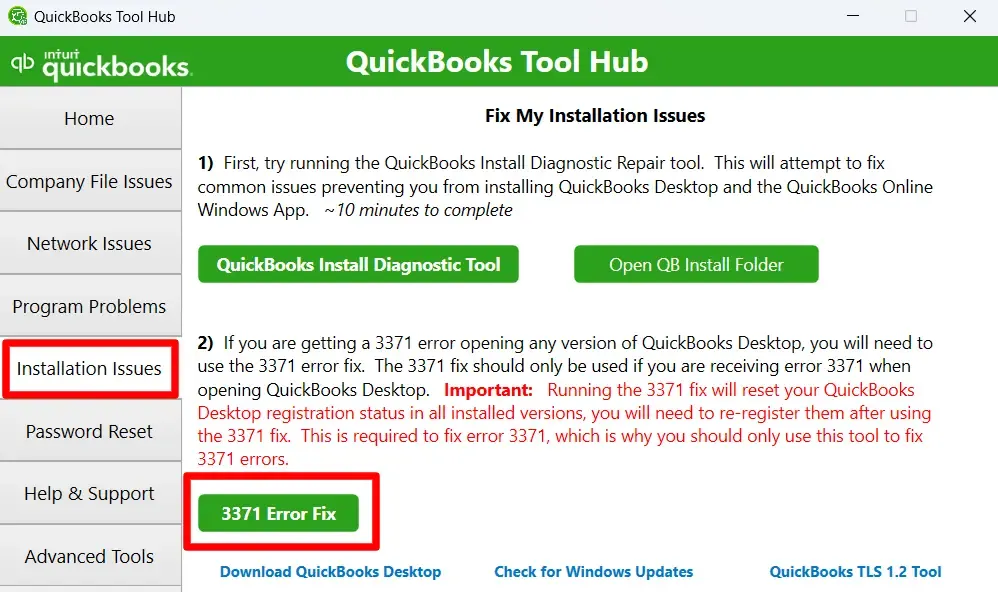
- Thereon, select OK.
- After running the tool, start QuickBooks Desktop and open your company file. If the error continues, try another troubleshooting method.
Method 2: Install the Latest Windows Updates
If you are not using the updated version of Windows operating system, the QuickBooks Desktop installation can fail or become damaged. Therefore, to resolve this issue, you must perform these steps to install the latest Windows updates.
- At first, click on the Windows logo.
- Choose All Programs and select Windows Update.
- If any recent updates are available, then install them. If not, then you will see the message showing “You’re already up-to-date.”
- Once the update is installed, try to install QuickBooks once again.
Method 3: Recreate the EntitlementDataStore.ecml File
- Open the Run window by pressing the Windows + R keys.
- Copy and then paste the file path “C:\ Program Data \ Intuit \ Entitlement Client \ v8” and hit the Enter key.
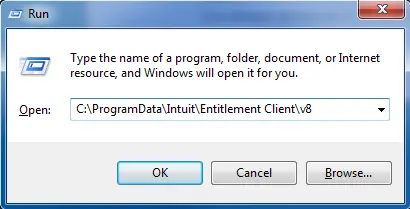
- After this, right-click on the EntitlementDataStore.ecml and choose Rename.
- Rename the file name as EntitlementDataStore.ecml.OLD.
- Finally, start running the QuickBooks program and then register the software.
Method 4: Save the File Before Opening It
It is suggested to save the company file and then import it to prevent 3371 error QuickBooks Desktop when you are using WebConnect with QuickBooks Enterprise. Here’s how to save the file before opening it.
- Initially, download the online statement from your bank’s website.
- After this, save the file to a secure location where you can find it easily.
- Now, open QuickBooks Desktop and select the File menu.
- Choose Utilities and click the Web Connect Files option.
- Move to the saved QuickBooks Online file and select it.
- Finally, perform the steps given on the screen to finish the import of your transaction.
Method 5: Fix Issues With Windows Components
Windows components such as .NET Framework, or MSXML components plays a crucial role to run the QuickBooks program smoothly. If these components is either damaged or corrupt, then it might cause QuickBooks error 3371 .NET Framework. Therefore, to fix the issue, repair the damaged Windows components using these steps.
a. Repair or Reinstall .NET Framework
Following are the steps to repair or reinstall .NET Framework components.
Windows 10 or the Latest Version
- Close all the company files in QuickBooks.
- Open the Start menu and then launch the Control Panel.
- Choose Program and Features and click Uninstall a Program option.
- Confirm that the checkbox of Turn Windows Features on or off.
- After this, select the .NET Framework option.
- Finally, configure the settings for both .NET Framework 4.5 (later) and .NET Framework 3.5 SPI.
Check the .NET Framework 4.5
If you haven’t chosen the checkbox of .NET Framework 4.5 (or later);
- Put the tick mark beside the .Net Framework 4.5 (or later) to turn it on.
- Click OK to save the changes made.
- Restart your computer once the changes are done.
If you select the .NET Framework 4.5 (or later)
- Mark the checkbox to turn off .NET Framework 4.5 (or later). Confirm that you must not turn it back on.
- Click OK to save the changes and restart your computer.
- Next, sign in back to Windows and enable .NET Framework 4.5 again.
Check the .NET Framework 3.5 SPI
If you have not selected the checkbox of .NET Framework 3.5 SP1;
- Mark the checkbox to turn on .NET Framework 3.5 SPI.
- Click OK.
- Restart your computer.
If you select the .NET Framework 3.5 SPI checkbox
- Disable .NET Framework 3.5 SPI by selecting the checkbox and then turn it back on.
- Once the changes are made, click OK.
- Restart your computer.
- Login to Windows and return to .NET Framework 3.5 SPI using the above steps.
- If you doesn’t disable or enable .NET Framework, connect with an IT expert for help.
b. Repair the Damaged MSXML Components
Register the MSXML DLL files while using 64-bit OS
- Click on the Start menu and type CMD in the search area.
- Right-click on CMD and select Run as Administrator option.
- Type “cd\windows\syswow64” in the Command Prompt window and press Enter key.
- After this, add “regsvr32”, “MSXML6.dll” and hit the Enter key to execute the command.
- Try installing QuickBooks again after doing the changes.
Register the MSXML while using a 32-bit OS
- Open the Run command window and type “CMD” in the search area.
- Type regsvr32 MSXML6.dll in the Command Prompt screen appears and then press the Enter key.
- Install the QuickBooks Desktop program again on your workstation.
Method 6: Run the QuickBooks Install Diagnostic Tool
Sometimes, the Error 3371 in QuickBooks is caused due to damaged or missing installation of QuickBooks Desktop. Therefore, to repair the issues with QuickBooks program, run QuickBooks Install Diagnostic tool.
Method 7: Reinstall QuickBooks Desktop
A fresh installation of QuickBooks program deletes the damaged files and restores system integrity again. Use the below given steps to resolve the license error with an installation of QuickBooks Desktop.
First Step: Uninstall QuickBooks Desktop
- Click the Start menu and then open Control Panel.
- Switch to the Programs and Features option.
- Search for QuickBooks Desktop version and click Uninstall.
- Perform the on-screen guidelines for uninstalling QuickBooks.
Second Step: Reinstall QuickBooks Desktop
- First, access the Intuit website to download the QuickBooks Desktop file.
- After this, move the folder where you have saved the downloaded file. Then, double-click on the file to install it.
- Perform the steps given on the screen to reinstall QuickBooks.
- Launch QuickBooks and then see if the issue is resolved.
Method 8: Close the Background Tasks from the Task Manager
You can also get rid of the QuickBooks Desktop Error 3371 by closing the background running processes. Perform the steps given below to exit from the unnecessary tasks from the task manager.
- Close QuickBooks Desktop along with any related windows.
- After this, hit the Ctrl + Shift + Esc keys.
- As a result, it will launch the Task Manager and display a list of active tasks.
- Now, right-click on the tasks and select the option to end them.
- Thereon, browse to the entitlement data folder and select Run.
- Enter C:\ProgramData\Intuit\Entitlement Client\v6 (or v8) in the search box and hit Enter.
- Thereon, search for the ECML file and choose Delete.
- Next, click on your company file to open it once you have deleted the ECML file.
- Finally, register the QuickBooks Desktop software.
Preventive Tips to Avoid Error 3371 in QuickBooks Desktop
Following are the precautions that you must consider to avoid the occurrence of Error 3371 in QuickBooks Desktop.
- Disable all third-party antivirus software while opening QuickBooks Desktop.
- Make sure to run QuickBooks as an administrator while opening the QuickBooks program.
- Confirm that you have installed all the pending Windows updates.
- Also, ensure that you are using the updated version of QuickBooks desktop.
Summarizing the Above!
QuickBooks Error 3371 Status Code 11118 prevent the software from loading license data because of a missing or damaged files. Thus, by performing the troubleshooting methods listed above you can easily get rid of this error. It will help you activate or open the QuickBooks Desktop application smoothly.
If the error still occurs while running the QuickBooks program, you can reach out to our BizBooksAdvice professionals for quick assistance.
Frequently Asked Questions
What is QuickBooks error 3371 status code 11118?
This error mainly takes place when QuickBooks Desktop could not load or validate license data during startup. It is caused due to damaged EntitlementDataStore.ecml file, missing Windows components, or incomplete installation.
What if diagnostic tool doesn’t fix Error 3371?
If the QuickBooks Diagnostic tool could not fix the Error 3371, then try to perform a clean install on QuickBooks Desktop.
How do I fix a license error in QuickBooks?
To fix the license error in QuickBooks Desktop, try syncing your license by opening QuickBooks. Then, select Help menu, click Manage My License and hit the Sync License data Online. If this doesn’t fix the issue, use Install Diagnostic Tool to repair damaged installation files.
How to identify the occurrence of QuickBooks Desktop Error 3371?
You may notice the following signs when this error occurs;
- QuickBooks fails to open or crashes while opening.
- You may see an error message on your screen while opening QuickBooks Desktop.
- Also, you may witness repeated license validation failures.
About The Author

Jonathan Browns
Jonathan Brown is a trained QuickBooks professional with 10 years of experience in the accounting sector. Moreover, he is passionate about helping businesses reduce the stress of managing accounts. Also, he is proficient in assisting entrepreneurs and small business owners to use QuickBooks and enhance their accounting experience.
Recent Posts
-
How to Fix QuickBooks Error 61686: EXEAdapter Installation Error
-
How to Fix QuickBooks Error 3371 Status Code 11118 (Easy Guide)
-
Fix QuickBooks Error PS032 | QB Payroll Update Error
-
Fixing QuickBooks Error 6144 82 When Opening Company File
-
How to Fix QuickBooks Error PS038: Stuck Paychecks & Payroll Update Issues