


Fixing QuickBooks Black and White Screen Problem Now

- By Jonathan Browns
- Nov 23, 2026
- Accounting
- 7 min read
QuickBooks is widely used for managing accounting, invoices, payroll, and other financial tasks. However, like any other desktop application, it can sometimes run into display-related issues.
One such issue is the QuickBooks black and white screen, where parts of the QuickBooks window or fields suddenly appear black and white. In some cases, the issue may affect the entire screen and make it difficult to view or enter information.
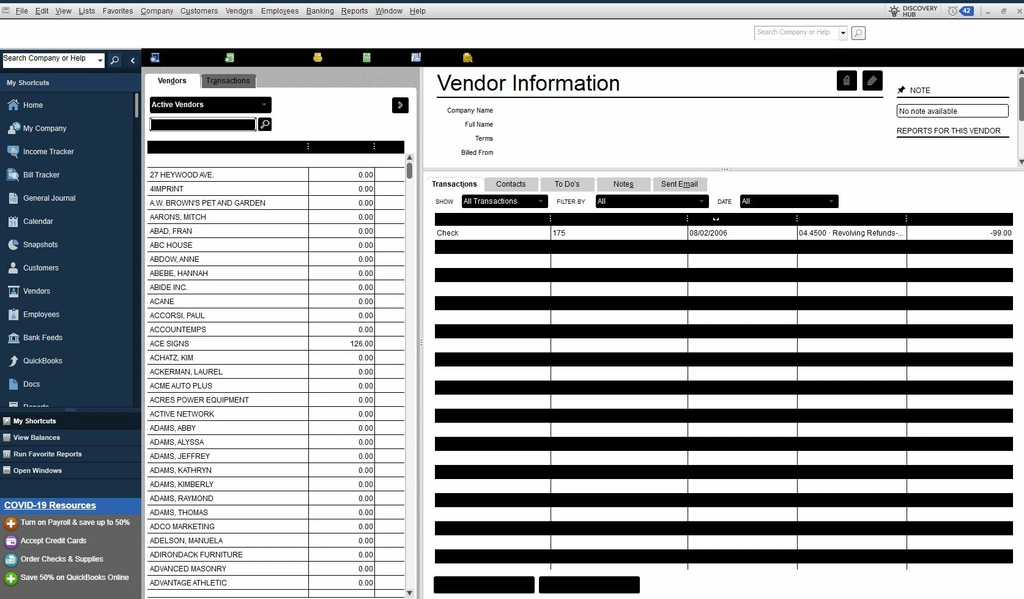
This problem is generally related to QuickBooks display settings, Windows DPI settings, or an issue with the QuickBooks program itself. Fortunately, there are several ways you can troubleshoot the problem.
In this article, we will discuss the possible reasons behind the QuickBooks black and white screen issue and the different solutions you can try to fix it.
Why Is My QuickBooks Screen Black and White?
There can be several reasons why QuickBooks Desktop suddenly displays a black and white screen. Some common causes include:
Need QuickBooks Assistance? Talk to an Expert Today!
Need help figuring out a QuickBooks issue? Connect with our team to discuss your problem and find the next steps toward resolving it.
- Incorrect display or DPI settings.
- QuickBooks display preferences are not configured properly.
- A problem with the QuickBooks program.
- Issues with high-resolution monitors.
- QuickBooks files or program components may be damaged.
- Temporary glitches after using QuickBooks for a long time.
- An outdated or improperly configured QuickBooks installation.
QuickBooks also recommends checking display settings when you experience blank windows, incorrectly sized windows, or other unusual display problems.
Top Methods to Resolve QuickBooks Black and White Screen
If your QuickBooks screen has suddenly turned black and white, try the following solutions one at a time.
1. Restart QuickBooks
Before making any changes to your settings, close and reopen QuickBooks.
Sometimes, a temporary problem with the program can cause different parts of the QuickBooks interface to display incorrectly. Restarting the application can refresh the program and resolve minor display glitches.
- Save your work in QuickBooks.
- Close QuickBooks Desktop.
- Wait for a few seconds.
- Open QuickBooks again.
- Open your company file and check the screen.
If the screen still appears black and white, move on to the next solution.
2. Run Quick Fix My Program
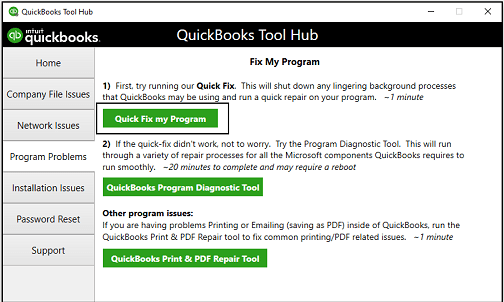
QuickBooks Tool Hub includes several tools that can help troubleshoot common QuickBooks Desktop problems. The Quick Fix My Program tool can be useful when the QuickBooks program is not working correctly.
- Close QuickBooks Desktop.
- Open the QuickBooks Tool Hub.
- Go to the Program Problems tab.
- Select Quick Fix My Program.
- Allow the tool to complete the process.
- Open QuickBooks again.
- Check whether the black and white screen issue has been resolved.
If you do not have QuickBooks Tool Hub installed, download and install the latest version before running the tool.
Note: Intuit currently recommends using QuickBooks Tool Hub on Windows 11 64-bit for the best experience.
3. Change QuickBooks Display Settings
Incorrect display scaling can cause problems with the way QuickBooks Desktop appears on your screen, particularly when you use a high-resolution monitor.
You can change the QuickBooks compatibility settings by following these steps:
- Close QuickBooks Desktop.
- Open the Windows Start menu.
- Search for QuickBooks.
- Right-click the QuickBooks icon and select Open file location.
- Right-click the QuickBooks.exe file.
- Select Properties.
- Open the Compatibility tab.
- Select Change high DPI settings.
- Select the option to override high DPI scaling behavior if available.
- Apply the changes and select OK.
- Open QuickBooks again and check whether the display is working properly.
Intuit recommends changing display scaling settings when QuickBooks has font, sizing, blank-window, or other display problems.
4. Change the QuickBooks Desktop View Preferences
QuickBooks Desktop also provides view preferences that can affect how windows are displayed.
You can try switching from multiple windows to one window.
- Open QuickBooks and your company file.
- Go to Edit.
- Select Preferences.
- Choose Desktop View.
- Open the My Preferences tab.
- Under the View section, select One Window.
- Click OK.
- Close and reopen QuickBooks.
- Check whether the black and white screen problem is fixed.
QuickBooks recommends trying the One Window setting when troubleshooting display issues in QuickBooks Desktop.
5. Check Windows Display Settings
Your Windows display settings can also affect how QuickBooks appears on your computer.
QuickBooks works best with the default Windows DPI settings. Incorrect resolution or scaling may result in display problems.
To check your display settings:
- Right-click anywhere on your Windows desktop.
- Select Display settings.
- Check the Display resolution.
- Select the recommended resolution for your monitor.
- Check the Scale setting and use the recommended setting.
- Restart your computer.
- Open QuickBooks again.
For QuickBooks Desktop 2024, Intuit lists 1280 × 1024 or higher as the optimized screen resolution and notes that the software is optimized for the default DPI setting.
Important: Changing Windows display settings affects other applications on your computer as well, not just QuickBooks.
6. Update QuickBooks Desktop
If the black and white screen keeps appearing, check whether your QuickBooks Desktop is up to date.
Updates can include fixes for bugs and other program-related problems. Keeping QuickBooks updated can also help ensure that the software works properly with your Windows environment. Open QuickBooks and check for available updates. After installing an update, restart QuickBooks and check the display again.
7. Restart Your Computer
If the issue continues even after restarting QuickBooks, restart your computer.
A complete restart can refresh Windows and the resources being used by QuickBooks. This can be particularly helpful if the black and white screen appears after working in QuickBooks for an extended period.
After restarting:
- Open QuickBooks Desktop.
- Open your company file.
- Navigate to the screen where you previously experienced the problem.
- Check whether the colors and fields are displaying normally.
8. Repair QuickBooks if the Problem Continues
If none of the above solutions work, there may be a problem with the QuickBooks installation or program files.
QuickBooks provides troubleshooting options for situations where the program stops working or its installation becomes damaged.
At this stage, you can use the repair or installation troubleshooting options available through the QuickBooks Install Diagnsotic Tool. Make sure you have a recent backup of your company file before making major changes to the installation.
If the issue still cannot be resolved, contacting QuickBooks Support can help identify whether the problem is related to your installation, Windows settings, or the company file.
What If Only QuickBooks Fields Are Black?
Sometimes the entire QuickBooks screen does not turn black and white. Instead, individual fields may appear black instead of white.
This is a slightly different display problem, but it can also be addressed using the QuickBooks Tool Hub.
Intuit specifically recommends running the Quick Fix My Program tool when QuickBooks Desktop fields appear black instead of white.
If that does not fix the problem, continue with the display troubleshooting steps, including checking DPI, display resolution, and QuickBooks view preferences.
How to Prevent the QuickBooks Black and White Screen Issue?
It may not always be possible to prevent display problems completely, but a few practices can help reduce the chances of running into them.
- Keep QuickBooks Desktop updated.
- Use the recommended Windows display settings.
- Avoid making unnecessary changes to DPI or screen scaling.
- Keep QuickBooks Tool Hub available for common program problems.
- Restart QuickBooks if the interface starts behaving unusually.
- Restart your computer if the issue continues.
- Keep a recent backup of your QuickBooks company file.
If you regularly use a high-resolution monitor, make sure QuickBooks and Windows are configured correctly for the display. Incorrect scaling is one of the common areas to check when QuickBooks has unusual display problems.
Summing Up
The QuickBooks black and white screen can make it difficult to work with your company file and access important accounting information. The problem may be caused by incorrect display settings, DPI scaling, QuickBooks view preferences, or a temporary issue with the program.
In most cases, these troubleshooting steps can help restore the normal QuickBooks display. However, if the screen continues to turn black and white, it may be better to contact QuickBooks Support for further assistance at Call Us : +1-866-408-0444.
Frequently Asked Questions
Why is my QuickBooks screen black and white?
Your QuickBooks screen may turn black and white because of display settings, DPI scaling, QuickBooks view preferences, or a temporary program issue. Try restarting QuickBooks and running the Quick Fix My Program tool first.
How do I fix the black screen in QuickBooks?
Why are my QuickBooks fields black instead of white?
Can changing DPI settings fix the QuickBooks black and white screen?
Will restarting my computer fix the QuickBooks black and white screen?
About The Author

Jonathan Browns
Jonathan Brown is a trained QuickBooks professional with 10 years of experience in the accounting sector. Moreover, he is passionate about helping businesses reduce the stress of managing accounts. Also, he is proficient in assisting entrepreneurs and small business owners to use QuickBooks and enhance their accounting experience.

Recent Posts
-
Fixing QuickBooks Black and White Screen Problem Now
-
Fix QuickBooks Requires That You Reboot Loop Error in Windows
-
How to Upload Transactions into QuickBooks Online: Easy Methods for Accurate Records
-
How to Reconcile in QuickBooks Online Without Missing Bank Transactions?
-
How Can I Turn Off AI in QuickBooks? A Simple Guide