


How to Resolve QuickBooks Error 15101 When Updating Payroll?

- By Jonathan Browns
- Apr 15, 2026
- QuickBooks Payroll
- 7 min read
Are you stuck with the message “QuickBooks Error 15101: The update program cannot be initialized” while updating your software? This common issue may restrict you from getting payroll updates and disrupt your workflow. It mainly appears due to numerous factors, including misconfigured internet settings, damaged files, or system configuration issues.
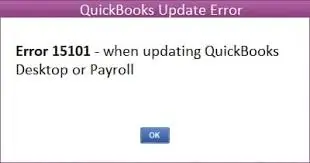
In this detailed post, we will explain what causes QuickBooks Error Code 15101 and walk you through simple and effective troubleshooting methods to fix the error.
QuickBooks Error 15101 occurs while downloading payroll or QuickBooks Desktop updates. You can fix the issue by installing the latest digital signature certificate, testing the internet settings, or repairing damaged files.
What Triggers QuickBooks Desktop Error 15101 During Updates?
The QuickBooks Desktop Error 15101 often occurs when the update process is blocked or cannot initialize properly. Knowing all the root causes behind this error will help you apply the right troubleshooting method to fix the error.
- Running QuickBooks without having any administrator rights.
- Inadequate internet or network settings are blocking the update process.
- Damaged, missing, or corrupted QuickBooks program files.
- Windows Firewall or antivirus software is preventing the update process.
- The Digital Signature Certificate is outdated or invalid.
- The Shared Download Drive isn’t mapped properly.
- Another reason for the QuickBooks Update Error 15101 is the disabled QuickBooks FCS Service.
What are the Best Ways to Resolve Error 15101 QuickBooks Desktop?
Below, we have discussed all the effective methods to fix the Error 15101 QuickBooks Desktop and prevent it from recurring. Applying these solutions step-by-step will help ensure QuickBooks runs updates seamlessly again.
Method 1: Download the Updates as an Administrator
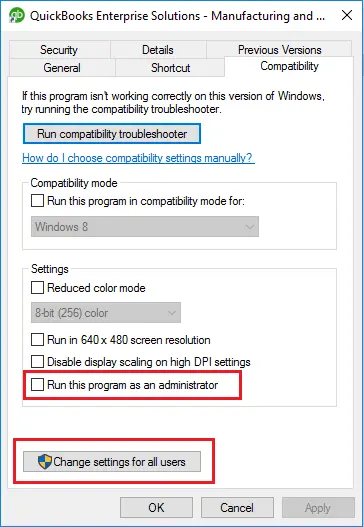
Proper administrative rights are required to download the latest QuickBooks Desktop or payroll updates. But sometimes, users may experience QuickBooks Payroll Error Code 15101 due to insufficient admin rights. So, to download the updates as an administrator, perform the following steps.
- Exit from your company files and the QuickBooks Desktop application.
- After this, right-click on the QuickBooks icon.
- Choose the Run as Administrator option.
- If you get the message “Do you want to allow this program to make changes to your computer?”, hit the Yes tab.
- Finally, try to download the latest QuickBooks Desktop product updates or the latest payroll tax table update once again.
Method 2: Install a Digital Signature Certificate
The Digital Signature Certificate is required because QuickBooks uses it to verify that updates are securely downloaded from Intuit. If the certificate is missing or not trusted, then the system blocks the update process, causing QuickBooks Update Error 15101.
- Firstly, you must go to the location where you have placed QuickBooks. Use the following path to open QuickBooks.
- C:\Program Files\Intuit\QuickBooks.
- Now, right-click the QBW32.exe file and tap on Properties.
- Choose the Digital Signature option and see if Intuit is chosen from the signature list.
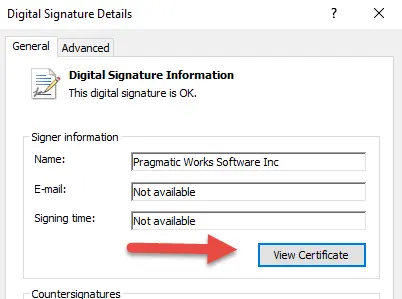
- Hit the Details option and click View Certificate when the Digital Signature Details window appears.
- When you are in the Certificate window, tap on the Install Certificate option.
- Next, tap on the Next option until the Finish tab is displayed. Once done, click the Finish tab again.
- Relaunch your computer, launch QuickBooks, and then try to download the latest updates again.
Method 3: Run Quick Fix My Program
The Quick Fix My Program tool is used to terminate all the background processes interrupting the QuickBooks process. This utility will run a quick repair on the QuickBooks program and help fix the QuickBooks Error Code 15101.
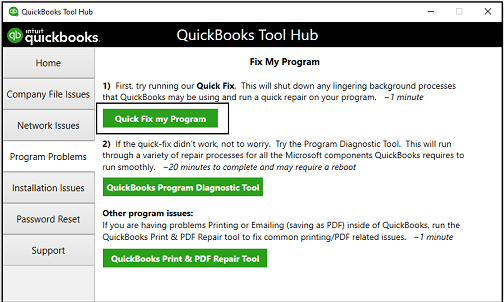
- Launch the QuickBooks Tool Hub by clicking on its icon from the desktop.
- From the Tool Hub, head to the Program Problems tab.
- Choose the Quick Fix My Program tab and try opening the QuickBooks application.
- After this, open the company file and download the latest QuickBooks Desktop product or payroll tax table update.
If you are still receiving the QuickBooks Payroll Error Code 15101, then perform the following steps.
- Exit from the QuickBooks Desktop application.
- Now, head to the C:\ProgramData\Intuit\QuickBooksXX\Components.
- Note: Herein, the XX denotes the QuickBooks Desktop version.
- After this, right-click the Components option and hit the Delete tab.
- Launch the QuickBooks Desktop application and browse to Help menu > Update QuickBooks Desktop.
- Tap on Update Now and circle the checkbox of Reset Update.
- Click the Get Updates tab, and when the download is complete, exit and launch the QuickBooks Desktop.
- Head to the Help menu and select the Update QuickBooks Desktop option.
- Next, click the Overview and then the Update Now option.
Method 4: Map the Shared Download Drive
If you access QuickBooks in multi-user mode on a host, it’s essential to map the shared download drive and then download the software updates.
- Firstly, open the Start menu and choose “This PC” option.
- Choose the More(…) > Map Network Drive option.
- Now, select the drive letter in Drive.
- You have the option:
- Add the full path of the folder you are trying to map.
- Insert only the path of the computer file hosted from and tap on Browse to find the file in the folder.
- Select the Reconnect Sign-In option to ensure that the Drive app is updated every time you log in to your computer.
- Finally, hit the Finish tab to complete the process.
Method 5: Enable the QuickBooks FCS Service
QuickBooks File Copy Service is a Windows background process that is created to facilitate smooth payroll updates and data file handling in QuickBooks Desktop. When disabled, it may cause payroll errors like QuickBooks Error Code 15101. So, to fix the issue, you must enable QuickBooks FCS Service using the following steps.
- Initially, access the Start menu and type Run in the search console.
- When you are in the Run Command window, insert COMPMGMT.MSC and hit the OK tab.
- With this, the Computer Management window will pop up on the screen.
- Head to the Services and Applications and select the Services option.
- You must scroll down the cursor until you find the Intuit QuickBooks FCS service. Then, double-tap on it to choose the Startup Type > Manual option.
- Next, choose the Apply and then the OK tab.
Once you are all set, re-validate the payroll’s service key to refresh the connection.
- Initially, move to the Employees menu > My Payroll Service.
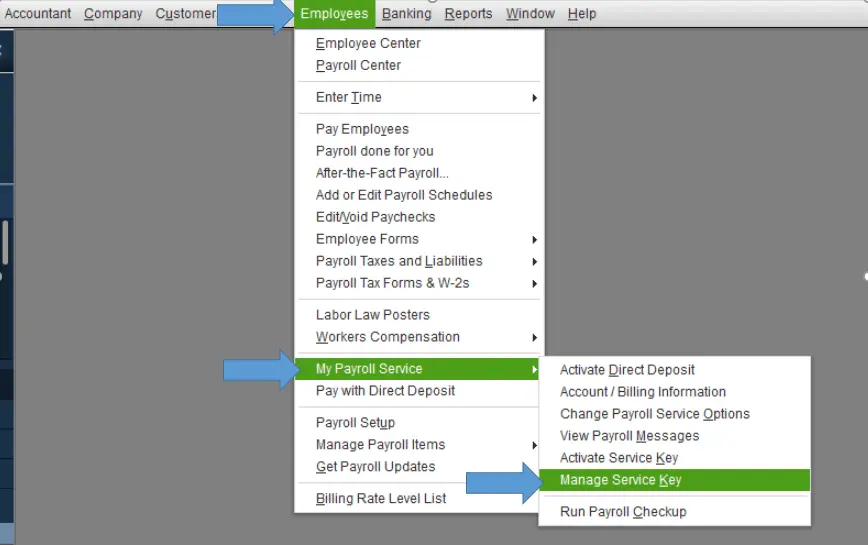
- Choose the Activate Service Key and then highlight the current payroll.
- Click the Edit menu below the Service Key and then hit Next unless the Finish tab displays.
Method 6: Test the Internet Explorer Settings
Follow the steps below to check the Internet Explorer settings and verify if it’s working properly.
- Open the Start menu and then launch the Run window.
- Insert “INETCPLCPL” in the search console and hit the OK tab.
- Choose the General tab and pick the Temporary Internet Files and Website Files option.
- Hit the Delete option again and browse to the Connections > LAN Settings.
- Start searching for the Settings option and hit the OK tab.
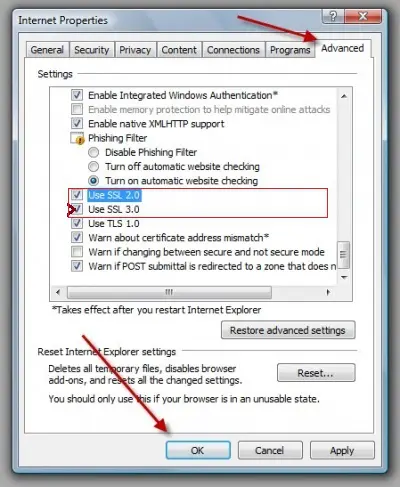
- Afterwards, browse to the Advanced tab and scroll down to the Security section.
- Tick-mark the checkbox of the TLS 1.2 option and make sure that the TLS 1.0 and TLS 1.1 checkboxes remain unmarked.
Method 7: Run the Reboot.bat file
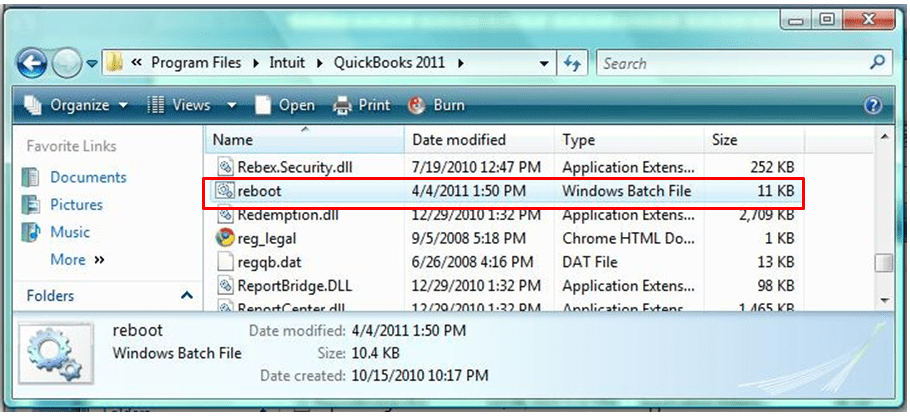
- Exit from the QuickBooks application and right-click on the desktop icon.
- Now, pick the Properties option and choose the Open File Location option.
- Start searching for the Reboot.bat file, right-click on it, and tap on Run as Administrator.
- With this, it will display a Command Prompt window, and from there, select the QuickBooks files.
- Make sure that you don’t close the Command Prompt window manually.
- Once the Reboot.bat file finishes repairing the QuickBooks services, the Command Prompt will shut down automatically.
- Finally, launch the QuickBooks application and run the payroll again. If the error continues, move to the next troubleshooting method.
Method 8: Repair QuickBooks Desktop By Running the Install Diagnostic Tool
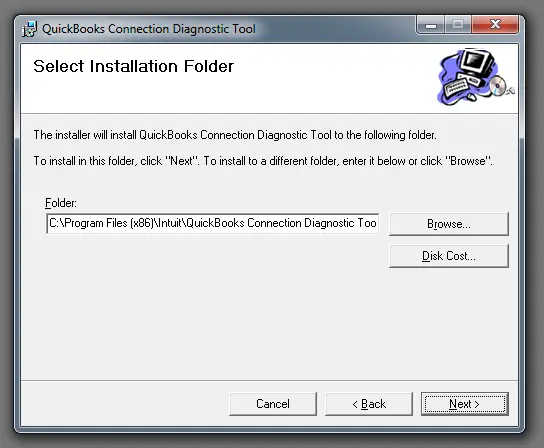
If you fail to perform the installation of the QuickBooks Desktop or if the program files are corrupted, you may face issues while running the software. Therefore, to verify the damages and identify the issues, run the latest version of the QuickBooks Install Diagnostic Tool.
Method 9: Update the Windows Firewall Settings
Windows Firewall is a security application that controls the ports for incoming and outgoing data from QuickBooks. If the firewall traces any errors that can harm system files and folders, Windows Firewall restricts it from running on your system, and may cause QuickBooks Desktop Error 15101. So, to fix the issue, you must correct the Windows Firewall settings for QuickBooks manually to allow software updates.
Method 10. Reinstall QuickBooks Desktop
Reinstalling QuickBooks Desktop is the best way to troubleshoot the QuickBooks Update error 15101, especially when the issue is caused by damaged or misconfigured program files. Reinstallation will remove all the existing program files and folders and replace them with the fresh software files and directories.
Conclusion
QuickBooks Error 15101 is a common update issue that may be triggered due to a missing digital signature certificate, damaged program files, insufficient Windows admin rights, or unstable internet connection. But it can be fixed easily by performing the troubleshooting methods listed above.
If the issue persists, then connect with our BizBooksAdvice professionals for better assistance.
Frequently Asked Questions (FAQ’s):-
Question 1: What triggers QuickBooks Error 15101 during updates?
Ans. QuickBooks Error 15101 mainly occurs when the software fails to connect to the update server due to the following reasons:
- Blocked internet access
- Missing digital signature
- Inappropriate browser or SSL settings.
Question 2: What happens if QuickBooks Desktop Error 15101 isn’t fixed?
Ans. If the user fails to resolve the QuickBooks Desktop Error 15101, then it may result in:
- Missed updates
- Fails to process the payroll easily
- High risk of security concerns
Question 3: Is admin access required to fix the QuickBooks Update Error 15101?
Ans. Yes, running QuickBooks without admin rights may restrict you from installing the latest updates.
Question 4: Can network issues cause QuickBooks Update Error 15101?
Ans. Yes, a restricted or unstable internet connection may prevent QuickBooks from downloading the updates. As a result, it causes QuickBooks Update Error 15101.
About The Author

Jonathan Browns
Jonathan Brown is a trained QuickBooks professional with 10 years of experience in the accounting sector. Moreover, he is passionate about helping businesses reduce the stress of managing accounts. Also, he is proficient in assisting entrepreneurs and small business owners to use QuickBooks and enhance their accounting experience.
Recent Posts
-
QuickBooks Email Invoices Not Working: How to Fix It
-
How to Resolve QuickBooks Error 15214 (Step-by-Step)
-
OL and OLSU Bank Feeds Errors in QuickBooks Desktop: Causes and Fixes
-
QuickBooks Error 15212: Causes & How Can You Fix It
-
How to Recover Deleted Invoice in QuickBooks - Online & Desktop