


What Causes QuickBooks Error 61686 & How to Fix It?

- By Jonathan Browns
- Apr 16, 2026
- Bookkeeping
- 7 min read
Most often, users may encounter QuickBooks Error 61686 while trying to install QuickBooks Desktop. However, when the error occurs, it starts displaying the following messages.
- The installer encountered an error when running “C:\Users\Owner\AppData\Local\Temp\Premier\QBooks” /quiet /norestart INSTALLDIR=”C:\Program Files\Intuit\QuickBooks 2011″ QB LICENSENUM=####-####-####-###
- Component: QuickBooks
- Location: “C:\Users\Owner\AppData\Local\Temp\Premier\QBooks\windowsinstaller-kb93803.exe ” EXEAdapter Error: InstallExe method received the system error from CreateProCess , command – “C:\Users\Owner\AppData\Local\Temp\Premier\QBooks\windowsinstaller-kb93803.exe” /quiet /norestart INSTALLDIR=”C:\Program Files\Intuit\QuickBooks 2011″ QB LICENSENUM=####-####-####-###
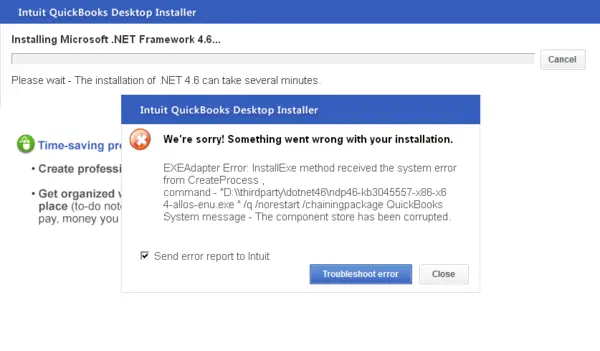
This error mainly appears due to missing or damaged Microsoft components like .NET Framework, an outdated Windows operating system, or an unstable internet connection.
So, if you are also experiencing this issue, read this blog to learn effective troubleshooting methods to fix QuickBooks Install Error 61686.
You can fix QuickBooks Error 61686 by repairing the damaged .NET Framework or the QuickBooks Desktop program. Thus, it will help you install the QuickBooks software smoothly.
What are the Main Reasons Behind QuickBooks Error Code 61686?
The QuickBooks Error Code 61686 is often experienced during installation or updates. This issue is caused by multiple factors that we have discussed below.
- Running an older version of the Windows operating system.
- Presence of a damaged or corrupt Microsoft .NET Framework component.
- Another reason is corrupt or damaged Microsoft MSXML components.
- Third-party security application is restricting the software update.
- You may discover missing, damaged, or mismatched Framework.xml components.
- Corruption in Windows system files or folders.
How to Troubleshoot QuickBooks EXEAdapter Error 61686 When Updating or Installing?
After understanding the possible causes that trigger QuickBooks EXEAdapter Error 61686 when updating or installing, let’s explore the troubleshooting methods.
Method 1: Update Windows Operating System
Sometimes, users fail to install the QuickBooks Desktop on an outdated version of the Windows operating system. So, to fix the Error 61686 during QuickBooks Desktop installation, try to update Windows to the latest version available. Here’s how to update the Windows operating system.
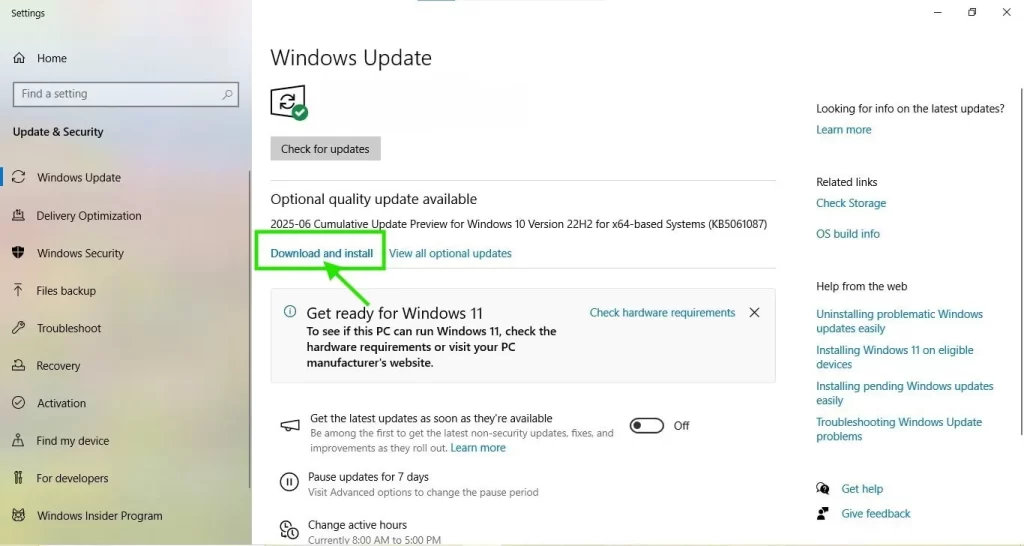
- Launch the Start menu and type Settings in the search panel.
- Choose the Windows Update option from the left menu bar.
- Now, hit the Check for Updates to see whether the Windows updates are available.
- If you are able to see the updates, tap on Download & Install. With this, the system will automatically start downloading and installing the latest Windows updates.
- Relaunch your PC to apply the changes and see if the issue still persists.
Method 2: Repair the Damaged Microsoft .NET Framework Component
- Shut down any Programs that you are presently running.
- Launch the Start menu and then click on Control Panel.
- Choose the Programs and Features > Uninstall a Program option.
- After this, choose the Turn Windows features on or off.
- Search for the .NET Framework from the list of options.
Check the settings for both .NETFramework 4.5 (newer) and.NETFramework 3.5 SPI.
A. Check NETFramework 4.5
- Tick-mark the checkbox of .NET Framework 4.5 (or later) to enable it.
- Hit OK to save the changes and then relaunch your PC.
If you have marked the .NET Framework 4.5 (or later), it is already selected:
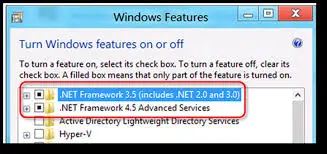
- Circle the checkbox of .NETFramework 4.5 (or later) to disable it. Make sure to turn them back on.
- Hit the OK tab to save the necessary changes.
- Now, relaunch your PC and log in to Windows, and then perform the steps on the screen to enable the .NETFramework 4.5 again.
B. Check NETFramework 3.5 SPI
If you haven’t selected the checkbox for .NET Framework 3.5 SP1:
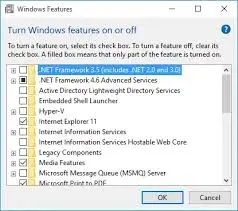
- Circle the checkbox of .NET Framework 3.5 SPI to turn back on.
- Hit OK to save the necessary changes.
- Relaunch your PC.
If you have already marked the .NETFramework 3.5 SPI checkbox;
- Circle the checkbox of .NET Framework 3.5 SPI to turn it off. Ensure to turn it back on.
- Hit the OK tab to save the changes and then relaunch your PC.
- Once you log back in to Windows, ensure that .NETFramework 3.5 SPI is turned back on.
- If you still see the while enabling or disabling the .NET Framework, contact an IT specialist or Microsoft for assistance. The problem may be linked to your operating system instead of QuickBooks.
Method 3: Fix the Issues With the MSXML Components
At times, corrupted Windows components may interrupt while running the QuickBooks application smoothly. So, to get the QuickBooks software installed, you need to repair the Microsoft MSXML components and resolve the system-related issues.
Registering MSXML Components with a 64-bit operating system
- Open the Start menu and type ” cmd in the search box.
- When you see the CMD icon, right-click on it and tap on Run as Administrator.
- In the following window, insert “cd\windows\syswow64” and hit the Enter key.
- Now, input the regsvr32 MSXML6.dll and press the Enter key again.
- Once done, try to install QuickBooks Desktop once again.
Registering MSXML if you use a 32-bit operating system
- Open the Run window and insert cmd in the search box.
- Click OK and insert regsvr32 MSXML6.dll again and press the Enter key.
- At last, try to install the QuickBooks Desktop application to see if the issue is resolved.
Method 4: Run the SFC Scan On Your System
The SFC Scan runs a scan for damaged or corrupted Windows files and folders, and then runs a quick repair if any issues are spotted.
- Launch the Quick Link menu by hitting the Windows + X keys.
- Now, select the Command Prompt (Admin) from the menu.
- Important Tip: You can launch the SFC using Windows PowerShell with proper admin rights.
- Once you get the User Account Control, hit the Yes tab.
- When in the Command Prompt window, insert “SFC/Scannow” and hit the Enter key.
- With this, the System File Checker will scan the Windows system files for integrity issues. Then, it will automatically resolve any problems it detects.
- Once the scanning is over, relaunch your PC.
Method 5: Update Your Windows Device Drivers
You must ensure that the system hardware easily communicates with your operating system so it won’t disrupt the QuickBooks installation and cause Error 61686 during QuickBooks Desktop installation.
- Initially, right-click the Start menu and tap on Device Manager.
- When in Device Manager, tap on the arrow beside the device type you want to view the list of devices.
- Look for the device that requires a driver update.
- Now, right-click the device and choose Update Driver.
- Opt for the Search automatically for updated driver software. Windows will eventually start searching and then installing the available updates.
- When no updates are found, choose Search for updated drivers on Windows updates. Then, use the on-screen instructions to complete the update process.
- Finally, click Close to complete the process.
Method 6: Use the Windows Malicious Software Removal Tool
The Windows Malicious Software Removal tool runs a scan to detect & remove malicious software that restricts system files from working accurately. Here’s how to run this tool and fix the issue.
- Open the Run window and insert “mrt” in the search box.
- When prompted by User Account Control, hit the Yes tab to let the tool run.
- As a result, the Windows Malicious Software Removal tool will open. Herein, hit the Next option to continue.
- Choose the Scan Type (Quick scan, Full scan, or Customized scan) and tap on Next.
- You will see that the tool will scan your computer for malicious software. It may take some time to complete the scanning.
- Once done with the scanning, use the on-screen instructions to remove the detected threats.
- At last, tap on the Finish option to exit from the tool once the process is finished.
Method 7: Rename the Framework.xml file
The Framework.xml file is used to store the information regarding Microsoft .NETFramework like component definitions and references to external resources. However, any damage to the file will prevent you from installing the .NETFramework. As a result, it may give rise to the QB Error 61686. Therefore, to address this issue, you must rename the file using the following steps.
- Initially, launch the File Explorer using the shortcut keys Windows + E.
- Go to the C: drive and launch the QuickBooks folder.
- After this, look for the Framework.xml file and right-click on it.
- Choose the rename option and insert OLD at the end of the file name.
- Relaunch your computer and then try to install QuickBooks to see if the issue still exists.
Method 8: Repair the QuickBooks Desktop
You can also fix the QuickBooks Error Code 61686 by repairing the incorrect installation or damaged program files.
Important Tip: Before proceeding further, download & install the latest version of QuickBooks Tool Hub.
A. Run Quick Fix My Program
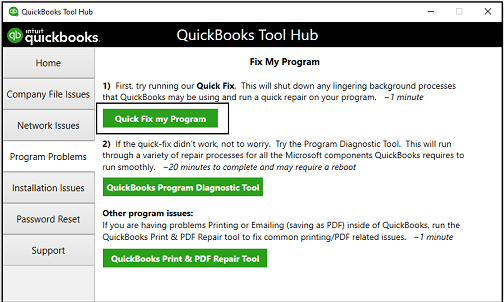
- Initially, double-tap on the QuickBooks Tool Hub icon to open it.
- Choose the Program Problems tab from the left menu.
- Now, hit the Quick Fix My Program option.
- Finally, open the QuickBooks Desktop and then launch your company file.
B. Run the QuickBooks Install Diagnostic Tool
If there is any missing or damage with the installation of the QuickBooks Desktop, then it may result in QuickBooks Installation Error 61686. So, to fix the issue, run the QuickBooks Install Diagnostic tool and fix the installation issues easily.
Method 9: Clean Install QuickBooks Desktop
If the above solutions won’t help you resolve Windows Installation Error Code 61686, then perform a clean install of QuickBooks Desktop. It will resolve any issues related to a damaged or corrupt installation. This is causing QuickBooks error code 61686.
Conclusion
We hope that by performing the troubleshooting methods above, you can easily resolve the QuickBooks Error 61686. Thus, it will let you install the QuickBooks Desktop without encountering any issues.
If the problem persists, directly connect with our BizBooksAdvice professionals for quick assistance.
Frequently Asked Questions (FAQ’s):-
Question 1: What is QuickBooks Error 61686?
Ans. QuickBooks Error 61686 is an installation error that primarily appears while installing or updating the QuickBooks Desktop. This issue is mainly linked with Microsoft components such as.NETFramework, MSXML, or Windows Installer.
Question 2: What is EXEAdapter Error 61686 in QuickBooks?
Ans. EXEAdapter Error 61686 mainly occurs when QuickBooks fails to run installation files because of system-level issues, including damaged Windows components or inadequate permissions.
Question 3: How do I fix Error 61686 when installing QuickBooks Desktop?
Ans. You can resolve Error 61686 by updating the Windows operating system and repairing .NET Framework, re-registering MSXML components, running a system scan, and running Tool Hub.
Question 4: Can damaged Windows files trigger QuickBooks Error 61686?
Ans. Corrupt system files may hamper the installation process. Therefore, by running an SFC scan, you can repair these files and fix the QuickBooks Error 61686.
About The Author

Jonathan Browns
Jonathan Brown is a trained QuickBooks professional with 10 years of experience in the accounting sector. Moreover, he is passionate about helping businesses reduce the stress of managing accounts. Also, he is proficient in assisting entrepreneurs and small business owners to use QuickBooks and enhance their accounting experience.
Recent Posts
-
9 DIY Troubleshooting Methods to Fix QuickBooks Error 15270
-
QuickBooks Data Conversion Services: Everything to Know
-
QuickBooks Point of Sale: Features, Setup, Pricing & Best Alternatives
-
QuickBooks Scheduled Backup Not Working: Common Causes & Easy Fixes
-
QuickBooks Credit Card Processing: How It Works, Fees & Benefits