


How to fix QuickBooks Error PS033 : Can’t Read Payroll Setup Files.

- By Jonathan Browns
- Oct 07, 2026
- Accounting
- 7 min read
You might sit down to carry out the payroll process, install the most recent tax table, and QuickBooks Desktop suddenly displays a message saying “QuickBooks cannot read your payroll setup files. [Error PS033].” Even though nothing has changed about your employees or your company data, you can’t complete the one step you need before paying your employees.
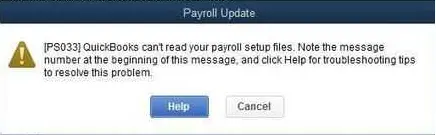
This guide explains what QuickBooks error PS033 means, why it appears, and how to fix it calmly and in an organized way. The steps are based on those that experts recommend for this error, with extra context and checks included so that you can understand why each step is important. Most users fix the issue by refreshing the payroll update or renaming a folder; both options are below, along with more advanced steps if the error persists.
A Quick Overview of Error PS033
The table below provides a condensed overview of what we discuss in this article on QuickBooks error PS033.
| Exact message | QuickBooks can’t read your payroll setup files. [Error PS033] |
| Product affected | QuickBooks Desktop with a payroll subscription (Pro, Premier, Enterprise, and Accountant editions) |
| When it appears | While downloading a payroll tax table update, or while opening a company file |
| Most common cause | A damaged file inside the CPS folder in the QuickBooks payroll components |
| Other contributing causes | An outdated QuickBooks release, an inactive payroll subscription or service key, damaged company data, restrictive Windows settings, or an interrupted update |
| First fix to try | Download the entire payroll update from the Employees menu |
| Most reliable fix | Rename the CPS folder to CPSOLD, then download the payroll update again |
| Related error | PS077, which appears during payroll tax table installation and often shares the same remedies |
| Typical time to resolve | 10 to 30 minutes for most users |
| Data at risk | None, provided you create a backup first and rename (rather than delete) the folder |
What Error PS033 Actually Means
Error PS033 is part of the range of payroll errors known as the PS series in QuickBooks Desktop, and these codes occur when an issue arises during the process of QuickBooks updating, validating, or reading the payroll components that are installed on your computer.
PS033 refers to a particular issue. QuickBooks stores a group of supporting payroll files in a subfolder called CPS. These files contain the information the program needs to apply tax table updates and open a company file that has payroll. If any of those files become damaged, QuickBooks can’t read them and displays the message you’re seeing.
Simply put, the error doesn’t mean your payroll data is lost or that your company file is damaged. It only means that the helper files that QuickBooks uses for payroll are unreadable. That’s why the repair is usually small and specific, and why you can often fix the problem without reinstalling the program.
How the Error PS033 Shows Up: User Experience
PS033 will appear in one of two situations, and identifying which one applies will help you choose a starting point.
When you download a payroll update, select Employees and then Get Payroll Updates; the download or installation will stop with the PS033 message. This is the most typical situation.
When opening a company file, some users see the message immediately, before running any update; in this case, the system reads the damaged CPS files at startup.
Other signs include the payroll tax table staying fixed on an older release date, certain payroll features being unavailable, and paychecks being creatable only after the update completes.
Why QuickBooks Error PS033 Happens: Understanding the Potential Reasons
Intuit has identified a damaged file in the CPS folder as the cause of the error code PS033. Since this damage can result from several common situations, learning about them will help you avoid the issue happening again.
A damaged or incomplete CPS folder
The CPS folder is replaced and refreshed each time a payroll update is installed; if the update is interrupted by a lost internet connection, a power cut, or a computer restart, one of the files in the folder may remain incomplete. Quickbooks will fail the next time it tries to read it.
An outdated version of QuickBooks Desktop
Payroll updates are designed for supported, current releases, and compatibility problems may occur if you run an older release without the most recent maintenance update; these may appear as PS-series errors.
An inactive payroll subscription or an invalid service key
Before applying the payroll changes, QuickBooks checks your subscription. Payroll components may not load as expected if your subscription has lapsed, the billing information is out of date, or the service key is incorrect.
Company file data problems
A company file with data damage may affect how payroll information is read. You should use the verify and rebuild tools that are built in to eliminate this possibility.
Windows settings and security software
Strict User Account Control settings, firewall rules, or anti-virus programs may prevent QuickBooks from writing to its own payroll folders. Moreover, a recent Windows update can also affect how permissions or services function. If PS033 started soon after an operating system update, this category is reasonable to suspect, even though the CPS folder remains the file location in question.
Installation problems
A partial or damaged QuickBooks installation can leave payroll features unreliable. While uncommon, this can explain instances where simpler solutions fail.
Before You Begin Troubleshooting Payroll Error PS033: Prepare Safely
Spending just a few minutes preparing your data will not only safeguard it but also make it easier to troubleshoot error code PS033.
- Make a backup of your company file. To do this, in QuickBooks, choose File, then Back Up Company, then Create Local Backup, and follow the on-screen instructions. Remember to save the backup in a place other than the folder in which your company file is stored.
- Log in to Windows using an administrator account. Administrator privileges are required when renaming program folders.
- Make sure your internet connection is stable, since a payroll update that stops partway through can cause the same damage you are trying to fix.
- Shut down the other programs. Specifically, close any other instance of QuickBooks and any other program that may be accessing your company file.
- Make a note of the version of QuickBooks that you are using, since you’ll need the year (for example, 2024) to locate the right folder.
When using QuickBooks on a network, ensure that other users are not making changes to the company file while you are troubleshooting on the computer that is displaying the error.
How to Resolve QuickBooks Error PS033: Step-by-Step Solutions
Go through the solutions for Payroll error PS033 in order, starting with the quickest and least invasive ones, and after each step, try the payroll update again and stop as soon as it succeeds.
Solution 1: Download the latest payroll tax table update
The error may disappear if QuickBooks has a full, new copy of the payroll update instead of only the most recent changes.
- Open QuickBooks Desktop, then open your company file.
- Choose ‘Employees’ and then obtain the payroll updates.
- Tick the box for Download Entire Update.
- Select Update.
- Once the download is complete, note the message that informs you that the update has been installed.
When the download has finished, open Get Payroll Updates one final time to make sure that the tax table version displays the current release; if PS033 reappears, then proceed to the next solution.
Solution 2: Rename the CPS folder
The step Intuit emphasizes for PS033 solves the issue for most users. Renaming the folder doesn’t delete files; it just tells QuickBooks to stop using the corrupt version so it can create a new, clean folder the next time you update payroll.
- Close QuickBooks Desktop completely, including any open company files.
- Open File Explorer and go to the following location, replacing nn with your QuickBooks version, such as 2024: C:\Program Files\Intuit\QuickBooks 20nn\Components\Payroll\CPS
- If the folder isn’t present in Program Files, you should also check Program Files (x86), since older 32-bit versions of QuickBooks are installed there.
- Right-click the CPS folder and choose Rename.
- Rename it to CPS.OLD, and then press Enter.
- Open QuickBooks and your company file.
- Choose ‘Employees’, then select ‘Get Payroll Updates’, make sure that ‘Download Entire Update’ is checked, and finally pick ‘Update’.
When QuickBooks runs the update, it creates a new CPS folder. You can decide to keep CPSOLD for a while as a precaution or to get rid of it later once your payroll is working properly.
Pro Tip: When Windows saysCtrl+Shift+Esc the folder is in use, open Task Manager by pressing the Ctrl, Shift, and Esc keys, then check the Processes or Details tab for any QuickBooks processes. Once you’ve ended those processes, try renaming the folder again.
Solution 3: Verify your payroll subscription and service key
Before applying the updates, QuickBooks must verify that your payroll service is active; this check takes only a moment and prevents you from wasting time on other remedies.
- In QuickBooks, click on Employees, then on My Payroll Service, and then on Account/Billing Information.
- Log in using your Intuit account details.
- Make sure that your subscription is still active and that your payment method and billing address are up to date.
- If an item is out of date or wrong, make the necessary update and then restart QuickBooks.
Now, verify the service key that is stored in your company file.
- Close all company files, then restart your computer.
- Open QuickBooks, go to Employees, click on My Payroll Service, and then choose Manage Service Key.
- Pick the service key and select Edit.
- Make sure that the key is correct and then click on Next.
- Tick the box that is marked Open Payroll Setup and then choose Finish.
Get the complete payroll update once more. If you encounter the QuickBooks error PS033, move to the next solution.
Solution 4: Update QuickBooks Desktop to the latest release
A common cause of payroll components failing to read correctly is using an outdated version.
- Close your company file and open QuickBooks.
- Click Help. Next, choose Update QuickBooks Desktop 2024.
- Click the tab labeled ‘Update Now’.
- To clear any files that have already been downloaded, select Reset Update and then select Get Updates.
- When the download finishes, restart QuickBooks and choose to install the update when prompted.
Attempt the payroll update once more.
Solution 5: Verify and rebuild your company data
If there is data damage in the company file, the payroll components might not load correctly. First, check for problems and rebuild only if QuickBooks indicates an issue. Ensure that you have the backup from the preparation stage before you start.
- Select File. Next, choose Utilities. Then click Verify Data.
- You can proceed to the next solution if QuickBooks has found no issues.
- When there is a problem with QuickBooks, choose File, then Utilities, and then Rebuild Data.
- Let QuickBooks make a backup when it asks, then let the rebuild finish.
- Check Verify Data again to make sure the file is clean.
Download the payroll update again.
Solution 6: Restart in safe mode and update payroll
You can tell whether another program is blocking the update by starting Windows with only a minimal set of drivers and services.
- Press the Windows key and the R key at the same time, type msconfig, then select OK.
- Go to the Boot tab, ensure that Safe Boot is selected, and then pick Network to maintain internet access.
- Click OK and then restart the computer when you are prompted to do so.
- Once Windows loads in Safe Mode, open QuickBooks and download the full payroll update.
- Go back to the System Configuration window, deselect Safe Boot, and restart the computer normally.
If QuickBooks and its payroll components can run and write to their own folders, the problem is probably a security program, a firewall rule, or a background service. Make sure your antivirus and firewall exceptions are set up correctly.
Solution 7: Adjust User Account Control temporarily
User Account Control may prevent QuickBooks from writing to protected folders, so temporarily reducing it can help determine whether that’s the issue.
- Open the Control Panel and click on User Accounts.
- Choose to change the User Account Control settings.
- Move the slider to the option that says Never notify, then press OK.
- Restart the computer and then download the payroll update.
- When you’re finished, move the slider back to its original position.
Please revert to your original setting later on. Since User Account Control provides an important level of protection, it shouldn’t stay off longer than necessary. So, return to the slider and set it to Medium or Always Notify.
Solution 8: Run Quick Fix My Program from QuickBooks Tool Hub
QuickBooks Tool Hub is a free set of repair utilities offered by Intuit, and it can end background processes and refresh program components that might interfere with payroll.
- Get and install the most recent version of QuickBooks Tool Hub from the official website of Intuit. Keep the file in a place where you can easily access it.
- Open Tool Hub and choose Program Problems.
- Select ‘Quick Fix My Program’ and let it run.
- Open QuickBooks again and download the payroll update.
If the problem persists, use the QuickBooks Install Diagnostic Tool in that same section, as it checks for installation problems.
Solution 9: Review the File Copy Service (FCS)
On certain systems, if an Intuit service is stopped, the payroll files cannot be copied into place. If you are familiar with Windows services, you can open the Services window by pressing the Windows key and R, entering services.msc, and then verifying that the Intuit-related services are there and not disabled. If you aren’t sure what to do, skip this step and try the repair options below, or consult a QB expert.
Solution 10: Repair or reinstall QuickBooks Desktop
If the previous steps fail, the installation itself could be damaged.
- Turn off QuickBooks, then open the Control Panel, then Programs and Features.
- Pick the version of QuickBooks that you want and then select Uninstall/Change.
- Choose the Repair option and then follow the prompts.
- Restart your computer. Then update payroll again.
If the repair doesn’t work, do a clean installation; have your license number and product information ready, and keep your company file backup safe on a separate drive before you start.
What If PS033 Appears After a Windows Update?
Users often notice payroll errors right after Windows has installed an update, and the timing is usually no accident. An operating system update might restart services, reset security settings, or interrupt a payroll download already underway. It may also alter the list of applications that are allowed to write to program folders.
If you’re in this situation, start with the basics. Restart your computer so the update can finish properly, then rename the CPS folder as outlined in Solution 2, update QuickBooks to the latest version, and download the full payroll update. If the issue persists, check your antivirus and firewall settings, since security programs may be reset after a major Windows update.
The best way to avoid compatibility problems is to keep both QuickBooks and Windows up to date.
Understanding the Related Error PS077
PS033 is often mentioned alongside QuickBooks Error PS077; the two are part of the same family, and the confusion is understandable since they occur at similar times.
Error PS077 usually occurs when QuickBooks is installing an update to its payroll tax table. The most common causes include a damaged CPS folder or payroll components, an inactive or unverified payroll subscription, a QuickBooks installation not registered with Intuit, and billing information that needs correction.
PS033 says QuickBooks cannot read the payroll setup files, while PS077 says the tax table cannot be installed. Since the root causes are similar, the same solutions often work for both:
- Change the name of the CPS folder to CPSOLD and then download the update once more.
- Make sure that your payroll subscription is still active and that your billing information is up to date.
- Make sure that QuickBooks Desktop is registered. To do this, press F2 or F3 in QuickBooks to open the Product Information window and verify that your license number is displayed as activated.
- Make sure that QuickBooks Desktop is updated to the most recent release.
- If the errors still occur, fix the program.
If you rename the CPS folder to fix PS033 and then run into PS077, check your subscription and registration first, since those are more likely to be the cause.
Other Payroll Error Codes You May Encounter
Payroll problems in QuickBooks Desktop are generally given PS codes; understanding this pattern will help you find a solution quickly, though you should always read the exact message that appears on your screen.
| Error code | Where it usually appears | General direction |
| QuickBooks Error PS032 | Payroll update or file reading | Often tied to damaged payroll components; CPS folder steps apply |
| PS033 | Payroll update or opening a company file | Damaged file in the CPS folder |
| QuickBooks Error PS036 | Payroll update | Subscription verification problems |
| QuickBooks Error PS038 | Payroll processing | Paychecks stuck in “online to send” status |
| PS077 | Tax table installation | Damaged components, subscription, or registration |
| PS107 | Payroll update | An internal QuickBooks file is unreadable |
Think of the table as an initial reference point, not a definitive diagnosis; the message wording and when it appears are the best indicators.
How to Prevent Error PS033 in the Future: Expert Tips
Once your payroll is working properly again, here are some habits experts recommend to keep it that way.
- Make sure that your subscription remains up to date and review your billing information a few weeks before your card expires.
- Update regularly by installing QuickBooks maintenance releases and payroll tax table updates as soon as they become available, rather than waiting until they accumulate.
- Wait for the updates to complete; do not turn your computer off or restart it while a payroll download is running.
- Keep your connection steady. If your internet is spotty, plan payroll updates for a time when it works better.
- Back up frequently, since a current backup can turn a stressful situation into a minor inconvenience.
- Review security settings. Make sure your antivirus and firewall permit QuickBooks and its payroll components.
- Keep Windows up to date. Install operating system updates on a schedule you control, and restart afterward before opening QuickBooks.
When Should You Contact a QuickBooks Expert?
Most users can sort out PS033 themselves. However, it may be worthwhile to seek assistance if, after going through the solutions mentioned above, the error still appears; if a different error shows up right after the CPS folder has been renamed; if a payroll deadline is drawing near and you cannot afford any more delay; or if you are not sure about altering Windows settings.
When you contact a QuickBooks ProAdvisor, have these details ready:
- Your QuickBooks Desktop version and release.
- The precise words of the error message.
- The steps that you have already attempted.
- The key for your payroll service and your subscription status.
Final Thoughts
In this article, we discussed why you encounter QuickBooks error PS033 and how to troubleshoot it. Always begin with less invasive methods and move to advanced fixes later on. If nothing works, it is best to speak to an expert rather than face indefinite delays to your payroll operations.
To get in touch with a QB expert, call Call Us : +1-866-408-0444. They’ll take care of your issue and sort it out right away.
Frequently Asked Questions
What does QuickBooks error PS033 mean?
Error PS033 means QuickBooks Desktop can’t read the payroll files in the CPS folder. A damaged or incomplete file usually causes it, often after an interrupted update. The message may appear when you download a payroll tax table update or open a company file. Your payroll data is not lost, and you can usually fix the issue by refreshing the update or renaming the CPS folder.
Will renaming the CPS folder delete my payroll data?
No. Renaming the CPS folder to CPSOLD will not remove your employee records, paychecks, or company data. Those are stored in your company file, not in the CPS folder. The folder contains supporting components that QuickBooks uses during payroll updates. After you rename it, QuickBooks creates a new folder the next time you download the payroll update, giving you a clean set of files.
Can an inactive payroll subscription cause PS033?
Yes, an inactive QuickBooks payroll subscription can contribute to PS033. QuickBooks verifies your subscription before applying payroll changes, so an expired plan, outdated billing details, or an incorrect service key can interfere with updates. Open Employees, then My Payroll Service, then Account/Billing Information to confirm your status. If everything is active and the error continues, the cause is more likely a damaged CPS folder, which you can fix by renaming it.
Why did PS033 start after a Windows update?
A Windows update can interrupt a payroll download, reset security settings, or alter permissions on program folders. Any of these changes may make a payroll file unreadable. Restart your computer to finish the update, install the latest QuickBooks release, rename the CPS folder, and download the payroll update again. If it still fails, check your antivirus and firewall exceptions for QuickBooks.
About The Author

Jonathan Browns
Jonathan Brown is a trained QuickBooks professional with 10 years of experience in the accounting sector. Moreover, he is passionate about helping businesses reduce the stress of managing accounts. Also, he is proficient in assisting entrepreneurs and small business owners to use QuickBooks and enhance their accounting experience.
Recent Posts
-
QuickBooks Error PS060: Causes and Step-by-Step Fixes
-
How to fix QuickBooks Error PS033 : Can’t Read Payroll Setup Files.
-
How to Register or Activate QuickBooks Desktop (A Complete Guide)
-
How To Fix QuickBooks Enterprise Errors: Step-by-Step Guide
-
Why is QuickBooks Freezing and How to Troubleshoot It