


How to Fix QuickBooks Error PS038: Stuck Paychecks & Payroll Update Issues

- By Jonathan Browns
- Sep 23, 2026
- Accounting
- QuickBooks Payroll
- 7 min read
Payroll updates are essential for maintaining accurate tax calculations, applying the latest payroll regulations, and ensuring timely employee payments. However, when QuickBooks Error PS038 occurs, it can interrupt the payroll update process due to pending or stuck payroll transactions.
While troubleshooting the issue, users may see a message indicating that the latest payroll update has been retrieved and the payroll subscription has been validated, but the error may still prevent payroll data from being processed successfully.
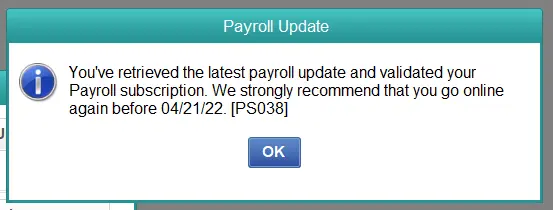
In this guide, we’ll explore the causes of QuickBooks Payroll Error PS038 and provide effective troubleshooting methods to resolve pending payroll issues and restore smooth payroll operations.
A Brief Overview of QuickBooks Error PS038
Before moving to the troubleshooting steps, let’s understand what QuickBooks Error PS038 means, why it occurs, and how it affects payroll updates:
| Aspect | Details |
| Error Name | QuickBooks Error Ps038 |
| Error Message | “You’ve retrieved the latest payroll update and validated your payroll subscription. However, you may still see Error PS038 when trying to send your payroll data or download payroll updates.” |
| Why It Occurs | The error may occur due to outdated QuickBooks Desktop versions, pending payroll data, incomplete updates, damaged company files, or issues while sending payroll information. |
| Common Troubleshooting Steps | Check for stuck payroll transactions, update QuickBooks Desktop, verify and rebuild company data, and retry the payroll update process. |
Possible Reasons Behind QuickBooks Payroll Update Error PS038
Before moving to the troubleshooting steps, it is important to understand what causes QuickBooks payroll update error PS038 and why it occurs during updates:
- QuickBooks Desktop is not running with administrator privileges
- Payroll or usage data is not synced with Intuit servers
- QuickBooks Desktop is outdated
- Incorrectly updating the payroll services
- Paychecks are stuck or pending for transmission
- Stuck paychecks require status refresh
- Company file contains data damage or corruption
- QuickBooks Desktop installation files are damaged or corrupted
- QuickBooks background processes are interfering with payroll updates
If you are experiencing a different payroll update error, see our guide on QuickBooks Error PS032 for additional troubleshooting steps.
8 Ways to Troubleshoot QuickBooks Error PS038 During a Payroll Update
In this section, we’ll walk you through the most effective solutions to troubleshoot the QuickBooks PS038 Payroll Update Error. Follow these troubleshooting steps to identify the cause of the issue and restore successful payroll updates in QuickBooks Desktop.
1. Run QuickBooks as an admin
Running QuickBooks with administrator privileges allows the program to access the required files and resources needed to complete payroll updates successfully:
- Locate the QuickBooks Desktop icon on your Windows desktop.
- Right-click the icon to open the drop-down menu.
- Click Run as administrator.

- Click Yes on the Windows User Account Control (UAC) prompt to open the software.
2. Sync your payroll or usage data
Sending payroll or usage data helps refresh the information between QuickBooks Desktop and payroll services, which may resolve update-related errors.
- Navigate to the Employees menu.
- Choose My Payroll Service, and then click Send Usage Data or Send Payroll Data.
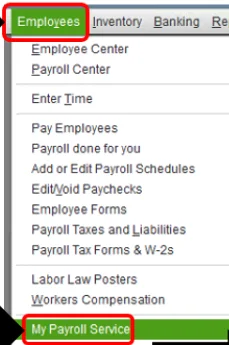
- In the Send/Receive Payroll Data window, select Send All.
- If prompted, enter your payroll service PIN to continue.
- After the data is sent successfully, try downloading the payroll updates again. If the issue persists, contact QuickBooks Support for further assistance.
3. Update QuickBooks Desktop
Update QuickBooks Desktop to ensures that you have the latest features, security improvements, and bug fixes. An outdated version of QuickBooks can sometimes lead to performance issues or errors while processing payroll updates. Updating the application to the latest release can help improve compatibility and may resolve issues related to payroll functionality.
If the payroll update still doesn’t complete successfully, see our guide on QuickBooks Error 15240 for additional troubleshooting steps.
4. Download the payroll tax table update
Keeping your payroll tax table updated can help prevent issues with payroll processing. Learn more about QuickBooks payroll updates and common problems that may prevent tax tables from downloading successfully. Follow the steps below to download the latest update and troubleshoot QuickBooks Error PS038.
- Open the Employees menu and select Get Payroll Updates.
- In the Payroll Update window, locate the number displayed next to You are using tax table version: to see your current tax table version.
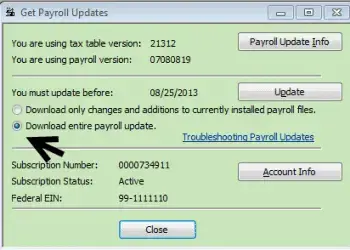
- Compare your version with the latest payroll release notes to confirm that you’re using the most recent update.
- For additional information about the installed tax table, click Payroll Update Info.
- To download the latest tax table, check the Download Entire Update option and then select Update.
- Wait for the update to finish. A confirmation message will appear once the download is successfully completed.
If the payroll update continues to fail, you can also review our guide on QuickBooks Error PS034 for additional payroll update troubleshooting.
5. Identify stuck paychecks
Use the steps below to identify unsent paychecks that may be causing payroll processing issues:
- Open the Edit menu and choose Find.
- Go to the Advanced tab.
- Under the Choose Filter section, select Detail Level from the Filter list, then choose Summary Only.
- From the Filter list again, scroll to Online Status and set it to Online to Send.
- Click Find to display the paychecks that are still waiting to be transmitted to Intuit. Make a note of the oldest unsent paycheck.
- Record the Number of matches shown at the bottom of the Find window.
- Close the Find window after noting the required information.
6. Run the Verify and Rebuild Data utility
Use the Verify and Rebuild Data utility to scan your company file and resolve data integrity issues that may be affecting QuickBooks performance:
a. Run the Verify Data tool
Use the Verify Data utility to check your company file for data corruption or other issues.
- Select Window, then choose Close All to close any open windows.
- Go to the File menu and select Utilities.
- Click Verify Data to begin scanning your company file.
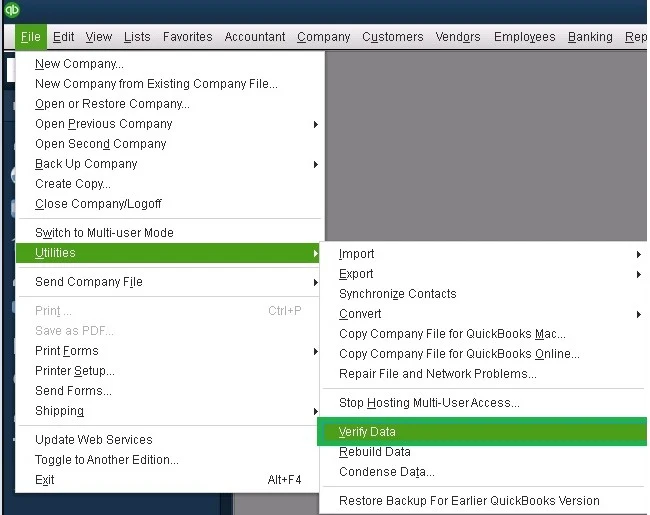
Results:
- “QuickBooks detected no problems with your data” – Your company file is free of data issues, and no further action is required.
- An error message appears – Note the error and search the QuickBooks Desktop support site for the appropriate troubleshooting steps.
- “Your data has lost integrity” – The scan found data damage in your company file. Run the Rebuild Data utility to repair the detected issues.
b. Rebuild the data damages
If the Verify Data utility detects data damage, use the Rebuild Data tool to repair your company file. Before the rebuild process begins, QuickBooks requires you to create a backup of your company file.
Note: If you use Assisted Payroll, contact QuickBooks Support before running the Rebuild Data utility.
- Navigate to the File menu, select Utilities, and then choose Rebuild Data.
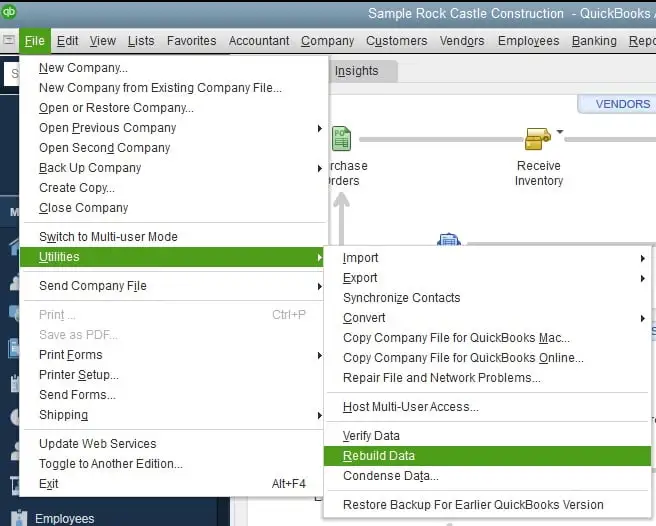
- When prompted, allow QuickBooks to create a backup of your company file by selecting OK.
- Choose a location to save the backup and click OK. Avoid overwriting an existing backup file.
- Enter a unique name for the backup file, then select Save.
- Wait for the rebuild process to finish. When the message “Rebuild has completed” appears, select OK.
7. Toggle stuck paychecks
Manually updating and resetting paychecks that are stuck can refresh their status and allow them to be sent successfully. Complete the following steps for each paycheck that is still pending:
- Open the paycheck that has not been sent.
- Select Paycheck Detail.
- In the Earnings section, add another entry using the same earnings item that appears last in the list. For example, if the final item is Hourly Rate, add Hourly Rate again.
- If the Net Pay Locked message appears, select No.
- Verify that the tax amounts and net pay have not changed, then select OK.
- If prompted with a Past Transaction message, select Yes.
- Click Save & Close.
- If a Recording Transaction warning is displayed, select Yes to continue.
- Reopen the same paycheck and select Paycheck Detail.
- Remove the duplicate earnings item you added earlier.
- Confirm that the tax amounts and net pay are still accurate, then select OK to save the changes.
8. Repair QuickBooks Desktop
Let’s repair the incorrect installation of QuickBooks Desktop or the damaged program files to ensure you can get the payroll update seamlessly and resolve QuickBooks Desktop Payroll Error PS038:
Important Note: Download and install QuickBooks Tool Hub, then use Quick Fix my Program or QuickBooks Install Diagnostic Tool to troubleshoot program-related issues.
a. Run Quick Fix my Program
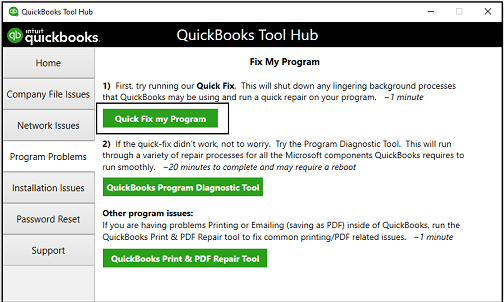
The Quick Fix my Program tool closes any QuickBooks background processes that may still be running and performs a brief repair of the application.
- Launch the QuickBooks Tool Hub.
- In the left pane, go to Program Problems.
- Click on Quick Fix my Program.
- Now, wait until the repair process finishes.
- When done, reopen QuickBooks Desktop and access your company file again.
b. Run the QuickBooks Install Diagnostic Tool
Installation errors in QuickBooks can sometimes lead to issues while using the program. To identify and resolve common installation-related problems, run the QuickBooks Install Diagnostic Tool.
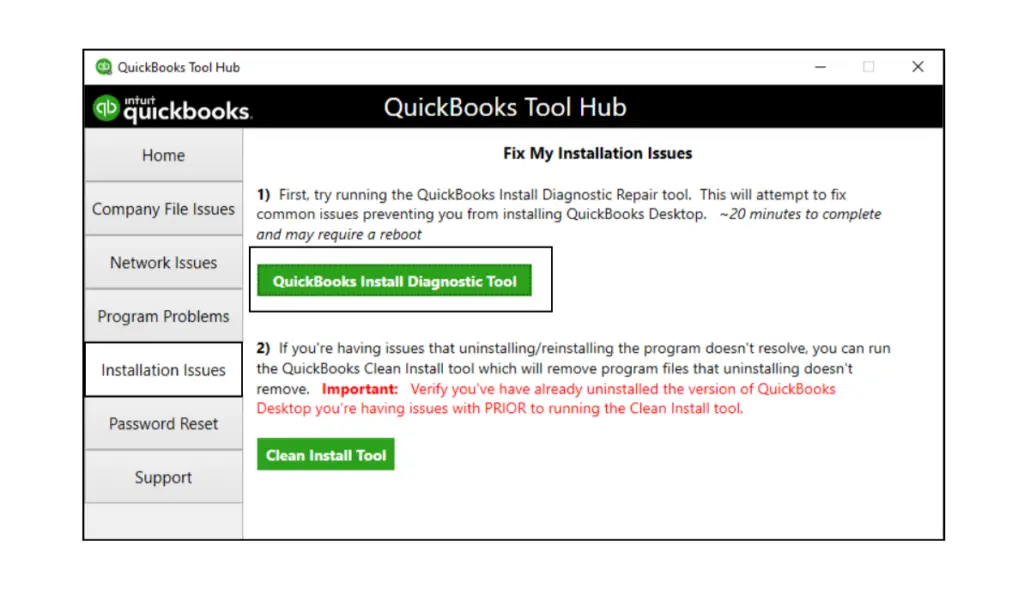
- Launch the QuickBooks Tool Hub.
- Go to Installation Issues in the left menu bar.
- Click on QuickBooks Install Diagnostic Tool. The tool usually takes up to 20 minutes; wait until the process finishes.
- Once done, restart your computer and launch QuickBooks Desktop and then your company file.
- Update QuickBooks Desktop to the latest release to make sure that you use the most recent fixes and security updates.
If QuickBooks displays an installation or licensing-related issue during the repair process, see our guide on QuickBooks Error 3371 for additional troubleshooting steps.
Summing Up
We’ve reached the end of this guide on QuickBooks error PS038, including its causes and troubleshooting steps to help resolve QuickBooks payroll update issues. By following the solutions provided, you can fix stuck payroll transactions, update errors, and ensure smooth payroll processing in QuickBooks Desktop.
If you have any questions or are experiencing problems, you can call the QuickBooks Payroll phone number Call Us : +1-866-408-0444 and speak directly to a specialist.
Frequently Asked Questions
What is the QuickBooks error PS038?
QuickBooks Error PS038 commonly appears when payroll data or paychecks remain stuck in the “Online to Send” status. Other issues, such as outdated QuickBooks Desktop, damaged company data, or payroll-update problems, may also interfere with payroll processing.
Does Verify and Rebuild Data fix QuickBooks error PS038?
Yes, using the Verify and Rebuild Data utilities is a recommended step to fix error code PS038. This error typically indicates that payroll data from a previous pay cycle is “stuck” or corrupted and cannot be sent to Intuit.
How to fix QuickBooks payroll update error PS038?
To resolve payroll update error PS038, create a backup of your company file, update QuickBooks, find and resave unsent paychecks, and send your payroll usage data to Intuit.
What is the error code PSXXX in QuickBooks?
QuickBooks error code PSXXX (such as PS032, PS033, or PS077) indicates a payroll update failure in QuickBooks Desktop. It usually occurs when your payroll subscription is inactive, billing details are incorrect, antivirus software blocks updates, or core tax table files are corrupted.
When should I contact QuickBooks Support for error PS038?
You should contact QuickBooks Support for error PS038 if the issue continues after trying the recommended troubleshooting steps, such as updating QuickBooks, syncing payroll data, and resolving stuck paychecks. Support can help diagnose complex payroll or company file issues that require advanced assistance.
What should I do if error PS038 persists after updating payroll?
Error PS038 in QuickBooks Desktop typically indicates that paychecks are stuck in the “Paychecks to Send” status. To fix this, back up your company file, find unsent paychecks, resend them to the server, and rebuild your data.
About The Author

Jonathan Browns
Jonathan Brown is a trained QuickBooks professional with 10 years of experience in the accounting sector. Moreover, he is passionate about helping businesses reduce the stress of managing accounts. Also, he is proficient in assisting entrepreneurs and small business owners to use QuickBooks and enhance their accounting experience.
Recent Posts
-
How to Fix QuickBooks Error 1603 During Installation or Updates
-
How to Fix QuickBooks Error 248 With Expert Tips? [Complete Guide]
-
QuickBooks Banking Error 350: Effective Solutions for Online & Desktop
-
How to Fix QuickBooks Missing PDF Component Error
-
QuickBooks Running Slow? Causes and Easy Fixes