


QuickBooks Has Stopped Working? 10 Ways to Fix It

- By Jonathan Browns
- Oct 02, 2026
- Accounting
- 7 min read
Nothing is more frustrating than encountering the QuickBooks Has Stopped Working error while opening QuickBooks Desktop or working with company files. In some cases, QuickBooks has stopped working when opening the application, while in others, the problem occurs only when accessing a specific company file.
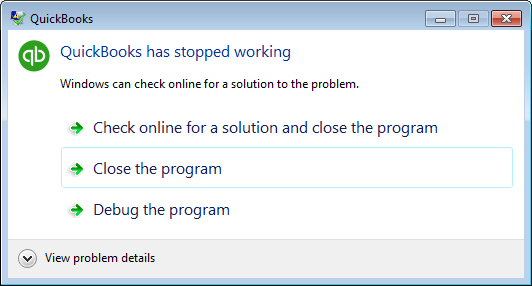
Whenever the error occurs, QuickBooks may shut down automatically or become unresponsive, preventing you from completing your accounting tasks. In this guide, we explain the common causes and 10 troubleshooting methods to resolve the QuickBooks Has Stopped Working error.
Still getting the QuickBooks has stopped working error message? Connect with our QuickBooks experts today for immediate help and get your software running smoothly.
Common Causes of the QuickBooks Has Stopped Working Error Message
| What happens | What it may indicate |
| QuickBooks won’t open at all | QuickBooks program or installation issue |
| QuickBooks opens but one company file crashes | Company-file or file-location issue |
| Sample company opens but your file doesn’t | Your company file may be damaged |
| Sample company also won’t open | QuickBooks installation/program issue |
| QuickBooks works from a new folder | Original folder, permissions, or file-location issue |
Understanding the root causes behind the QuickBooks Has Stopped Working Error message may help you fix the issue instantly. Depending on the cause, users may experience QuickBooks Desktop has stopped working, QuickBooks not responding, or problems opening a company file.
- The company file name or company path is too long or contains special characters.
- Program files or the QuickBooks Desktop installation may be damaged.
- An outdated or unsupported QuickBooks Desktop version may have compatibility issues with the Windows environment.
- Another reason may be a damaged Windows operating system.
- This error may appear due to a damaged or missing QBWUSER.INI file.
- Corruption in your hard drive may also stop QuickBooks from running properly.
Reliable & Effective Solutions to Rectify QuickBooks Has Stopped Working
Here, we have mentioned all the effective troubleshooting methods to address the QuickBooks has stopped working error.
Method 1: Use the Quick Fix My Program Tool from Tool Hub
By accessing the Quick Fix My Program tool, you can close all the background running processes that QuickBooks uses. Also, this tool will run a quick repair on your QuickBooks program.
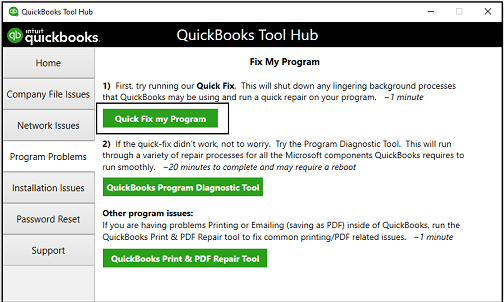
- Initially, launch the QuickBooks Tool Hub and choose the Program Problems tab.
- Now, head to the Quick Fix My Program tab.
- Finally, launch the QuickBooks Desktop and then your company file, and see if the error continues.
Method 2: Rename the QBWUSER.INI File
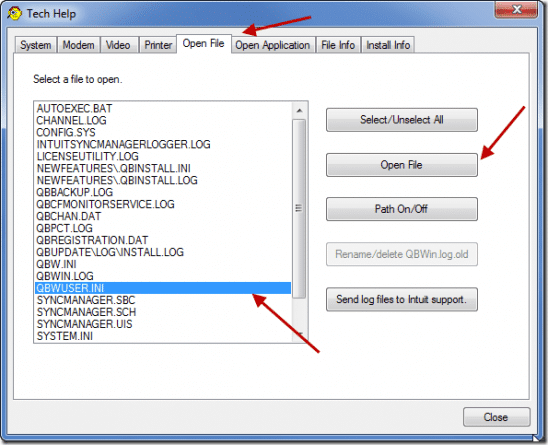
Renaming the QBWUSER.INI file can help resolve the QuickBooks Has Stopped Working error when the user configuration file is damaged or corrupted.
- Launch the folder where the QBWUSER.INI file is placed. This folder is located in the location: “Users[Your user name]AppDataLocalIntuitQuickBooks [year].”
- After this, right-click on the QBWUSER.INI file and click Rename.
- Now, insert .OLD at the end of the file name. The file name will be displayed as QBWUSER.INI.OLD.
- Change the name of the EntitlementDataStore.ecml file.
- Thereon, relaunch the QuickBooks Desktop application.
If you can open a sample company file after renaming QBWUSER.INI but cannot open your own company file, test the company file from a different local folder to determine whether the issue is related to the file or its original location.
If the sample company file opens, not yours, try copying the file to a different folder. Try to open the file from a new location. If you are able to access the file, it clearly indicates that the issue might be a damaged folder or folder permissions.
If you won’t be able to log in to your file, it means that your data file is damaged. For that, try to restore an earlier backup of the file. If you fail to launch the sample company file or QuickBooks won’t start, it states that your QuickBooks installation is damaged.
Method 3: QuickBooks Install Diagnostic Tool
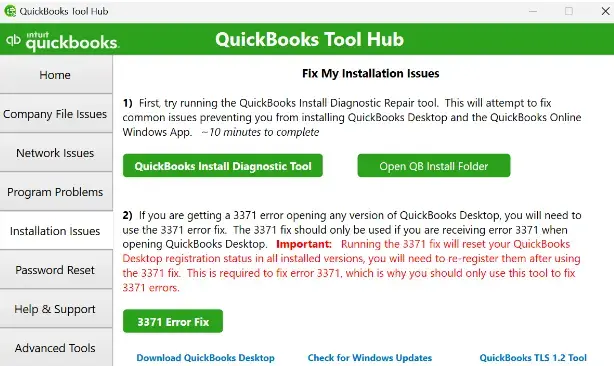
Many users encounter the ” QuickBooks has stopped working error message due to damage or corruption in the QuickBooks Desktop installation. Running the QuickBooks Install Diagnostic tool will automatically detect and repair installation-related issues.
Method 4: Test QuickBooks With a New Windows User Account
Sometimes, inappropriate folder permissions might interrupt QuickBooks’ operation with the system. In such a scenario, you must create a new user and then assign them proper rights to run the QuickBooks application. Here’s what you are required to do;
First Step: Create a New Windows User with Admin Rights
- Click the Start menu > Settings icon > Control Panel.
- Move to the Accounts option and choose the Family & Other Users option.
- Now, browse to the Add Accounts next to the Add Other Users.
- You must head to the “Add a user without a Microsoft account” option.
- At last, provide the username and password along with a password hint. Herein, you can also opt for a security question and then tap on Next.
Second Step: Grant Admin Rights to QuickBooks Software
The following are the stepwise instructions to grant admin rights to your QuickBooks application.
- Initially, browse to the Start menu > Control Panel > User Accounts option.
- After this, look for the QBDataServiceUserXX service for your QuickBooks Desktop version.
- Now, head to the Change the Account Type and hit the Administrator option.
- When all the necessary changes are done, opt for the Apply option.
Method 5: Copy the Company File to a New Location
Sometimes, issues with the company file location may prevent users from running QuickBooks Desktop smoothly. Therefore, to rectify the issue, you must copy the company file to a new location using these steps;
If QuickBooks crashes when opening company file, testing the file from a different local folder can help determine whether the problem is related to the company file or its original location.
- Go to the QuickBooks company folder, right-click the .QBW file.
- Choose the Copy option and then create a new folder named as QBTEST.
- After this, paste the file into a new folder, i.e., QBTEST.
- Press and keep holding the Ctrl key, and then open the QuickBooks program.
- As a result, it will launch the No Company Open window.
- From there, head to the Open or restore an existing company option.
- Finally, locate and choose the company file from the QBTest folder. Later on, verify if the issue still exists.
If QuickBooks still closes or freezes unexpectedly after testing the company file from a new location, see our guide on QuickBooks closes unexpectedly for additional troubleshooting steps.
Method 6: Update QuickBooks Desktop to the Latest Release
An outdated QuickBooks Desktop release can cause compatibility and program-related problems. Updating QuickBooks can install the latest maintenance fixes and may resolve issues that cause the application to stop working.
- Open QuickBooks Desktop.
- Go to Help and select Update QuickBooks Desktop.
- Select the Update Now tab.
- Check Reset Update if you want to clear the previous update download.
- Click Get Updates.
- When the update finishes, close and reopen QuickBooks Desktop.
- If prompted, install the available update and then test QuickBooks again.
If QuickBooks stopped working after Windows update, updating QuickBooks Desktop can help determine whether the issue is related to software compatibility.
Method 7: Run Verify and Rebuild Data
If QuickBooks has stopped working when opening company file, save transactions, or perform other file-related tasks, the company file may contain data integrity issues. QuickBooks Desktop’s Verify Data utility can check the company file, while Rebuild Data can repair certain detected data issues.
To verify your company file:
- Open QuickBooks Desktop.
- Go to File > Utilities.
- Select Verify Data.
- Wait for QuickBooks to complete the verification.
- If QuickBooks reports that your data has lost integrity, proceed with Rebuild Data.
To rebuild the company file:
- Go to File > Utilities > Rebuild Data.
- Follow the prompts to create a backup of your company file.
- Select a safe location for the backup.
- Allow QuickBooks to complete the rebuild process.
- After rebuilding, run Verify Data again to check whether the data issue remains.
For a detailed walkthrough, read our guide on Verify and Rebuild Data in QuickBooks Desktop.
Method 8: Run QuickBooks as an Administrator
If QuickBooks has stopped working because of restricted permissions, running QuickBooks Desktop as an administrator can help determine whether Windows permissions are contributing to the problem.
- Close QuickBooks Desktop.
- Right-click the QuickBooks Desktop icon.
- Select Run as administrator.
- If prompted, select Yes.
- Try opening QuickBooks and your company file again.
If QuickBooks works normally with administrator access, the issue may be related to Windows permissions or user-account settings.
Method 9: Repair QuickBooks Desktop
If QuickBooks keeps crashing because of damaged or missing program components, repairing the QuickBooks Desktop installation can help resolve the problem. You can use QuickBooks Tool Hub and its repair utilities to troubleshoot program and installation issues.
- Open QuickBooks Tool Hub.
- Select Program Problems.
- Choose Quick Fix my Program and allow the repair process to complete.
- If the problem continues, open Installation Issues.
- Run the QuickBooks Install Diagnostic Tool.
- Restart your computer after the repair process is complete.
- Open QuickBooks Desktop and check whether the error still occurs.
Method 10: Reinstall QuickBooks Desktop
Reinstalling the QuickBooks Desktop will help resolve major installation problems, especially when users encounter errors such as QuickBooks setup.exe has stopped working or compatibility issues where Windows 10 QuickBooks has stopped working.
QuickBooks Has Stopped Working on Windows 10 or Windows 11
QuickBooks Desktop may stop working because of Windows compatibility, outdated software, permissions, or damaged program components. If you are searching for QuickBooks Desktop keeps crashing Windows 11, first make sure that QuickBooks Desktop and Windows are fully updated.
If the problem started after a Windows update, follow the troubleshooting methods above to update QuickBooks, repair the installation, and test the company file from a different location. You can also run QuickBooks as an administrator to determine whether Windows permissions are contributing to the problem.
Conclusion
QuickBooks Has Stopped Working can occur due to damaged program files, installation problems, company file issues, outdated software, or Windows compatibility and permission settings. The 10 troubleshooting methods covered above can help identify the underlying cause and get QuickBooks Desktop working again.
If QuickBooks continues to stop working after trying these solutions, connect with our BizBooksAdvice professionals for additional guidance and troubleshooting support.
Frequently Asked Questions
Question 1: Why does QuickBooks stop working while opening a company file?
Ans. QuickBooks has stopped working error message may appear while opening a company file if the company file is damaged, too large, or placed in a network location with connection issues.
Question 2: What does the QuickBooks has stopped working error mean?
Ans. The QuickBooks has stopped working error basically indicates that the application has crashed due to damaged program files, corrupt configuration settings, or system conflicts. As a result, when the error occurs, Windows automatically closes the program to avoid further discrepancies.
Question 3: How to recover a corrupted QuickBooks file?
Ans. You can restore the corrupted QuickBooks files by running the Verify & Rebuild data utility.
Question 4: Can a damaged QBWUSER.INI file cause the QuickBooks has stopped working error?
Ans. Yes, the corrupted QBWUSER.INI file may also trigger the QuickBooks has stopped working error. However, by renaming the QBWUSER.INI file allows QuickBooks to automatically create a new configuration file.
About The Author

Jonathan Browns
Jonathan Brown is a trained QuickBooks professional with 10 years of experience in the accounting sector. Moreover, he is passionate about helping businesses reduce the stress of managing accounts. Also, he is proficient in assisting entrepreneurs and small business owners to use QuickBooks and enhance their accounting experience.
Recent Posts
-
QuickBooks Email Invoices Not Working: How to Fix It
-
How to Resolve QuickBooks Error 15214 (Step-by-Step)
-
OL and OLSU Bank Feeds Errors in QuickBooks Desktop: Causes and Fixes
-
QuickBooks Error 15212: Causes & How Can You Fix It
-
How to Recover Deleted Invoice in QuickBooks - Online & Desktop