


How To Troubleshoot QuickBooks Error 6010, 100 With Experts Solutions?

- By Jonathan Browns
- Apr 24, 2026
- QuickBooks Desktop
- 7 min read
Nothing is more disruptive than encountering QuickBooks Error 6010, 100, while accessing your company file. This error typically occurs when the company file is hosted on a system that isn’t configured as the server.
When the error appears, the following warning message displays;
“An error occurred. Your QuickBooks installation may have been modified. Reinstall QuickBooks and try again. If the problem persists, contact Intuit Technical Support and provide them with the following error codes (6010,100).”
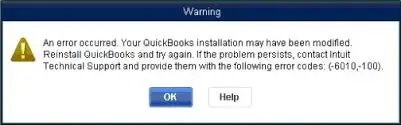
Other factors causing this issue include damaged .ND or .TLG files, incorrect hosting configuration, or blocked network access. Unfortunately, the error disrupts the productivity and puts the entire work on hold.
In this write-up, we have covered the major causes and troubleshooting methods to resolve QuickBooks company file error 6010,100.
The QuickBooks Error 6010 mainly appears when QuickBooks fails to communicate with the company file over the network. So, to fix the issue, rename the .ND and .TLG files.
What is QuickBooks Error Code 6010,100?
The QuickBooks Error Code 6010,100 usually occurs while trying to access the company file in multi-user mode and the software couldn’t access the network or file location. Moreover, it may also arise due to multiple factors, including incorrect hosting settings, damaged configuration files or interference from a firewall or antivirus program.
What are the Factors Causing QuickBooks Company File Error 6010 100?
Below, we have provided you with the list of prominent causes that trigger QuickBooks company file error 6010 100.
- Incorrect hosting configuration.
- Damage or corrupted .ND/.TLG files.
- Blocked network access.
- Damaged or corrupt installation of QuickBooks Desktop.
- QuickBooks-related registry files are deleted.
- Blockage of Windows Firewall or antivirus software is stopping QuickBooks from connecting to your company file.
How Can You Fix QuickBooks Desktop Error 6010, 100?
Is QuickBooks Desktop Error 6010, 100 preventing you from opening the company File? If yes, then you’re not alone. The following are the troubleshooting methods to resolve the error and continue working with the company file without any hindrance.
Method 1: Rename the .ND/TLG files
Network Data and transaction log file are the configuration files in QuickBooks that allow users to access the company file in a network or multi-user environment.
Any damage or corruption in these files may trigger QuickBooks Error Code 6010.
So, to fix the error, rename these files so that you won’t lose any QuickBooks data. QuickBooks recreates these files when you scan with the QuickBooks Database Server Manager and while opening company file.
- Initially, launch the QuickBooks folder that has the company file.
- Look for those file names that have the same file name but have distinct file extensions .ND and .TLG.
- company_file.qbw.nd
- company_file.qbw.tlg
- Now, right-click on each file one by one and select Rename. Type the word .OLD at the end of each file name.
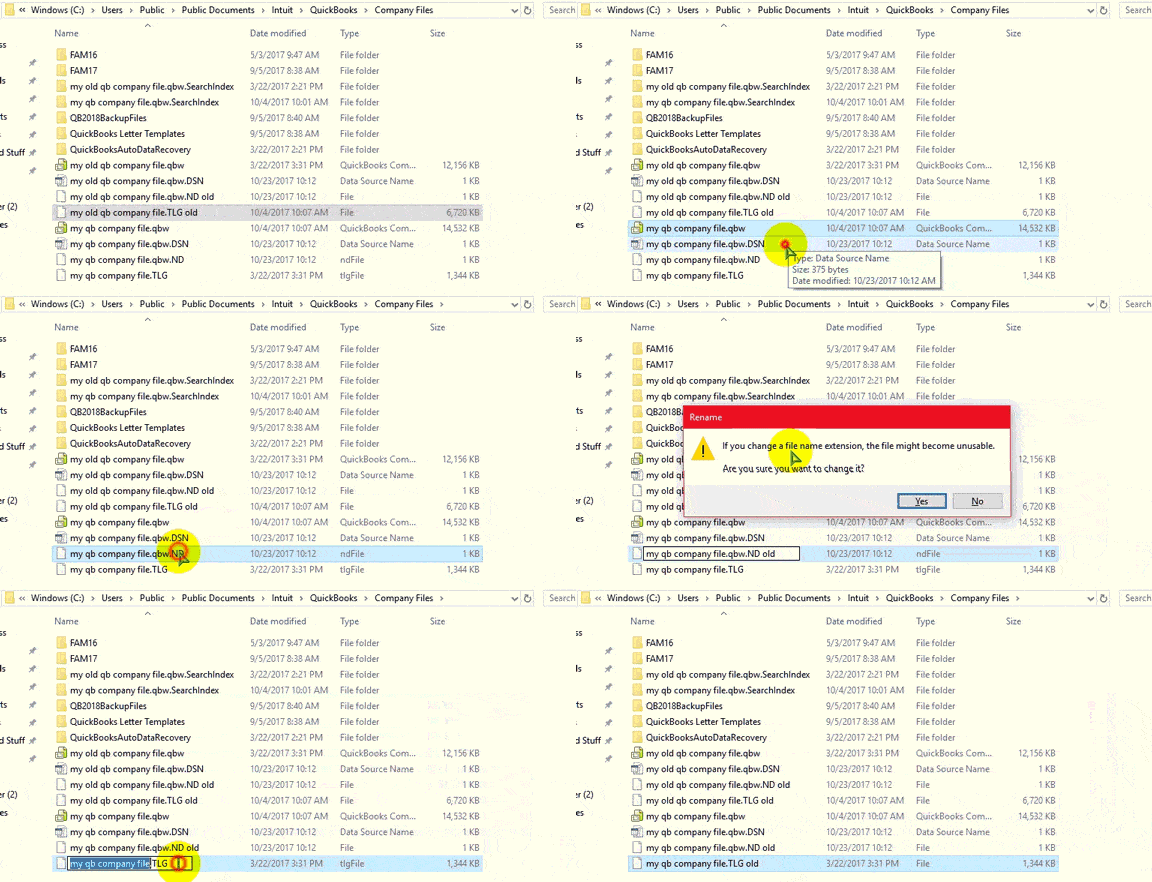
- Relaunch the QuickBooks software and try logging in to your company file. If you get the same error, try the next solution.
Method 2: Run the Database Server Manager From the QuickBooks Tool Hub
The QuickBooks Database Server Manager is used to host the company file. Restart the QBDBSM and scan the QuickBooks files after renaming the .ND/.TLG files.
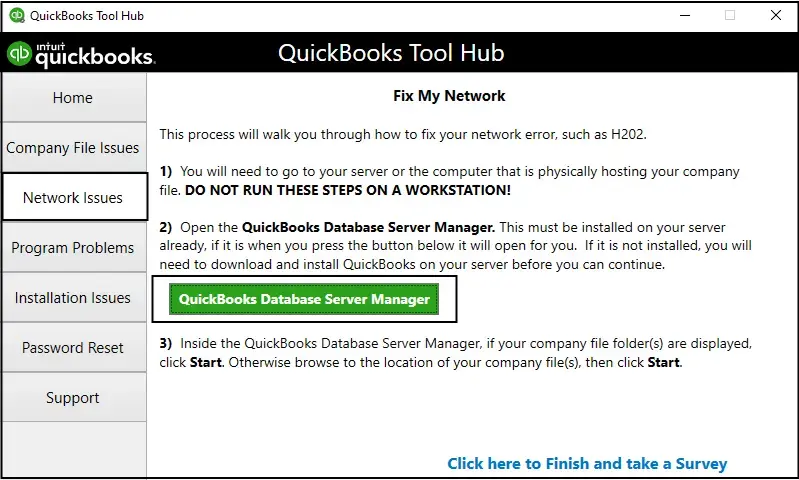
- Open the QuickBooks Tool Hub and click Network Issues.
- Choose the QuickBooks Database Server Manager and install QuickBooks on your server if you haven’t installed it yet.
- When you are in the QuickBooks Database Server Manager dashboard, click Start Scan if you see your company files. If not, then hit the Browse to the location of your company file and choose Start Scan.
- Relaunch QuickBooks and then log in to your company file. If the same issue exists, try another solution.
Method 3: Copy the QuickBooks File to the Desktop
Whenever you copy the company file to the desktop and open it, check whether the issue lies with the company file location.
- If you are able to access the file from the desktop, it means there is damage in your company file location.
- There might be the possibility that your file is present in multiple folders, which crosses the file system path limitation.
- If you aren’t able to access the file after changing its location, it means that your file is damaged.
- Launch the QuickBooks folder that has your company file and look for the file with the .QBW file extension.
- Now, right-click the file and click the Copy option. Go to your desktop, right-click anywhere on your desktop and select Paste.
- Keep pressing the Ctrl key and click Open QuickBooks. It will launch the No Company Open window.
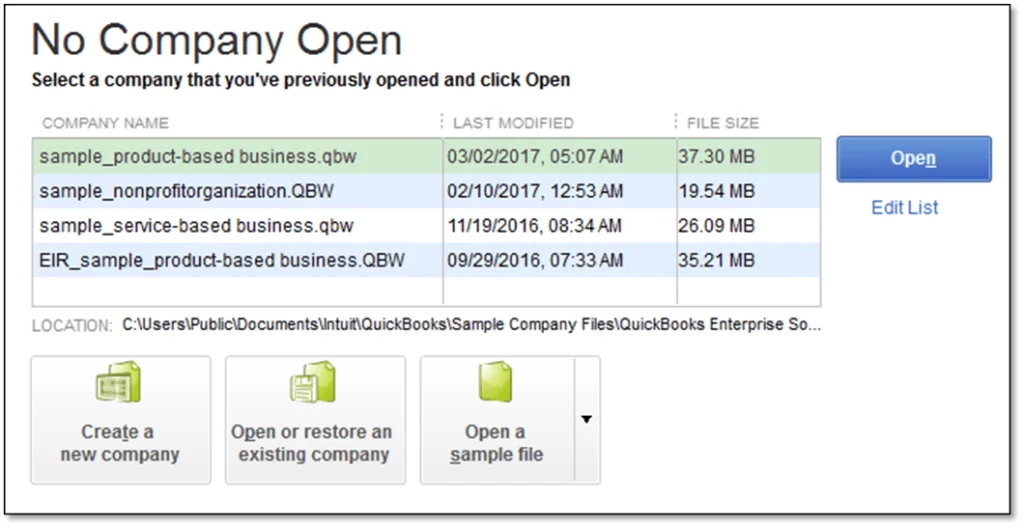
- Move to the Open or restore an existing company. Return to the desktop and locate the company file to open it.
- If the same error is prompting while opening the company file, try the next solution.
Method 4: Switch From Multi-User Mode to Single-User Mode
Switching to the single-user mode in QuickBooks helps users fix the issues faced while opening the company file in multi-user mode.
- Open the QuickBooks application and move to the File menu.
- Choose the Switch to Single-User Mode and tap on OK.
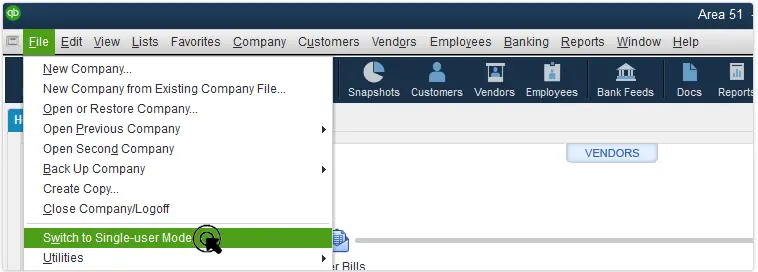
- QuickBooks will close and reopen the file in single-user mode.
- If the issue still exists, then try another solution.
Method 5: Turn Off Hosting On Workstations
Turning off the hosting settings on workstations will help fix the errors associated with opening a company file in multi-user mode.
- Launch the QuickBooks application and click the File> Utilities option.
- If you see the Host Multi-User Access option, move to another workstation.
- Tap on the Stop Hosting Multi-User access option and restart your computer.
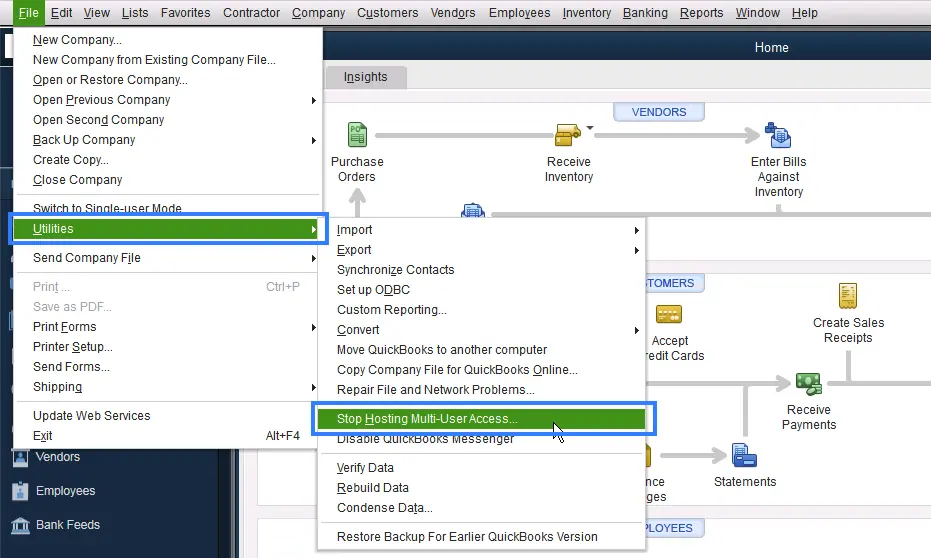
- Restart QuickBooks and turn off the internet monitor in Program Settings.
- Finally, relaunch QuickBooks and see if you still get the QuickBooks warning Error message 6010 100.
Method 6: Use the QuickBooks File Doctor Tool
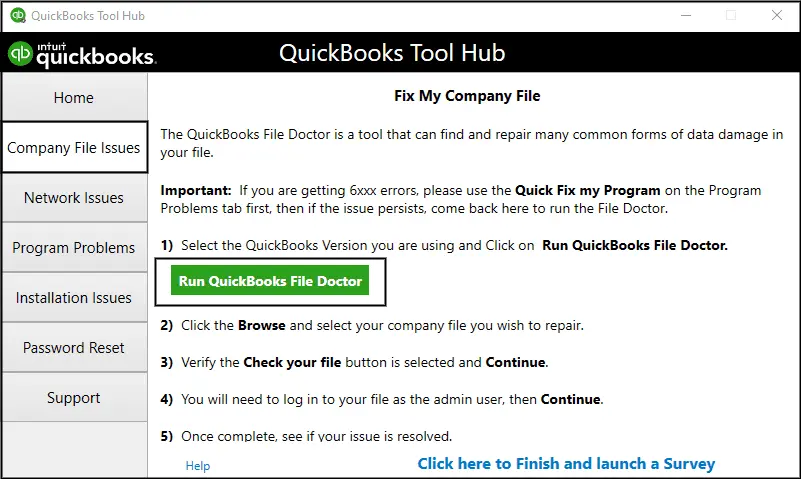
To resolve the QuickBooks Error Code 6010, 100, run the QuickBooks File Doctor Tool. This will repair the damaged company file and network issues. As a result, it will help you regain access to the company file to resume with your ongoing tasks smoothly.
Method 7: Restore a Backup company file
Restoring the backup company file will let you test whether the problem is with the current company file .QBW.
Follow these steps to restore the backup.
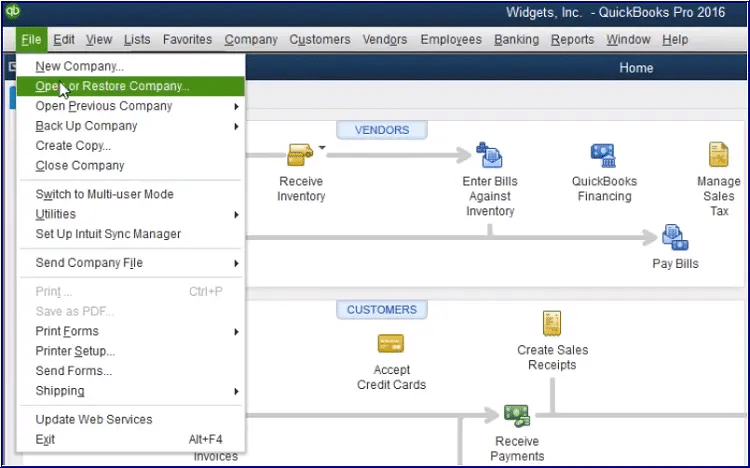
- Verify that your computer isn’t hosting.
- Launch the company file for which you want to restore the backup.
- Go to the File and then click Utilities from the sub-menu.
- If the Stop Hosting Multi-User Access option is listed;
- Click the Stop Hosting Multi-User Access option.
- Choose the Yes option from Stop Hosting Multi-User Access.
- Again, click Yes from the Company file must be closed window.
- Also, check that the path to your company file isn’t longer than 210 characters.
- Browse to the location where your company file is stored.
- Now, copy the company file path from the address bar.
- Once copied, paste them into your notepad and then count the characters along with the spaces.
- After this, try to restore your company file again.
- If the QuickBooks error code 6010,100 occurs, try the next solution.
Method 8: Close all QuickBooks Processes
Try to close all the background running processes in QuickBooks to fix the QuickBooks Company File Error 6010.
- Firstly, make sure to log in as Administrator on your server computer.
- After this, hit the Ctrl + Shift + Esc keys together to launch the Task Manager.
- You must show processes for all users and click the Users option.
- Now, pick each QuickBooks process QBW32.EXE, qbupdate.exe, and QBDBMgr.exe. Then, tap on the End Task option.
- If your computer has an ESET NOD32 antivirus application, provide a new name to the file by inserting .OLD in the extension.
- Finally, try to open the company file in multi-user mode to see if the issue is resolved.
Method 9: Reinstall QuickBooks Desktop
If the above methods don’t work, then try reinstalling QuickBooks Desktop. This will remove the old version of the QuickBooks software containing technical bugs and install a fresh version of the software. As a result, it will help you fix Error 6010 100 on the QuickBooks server.
Conclusion
QuickBooks Error 6010, 100 is a complex company file error that prevents users from opening the File. So, to fix the issue, try renaming .ND/TLG file, run QuickBooks Database Server Manager, log in as administrator or fix network issues.
If the error persists, it may indicate that your company file is damaged, or your network configuration needs further troubleshooting. For help, you can contact BizBooksAdvice professionals for advanced troubleshooting & quick resolution.
Frequently Asked Questions (FAQ’s):-
Question 1: What is .ND file in QuickBooks Desktop?
Ans. The .ND (Network Data) file in QuickBooks Desktop is a configuration file that lets QuickBooks access the File in a multi-user or network environment.
Question 2: How can I prevent QuickBooks Error 6010,100?
Ans. To avoid the QuickBooks Error 6010,100 from occurring;
• Make sure that only the server hosts the company file.
• Try to update the QuickBooks Desktop regularly.
• Verify that you are connected to a stable internet co
Question 3: What is error code 6000 on Intuit?
Ans. QuickBooks Error 6000 mainly occurs while trying to open the company file due to damaged files, inaccurate folder permissions or network hosting configurations.
Question 4: How do I fix error 6010, -100 in QuickBooks?
Ans. You can fix the error 6010,100, rename .ND/.TLG files, verify hosting settings, run QuickBooks Database Server Manager, and check firewall permissions.
About The Author

Jonathan Browns
Jonathan Brown is a trained QuickBooks professional with 10 years of experience in the accounting sector. Moreover, he is passionate about helping businesses reduce the stress of managing accounts. Also, he is proficient in assisting entrepreneurs and small business owners to use QuickBooks and enhance their accounting experience.
Recent Posts
-
9 DIY Troubleshooting Methods to Fix QuickBooks Error 15270
-
QuickBooks Data Conversion Services: Everything to Know
-
QuickBooks Point of Sale: Features, Setup, Pricing & Best Alternatives
-
QuickBooks Scheduled Backup Not Working: Common Causes & Easy Fixes
-
QuickBooks Credit Card Processing: How It Works, Fees & Benefits