


How to Fix QuickBooks Not Calculating Unemployment Correctly?

- By Jonathan Browns
- Nov 26, 2026
- Accounting
- 7 min read
Is your QuickBooks not calculating unemployment correctly? Incorrect unemployment tax calculations can affect your payroll and may result in inaccurate tax amounts. This issue can occur due to outdated payroll tax tables, incorrect employee or payroll settings, or other payroll-related issues. If the unemployment tax is not being calculated properly, it is important to identify the cause and correct it before processing further payroll.
Need QuickBooks Assistance? Talk to an Expert Today!
Need help figuring out a QuickBooks issue? Connect with our team to discuss your problem and find the next steps toward resolving it.
In this blog, we will discuss the common reasons behind incorrect unemployment calculations in QuickBooks and explain the methods you can follow to fix the issue.
How Does QuickBooks Calculate Unemployment?
QuickBooks calculates unemployment taxes based on the employee’s taxable wages, the applicable unemployment tax rate, and the wage base set by the state or federal tax authority. Once you enter the required employee and payroll information, QuickBooks uses these details to calculate the unemployment tax when you run payroll.
The calculation may vary depending on your state requirements and the employee’s taxable wages. QuickBooks also stops calculating the tax once the employee reaches the applicable wage base for that tax period. Therefore, incorrect payroll settings, outdated tax tables, or incorrect employee information can cause the unemployment tax to be calculated incorrectly.
A Quick Overview: QuickBooks Not Calculating Unemployment
QuickBooks calculates State Unemployment Insurance (SUI) taxes during payroll processing based on the employee’s taxable wages, assigned state, SUI tax rate, and applicable exemptions. The calculation is subject to state-specific wage limits, which determine how much of an employee’s wages are taxable for unemployment insurance.
If QuickBooks is not calculating unemployment, the SUI tax may not appear on an employee’s paycheck, or the calculated amount may be incorrect. This can happen when the SUI rate is outdated, an employee is incorrectly marked as tax-exempt, or the payroll data is not updated properly. In QuickBooks Online, browser cache, cookies, and session-related issues can also interfere with payroll calculations.
Why is QuickBooks Not Calculating Unemployment Correctly?
There can be several reasons why QuickBooks is not calculating unemployment tax correctly. Some of the common causes include:
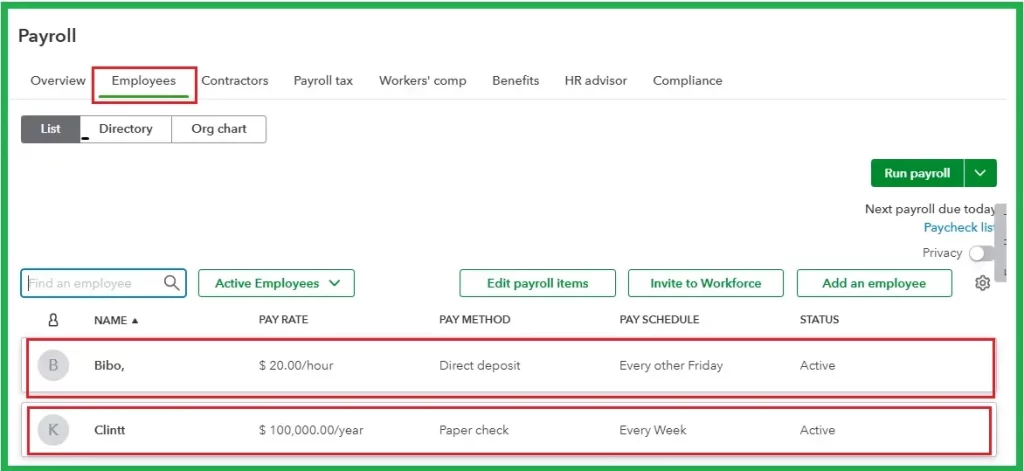
In QuickBooks Desktop
- QuickBooks payroll tax table might be outdated
- Incorrect employee tax settings or other payroll details
- An outdated or incorrect unemployment tax rate
- Employees might have reached the applicable wage base in QuickBooks
- Incorrect state or payroll tax settings
- An inactive or outdated payroll subscription
- Issues with QuickBooks company or program files
In QuickBooks Online
- An outdated or incorrectly entered State Unemployment Insurance (SUI) rate
- An employee is incorrectly marked as exempt from SUI taxes
- Accumulated or corrupted browser cache and cookies
- An outdated browser, incompatible settings, or stored browsing data
- Common temporary browser glitches
How to Troubleshoot QuickBooks Not Calculating Unemployment Correctly?
If QuickBooks is not calculating unemployment tax correctly, you need to check your payroll settings, employee information, and tax tables. Follow the troubleshooting methods below to resolve the issue:
1. Update QuickBooks payroll tax tables
Using outdated payroll tax tables can cause QuickBooks to calculate incorrect unemployment taxes. To download the latest payroll tax table:
- Open QuickBooks Desktop.
- Go to Employees and select Get Payroll Updates.
- Select the Download Entire Update checkbox.
- Click Update.
- Wait for the download to complete and restart QuickBooks.
2. Verify employee payroll information
Incorrect employee information can affect unemployment tax calculations. Review the employee’s payroll details to make sure everything is entered correctly.
- Open QuickBooks and go to Employees.
- Select Employee Center.
- Double-click the employee whose unemployment tax is incorrect.
- Select Payroll Info.
- Review the employee’s payroll and tax-related details.
- Make the required corrections and click OK.
3. Check unemployment tax rates
If the unemployment tax rate entered in QuickBooks is incorrect, the software may calculate the wrong tax amount. Verify the rate assigned to your company.
- Go to Lists and select Payroll Item List.
- Find the state unemployment insurance (SUI) payroll item.
- Right-click the item and select Edit Payroll Item.
- Review the tax rate and other details.
- Update the information according to your current state unemployment tax rate.
- Click Next until you reach the Finish option, then save the changes.
4. Review state unemployment wage base limits
QuickBooks calculates unemployment tax based on the applicable taxable wage limit. If an employee has already reached the annual wage base, QuickBooks may stop calculating the tax.
- Open the Payroll Item List from the Lists menu.
- Find the state unemployment tax item.
- Right-click it and select Edit Payroll Item.
- Review the wage limit and related tax settings.
- Compare the information with your state’s current unemployment tax requirements.
- Correct any outdated information.
5. Verify payroll tax settings
Incorrect payroll tax settings can also prevent QuickBooks from calculating unemployment correctly. Review the company’s payroll preferences to make sure the required taxes are enabled.
- Open QuickBooks and go to Edit.
- Select Preferences.
- Click Payroll & Employees.
- Open the Company Preferences tab.
- Review the payroll settings and make sure payroll taxes are configured correctly.
- Save the changes if you make any corrections.
6. Verify the SUI tax exemption
If you or your employee should be or shouldn’t be exempt from SUI tax, check and update your tax exemptions if needed in QBDT with the steps given below:
- Open the QB Desktop app.
- Navigate to the Employees menu.
- Click on the Employee Center.
- Double-click on the employee’s name.
- Proceed to click on Payroll Info.
- Then, choose the Taxes option.
- Review the SUI checkbox and correct it if needed.
This will resolve the problem you were dealing with.
7. Run QuickBooks payroll updates
Outdated payroll tax tables can cause QuickBooks to calculate unemployment taxes incorrectly. Check for the latest payroll updates and install them to ensure the correct tax rates are applied:
- Open your QuickBooks Desktop company file.
- Select Employees from the top menu.
- Choose Get Payroll Updates.
- Check the Download Entire Update box.
- Select Update (or Download Latest Update) and wait for the completion notice.
- If you opened QuickBooks as an administrator, close it and reopen it normally.
8. Verify and rebuild the company file data
Check your company file for data damage using the Verify and Rebuild Data utilities in QuickBooks Desktop:
a. Verify the company file data
The Verify Data tool lets you verify the company file for errors or data damage.
- Navigate to Window.
- Click on Close All.
- Select File at the top menu bar.
- Choose Utilities and click on Verify Data.
Results:
- “QuickBooks detected no problems with your data”: No data issues were found, so no further action is required.
- An error message: Look up the specific error on our QuickBooks Desktop support site to find the appropriate fix.
- “Your data has lost integrity”: QuickBooks found damaged data in the file. Rebuild your company file data to resolve the issue.
b. Rebuild the damaged data
If the Verify tool detected any data damage, using the Rebuild tool will help you repair the company file. Make sure to create a backup copy before rebuilding.
Note: If you use Assisted Payroll, contact QuickBooks Support before rebuilding your company file data.
- Navigate to File at the top menu bar.
- Choose Utilities and then Rebuild Data.
- Now, QuickBooks will ask you to create a backup copy before rebuilding the company file.
- Click OK.
- Choose the location to save the backup copy and click OK. Make sure not to replace the already existing company file.
- Type a new name in the File name section and click Save.
- Click OK when you see the “Rebuild has completed” message.
9. Repair QuickBooks Desktop
If the issue persists despite trying the above solutions, repair QuickBooks Desktop to fix damaged or missing program files that may be affecting its functionality.
a. Run Quick Fix my Program
The Quick Fix will close the open background processes that QuickBooks uses and then run a quick repair to the program.
- Launch the QuickBooks Tool Hub.
- Navigate to Program Problems in the left pane.
- Click Quick Fix my Program.
- Launch QuickBooks Desktop and then open the company file.
b. Run the QuickBooks Install Diagnostic Tool
If an error occurs during QuickBooks installation, it may cause issues while running the software. Use the QuickBooks Install Diagnostic Tool to identify and resolve common installation problems.
- Launch the QuickBooks Tool Hub.
- In the left pane, select the Installation Issues option.
- Click on QuickBooks Install Diagnostic Tool. The tool usually takes up to 20 minutes to run; wait until then.
- Once it’s done, restart your computer and open QuickBooks Desktop, then open your company file.
- Make sure you use the up-to-date version of QuickBooks for the recent fixes and security updates.
Fix the Unemployment Tax Not Calculating Correctly Issue in QB Online
If QuickBooks Online is not calculating unemployment taxes correctly, you can try the following troubleshooting methods to resolve the issue:
1. Update the SUI Rate
If the SUI rate is outdated or entered incorrectly, QuickBooks may calculate unemployment taxes incorrectly. Follow the steps below to verify and update the SUI rate:
- Sign in to QuickBooks Online and select Settings > Payroll settings.
- Select Edit next to the state you want to update.
- Under the State Unemployment Insurance (SUI) Setup or Unemployment Insurance section, select Change or add a new rate.
- Enter your new SUI rate and Effective Date (typically January 1 for most states, or July 1 for states like NJ, TN, and VT).
- Enter any updated surcharge or assessment rates if applicable, then select Save or OK.
2. Verify the employee’s SUI tax exemptions
Incorrect SUI tax exemption settings can affect how QuickBooks calculates unemployment taxes. Verify the employee’s tax details and make sure the applicable exemptions are set correctly:
- Go to Payroll (or All apps > Payroll) and select Employees.
- Select the employee’s name.
- Select Edit next to Pay or Tax withholding.
- Expand or scroll to Tax exemptions.
- Verify whether SUI (and any applicable SUI tagalong or surcharge taxes) is selected/checked.
- Update if needed and select Save or Done.
3. Clear the QB Cache and Cookies
Outdated browser cache and cookies can interfere with QuickBooks and cause loading or calculation issues. Clear them to remove stored data that may be affecting the application:
a. Clear your browser’s cache
Your browser stores temporary files on your computer to help websites load faster when you revisit them. However, these files can become outdated and lead to various issues. Follow the steps below to clear your browser’s cache:
Firefox
- Click the menu icon and choose Settings.
- Go to the Privacy and Security section.
- Under Browsing Data, select Clear Browsing Data.
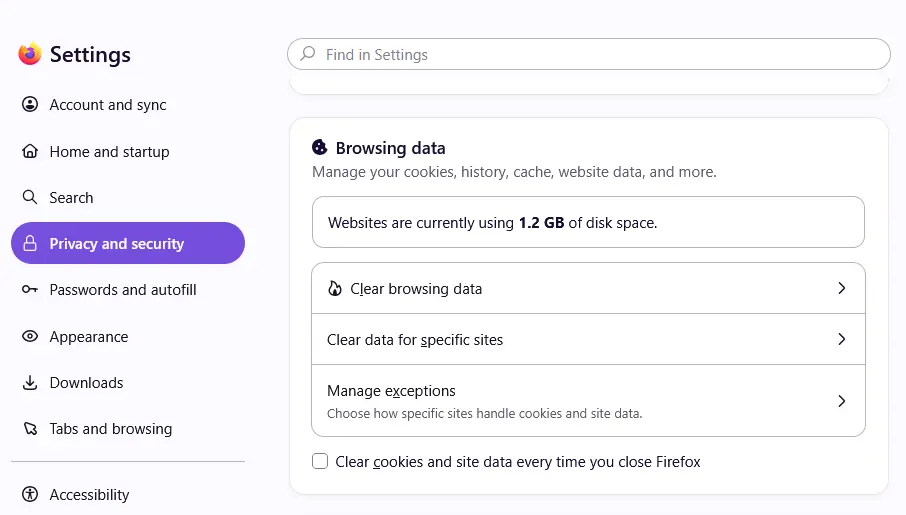
- This will open the Delete Browsing Data window.
- Choose Everything under the When: dropdown and ensure that only Temporary cached files and pages are selected.
- To clear the cached data, click Delete.
- Close the Settings page. Your changes will be saved automatically.
Google Chrome
- Open the Google Chrome browser on your computer.
- In the top-right corner, click More, then select Delete browsing data.
- Select a Time range, such as Last hour or All time.
- Check the box for Cookies and other site data.
- Select any other types of browsing data you want to remove.
- Click Delete data to confirm.
Safari for Mac
- Open the Safari app on your Mac.
- From the menu bar, select History > Clear History.
- Click the pop-up menu and select the time period for which you want to clear your browsing history.
Safari for iPad and iPhone
- Navigate to Settings.
- Choose Apps, then select Safari.
- Now, scroll down and select Clear History and Website Data.
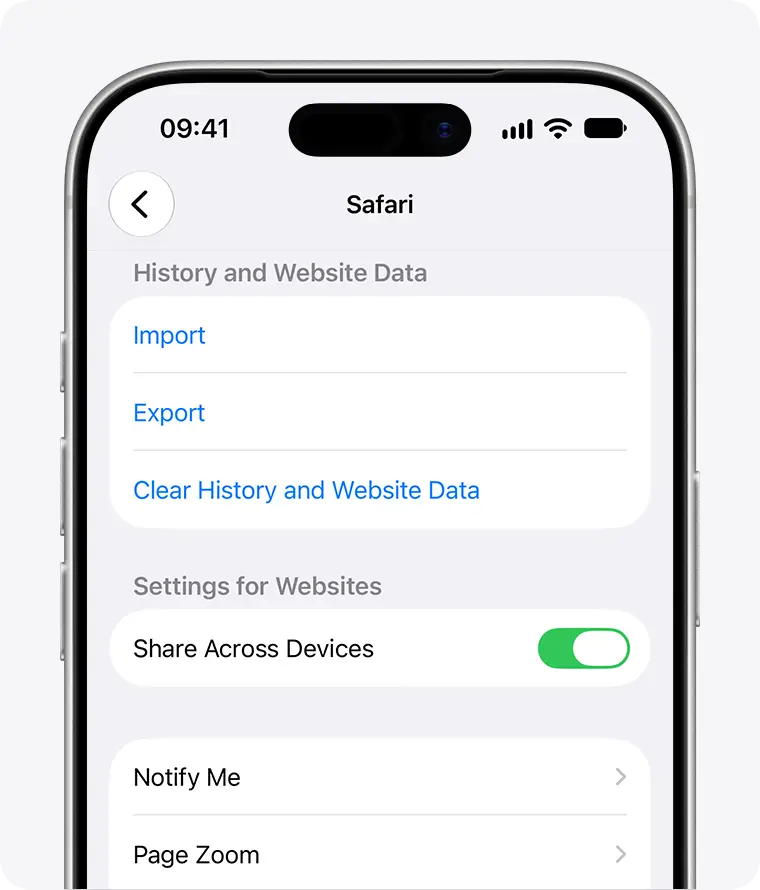
- Select the time period you want to clear and tap Clear History to proceed.
- Your AutoFill details will remain unchanged. If the button appears grayed out, there may be no browsing data to delete, or you may need to review the web content restrictions under Screen Time.
Microsoft Edge
- Open Settings and more (⋯) and go to Settings > Privacy, search, and services.
- Under Clear browsing data, click Choose what to clear next to Clear browsing data now.
- Select your preferred time range from the Time range dropdown.
- Choose the types of browsing data you want to delete.
- For instance, you can clear browsing history and cookies while keeping saved passwords and form data.
- Click Clear now to complete the process.
Once the cache is cleared, restart your browser.
b. Clear Intuit-specific cookies from your browser
In most cases, clearing your browser’s cache is enough to resolve the issue. However, if the problem continues, try deleting Intuit-specific cookies. This can reset saved website preferences that may be interfering with QuickBooks.
Note: Make sure you delete only Intuit-specific cookies.
Google Chrome
- Click the More (⋮) icon in the top-right corner.
- Open Settings.
- Go to Privacy and security.
- Select Third-party cookies or Cookies and other site data, depending on your Chrome version.
- Click See all site data and permissions.
- Enter Intuit in the search bar to locate related cookies.
- Click Delete or the trash icon next to the Intuit entries.
- Restart Google Chrome to apply the changes.
Mozilla Firefox
- Click the Menu (☰) icon in the top-right corner.
- Select Settings.
- Go to Privacy & Security.
- Under Cookies and Site Data, click Manage Data.
- Enter Intuit in the search bar and press Enter.
- Click Remove All Shown.
- Select Save Changes to confirm.
- Restart Mozilla Firefox to apply the changes.
Safari
- Launch Safari.
- Click Safari next to the Apple icon in the top-left corner.
- Choose Settings or Preferences.
- Go to Privacy and select Manage Website Data.
- Type Intuit in the search bar to locate Intuit cookies.
- Click Remove All.
- Select Remove Now to confirm.
- Click Done.
- Restart Safari to apply the changes.
4. Use incognito mode
Open QuickBooks in an incognito or private browsing window to check whether cached data or browser extensions are causing the issue:
- Google Chrome: Click the three-dot menu (⋮) in the top right and select New Incognito window, or press Ctrl + Shift + N (Windows) / Command + Shift + N (Mac).
- Microsoft Edge: Press Ctrl + Shift + P (Windows) or Command + Shift + P (Mac).
- Mozilla Firefox: Press Ctrl + Shift + P (Windows) or Command + Shift + P (Mac).
- Safari (Mac): Press Command + Shift + N or Command + Option + P.
Summing Up
Now, we are ending this blog with a complete guide to fixing the QuickBooks not calculating unemployment correctly issue. We have covered the possible reasons behind incorrect unemployment tax calculations, along with solutions such as updating the SUI rate, verifying employee tax exemptions, and checking the issue in incognito mode.
If QuickBooks continues to calculate unemployment taxes incorrectly, get in touch with QuickBooks ProAdvisors at [tel] and get the issue resolved without affecting your payroll records.
Need QuickBooks Assistance? Talk to an Expert Today!
Need help figuring out a QuickBooks issue? Connect with our team to discuss your problem and find the next steps toward resolving it.
Frequently Asked Questions
Why is QuickBooks not withholding state unemployment tax?
QuickBooks may not withhold state unemployment tax due to incorrect employee tax settings, an outdated payroll tax table, or an incorrect state unemployment insurance (SUI) rate. Check the employee’s payroll information and verify that the correct state tax is assigned.
How do I correct an incorrect unemployment tax amount in QuickBooks?
Does QuickBooks stop calculating unemployment tax after the wage limit is reached?
How do I update the SUI tax rate in QuickBooks Desktop?
Can an outdated QuickBooks payroll tax table affect unemployment calculations?
Why is QuickBooks calculating unemployment tax for some employees but not others?
About The Author

Jonathan Browns
Jonathan Brown is a trained QuickBooks professional with 10 years of experience in the accounting sector. Moreover, he is passionate about helping businesses reduce the stress of managing accounts. Also, he is proficient in assisting entrepreneurs and small business owners to use QuickBooks and enhance their accounting experience.

Recent Posts
-
How to Fix QuickBooks Not Calculating Unemployment Correctly?
-
QuickBooks Payroll PIN Not Working? Causes, Fixes, and How to Reset It
-
QuickBooks form does not fit on the page: Easy Ways To Fix It
-
QuickBooks ACH Payments: How to Send, Receive, Setup & Manage Payments
-
How to Fix QuickBooks Script Error: 5 Proven Methods