


QuickBooks QBmapi64 Out-of-Memory Error | Fix It

- By Jonathan Browns
- Nov 27, 2026
- Accounting
- 7 min read
The QBMAPI64.exe Entry Point Not Found error occurs when QuickBooks Desktop fails to communicate properly with Microsoft Outlook while sending emails. This can happen when QuickBooks cannot access the required MAPI components, Outlook files are damaged, or the installed versions of QuickBooks and Microsoft Office have compatibility issues.
When this happens, you may encounter different error messages while sending invoices, reports, transactions, or other forms through Outlook, such as:
- QBMAPI64.exe Entry Point Not Found
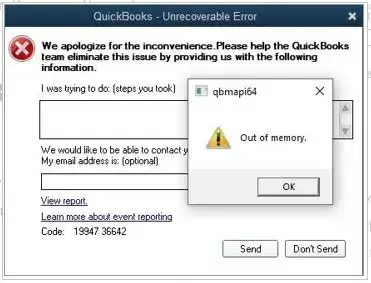
- QBmapi64 Out-of-Memory Error.
- QuickBooks is unable to send your email to Outlook
- Outlook is not responding
- QuickBooks cannot connect to the email server
These errors can interrupt regular email operations in QuickBooks and prevent you from sending invoices, estimates, reports, and other important documents through Outlook.
What Causes QBMAPI64 Out of Memory Error in QuickBooks?
The QBmapi64 Out-of-Memory error can occur due to several email configuration, software compatibility, and installation-related issues. Some possible causes include:
- Outdated QuickBooks Desktop or Microsoft Outlook versions.
- Incorrect email preferences in QuickBooks.
- Damaged or incorrectly configured Send Forms preferences.
- QuickBooks running with incorrect administrator privileges.
- Microsoft Outlook not set as the default email application.
- Damaged or missing MAPI32.dll files.
- Corrupted Microsoft Office installation files or missing components.
- Damaged QuickBooks program files.
- Issues with QuickBooks installation or background processes.
Top 10 Fixes for QuickBooks QBmapi64 Out-of-Memory Error
Before proceeding with the troubleshooting methods, identify the possible email configuration or installation issues causing the error. The following solutions will help you address these issues and restore QuickBooks email functionality.
1. Update QuickBooks Desktop
Regular updates ensure you receive the latest security patches, new features, bug fixes, and improved stability and compatibility. Update QuickBooks Desktop to ensure your software works properly without interrupting regular functions, such as sending or setting up emails, and to fix the QuickBooks QBmapi64 Out-of-Memory error.
2. Edit your admin privileges
When sending or setting up emails, make sure your QuickBooks isn’t set ot automatically run as an administrator:
- Exit QuickBooks Desktop.
- Press the Windows logo icon to open the Windows Start menu.
- In the search field, type QuickBooks.
- Now, right-click on the QuickBooks icon from the search results and then choose Open file location.
- Locate the QuickBooks.exe file in the folder and choose Properties.
- Navigate to the Compatibility tab.
- Now, clear the checkbox for the Run this program as Administrator option.
- In case this option is grayed out, choose Show Settings for All Users. This will make the option available.
- Now, select Apply and then click OK.
- Launch QuickBooks Desktop and then try sending a test email or transaction.
3. Edit your email preferences in QuickBooks
If QuickBooks is unable to send emails or encounters issues while setting them up, incorrect email preferences may be the reason. Review and update your email settings in QuickBooks to ensure they are configured correctly:
- Launch QuickBooks.
- Navigate to Edit and then choose Preferences. In case you Microsoft Outlook with Microsoft Exchange Server, open and login to Outlook, first.
- Choose Send Forms and move to My Preferences.
- Select Outlook as your primary email option and click OK.
- Now, send a test email from QuickBooks. If you are still getting an error, toggle your preferences.
- Go to the Edit menu > Preferences.
- Choose Send Forms > My Preferences tab.
- From the options, select QuickBooks E-mail or Webmail, and then OK. this will toggle your preferences off.
- Now, repeat the same steps to toggle the preferences on.
- Move back to the My Preferences tab and select Outlook. Then, click OK.
- Exit your QuickBooks and all other programs.
- Restart your computer.
- Finally, open QB and try sending a test email or a transition.
4. Update Microsoft Outlook
An outdated version of Microsoft Outlook can cause compatibility issues with QuickBooks while sending or setting up emails. Update Outlook to the latest available version to ensure it works properly with QuickBooks:
- Launch Microsoft Outlook.
- Go to the File menu in the top-left corner.
- Choose Office Account (or Account).
- Under the Product Information section, choose Update Options > Update Now.
- Save your work, close any open Office applications if prompted, and let the update complete.
5. Reset Send Forms preferences
Incorrect or damaged Send Forms preferences can interfere with how QuickBooks sends emails. Reset these preferences to refresh the settings and resolve any email-related issues:
- Launch QuickBooks Desktop.
- Sign in to Microsoft Outlook using Microsoft Exchange Server.
- Navigate to Edit.
- Choose Preferences > Send Forms > My Preferences.
- From the options, select QuickBooks E-mail or Webmail instead of Outlook, then click OK to clear the setting.
- Move back to the Edit menu > Preferences > Send Forms > My Preferences, select Outlook, and click OK.
- Close the QuickBooks and Outlook applications, restart your computer, and then test sending a form or email.
Read More:- QuickBooks Microsoft 365 Email Setup
6. Check your Internet Explorer email preferences
If QuickBooks cannot connect to Outlook to send emails, incorrect Internet Explorer email settings may be the cause. Check the default email program in Internet Explorer and make sure Microsoft Outlook is selected:
- Close QuickBooks Desktop and exit your company file.
- Open Internet Explorer on your Windows computer.
- Click Tools or the Settings gear icon and select Internet options.
- Navigate to the Programs tab.
- Select Set programs or Set your default programs and choose Microsoft Outlook as your default email application.
- Click Apply and OK to save the changes.
- Close Internet Explorer, reopen QuickBooks, and try sending an email through Outlook.
7. Repair your MAPI32.dll
This solution involves modifying Windows system files, so proceed only if you are comfortable performing these steps. If not, contact an IT professional for assistance.
First, check whether the email issue is related to Microsoft Outlook or QuickBooks:
- Restart your computer.
- Open Microsoft Word and create a new document.
- Click File, select Send, and choose Email as PDF Attachment.
- Send a test email. If Word also fails to send the email, contact Microsoft Support to check for issues with Outlook or the Office Suite.
If you can send emails through Word but not QuickBooks, repair the MAPI32.dll file using these steps:
- Close all running applications.
- Open the Windows Start menu and search for File Explorer.
- Launch File Explorer and navigate to C:\Windows\System32.
- Locate and double-click Fixmapi.exe to run the repair.
- Follow the on-screen instructions to complete the process.
- Once the repair is finished, restart your computer.
- Launch QuickBooks Desktop and try sending a test email or transaction.
8. Uninstall and Reinstall Microsoft Office 365
Follow these steps to uninstall the existing Microsoft Office 365 installation and reinstall a fresh copy on your Windows computer:
a. Uninstall Microsoft Office 365
- Press the Windows + I keys to open Settings.
- Choose Apps from the options > Installed apps.
- Now, locate Microsoft 365 from the list of installed applications.
- Click the three-dot menu next to it and select Uninstall.
- Click Uninstall again to confirm.
- Follow the on-screen instructions to complete the process.
- Restart your computer once the uninstallation is complete.
b. Remove Leftover Office Files (If Required)
If Office does not uninstall completely, use Microsoft’s uninstall troubleshooter.
- Visit the Microsoft Office Uninstall page.
- Locate the uninstall troubleshooter option.
- Open the troubleshooter and follow the on-screen instructions.
- Select your Office version and allow the tool to remove it.
- Restart your computer after the process finishes.
c. Download and Reinstall Microsoft Office 365
- Visit Microsoft 365.
- Click Sign in and enter the Microsoft account linked to your subscription.
- Open the Apps section and select Install apps.
- Choose the available Microsoft 365 installation option.
- Download the setup file to your computer.
- Open the Downloads folder and double-click OfficeSetup.exe.
- Click Yes if Windows asks for permission.
- Wait for the installation to finish and click Close when prompted.
d. Activate Microsoft Office 365
- Open Microsoft Word or any other Office application.
- Click Sign in when prompted.
- Enter the Microsoft account associated with your subscription.
- Complete the verification process, if required.
- Open File > Account and check the Product Information section.
- Verify that Microsoft 365 is activated and working correctly.
Note: Make sure you have an active Microsoft 365 subscription before reinstalling Office.
9. Repair QuickBooks
Damaged or missing QuickBooks program files can also cause email-related errors, including the QBmapi64 Out-of-Memory error. Run the QuickBooks repair tool to fix damaged installation files and restore the program’s normal functionality.
a. Run Quick Fix my Program
The Quick Fix tool closes any active background processes used by QuickBooks and performs a quick repair of the program.
- Open QuickBooks Tool Hub.
- Select Program Problems.
- Click Quick Fix my Program and let the tool complete the repair.
- Reopen QuickBooks Desktop and access your company file.
b. Run the QuickBooks Install Diagnsotic tool
Issues during QuickBooks installation can damage program components and cause errors while using the software. Run the QuickBooks Install Diagnostic Tool to identify and fix common installation problems.
- Open QuickBooks Tool Hub and select Installation Issues.
- Click QuickBooks Install Diagnostic Tool and allow it to complete the repair. The process may take up to 20 minutes.
- Once the tool finishes, restart your computer, open QuickBooks Desktop, and access your company file.
- Update QuickBooks Desktop to the latest release to install the recent bug fixes and security updates.
10. Reinstall QuickBooks Desktop
If repairing QuickBooks doesn’t resolve the QBmapi64 Out-of-Memory error, the installation files may be severely damaged. Uninstall and reinstall QuickBooks Desktop to replace the damaged files with fresh ones to resolve the QuickBooks QBmapi64 Out-of-Memory error:
Before getting started
- Download the QuickBooks Desktop installer for your specific version.
- Keep your QuickBooks license number ready. You can find it on the original product package or in the purchase confirmation email if you bought the software online.
Note: You can find this information by signing in to your Intuit account management portal.
a. Remove QuickBooks
- Launch the Windows Start menu, search for Control Panel, and launch it.
- Select Programs and Features or Uninstall a Program.
- Find and select the QuickBooks Desktop version you want to uninstall.
- Click Uninstall/Change, choose Remove, and select Next to continue.
Note: If these options are unavailable, sign out of Windows and sign back in using an administrator account or an account with administrative privileges.
Read More:- QuickBooks Out of Memory Error
b. Install QuickBooks Desktop again
Once QuickBooks Desktop is uninstalled, reinstall the software on your computer. During installation, QuickBooks will create new program folders and rename the existing ones.
Follow these steps to install QuickBooks Desktop for the first time or reinstall it on a single computer.
Note: If you want to install or move QuickBooks Desktop to another computer, use the Migrator Tool to complete the process.
- Make sure your computer is connected to a stable internet connection.
- Locate and open the QuickBooks.exe installation file.
- Choose Express Install and click Next.
- Select Install to begin the installation process.
- Once the installation is complete, click Open QuickBooks to launch the software.
Summing Up
Now, we are ending this blog with a complete guide to fixing the QuickBooks QBmapi64 Out-of-Memory Error. We have covered the possible causes of this error and different troubleshooting methods, including updating QuickBooks Desktop and Microsoft Outlook, editing email preferences, repairing MAPI32.dll, and using QuickBooks Tool Hub to fix program and installation issues.
If you continue to experience the QBmapi64 Out-of-Memory Error or have difficulty completing the troubleshooting steps, you can contact QuickBooks ProAdvisors at Call Us : +1-866-408-0444 for further assistance.
Frequently Asked Questions
What causes the QBmapi64 out-of-memory error in QuickBooks?
The QBmapi64 out-of-memory error can occur due to incorrect email preferences, damaged MAPI32.dll files, outdated QuickBooks or Microsoft Outlook versions, and insufficient system resources. Issues with Microsoft Office installation can also trigger this error.
How do I fix the QBmapi64.exe entry point not found error?
How do I fix the QBmapi64 out-of-memory error on Windows 10?
Can the QBmapi64 error occur on Mac?
How do I fix the QBmapi64 error when sending emails from QuickBooks?
Does reinstalling Microsoft Office fix the QBmapi64 out-of-memory error?
Why does QuickBooks show an out-of-memory error when sending emails?
Can QuickBooks Tool Hub fix the QBmapi64 Out-of-Memory error?
About The Author

Jonathan Browns
Jonathan Brown is a trained QuickBooks professional with 10 years of experience in the accounting sector. Moreover, he is passionate about helping businesses reduce the stress of managing accounts. Also, he is proficient in assisting entrepreneurs and small business owners to use QuickBooks and enhance their accounting experience.

Recent Posts
-
How to Download and Install QuickBooks Desktop R22_25.1 Update
-
QuickBooks QBmapi64 Out-of-Memory Error | Fix It
-
Recover QuickBooks Data File: Restore Your Important Financial Records
-
How to Fix QuickBooks Not Calculating Unemployment Correctly?
-
QuickBooks Payroll PIN Not Working? Causes, Fixes, and How to Reset It