


QuickBooks Error 40003 When Updating Payroll: Causes & Troubleshooting

- By Jonathan Browns
- Sep 28, 2026
- Accounting
- 7 min read
QuickBooks Error 40003 can occur when QuickBooks Desktop has trouble processing a payroll update or sending payroll data. Users may encounter this QuickBooks Payroll Update Error 40003 when updating payroll tax tables, sending payroll information, or working with paychecks that remain in an unsent status.
Error Code 40003 in QuickBooks Desktop can be associated with an outdated QuickBooks version, an inactive payroll subscription, firewall restrictions, or stuck payroll data. Understanding the possible cause can help you choose the appropriate troubleshooting method.
Quick Answer: How to Troubleshoot QuickBooks Error 40003
If you encounter Error 40003 in QuickBooks Desktop, first update QuickBooks Desktop and download the latest payroll tax-table update. Next, verify that your payroll subscription is active and review your employee payroll information. If the error continues, check firewall settings and look for stuck or unsent paychecks. Creating a backup before changing paycheck information is recommended.
What Causes QuickBooks Payroll Update Error 40003?
QuickBooks Payroll Error 40003 can occur when QuickBooks Desktop cannot properly process a payroll update or send payroll data. Here are the common reasons why this happens:
- Using an outdated version of QB Desktop
- Your payroll subscription might be expired
- Incorrect settings of Windows Firewall
- Stuck paychecks or data damage
6 Ways to Troubleshoot QuickBooks Error 40003 When Updating Payroll
In this section, we will explore troubleshooting methods to help you resolve error code 40003 when updating payroll services in QuickBooks Desktop. Be careful when performing these steps:
1. Update QuickBooks Desktop
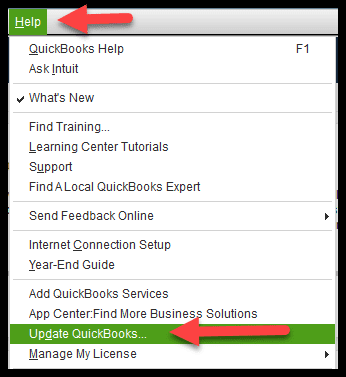
An outdated version of QuickBooks Desktop may prevent payroll updates from working correctly and can contribute to QuickBooks Error 40003. Make sure QuickBooks Desktop is updated to the latest available release.
Keeping QuickBooks Desktop updated can help ensure that you have the latest product fixes and payroll-related updates. For step-by-step instructions, see our guide on Update QuickBooks Desktop.
2. Download the Latest QuickBooks Payroll Tax Table Update
Make sure you are receiving the latest payroll updates in the correct way:
- Go to the Employees at the top.
- Choose Get Payroll Updates.
If QuickBooks Payroll is not downloading or installing updates correctly, see our guide on QuickBooks Payroll Update Not Working for additional troubleshooting methods.
To find your tax table version:
Check the number next to You are using tax table version:.
- To ensure it’s correct, check the latest payroll news and updates.
- Select Payroll Update Info to get more details on the tax table version.
Download the latest version of the payroll tax table:
- Click on Download Entire Update.
- Choose Update. An informational window will appear on your screen when the download completes.
3. Verify Payroll Subscription
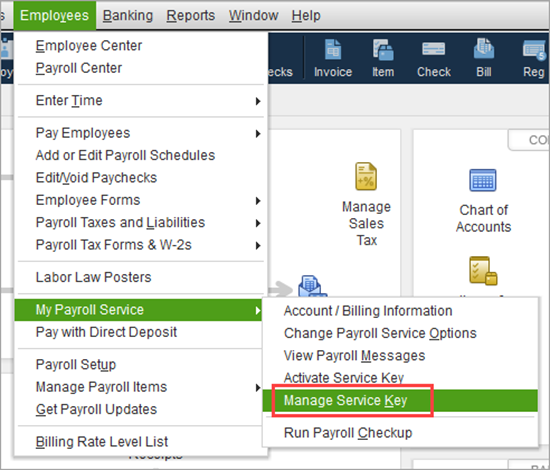
To troubleshoot QuickBooks Payroll Error Code 40003, first verify that your QuickBooks Desktop payroll subscription is active. Follow the steps below to learn how to reactivate your payroll subscription:
a. Reactivate your payroll
You can reactivate your QuickBooks Desktop payroll subscription through your company file or Intuit account. Before getting started, make sure that QuickBooks Desktop is up to date.
Through your company file
The best way to get your payroll services back on is directly using the QuickBooks Desktop company file.
- Open the QuickBooks Desktop company file.
- Go to Employees, then select My Payroll Service.
- Click on Account/Billing Info.
- Sign in using the Intuit Account login credentials. The QuickBooks Account page will open.
- Select Resubscribe under Status.
- Follow the steps on your screen to reactivate the payroll service.
Through your Intuit account
You can also reactivate the payroll service from the web.
- Sign in to your account using the Intuit credentials like you normally would.
- Select Resubscribe under Status.
- Follow the steps on your screen to reactivate the payroll service.
Note: Subscription reactivation can take up to 24 hours. Your status will show Active once the process is complete.
b. Review your payroll data
Once you return to your payroll service, you should run the payroll setup again. You must review the payroll data, including employees and tax setup.
- Go to Employees and choose Employee Center.
- Go to the Employees tab and review each employee. Confirm their information, including deductions, W-4, sick/vacation, etc.
- Select Lists, then Payroll Item List, to review your tax payroll items.
If you’re also experiencing payroll subscription or payroll update issues, see our guide on QuickBooks Error PS034 for additional troubleshooting steps.
4. Review Employee Payroll Information for Error 40003
If Error 40003 in QuickBooks Desktop continues after updating QuickBooks and verifying your payroll subscription, review the employee payroll information for incorrect or incomplete details.
Make sure your employee information is correct in QuickBooks Payroll:
- Go to the Employees menu.
- Choose Employees Center.
- Select an employee’s name, one at a time.
- Click Payroll Info on the left pane.
- Make sure the Pay Frequency is correct.
- Hit the Taxes button.
- Go to the Federal tab.
- Review the Filing Status and Allowances fields. Make all the required corrections.
- Click OK twice to save the changes.
5. Check Windows Firewall Settings for QuickBooks Error 40003
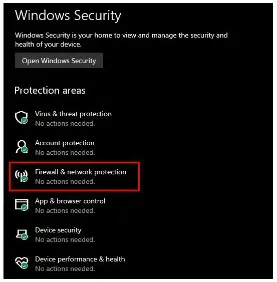
Windows Firewall is a system security application that controls incoming and outgoing network traffic. If firewall or security settings prevent QuickBooks Desktop from communicating with required payroll services, QuickBooks Payroll Update Error 40003 may continue to appear.
If you are also seeing an update-related error such as QuickBooks Error 15240, check our troubleshooting guide for additional information about firewall, internet settings, permissions, and payroll update problems.
If firewall or network troubleshooting does not resolve the issue, you can also use QuickBooks Tool Hub to access supported QuickBooks Desktop troubleshooting tools. For the official download and installation instructions, refer to Intuit’s QuickBooks Tool Hub page.
6. Identify and toggle the stuck paychecks
Here’s how to identify and toggle stuck paychecks that may contribute to QuickBooks Error 40003. These steps are intended to change the paycheck’s Online to Send status so QuickBooks can attempt to transmit the payroll information again.
Related payroll error: If QuickBooks also displays PS038 or shows paychecks stuck in the “Paychecks to Send” status, see our guide on QuickBooks Error PS038 for additional troubleshooting steps.
a. Update and back up your QuickBooks data
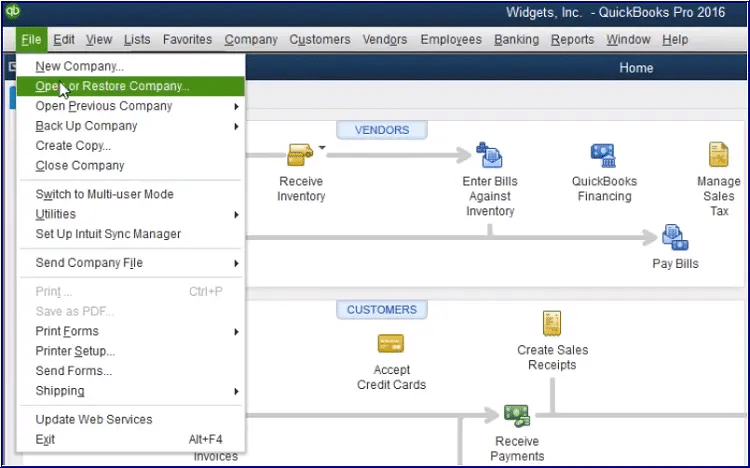
Before you toggle the stuck paycheck, make sure to update QuickBooks Desktop to the latest release and make sure to backup your company file data.
b. Send your payroll data or usage data
- Go to Employees at the top.
- Choose My Payroll Service > Send Usage Data. If you don’t see the option, proceed with the next step.
- Go to Employees > Send Payroll Data.
- In the prompted Send/Receive Payroll Data window, select Send All. Enter the payroll service PIN once prompted.
After a successful send, try updating the payroll services again. If the error appears again, continue with the next troubleshooting steps. If the payroll data cannot be sent successfully, continue with the remaining troubleshooting steps or seek account-specific assistance.
c. Identify stuck paychecks
- Go to Edit and select Find.
- Move to the Advanced tab.
- Select Detail Level from the Filter list under the Choose Filter section.
- Click on Summary Only.
- Go back to the Filter list. Scroll down to Online Status and select it then Online to Send.
- Select Find and you will see the paychecks that are stuck and weren’t sent to Intuit.
Note down the “Number of matches” on the Find window. Proceed to Step 4.
d. Verify and Rebuild your data
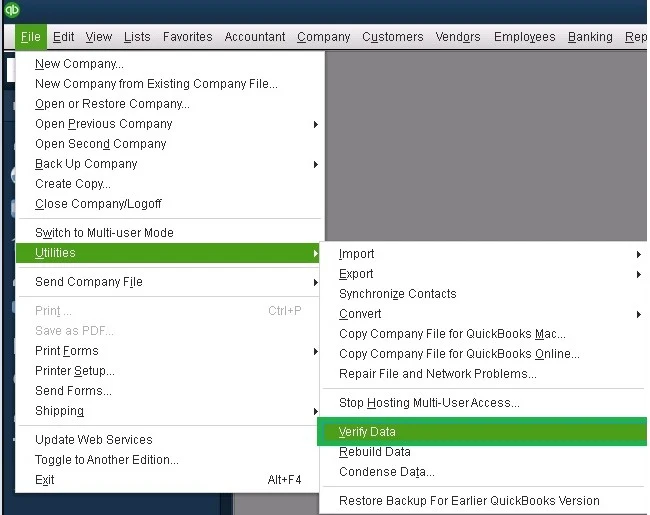
Verify Data checks the company file for possible data issues. If QuickBooks identifies a problem that the utility can address, Rebuild Data attempts to repair the affected data.
If you need detailed instructions, see our guide on Verify and Rebuild Data in QuickBooks Desktop.
e. Toggle the stuck paychecks
These are the same paychecks that are found in Step 3.
- Locate the oldest stuck paycheck and open it.
- Hit the Paycheck Detail button.
- Under Earnings, add the earnings items as the last earnings item in the list in the Review Paycheck window. For example, if the final item in the list is “Hourly Rate,” add an additional earnings item also named “Hourly Rate.”
- Select No on the Net Pay Locked message.
- Verify and ensure that there are no changes to the tax amounts and net pay, then click OK.
- When you receive a Past Transaction message, click Yes.
- Select Save & Close to close the paycheck.
- Click Yes to the Recording Transaction warning message.
- Open your paycheck again.
- Hit the Paycheck Details button.
- Remove the earnings items that you just added in the Earnings section.
- Make sure that there are no changes to your tax amounts and net pay. Then, click OK.
- Repeat the same steps for each paycheck that is stuck.
- When done, repeat Step 1 and try to download the payroll tax table updates again.
Conclusion
QuickBooks Error 40003 can occur when QuickBooks Desktop has trouble processing payroll updates or sending payroll information. The troubleshooting steps above cover common areas to check, including QuickBooks updates, payroll subscription status, employee information, firewall settings, and stuck paychecks. Keeping QuickBooks Desktop and payroll updates current can help reduce issues related to outdated software.
Frequently Asked Questions
1. How to Fix QuickBooks Payroll Error 40003?
Ans. To troubleshoot QuickBooks Payroll Error 40003, first update QuickBooks Desktop and download the latest payroll update. If the error continues, check your payroll subscription, firewall settings, and stuck or unsent paychecks. You can also use the QuickBooks Tool Hub for supported QuickBooks Desktop troubleshooting.
2. How to get latest payroll update QuickBooks Desktop?
Ans. To get the latest payroll update in QuickBooks Desktop, go to the Employees menu, select Get Payroll Updates, and follow the instructions to download the available update. You can also update QuickBooks Desktop separately through the Help menu.
3. What is the latest QuickBooks tax table version?
Ans. Payroll tax-table versions change as Intuit releases updates. In QuickBooks Desktop, go to Employees → Get Payroll Updates and check the tax-table version displayed in the payroll update window. Use the current payroll-update information from Intuit when verifying the latest version.
4. Does QuickBooks update payroll taxes automatically?
Ans. Yes, QuickBooks Desktop updates payroll services automatically only if you enabled the automatic feature. If you haven’t, you will need to get the payroll updates manually to ensure federal and most state tax rates are accurate in QB.
About The Author

Jonathan Browns
Jonathan Brown is a trained QuickBooks professional with 10 years of experience in the accounting sector. Moreover, he is passionate about helping businesses reduce the stress of managing accounts. Also, he is proficient in assisting entrepreneurs and small business owners to use QuickBooks and enhance their accounting experience.
Recent Posts
-
What Causes & How to Fix QuickBooks Error 15223 Efficiently?
-
QuickBooks Library Files Failed: How to Fix Error 80029c4a
-
How to Fix QuickBooks Error OL-301 (Bank Connection Issue)?
-
QuickBooks Email Invoices Not Working: How to Fix It
-
How to Resolve QuickBooks Error 15214 (Step-by-Step)