


QuickBooks Error PS060: Causes and Step-by-Step Fixes

- By Jonathan Browns
- Oct 07, 2026
- Accounting
- 7 min read
QuickBooks Error PS060 can appear in QuickBooks Desktop when you select “Get Payroll Updates” and receive the message “Current Enhanced Payroll Service is Unavailable [Error PS060].” The error can prevent payroll updates or paycheck processing from completing.
QuickBooks Payroll Error PS060 may occur because of subscription or billing issues, an outdated QuickBooks Desktop release or payroll tax table, an incorrect service key, connection or security settings, damaged payroll update files, or a temporary service issue. This guide explains how to identify the cause and fix QuickBooks Error PS060 step by step.
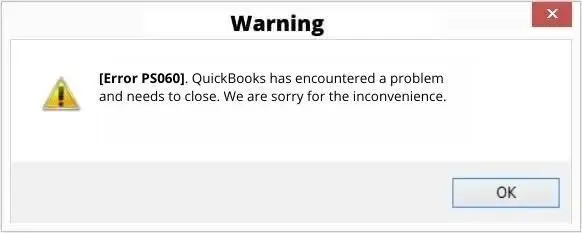
The guide outlines the causes in an order that saves you time by suggesting you start with the fastest checks and move to more complicated repairs only if needed. As you follow the guide, you will also learn how this error differs from other payroll update errors, such as PS033, PS038, and PS077, so you can correctly identify the one you are facing.
Quick Overview: QuickBooks Error Code PS060
The following table provides a condensed overview of what this article covers about error code PS060 in QuickBooks Desktop.
| Error message | Current Enhanced Payroll Service is Unavailable [Error PS060] |
| Where it appears | QuickBooks Desktop (Pro, Premier, or Enterprise) with a payroll subscription |
| When it appears | While you download payroll updates, send payroll data, or process paychecks |
| Most common causes | Billing or subscription problems, outdated QuickBooks or tax table, blocked connection, damaged CPS folder |
| What it affects | New payroll updates and paychecks; your past payroll records stay intact |
| Typical fix time | 10 to 45 minutes, depending on the cause |
| Best first step | Confirm your payroll subscription is active and your billing details are current |
| Before you start | Back up your company file and switch to single-user mode |
Quick Answer: What Is QuickBooks Error PS060?
QuickBooks Error PS060 is a payroll service error that appears when QuickBooks Desktop cannot complete the connection or verification required for payroll updates. To fix the error, first check your payroll subscription and billing information, then verify the payroll service key, update QuickBooks Desktop and the payroll tax table, and check your connection and security settings. If PS060 continues, use QuickBooks Tool Hub or rename the CPS folder before trying the payroll update again.
What Does QuickBooks Error PS060 Mean?
QuickBooks Desktop payroll requires constant communication between your computer and Intuit’s payroll servers. Each time you download an update to your tax tables, send your payroll data, or process paychecks, QuickBooks checks that your subscription is active and that the program can receive the latest payroll files.
PS060 happens when the check fails. Although the payroll service is not always unavailable because of Intuit, it can sometimes be temporarily down. More often, though, something is interfering between your company file and Intuit’s servers.
It helps to understand what this error does not show. It doesn’t mean your payroll record has been deleted, and it doesn’t suggest your company file is damaged. QuickBooks cannot complete the connection or verification required to use the payroll service.
Common Symptoms of QuickBooks Desktop Error PS060
You might be dealing with QuickBooks Desktop Error PS060 if you notice any of the following:
- As soon as you select ‘Get Payroll Updates‘ from the Employees menu, the error message appears.
- QuickBooks doesn’t generate paychecks and says the payroll service is unavailable.
- The update to the payroll tax table starts but does not finish.
- Even though you believe your subscription is active, QuickBooks says it can’t verify it.
- The error began right after a QuickBooks update, a Windows update, installing a new antivirus program, or changing your internet settings.
If you encounter a code that is different from the one stated, for instance PS033 or PS038, then proceed to the section on related errors which comes later in this guide.
Why Does QuickBooks Error PS060 Occur?
Once you identify the most likely cause of QuickBooks Payroll error PS060, fixing it becomes much faster. The most common reasons are as follows.
Payroll Subscription or Billing Issues
It is possible that Intuit will not be able to verify your subscription if the payment method linked to your payroll account has expired, has been rejected, or has a billing address that does not match. This is one of the most common causes and the easiest to fix.
Outdated QuickBooks Desktop or Payroll Tax Table
The payroll function depends on the software you’re using. If your version of QuickBooks Desktop is several years old or you haven’t applied the most recent updates, it might no longer be able to authenticate with Intuit’s servers.
Incorrect Payroll Service Key
Your payroll subscription’s service key might cause QuickBooks to fail to recognize your subscription if the key in your company file is wrong, was entered with a typo, or hasn’t been re-verified after a renewal.
Blocked or Unstable Internet Connection
Antivirus software, third-party firewalls, VPNs, and some network configurations might stop QuickBooks from connecting to Intuit, and incorrect date and time settings on your computer can also cause secure connections to fail.
Damaged CPS Payroll Files
The payroll update files are stored in the CPS folder, and if a previous update was interrupted or the files were damaged for any reason, QuickBooks might be unable to read or replace them.
Damaged QuickBooks Installation
Payroll services might still be affected even if your subscription is working properly because of missing or damaged program files.
Temporary Intuit Payroll Service Issue
Payroll servers might undergo maintenance or experience an outage, in which case you don’t need to repair your computer.
Before You Begin Troubleshooting QuickBooks Payroll Error PS060
Taking a few minutes to get things ready will protect your data and help the troubleshooting steps below work more smoothly.
Back up your company file
Select a file, click on Back Up Company, then choose Create Local Backup and proceed with the instructions. Save the backup in a location where you will be able to find it easily.
Make sure you are signed in as an administrator
In QuickBooks and Windows, administrator rights allow you to complete several of these steps.
Switch to single-user mode
Select the file and then choose Single-user Mode; payroll updates work most effectively in the case where only one person has the company file open.
Confirm your internet connection works
Open a web browser and load any website, such as the Intuit homepage, to make sure you are connected to the Internet.
Check your computer’s date and time
An incorrect date or time zone will prevent secure connections from being set up; so, if needed, make the necessary corrections and then restart QuickBooks.
Close other programs
Close any programs or applications you aren’t using, especially other accounting or security programs that might conflict with QuickBooks.
How to Fix QuickBooks Error PS060: Expert-Recommended Resolutions
Go through and carry out the solutions for QuickBooks error PS060 in order, and after each one, run the payroll update again. If it succeeds, you can stop and don’t need to continue.
Solution 1: Verify your payroll subscription and billing information
As billing is the most frequent cause, start with this section.
- Open QuickBooks Desktop and log in to your company file.
- To access the Employees menu, choose My Payroll Service and then select Account/Billing Information.
- Log in to your Intuit account when you are asked to.
- Look through the list of payroll services and check the Billing Information section.
- Select Edit next to Payment Method.
- Make sure the card number, expiry date, and billing address match exactly what your card issuer has on file, since an address mismatch is a common reason verification fails.
- Select ‘Save‘ and then close the window.
- Restart QuickBooks, then try again by selecting Employees > Get Payroll Updates.
If your payment method caused the issue, the service will usually reconnect as soon as you save the new information. But if your subscription has completely lapsed, you’ll need to renew it before payroll can restart.
If a bookkeeper or accountant is the billing contact, they need to update the payment details because if your payroll account was set up by your payroll provider, you might not be the account administrator. Only that individual can make the change.
Solution 2: Confirm your payroll service key is active
The service key links your company file to your payroll subscription, and it takes only a minute to check.
- In QuickBooks, click on Employees, select My Payroll Service, and then pick Manage Service Key.
- In the QuickBooks Service Keys window, make sure that you check the columns for Service Name and Status.
- Make sure that your payroll service is on the list and that the status is shown as Active.
- Pick the service, click on Edit, and check that the service key number matches the one in your Intuit confirmation email or account.
- If the number is incorrect, remove the key, then choose Add before entering the correct 16-digit service key.
- Click on Next and then on Finish. After the Payroll Update message appears, click OK.
- Make sure that the status reads Active and then click OK.
If you don’t have your service key, Intuit provides an automated tool for retrieving the service key, and you will have to log in to your Intuit account to use it.
Solution 3: Update QuickBooks Desktop to the latest release
To run payroll updates, you need the latest version of QuickBooks; the update also includes fixes for known payroll problems.
- Make sure to close any company files that are currently open and then select the Help menu.
- Select Update QuickBooks Desktop.
- Click the tab labeled ‘Update Now‘.
- Click on Get Updates; if you wish to force a fresh download, tick the Reset Update box first.
- Once the download is complete, quit QuickBooks and then reopen it. You should select Yes when given the option to install the updates.
- If QuickBooks asks you to, then restart your computer.
If the version of QuickBooks you are using is no longer supported, you might need to upgrade to a newer release for payroll to work. Intuit stops supporting older versions of Desktop Payroll at various times, and service errors can occur with an unsupported version even if all the other settings are correct.
Solution 4: Register QuickBooks and download the full payroll update
Since an unregistered installation can cause payroll communication problems, make sure QuickBooks is activated before downloading the tax table.
- In QuickBooks, go to Help and then click on Manage My License.
- When there is a choice to activate QuickBooks Desktop, select that option and then follow the instructions. If QuickBooks has already been activated, proceed to the next step.
- In the Employees section, choose Get Payroll Updates.
- Make sure the box that is marked Download Entire Update is checked.
- Select Update.
- Look for the confirmation window, which informs you that the download has been successful.
When you select the full update instead of a partial one, any payroll files that were only partly downloaded will be replaced. After the process completes and you see the confirmation message, try producing a paycheck or running payroll to make sure the error has disappeared.
Solution 5: Check your internet and Windows security settings
The issue isn’t always QuickBooks; it might be something between QuickBooks and Intuit.
- Test your connection
Open a browser and visit a few websites. If the pages load slowly or time out, then restart your router and try once more. If you’re using a VPN, take it off for a while, since VPNs can interfere with payroll authentication.
- Review your Internet settings
QuickBooks uses the Windows internet settings to ensure secure communication. To do this, open Internet Options from the Windows Control Panel, go to the Advanced tab, and make certain that Use TLS 1.2 is selected in the Security section. Then select Apply and click OK.
- Clear your browser cache
In the Internet Options menu, under the General tab, remove temporary internet files, since clearing old data might help QuickBooks reestablish a clean connection.
- Flush your DNS cache
An obsolete DNS entry can prevent QuickBooks from locating Intuit’s payroll servers.
- To open the Run box, press Windows and R.
- To open Command Prompt, type cmd, then press Enter.
- Type ‘ipconfig /flushdns‘ then press Enter.
- Close the window after you have received the message stating that the cache has been cleared.
Make sure that your firewall and antivirus software are checked, since some security programs treat normal QuickBooks activity as a threat. For a temporary solution, turn off your third-party antivirus or firewall, then try the payroll update. If the update succeeds, turn the protection back on immediately and add QuickBooks as an exception so that its program files and Intuit’s web addresses are allowed through. Intuit guides setting up firewall and internet security settings for QuickBooks Desktop, and it is safer to follow that guidance than to leave protection off.
Check whether your firewall or antivirus software is blocking QuickBooks from connecting to the payroll service. Instead of leaving security protection disabled, use the software’s approved allow-list or exception settings to permit QuickBooks and its required connections.
Solution 6: Run the QuickBooks Tool Hub
QuickBooks Tool Hub is a free utility from Intuit that brings together several repair tools in one place; you can download it from Intuit’s official website, install it, and then open it from your desktop.
- Select Program Problems.
- Select ‘Quick Fix my Program’. This will close the background QuickBooks processes and quickly repair the program.
- Once it finishes, open QuickBooks and try the payroll update again.
If the error persists, go back to the Tool Hub, open Installation Issues, and then choose the QuickBooks Install Diagnostic Tool. Let it run (it might take up to 20 minutes), then restart your computer. The tool can repair common problems with the Microsoft components QuickBooks relies on.
Solution 7: Rename the CPS folder
The files in the CPS folder could be damaged if an earlier payroll update was interrupted, and renaming the folder will make QuickBooks create a new one the next time you run an update.
- Close QuickBooks completely.
- To open File Explorer and navigate to the QuickBooks payroll folder for the version you have, go to C:\Program Files\Intuit\QuickBooks 20XX\Components\Payroll\CPS, with 20XX representing the year of your QuickBooks version. On certain systems, the path will start with C:\Program Files (x86) instead.
- Click the right mouse button on the CPS folder and choose Rename.
- Change the name to CPS.OLD and then press Enter.
- Open QuickBooks and click on Employees, then select Get Payroll Updates.
- To download the entire update, select Update.
When QuickBooks completes the download, it will create a new CPS folder; if you ever want to reverse the change, delete the new folder and restore the original name.
Solution 8: Run Verify and Rebuild Data
QuickBooks can often detect and fix damaged data in your company file if it’s causing payroll problems.
- Ensure that you have a recent backup.
- Go to File, choose Utilities, and then select Verify Data.
- In that case, you can finish there; but if an issue is detected, select File > Utilities > Rebuild Data and then follow the prompts.
- Once the rebuild is complete, you should run Verify Data once more to make sure that the file is clean.
So, try your payroll update once again.
Solution 9: Clean install QuickBooks Desktop
If other troubleshooting steps have failed, a damaged QuickBooks Desktop installation may be contributing to QuickBooks Error PS060. You can use the QuickBooks Clean Install Tool through QuickBooks Tool Hub to remove and reinstall QuickBooks Desktop components. Before starting the clean installation, create a recent backup of your company file.
After running the Clean install in QuickBooks Desktop, reinstall QuickBooks Desktop, activate your installation, and install the latest available release for your supported version. Then select Employees > Get Payroll Updates and download the full payroll update. If prompted, enter and verify your payroll service key before trying the update again.
If the clean installation displays an installation error such as QuickBooks Install Error 1603, see our guide to QuickBooks Error 1603 for additional troubleshooting steps.
Solution 10: Check whether Intuit’s service is down
If you’ve gone through all the steps above, the problem might be outside your computer, since Intuit sometimes performs maintenance on its payroll servers and, during those periods, the service is unavailable.
Check Intuit’s service status page to see whether there is an ongoing incident, or try loading an Intuit page from a different device on a separate network. If the service is unavailable, wait about an hour and then try again, as no action is required on your side. Do not make repeated, rapid attempts to reconnect, since this can create unnecessary noise without resolving the issue.
How to Fix QuickBooks Error PS060 After a Windows Update
Users often notice this error immediately after Windows installs a major update. This timing is no accident, and it doesn’t mean Windows or QuickBooks is faulty. A system update can change many things payroll relies on, such as firewall rules, security and TLS settings, how User Account Control works, the system’s date and time, and the status of background services.
If PS060 appeared right after an update, work through these checks in order:
- To complete any remaining installation steps, you should restart your computer.
- Make sure the date, time, and time zone still appear correct.
- Make sure that your Internet Options are checked, with a special focus on the TLS 1.2 setting.
- You should check your firewall and antivirus rules since an update might reset them.
- Use the Quick Fix my Program feature from the QuickBooks Tool Hub.
- Change the name of the CPS folder and download the full payroll update.
A system update usually makes Solutions 5, 6, and 7 effective for most users; if not, continue with the other steps.
Related Payroll Update Errors in QuickBooks: PS033, PS038, and PS077
All the PS-series codes represent payroll update errors, and the troubleshooting steps are similar. However, because each code points to a slightly different cause, it helps to know how to tell them apart.
QuickBooks Error PS033
The QuickBooks Error PS033 states, “QuickBooks can’t read your payroll setup files”; Intuit says it is due to a damaged file in the CPS folder and occurs when you download a payroll update or open your company file.
Intuit suggests that you download the most recent payroll tax table using the option called Download Entire Update, rename the CPS folder to CPSOLD, disable User Account Control, and then restart your computer in safe mode before carrying out the update. You might also try running Verify and Rebuild Data and updating QuickBooks to the latest version. However, if you have already carried out Solution 7 above, you will have completed the most important step.
QuickBooks Error PS038
QuickBooks Error PS038 generally occurs when one or more paychecks have a status of Online to Send. Since these paychecks have not reached Intuit, the payroll system might refuse to run or fail to complete a tax table update.
To do this, update QuickBooks, go to Employees, select Send Payroll Data, and then, under Items to Send, choose Send All, entering your payroll PIN if prompted. However, if the paychecks are still stuck, open the affected ones, make a minor edit, and save them again; then Verify and Rebuild Data.
QuickBooks Error PS077
QuickBooks Error PS077 usually occurs when QuickBooks can’t download or install a payroll update; common causes include an outdated or unregistered version of QuickBooks, a damaged CPS folder, a firewall blocking the download, or a corrupted tax table.
Common solutions include updating QuickBooks downloading the full payroll update, renaming the CPS folder, and checking your security settings.
| Error | Typical message focus | Most likely cause | Best first fix |
| QuickBoooks Error PS060 | Payroll service is unavailable | Billing, subscription, or connection problem | Verify billing and service key |
| QuickBoooks Error PS033 | Cannot read payroll setup files | Damaged file in the CPS folder | Rename the CPS folder |
| QuickBoooks Error PS038 | Payroll cannot run or update | Paychecks stuck as “Online to Send” | Send Payroll Data, then find stuck paychecks |
| QuickBoooks Error PS077 | Update cannot download or install | Outdated software, damaged CPS, or blocked download | Update QuickBooks and download the entire update |
How to Prevent PS060 and Related Errors in the Future
A little routine maintenance goes a long way toward preventing QuickBooks PSXXX errors and keeping payroll running smoothly.
- Make sure your billing information is up to date. Before your card expires, update your payment method and ensure your billing address matches your card issuer’s.
- Make sure to install QuickBooks updates regularly. You can turn on automatic updates in QuickBooks, or else check the Help > Update QuickBooks Desktop window at regular intervals.
- Download the payroll tax table updates before each payroll run, as this takes only a moment and catches problems early.
- After renewing your service, check that your service key is valid. Whenever your subscription renews or changes, make sure that its status remains Active.
- Make sure that your security software is set up correctly by adding QuickBooks to the list of allowed programs in your firewall and antivirus programs so that regular updates aren’t blocked.
- Keep backups, since a recent one gives you peace of mind when carrying out any repair.
- Make sure to send the payroll data as soon as possible since leaving the paychecks in the “Online to Send” status might cause related errors.
When Should You Seek Professional Assistance?
If you have tried the solutions above and the error still prevents your payroll from processing, contact a QuickBooks advisor if you find that:
- Your payroll subscription shows as active, but QuickBooks still can’t verify it.
- You have a suspicion that there is an issue with the way your account was set up.
- After each successful repair, the error reappears.
- You are nearing a payroll or tax deadline and need some urgent assistance.
Before you get in touch with them, have your company file name, QuickBooks version and release, payroll service key, and the exact wording of the error message ready. Including a brief list of the steps you have already tried will enable the advisor to skip ahead and get you to a solution more quickly.
Final Thoughts
Payroll errors often seem to occur at the most inconvenient times, but QuickBooks error PS060 is not as serious as it appears. Start by verifying your billing information and service key, make sure both QuickBooks and your tax table are up to date, then check your connection and security settings. If the error persists, you can follow up using the CPS folder, the QuickBooks Tool Hub, and Verify and Rebuild Data.
Work through the solutions in order, test each one afterward, and keep your backup close at hand. Generally, you’ll be back to issuing paychecks well before the pay is due.
Frequently Asked Questions
What is QuickBooks Error PS060?
Error PS060 in QuickBooks Desktop occurs when the message “Current Enhanced Payroll Service is Unavailable” appears. This happens because QuickBooks is unable to verify your payroll subscription or connect to Intuit’s payroll servers. Common causes include billing issues, an out-of-date version of QuickBooks, blocked connections, and a damaged CPS folder. Although the error prevents new payroll updates and paycheck processing, it does not remove any of your existing payroll records or company data.
Does the error message PS060 indicate that my payroll subscription has expired?
It isn’t always the case; one possible reason is that the subscription has expired or hasn’t been paid, but the error can also occur if your payment details are out of date, your service key is wrong, or your connection to Intuit has been blocked. To check this, go to Employees, then My Payroll Service, then Manage Service Key, and make sure the status says Active. Once that has been done, look over your billing information to ensure that Intuit can successfully charge the payment method stored on your account.
Could this error result in the deletion of my payroll data?
No, the error only stops QuickBooks from downloading updates or processing new payroll; your previous paychecks, employee records, and tax history remain safely stored in your company file. However, it is always necessary to make a backup before attempting any repair procedure, particularly if you are carrying out a Rebuild Data operation or a clean reinstallation, so that you will have a safe version to go back to if anything goes wrong and can carry on working without being concerned about losing the earlier payroll data.
Can I fix the error by renaming the CPS folder?
Yes, in many instances. If the error is due to damaged payroll update files, renaming the CPS folder to CPSOLD causes QuickBooks to generate a new one the next time you run an update. First, close QuickBooks, then rename the folder, reopen the program, and download the full payroll update. However, if the issue is billing-related or involves a blocked connection, renaming the folder won’t help, so you should also check those areas.
What is the difference between PS060 and PS038?
PS060 reports that the payroll service is unavailable, usually due to billing, subscription, or connection issues. PS038 typically means one or more paychecks are stuck with an Online to Send status, which prevents payroll from running or updating. Fix the first by verifying your account, service key, and connection; fix the second by sending payroll data and clearing or re-saving the stuck paychecks before you retry the update.
About The Author

Jonathan Browns
Jonathan Brown is a trained QuickBooks professional with 10 years of experience in the accounting sector. Moreover, he is passionate about helping businesses reduce the stress of managing accounts. Also, he is proficient in assisting entrepreneurs and small business owners to use QuickBooks and enhance their accounting experience.
Recent Posts
-
QuickBooks Error PS060: Causes and Step-by-Step Fixes
-
How to fix QuickBooks Error PS033 : Can’t Read Payroll Setup Files.
-
How to Register or Activate QuickBooks Desktop (A Complete Guide)
-
How To Fix QuickBooks Enterprise Errors: Step-by-Step Guide
-
Why is QuickBooks Freezing and How to Troubleshoot It